
A weekly limit is the most hours a member may track in one week. WebWork has two kinds: a member limit across the workspace and a limit for that member on one project. Without overtime tracking, reaching either limit stops the Desktop App’s timer. This article shows how to set each, which time counts, and what members see when a limit is reached.
What are the two kinds of weekly limit?
| Limit | What it caps |
|---|---|
| Member weekly limit | The hours a member may track in one week across all projects of the workspace. |
| Weekly limit on a project | The hours one member may track on that project in one week. Each member on a project has their own. The screens call it Weekly limit, Weekly limit (hrs) or, as the project’s default, Weekly limit per member. |
- Both can apply to the same member.
- Set a weekly limit as a whole number of hours, up to 168.
- There is no daily limit on tracked time. Break policies have daily limits of their own, covered in How to create Break Policies?
Set a member’s weekly limit
The Owner and Executive Managers set the limit for every member, though an Executive Manager cannot change the Owner’s. A Team Manager sets it for the Project Managers and Regular Users of the teams they manage, and cannot change their own.
- Go to People > Members.
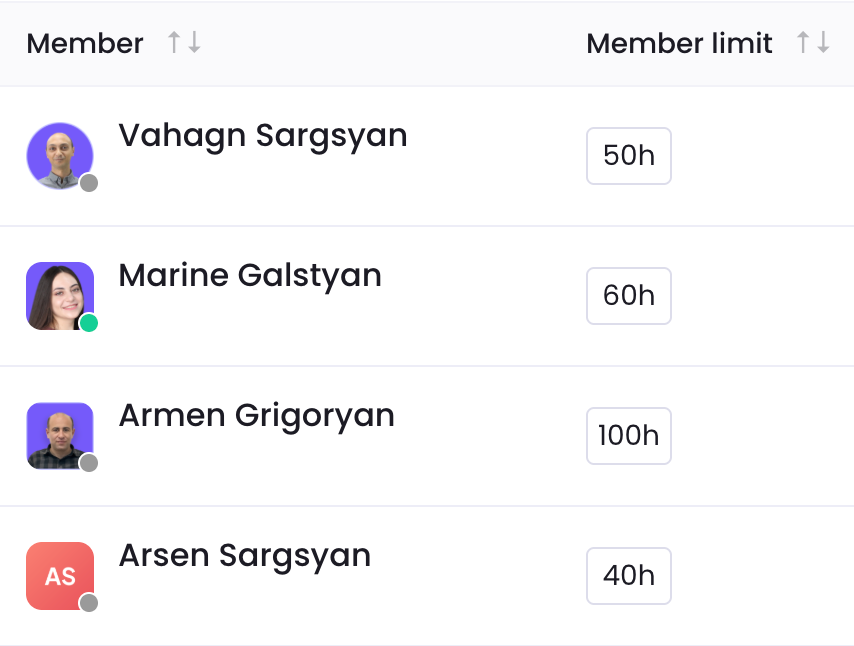
- Click the member’s Member limit cell.
- Type the hours. To remove the limit, clear the cell.
- Press Enter, or click away.
The same limit can be set in three other places:
- On the member’s page, the General tab has the Member weekly limit field.

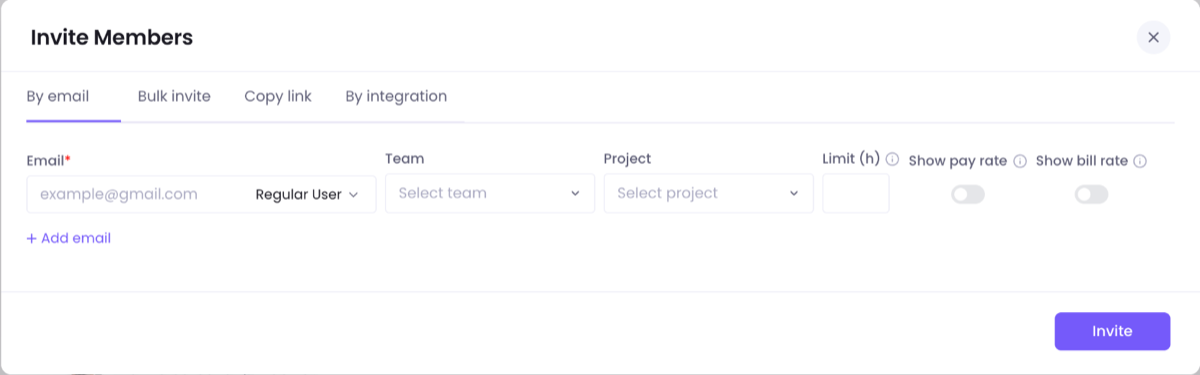
- When you invite by email, each row of the Invite Members window has a Limit (h) column. See How to invite members to your workspace?
- For several members at once, use bulk edit in People > Members and choose Member weekly limit. See How to bulk edit members?
Set a member’s weekly limit on a project
The Owner and Executive Managers change any member’s project limit. A Team Manager changes it for the members they manage, and a Project Manager on the projects they can edit.
- Open the project and go to its Members tab.
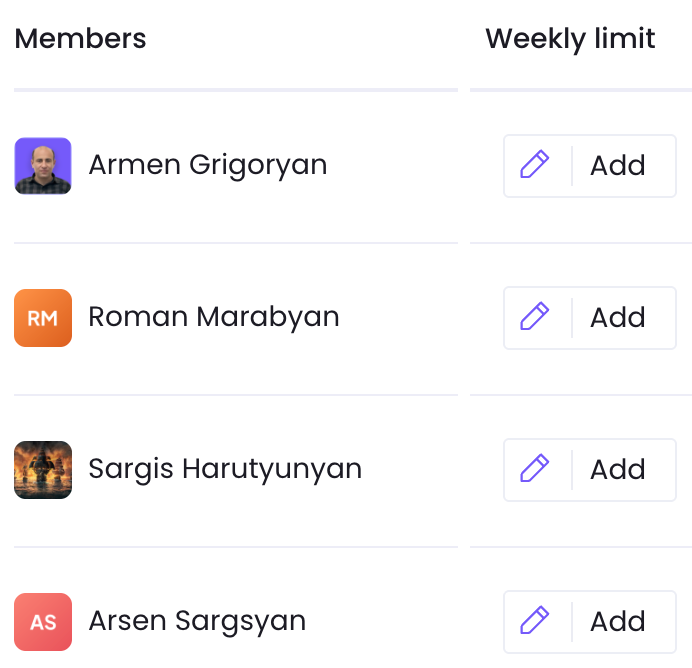
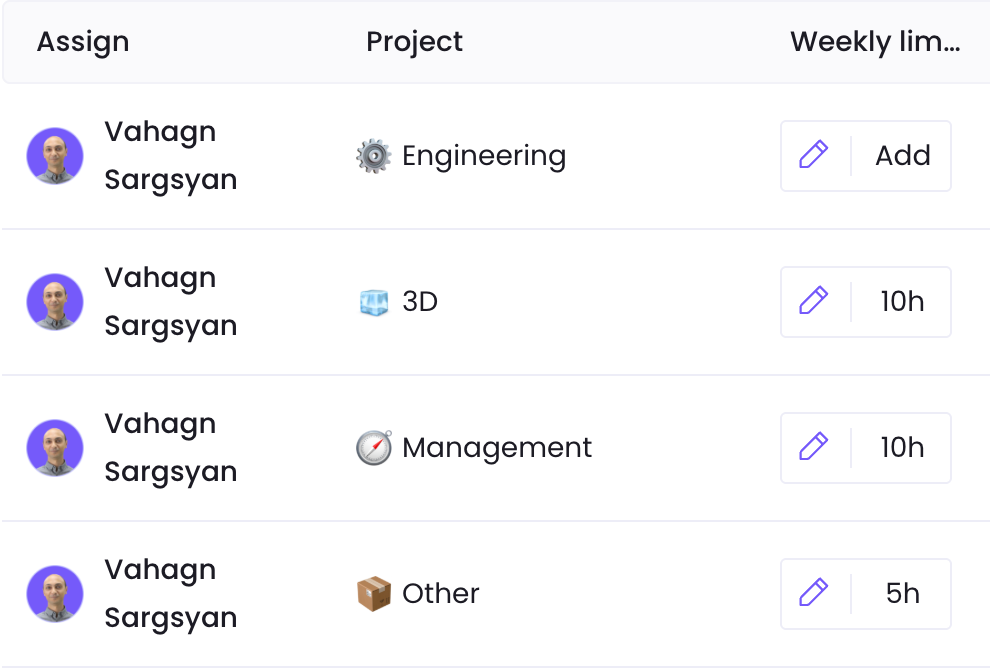
- Click the member’s Weekly limit.
- Enter the hours, then press Enter to save.
Project limits are set in these places too:
| Where | What it sets |
|---|---|
| Weekly limit per member, when you create a project | The limit of every member you add in the same window. See Projects. |
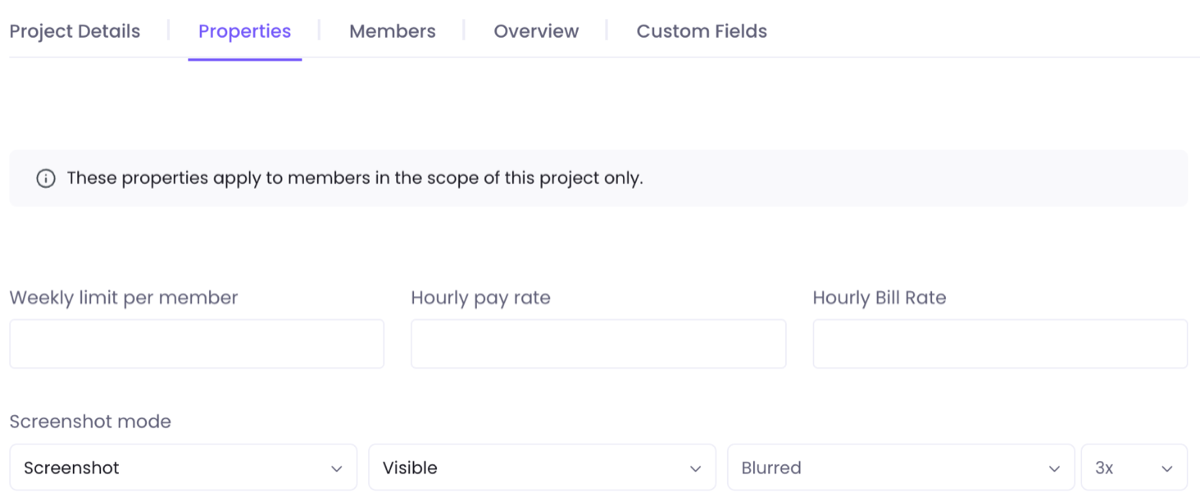
| Weekly limit per member, on the project’s Properties tab | The limit offered to members added later. It also fills the row for adding a member on the Members tab. Members already on the project keep their own limit. |
| The Weekly limit column, on the Projects tab of the member’s page | The member’s limit on each project, one row per project. |
| The Weekly limit (hrs) column, in Projects > Contracts | The limit of any member on any project. |
| The bulk Project assignment, in People > Members | A weekly limit on each project it assigns. |
Two limits are set for you. A project assignment created through the Public API without a weekly limit gets 50 hours. Members invited from an uploaded file that lists projects get a 100-hour limit on each listed project, which replaces any limit they had there.
When does the week start?
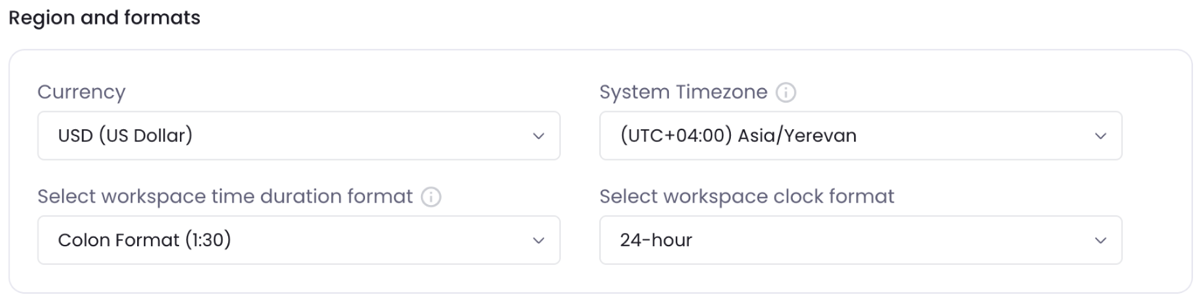
A week runs from Monday to Sunday in the workspace’s time zone: System Timezone, under Settings > Workspace > Configuration. A workspace with none uses UTC. No setting changes the first day of the week, and the count starts again from zero each Monday. Workspace Settings covers the time zone.
Which time counts toward a limit?
| Project limit | Member limit | |
|---|---|---|
| Counts | All of the member’s time on that project in the week: time from any tracker, manually added time and idle time the member kept. | Work time from the member’s projects, including manually added time and idle time the member kept. The amount counted for work without a project and paid time can differ between trackers. |
| Never counts | Idle time the member discarded, unpaid breaks, and time without a project. | Idle time the member discarded, and unpaid breaks. |
What happens in the Desktop App when a limit is reached?
The Desktop App checks the limits every minute while the timer runs, and when you click Start or start a break. Without overtime, the timer stops at the minute the limit is reached. The app gives no warning before that.
| Member limit reached | Project limit reached | |
|---|---|---|
| Pop-up | Your weekly hour limit is up: “You have tracked your required weekly hours. It means you do not need to track time anymore.”, with Got it | Project weekly hour limit is up: “You have tracked the required weekly hours for the current project.”, with Got it |
| Under the timer | User limit over | Contract limit over |
| What you can track | No project until Monday, unless a manager raises the limit or allows overtime. | Another active project whose limit you have not reached, provided your member limit also allows tracking. |
Without overtime tracking, a reached limit disables Start and prevents you from starting a break.
You see your limits in the app. On the Overview tab, This week shows your member weekly limit when one is set. The Project time details tab lists each project’s This week time and Weekly limit, with “-” for no limit, and highlights a project whose limit is reached.
After a manager raises a limit or allows overtime, the app needs fresh data:
- Click your avatar in the Desktop App.
- Click Refresh Data.
Opening the Project time details tab, or Refresh in the tray menu, does the same. Otherwise the app refreshes by itself every 11 to 20 minutes while tracking, and every 55 to 100 minutes while stopped.
Let members track past a limit
Allow overtime tracking, in Settings > Tracking > Advanced, lets a member keep tracking past both limits. Only the Owner and Executive Managers change Tracking settings. Tracking Settings covers this tab.
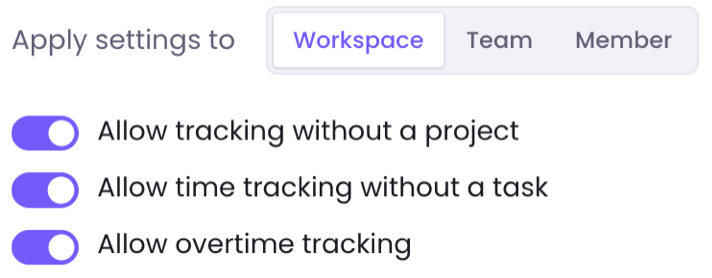
- It can be set for the workspace, for a team or for one member, chosen in the scope bar at the top. A member follows their own value first, then their first team’s, then the workspace’s.
- With it on, the pop-up says “You have tracked the required weekly hours But you can still continue tracking overtime.” For a project it says “You have tracked the required weekly hours for the current project. But you can still continue tracking overtime.” Both have Stop tracking and Continue tracking.
What happens in the Silent Tracker, the kiosk and other trackers?
| Tracker | At a limit |
|---|---|
| Silent Tracker | It stops with no pop-up or message, and does not start again until the limit is raised or the week ends. With overtime allowed, it keeps tracking. |
| Kiosk | “You are not allowed to clock in because you have exceeded your project limit.” for a project limit, or “You are not allowed to clock in because you have exceeded your user limit.” for the member limit. Changing project shows the same sentence with “change project” or “switch project” in place of “clock in”. With overtime allowed, it does not block. |
| Microsoft Teams bot | “You reached your weekly limit ([N] h). Ask the workspace owner to raise it.”, or “You reached the weekly limit for [project] ([N] h). Ask the workspace owner to raise it.” |
| Public API, Clock In | A member limit returns “This member reached the weekly limit ([N] h). Raise the limit, or allow overtime for the member.” A project limit returns “Contract [id] reached its weekly limit ([N] h). Raise the contract limit, or allow overtime for the member.” |
Why was added or requested time cut?
When a weekly limit reduces added or approved time, WebWork adds the part that fits and reports which limit stopped the rest. See Time Editor and Time Requests for adding and requesting time.
| Approving a request | Adding time | |
|---|---|---|
| Nothing fits | “Time cannot be approved for [name] — member limit reached.” or “— contract limit reached.” | “Time cannot be added for [name] — member limit reached.” or “— contract limit reached.” |
| Part fits | “[time] successfully approved for [name]. Only partial time approved due to member limit.” or “due to contract limit.” | “[time] successfully added for [name]. Only partial time added due to member limit.” or “due to contract limit.” |
- Approving several requests at once says “Requests successfully approved. For members who reached their limits, only hours up to the limit were approved. The Approved tab shows the reason on each request.”
- In Timesheets > Time Requests > Approved, the Approved time column can be less than Requested time. The reason under it reads “The member reached the weekly limit for all projects. WebWork added no time past it.” or “The member reached the weekly limit for this project. WebWork added no time past it.”
To add the rest:
- Raise the limit that cut the time: the member’s or the project’s.
- Add or request the missing time again.
Lowering the limit afterwards does not remove time already added.
Does a reached limit pause the member on the project?
No. Reaching a limit does not pause the contract, and Projects > Contracts shows no change. A paused contract is a separate cause: the project leaves the member’s project list in the Desktop App until the contract is resumed. Why does my WebWork tracker stop by itself? lists the other reasons a timer stops.
Was this article helpful?
Thanks for your feedback.