
Bulk actions on People > Members change many members at once: their weekly limit, work schedule, work model and employment type, their teams, titles and projects, or whether they are archived. The Workspace Owner and Executive Managers can use them for every member. A Team Manager can use them only for members of the teams they manage. Bulk actions are on every plan.
Choose the members
You can act on the members you tick, or on every member in the list.
- Go to People > Members.
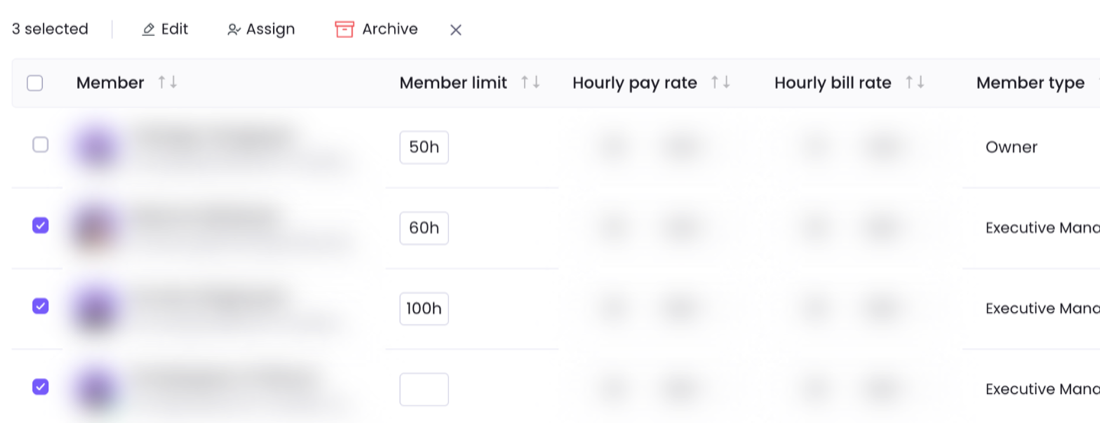
- To act on some members, hover over a member and tick the box at the left of the row. A bar above the list shows how many members are selected, with Edit, Assign and Archive. To clear the selection, click the X at the end of the bar.
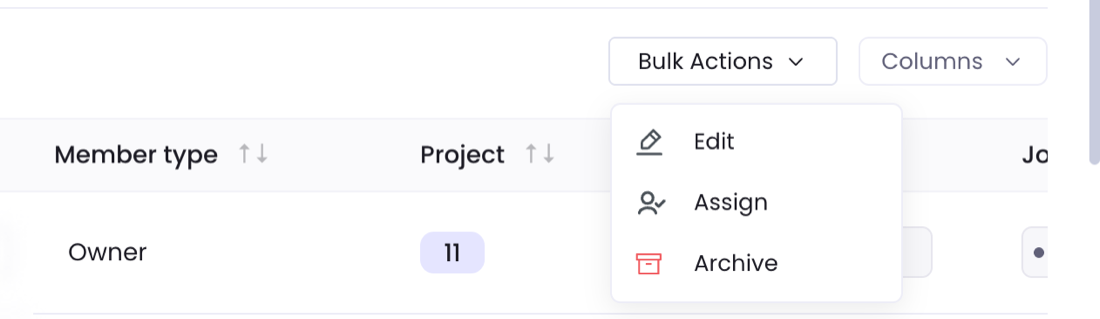
- To act on every member in the list, leave every box clear and open Bulk Actions above the list. Filter the list first to narrow it down.
Only the Workspace Owner can change the Workspace Owner’s own details. When another member uses bulk actions, the Workspace Owner is left out of the change.
Edit member details
- Click Edit. The Bulk Edit window opens and shows how many members it changes.
- Under Select Action, pick a field. Then pick its new value under Set to.
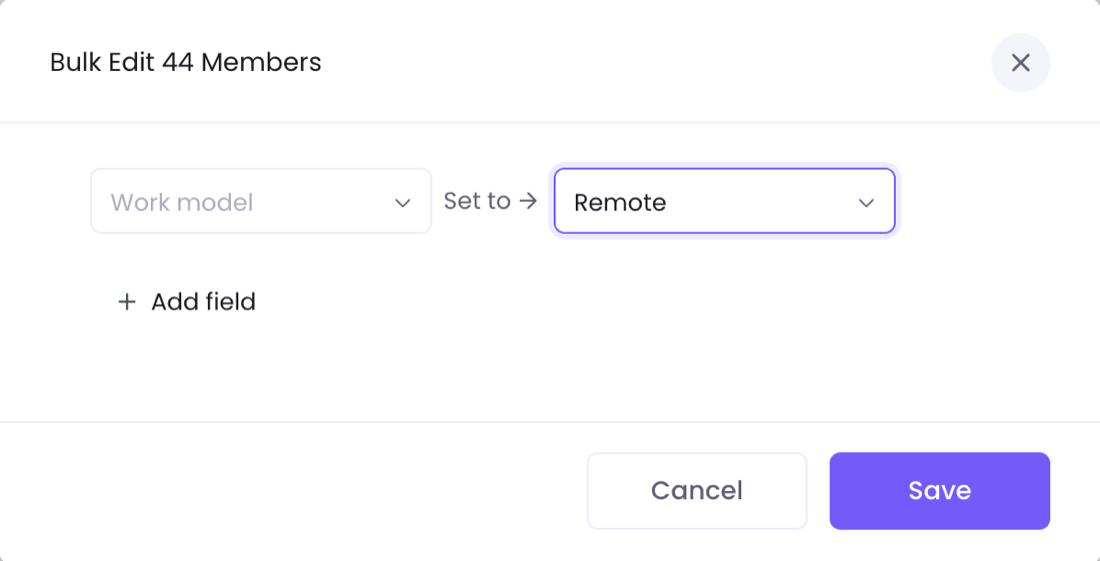
- To change another field in the same step, click Add field.
- Click Save.
| Field | Values |
|---|---|
| Member weekly limit | Hours, up to 168 |
| Work schedule | Full time, Part time |
| Work model | Office based, Remote, Hybrid |
| Employment type | Employee, Contractor |
Assign teams, titles or projects
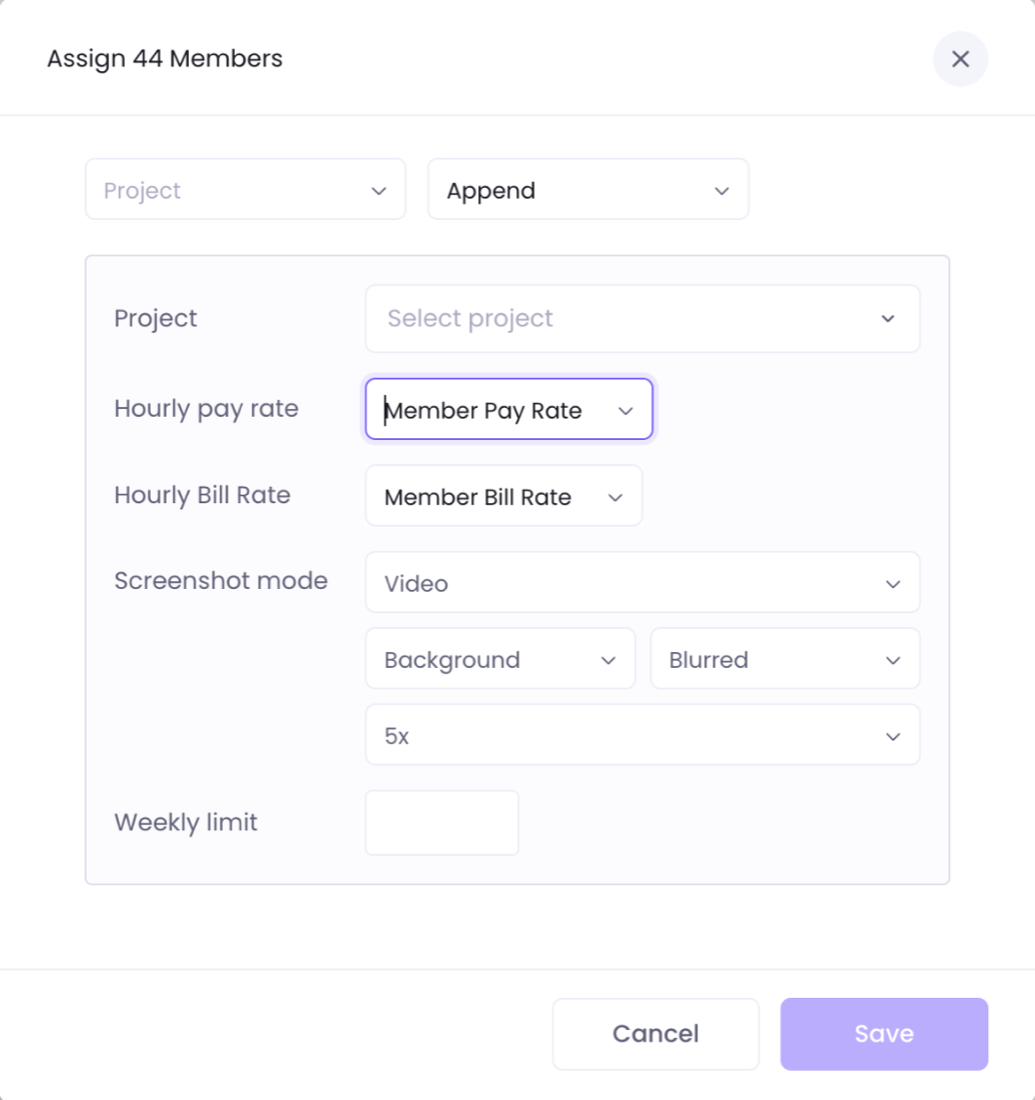
- Click Assign. The Assign window opens and shows how many members it changes.
- Under Select Action, pick Team, Title or Project.
- In the box beside it, pick Append to add to what the members already have, or Replace to remove what they have now and give them only the new ones.
- Pick the teams, titles or projects.
- For Project, also set what the members get on those projects: Hourly pay rate, Hourly Bill Rate, Screenshot mode and Weekly limit. For the pay rate, pick Member Pay Rate, Project Pay Rate or Custom Pay Rate.
- Click Save.
Replace on Project ends every project contract the members have now. WebWork sends a contract-ended notification for each one, and the members’ tasks on those projects are unassigned.
A member who is already on one of the projects stays on it, and their weekly limit, rates and screenshot mode there change to the values you set. A weekly limit left empty becomes 168 hours.
Archive members
- Click Archive.
- Confirm with Archive.
Archived members move to the Archived tab, where you can restore them.
Related articles
- Member Types and Permissions: who can do what in a workspace.
- Teams: add members to teams and remove them on the Teams page.
- Archived members: restore archived members or delete them for good.
Was this article helpful?
Thanks for your feedback.