
Leave Policy Tab
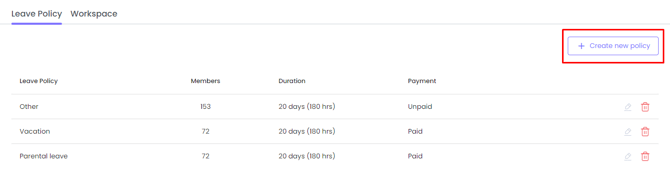
Leave Policy is a set of rules that you select when taking leave. Each policy consists of properties such as name, applicable members, working hours per day, leave duration, whether it is paid, allowance for negative balance, and requirement for a reason.
To create leave policies:
- Go to Settings > Leave > Create new policy
2. Fill out the details
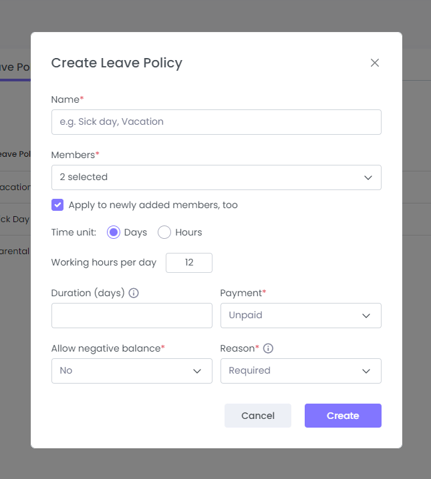
Let’s break down each property to understand what they stand for.
- Name
Give your leave policy a name, such as Vacation or Sick Days. - Members
Choose which members this policy applies to, and decide whether it should automatically apply to future members as well. - Time unit
When you select days, you’ll need to enter the policy duration in days along with the working hours per day. If you select hours, simply enter the duration in hours.
Note that you cannot edit the Time unit property after creating the policy.
- Duration
Shows how long members can take leave with this policy - Payment
Shows whether members will get paid while on leave with this policy - Allow negative balance
If set to yes, it means members can take leave days even if their leave balance is at 0. - Reason
If set to required, it means members will need to specify the reason for requesting leave.
Workspace Tab
To manage workspace-wide leave settings:
- Go to Settings > Leave > Workspace tab
In the first setting, if you select One duration for all and change the Time unit from days to hours or hours to days, the change will affect existing Leave Reports and might result in slight differences. Existing requests will maintain their units.
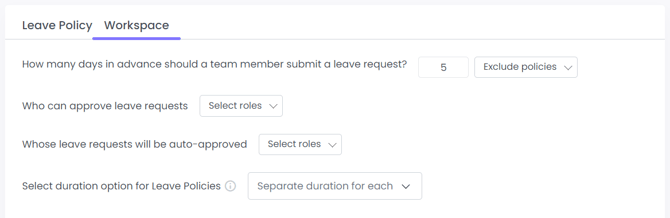
- How Many Days in Advance Should a Team Member Submit a Leave Request
Best for setting clear expectations about how early employees should request time off.
-
Defines how many days in advance leave requests should be submitted.
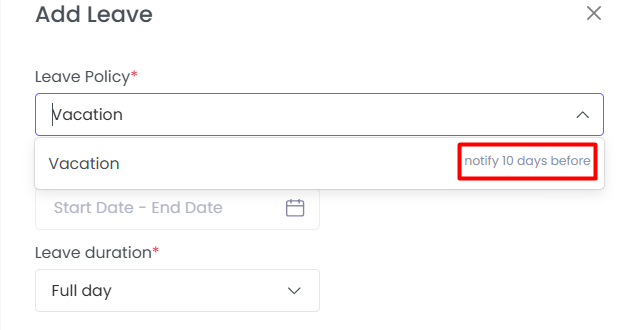
- This does not block requests with less notice. The pop-up simply shows the recommended number of days.
-
Example: If set to 5 days, the system will display this guidance when employees request leave.
-
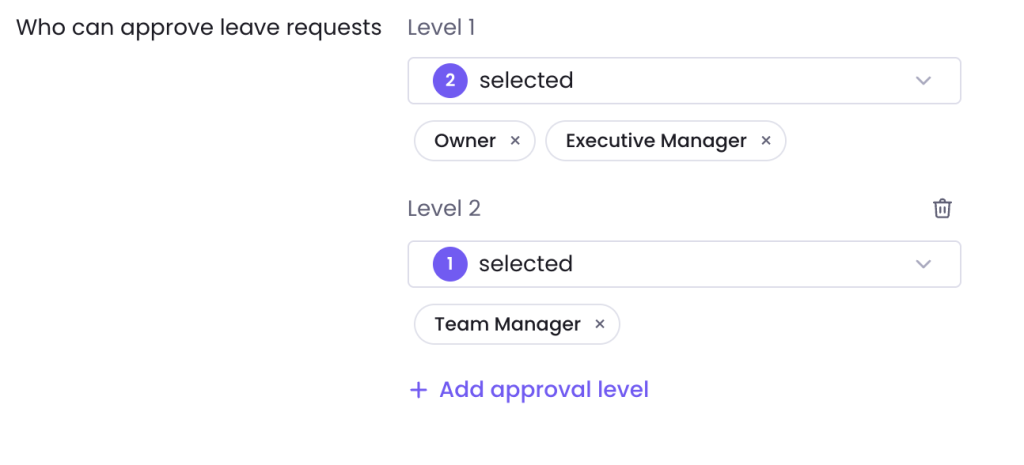
Who Can Approve Leave Requests
Helps control who in your organization is authorized to review and approve requests.Select which roles can approve leave (e.g., Team Leads, Managers).
Keeps the approval process consistent and prevents unauthorized approvals.
Whose Leave Requests Will Be Auto-Approved
Ideal if some roles should bypass manual approval.
- Choose roles whose leave requests are approved automatically.
Example: Executives or Team Leads may have their requests auto-approved.
Select Duration Option for Leave Policies
Determines how leave allowances are structured across your workspace.
- One for All – All leave types share a single pool of days.
Separate Duration for Each – Each leave type has its own allowance (e.g., 15 vacation days, 10 sick days).
Leave Schedules, Rollover, and Balance Import
Administrators can configure how leave balances are allocated throughout the year, whether unused leave carries over into the next year, and import existing leave balances from a CSV file.
These options are available when creating or editing a leave policy.
Leave balance schedule
The Schedule of Leave Balance setting determines when members receive their annual leave balance.
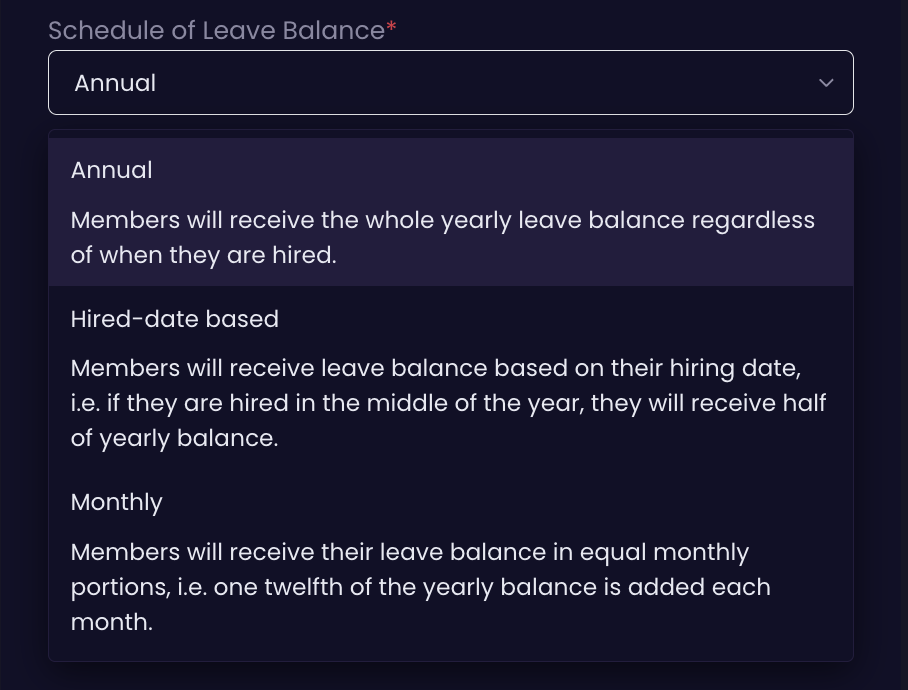
WebWork supports three schedules:
Annual
Members receive their full yearly leave balance, regardless of when they are hired.
Example:
If the annual leave balance is 24 days, a member hired in December still receives the full 24 days.
Hired-date based
Members receive a leave balance based on their hiring date. The balance is prorated according to how much of the year remains when the member joins.
Example:
If the annual balance is 24 days and a member is hired halfway through the year, they receive 12 days for that year.
Monthly
Allows leave to be accrued gradually based on the member’s time worked.
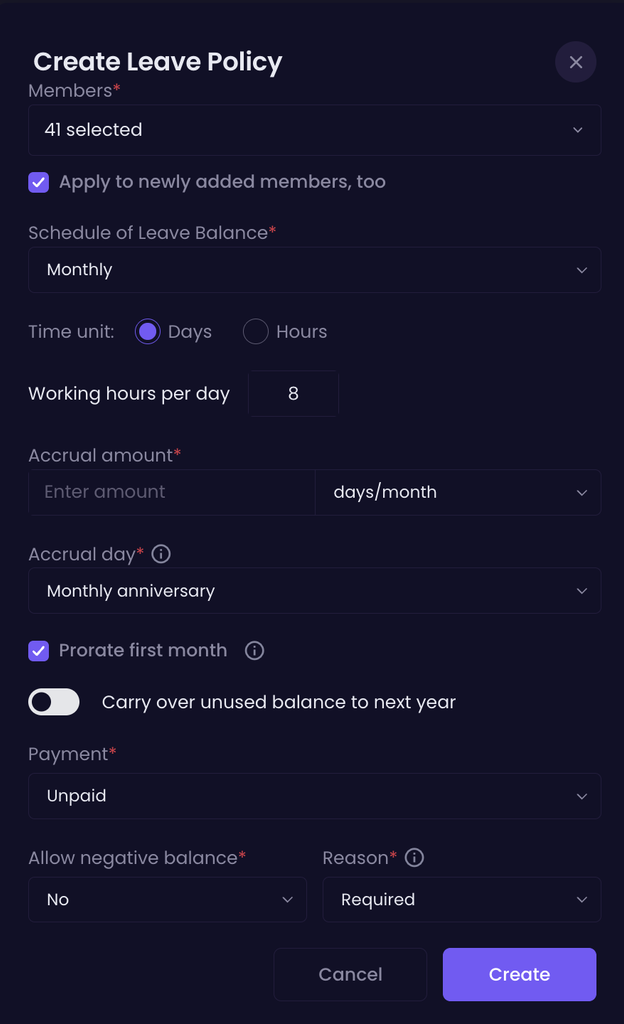
When Monthly is selected, administrators can specify the accrual amount, such as the number of leave days earned per month, and choose the accrual day. For example, with Monthly anniversary selected, the leave balance is added according to the member’s monthly employment anniversary.
Administrators can also enable Prorate first month to control how the first, partial month is handled for members who are added mid-month. When enabled, the member receives a prorated leave balance for that first month. With Monthly anniversary as the accrual day, the full monthly amount is granted right away. When disabled, the first month is skipped and leave accrual begins with the next accrual cycle.
Carry over unused balance to next year
The Carry over unused balance to next year setting determines what happens to a member’s unused leave at the end of the year.

- Enabled: Any unused leave balance carries over into the next year.
- Disabled: The unused balance resets at the end of the year.
This setting is optional and can be enabled or disabled according to your organization’s leave policy.
Import leave balances
Administrators can import current leave balances from a CSV file instead of updating members’ balances manually.
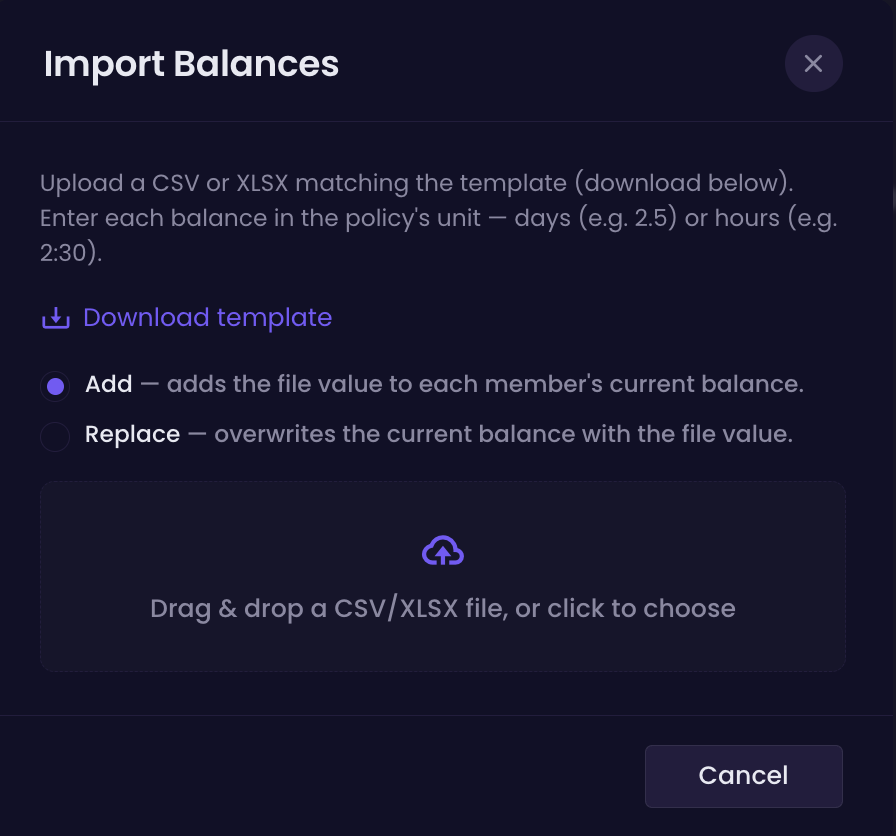
When importing a CSV file, you can choose how the imported values should be applied:
- Replace – overwrites the current balance with the file value.
- Add – adds the file value to each member’s current balance.
Review changes before importing
WebWork validates and analyzes the CSV file before making any changes.
After you upload the file, the system:
- Analyzes the CSV file.
- Identifies the changes that will be made to members’ leave balances.
- Shows a preview of the exact changes.
- Flags any issues found in the file.
- Applies the changes only after the issues are resolved and you confirm the preview.
This means an invalid or incorrectly formatted file will not overwrite existing leave balances.
Was this article helpful?
Thanks for your feedback.