
Payment Methods Tab
You can manage your workspace’s billing, subscription, and payment details directly from the
Billing Settings- Go to Settings > Billing.
- From here, you can view and update your subscription, payment methods, invoices, and company billing details.
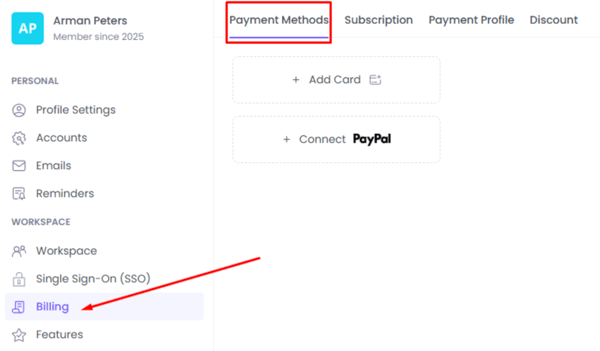
In the Payment Methods tab, you can add and manage the payment method for your account. This ensures your subscription renews without interruptions.
Subscription Tab
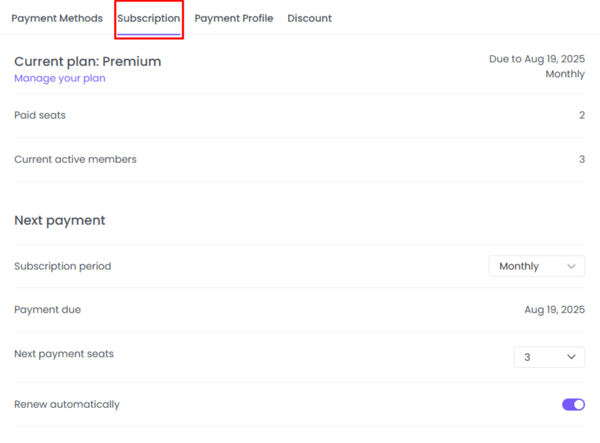
Go to the Subscription tab to manage your active subscription. Here you can:
- View your current plan.
- Manage or upgrade/downgrade your plan.
- See the number of paid seats and the list of active members.
Every active member is a paid seat, including the Workspace Owner. Project Viewers are not counted as paid seats. This is also stated in our pricing page.
Under the subscription details, you can also manage your upcoming payment:
- Choose subscription period – Monthly, Quarterly, or Yearly.
- View payment due date.
- Adjust seats – Add additional paid seats if needed.
- Enable automatic renewal to ensure continuous service.
Payment Profile Tab
In the Payment Profile tab, you can add your company’s billing information, including:
- Company name
- Registration country
- Registration address
- Brand name
- VAT number
- GST number
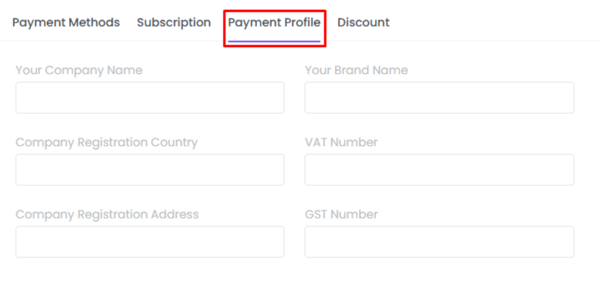
Adding accurate details ensures invoices include the correct company information for accounting purposes.
Was this article helpful?
Thanks for your feedback.