
WebWork connects with Microsoft Teams, so your team can receive notifications and act on work items directly from the chat, without switching tools.
What you get
- Notifications where you work — timesheet approvals, leave requests, and reminders delivered as Teams messages
- Approvals in one click — approve, reject, and manage requests from interactive cards
- WebWork AI in the chat — check performance, analyze tracking data, or create tasks and projects by asking
- A personal WebWork tab — see today’s tracked time with start and stop controls, inside Teams
- Automated celebrations — birthday and holiday messages posted for you
- Recurring team automations — standup reminders and more
Connecting Microsoft Teams
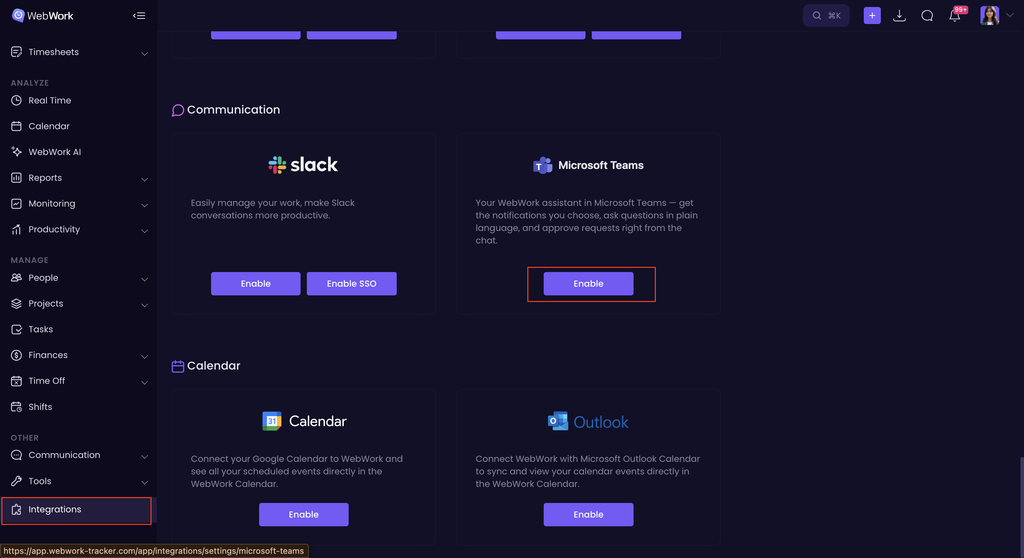
First of all go to Integrations, find Microsoft Teams and click “Enable”:
1. Get the app package
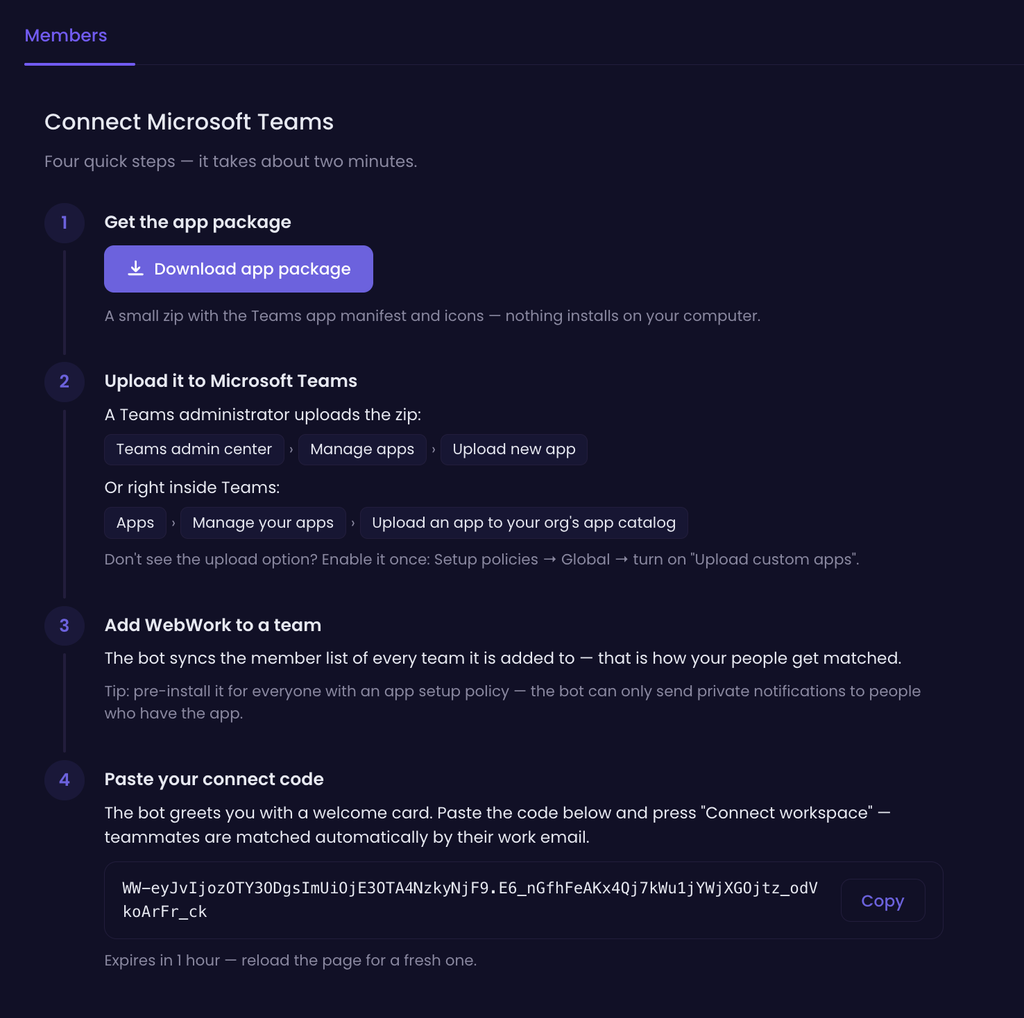
Click Download app package. This is a small zip containing the Teams app manifest and icons, nothing installs on your computer.
2. Upload it to Microsoft Teams
A Teams administrator uploads the zip, either through:
- Teams admin center → Manage apps → Upload new app, or
- Right inside Teams: Apps → Manage your apps → Upload an app to your org’s app catalog
If you don’t see the upload option, it needs to be enabled once: Setup policies → Global → turn on “Upload custom apps.”
3. Add WebWork to a team
Add the WebWork bot to a team in Microsoft Teams. The bot syncs the member list of every team it’s added to; that’s how your people get matched to their WebWork accounts.
Tip: pre-install the app for everyone using an app setup policy. The bot can only send private notifications to people who have the app installed, without it, they’ll show as “Can’t message yet.”
4. Paste your connect code
Once added, the bot greets you with a welcome card. Copy the connect code shown on the WebWork integration page, paste it into the bot, and press Connect workspace. Teammates are matched automatically by their work email.
The connect code expires in 1 hour — if it expires, reload the page for a fresh one.
Managing the integration
Once connected, you’ll land on the integration page, with two tabs: Members and Settings.
Members
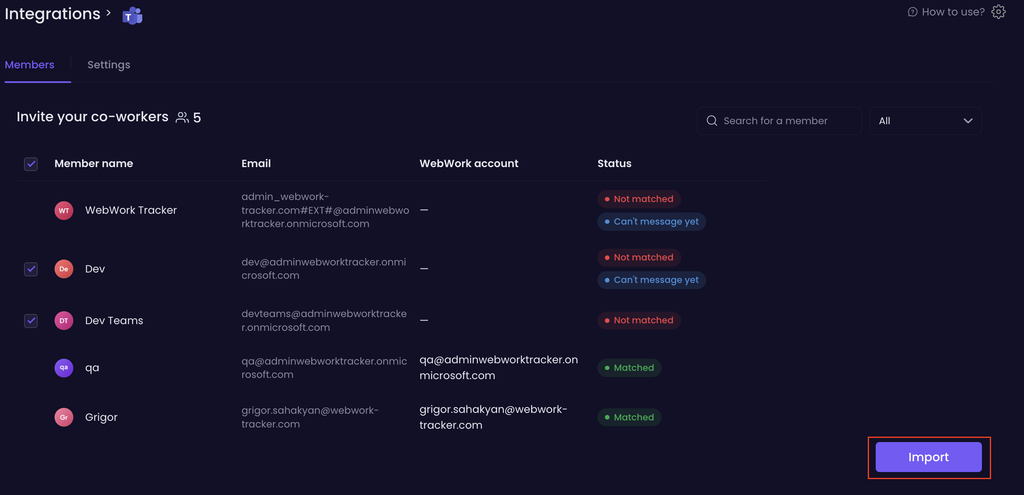
This tab shows everyone the bot found through your connected Teams, along with their Email, matched WebWork account, and Status:
- Matched — the Teams member’s email matches an existing WebWork account, so they’re ready to receive notifications and use the integration.
- Not matched — no corresponding WebWork account was found for that email.
- Can’t message yet — the WebWork app isn’t installed for this person yet, so the bot can’t send them private messages. A Teams admin can pre-install it for everyone using an app setup policy to avoid this.
Select members and click Import to bring unmatched members into WebWork.
Settings
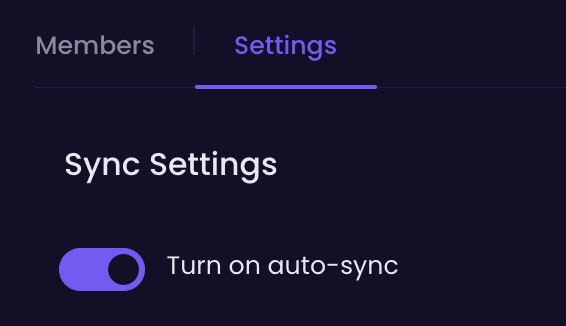
Under Sync Settings, turn on auto-sync to keep your Teams members and WebWork workspace in sync automatically, rather than needing to re-check matches manually.
Note: You should be using the paid version of Microsoft Teams in order to be able to implement the integration.
Was this article helpful?
Thanks for your feedback.