
How does our Freshdesk integration boost workflow on WebWork?
The WebWork Freshdesk integration is built so a support team never has to leave Freshdesk to get accurate time data. Companies come in as projects, tickets as tasks, and agents as members matched by email, so managers get verified, automatically captured time in the same reports they already use for invoicing, without any manual timer entry.
How to enable the integration?
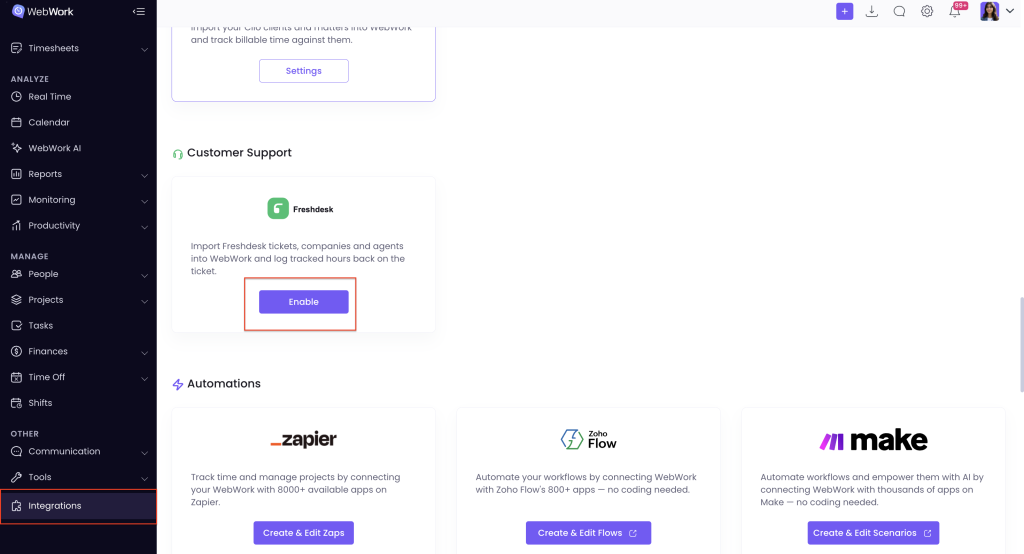
First and foremost, you should go to the Integrations page and select Freshdesk from the Customer Support section. Click Enable.
You’ll then be asked for your Freshdesk address (yourcompany.freshdesk.com) and your API key. The key must belong to an administrator account. To get it:
- Log in to your Freshdesk account as an administrator.
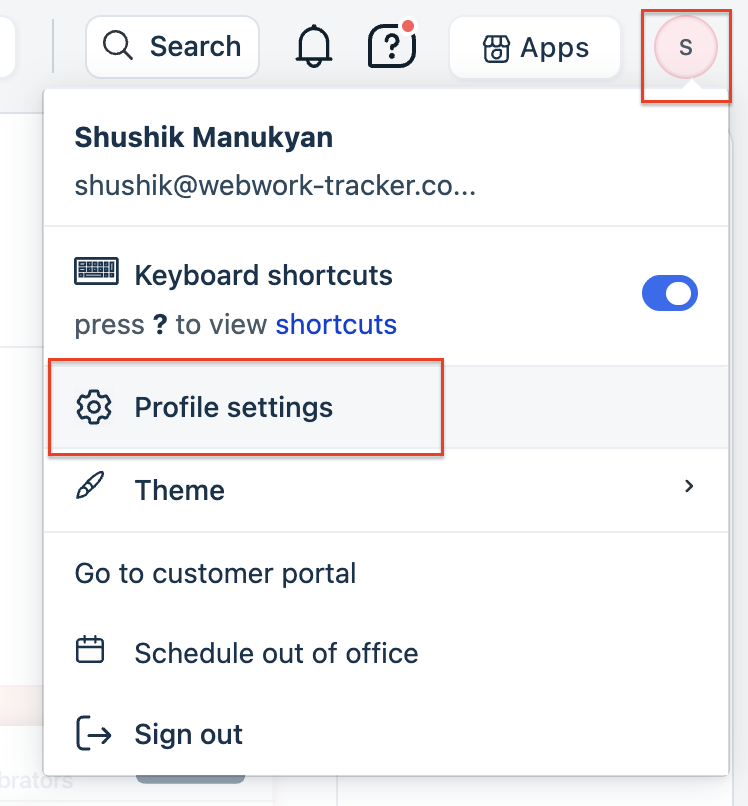
- Click your profile picture in the top-right corner and choose Profile Settings.
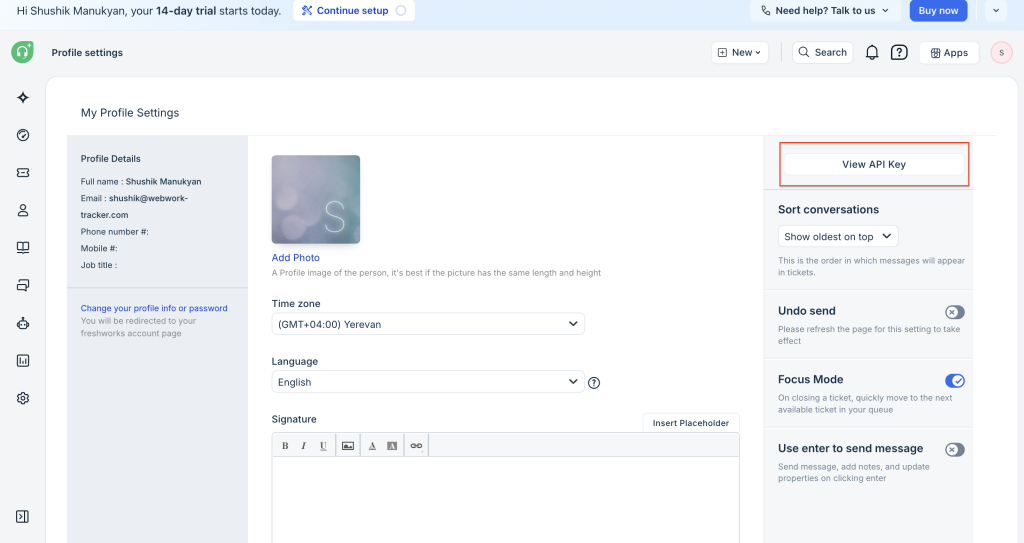
- Click View API Key on the right side of the page.
- Complete the CAPTCHA to reveal the key, then copy it into the field in WebWork.
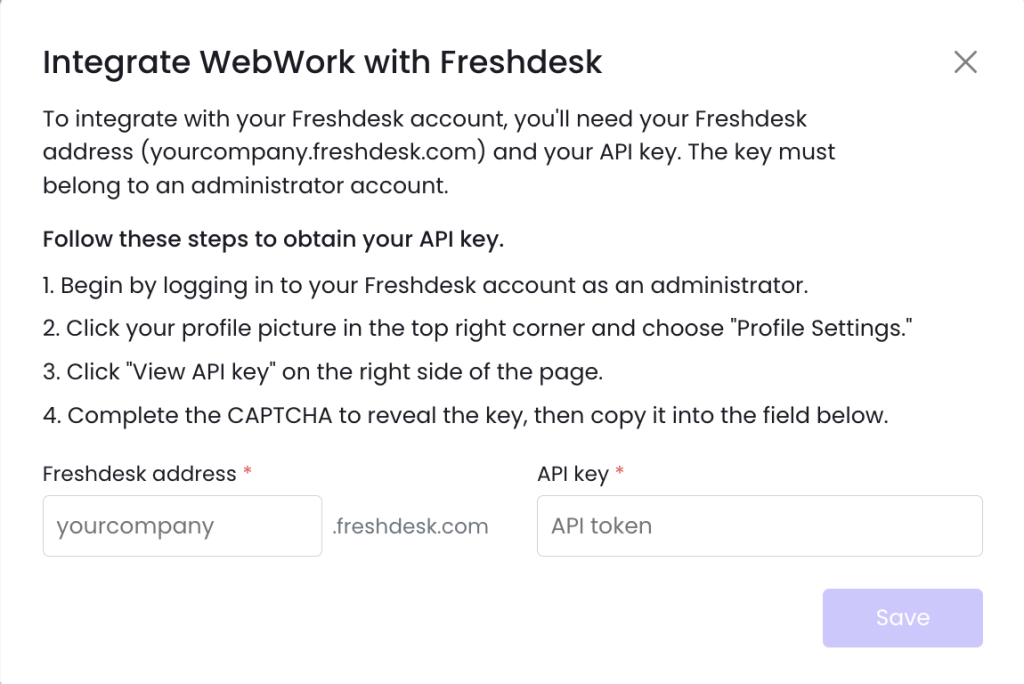
Enter your Freshdesk address and API key and click Save. You’ll then land on the main integration page.
- Manage Members
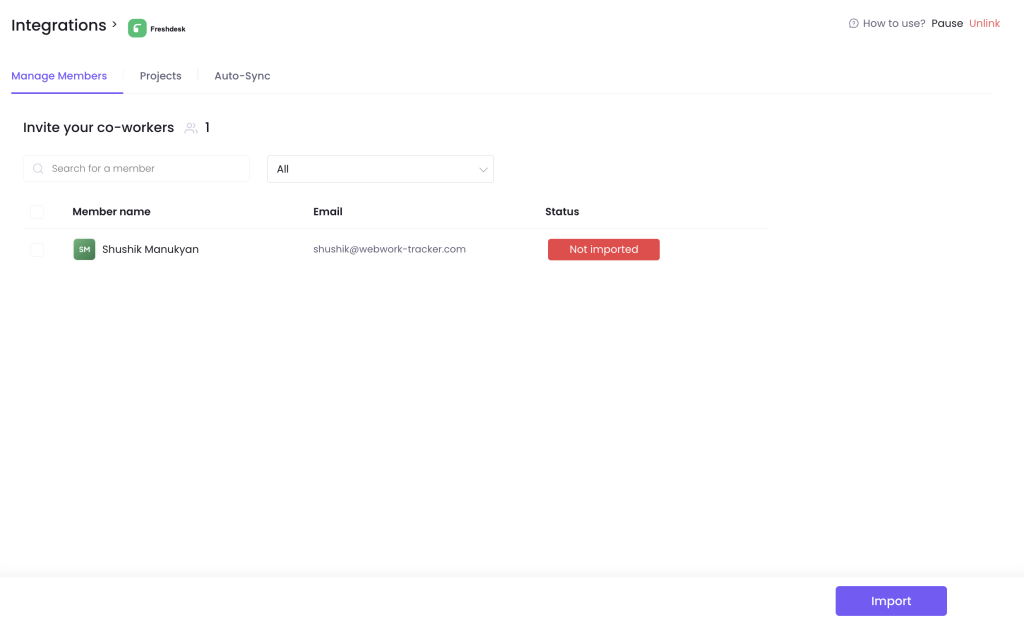
You can import your agents from Freshdesk to avoid manually adding them and save time. Each agent will show as Not imported until you select them and click Import. Note that if you’ve already added some of your members manually to WebWork, agents with the same email on both tools won’t be duplicated.
- Projects
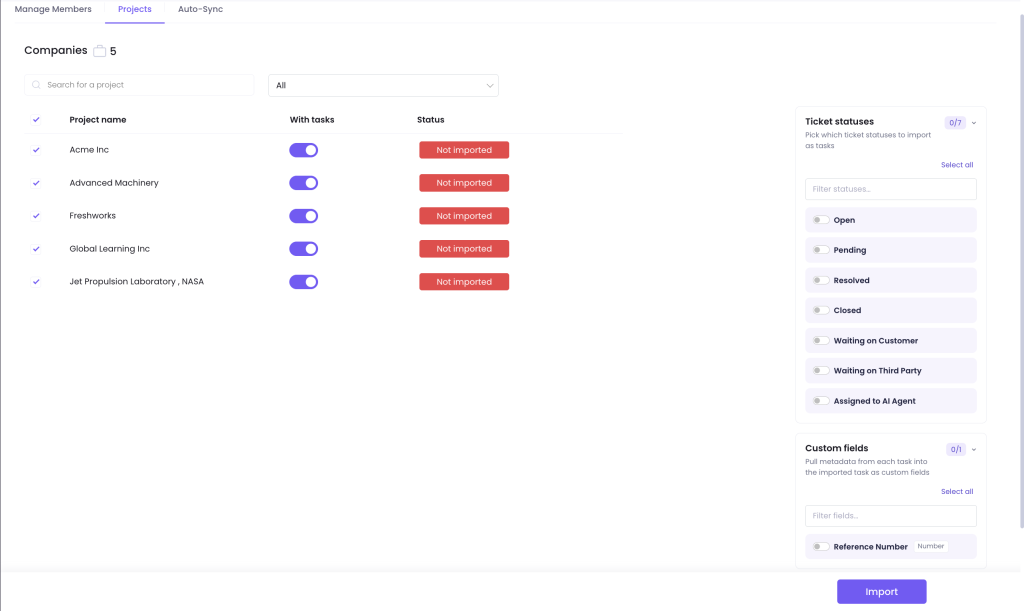
Companies become projects, and tickets become tasks. For each company, you can toggle With tasks on or off depending on whether you want that company’s tickets imported. On the right, you can choose which ticket statuses to import as tasks (Open, Pending, Resolved, Closed, Waiting on Customer, Waiting on Third Party, Assigned to AI Agent), and which custom fields — like Reference Number — to pull in as metadata on the imported tasks. Once you’ve made your selections, click Import.
- Auto-Sync
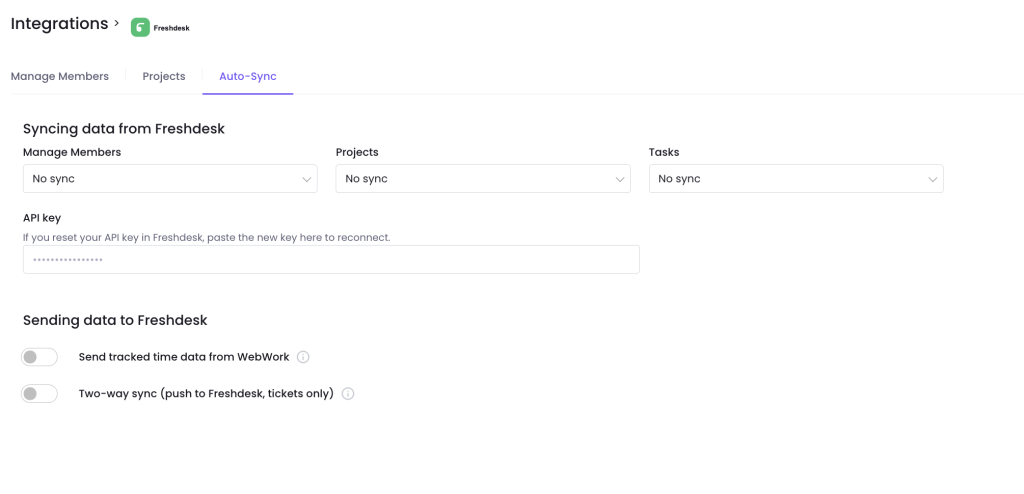
If you want to save time and avoid double data entry, you can set up auto-sync for Members, Projects, and Tasks separately, so changes made in Freshdesk are reflected in WebWork automatically. If you ever reset your API key in Freshdesk, paste the new key into the API key field here to reconnect the integration.
What Syncs Back to Freshdesk: Under Sending data to Freshdesk, you can turn on Send tracked time data from WebWork. Once enabled, tracked hours are added to the linked Freshdesk ticket as native time entries — one per member per day, attributed to the matching Freshdesk agent. Members without a linked agent are skipped.
You can also turn on Two-way sync (push to Freshdesk, tickets only). With this enabled, WebWork pushes ticket changes back to Freshdesk: subject, status, priority, due date, and the assigned agent. The customer’s description is never modified, and nothing is ever created or deleted in Freshdesk. Keep in mind that a status change can trigger your existing Freshdesk automations, such as resolution or CSAT emails to the customer.
Was this article helpful?
Thanks for your feedback.