
How does our Todoist integration boost workflow on WebWork?
The WebWork Todoist integration brings a user’s Todoist projects into WebWork so tracked time always sits on real projects and tasks. Planning stays in Todoist, and WebWork adds time tracking, screenshots, and activity monitoring on top; then keeps both tools in sync as work happens in either one.
Enabling the Todoist integration
By integrating Todoist with WebWork, you can import projects, tasks, and members to your workspace.
To enable the Todoist integration:- On your WebWork dashboard, go to Integrations
- Click Enable below Todoist
WebWork will request access to your Todoist account. Review the necessary permissions and click Agree to give it access.
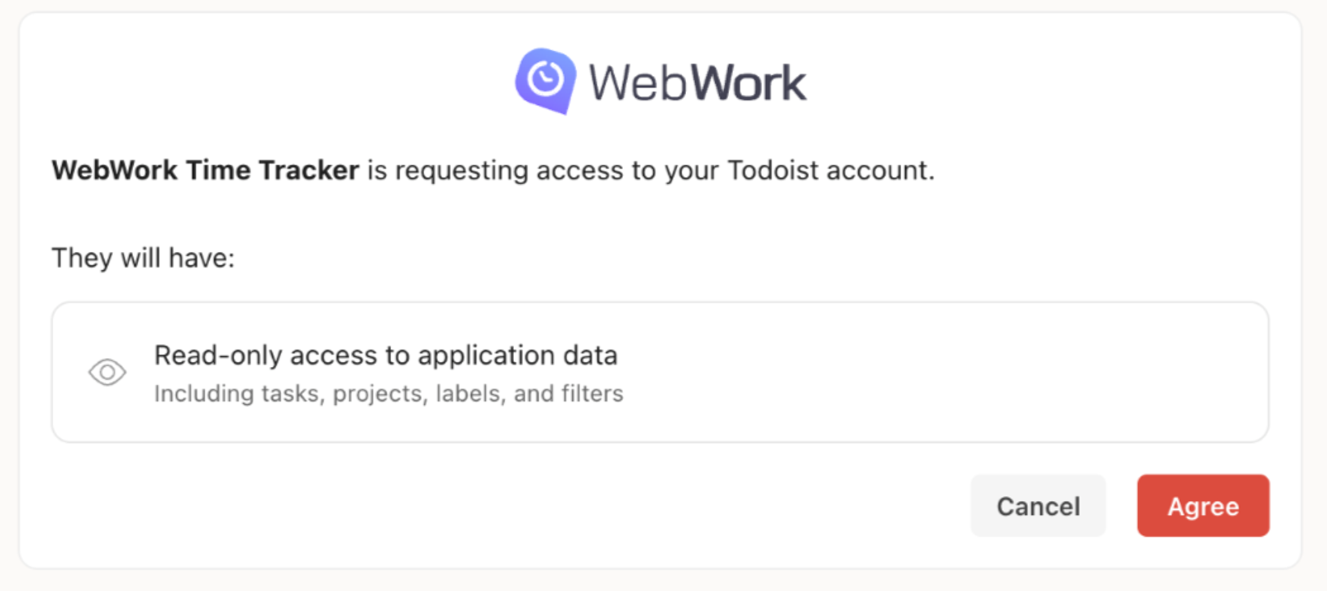
Once connected, WebWork automatically recognizes your Todoist plan. Features that Todoist only offers on Business plans, like member sync, will only show up if your account actually supports them, so you won’t see options you can’t use.
Manage Members
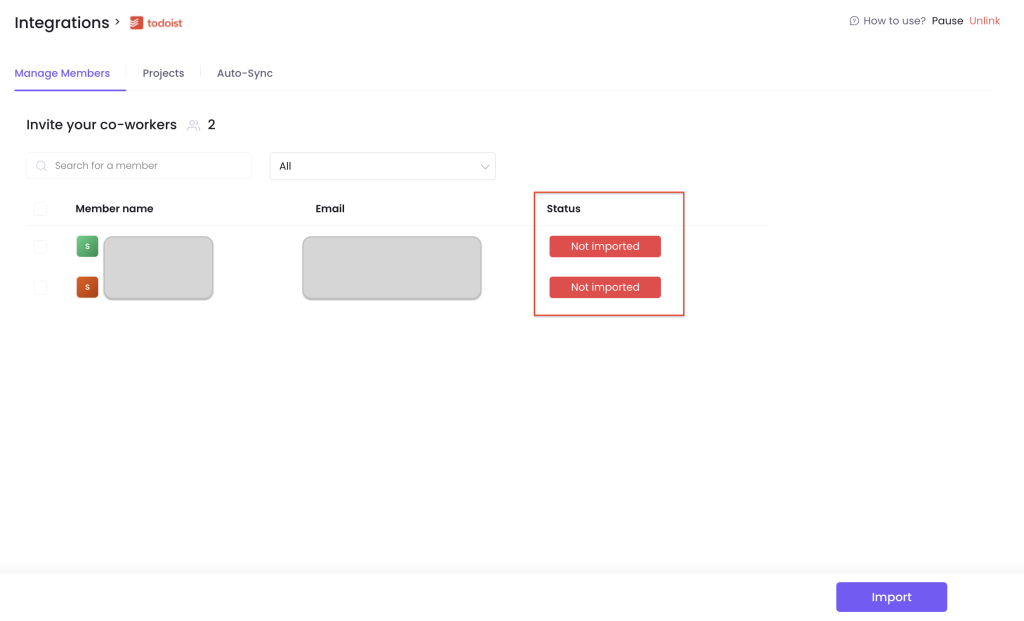
If your Todoist account is on a Business plan, your workspace members are invited to WebWork automatically once you connect. This tab lets you review and manage which members have been imported.
Projects
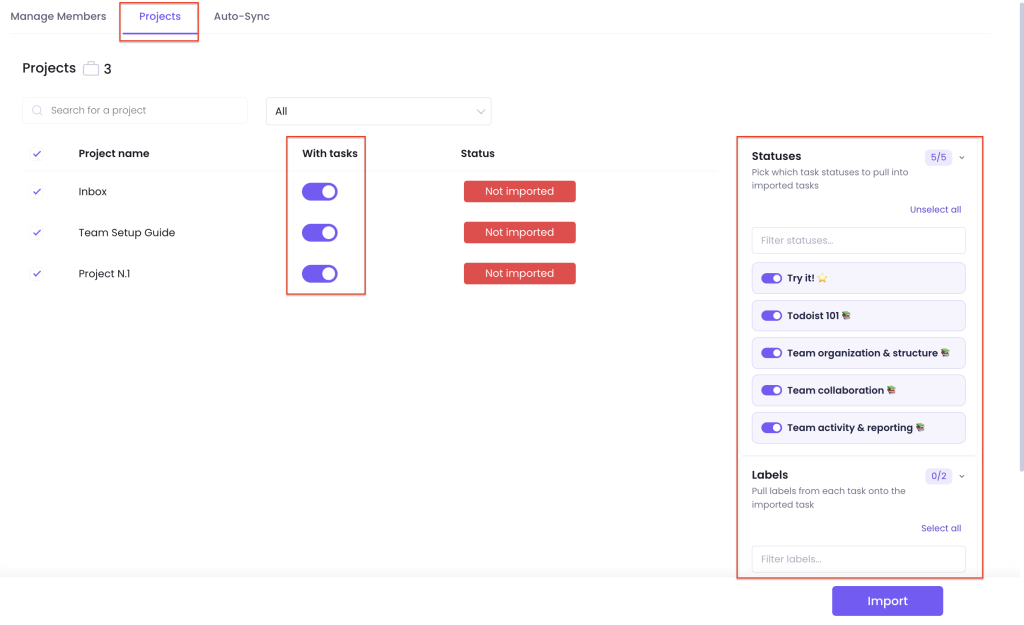
Go to the Projects tab to choose what to import. Toggle With tasks on for each project you want tasks pulled in for, then click Import.
- Projects come in along with their nested sections, so only the structure you actually use in Todoist comes into WebWork.
- Tasks are imported together with their sub-tasks, and keep their priority, labels, due dates, and recurring rules intact.
- On the right, you can pick which task statuses to pull in as imported tasks, and choose whether to pull labels from each task onto the imported task as well.
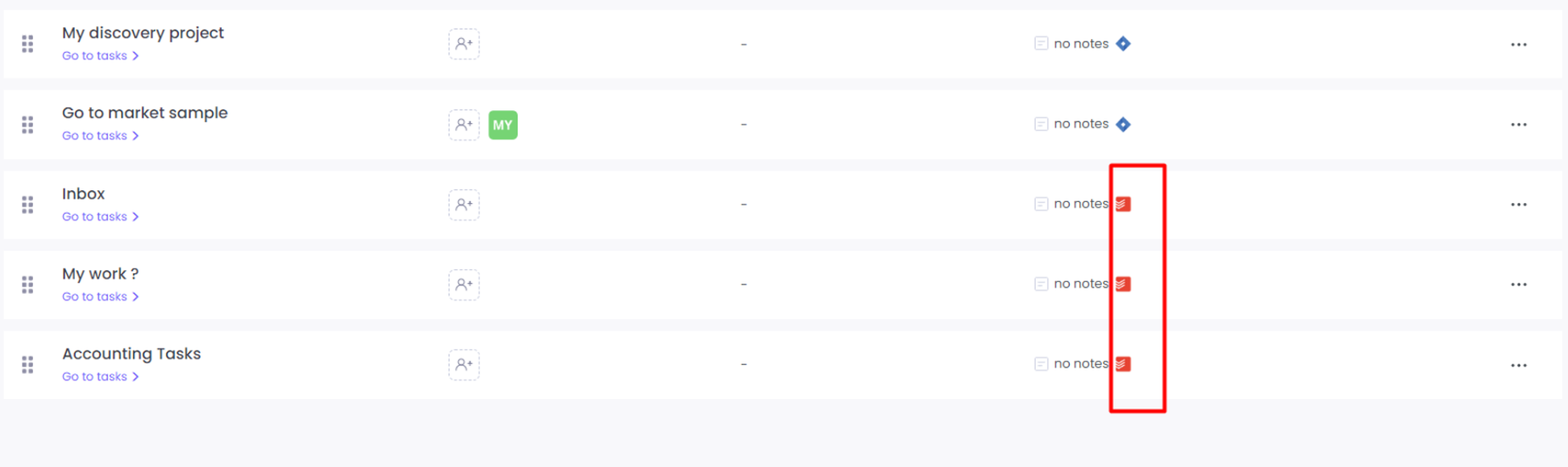
Imported projects will have the Todoist icon next to them on the Projects page so you know they are from Todoist.
Auto-Sync
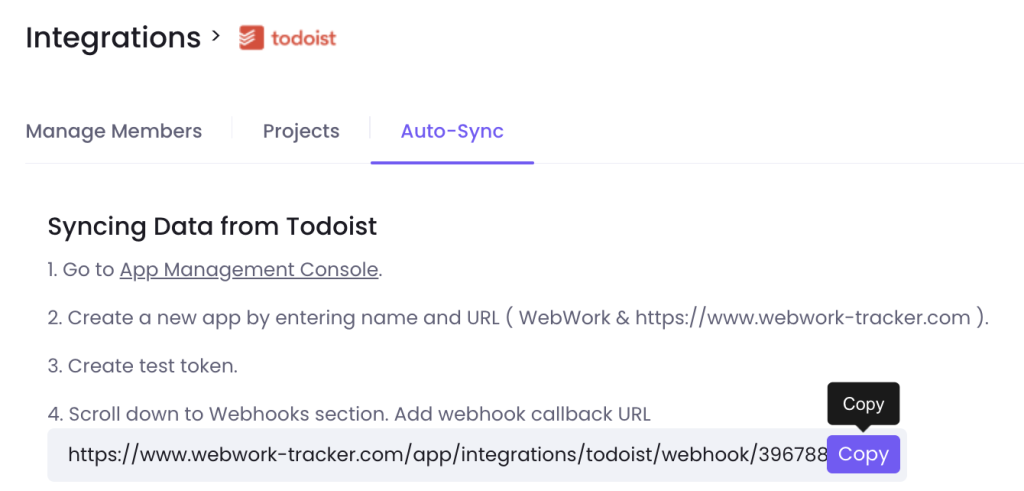
To keep data flowing automatically between the two tools, go to the Auto-Sync tab and set up a webhook:
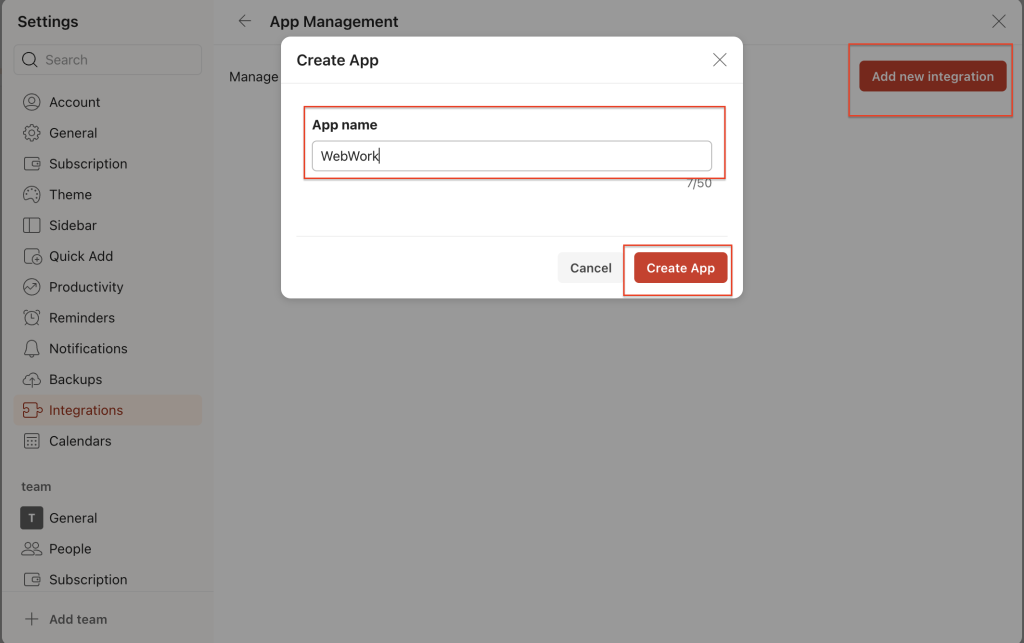
- Go to the App Management Console.
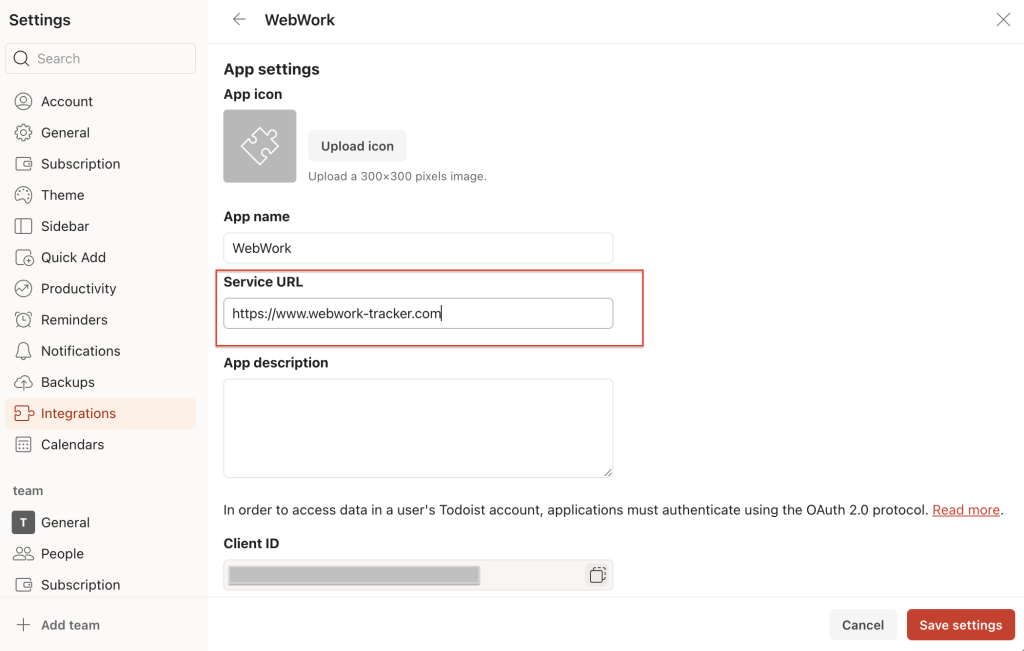
- Create a new app by entering a name and URL (e.g. WebWork and
https://www.webwork-tracker.com).
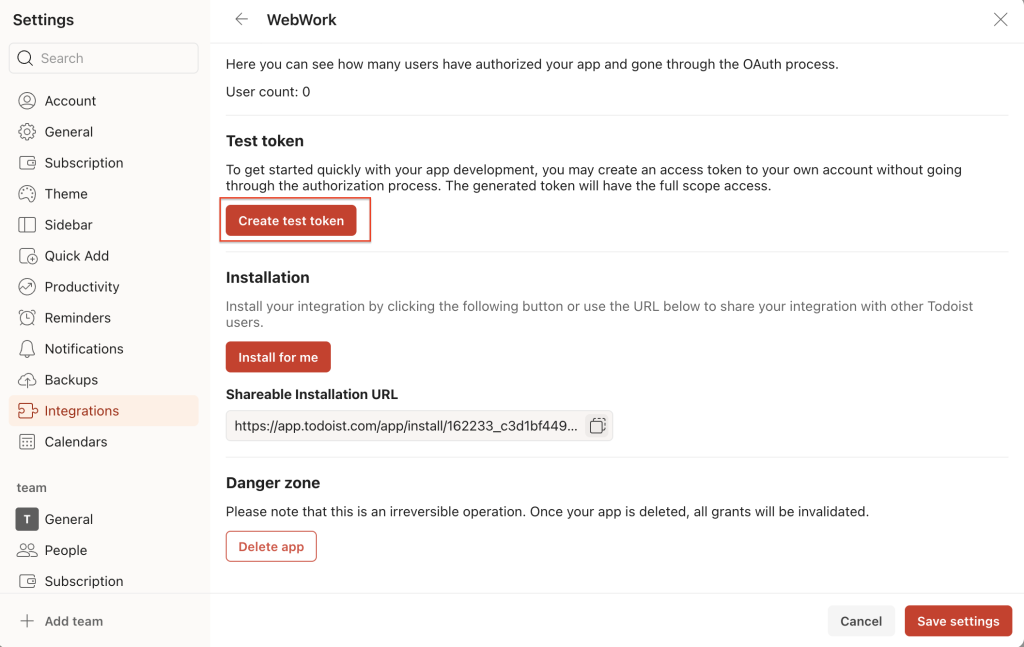
- Create a test token.
- Scroll down to the Webhooks section and add the webhook callback URL shown on the Auto-Sync tab in WebWork, then click Copy to grab it.
- Under Watched Events, check item:added, item:updated, item:deleted, item:completed, item:uncompleted, project:added, project:updated, and project:deleted. Then click Activate webhook.
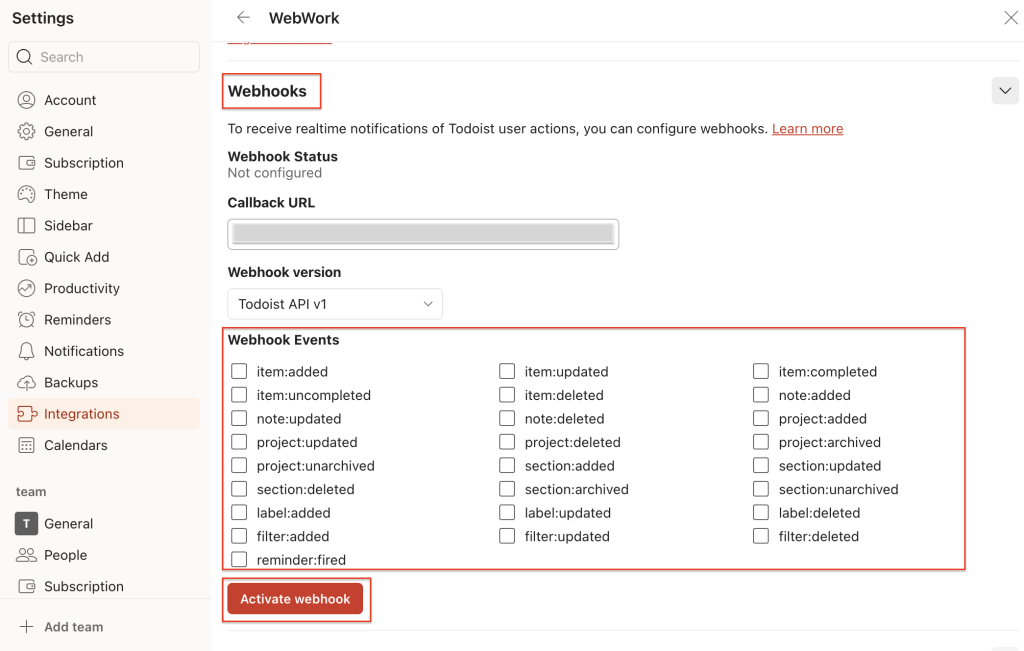
Once the webhook is active, use the Projects and Tasks dropdowns on the Auto-Sync tab to choose your sync behavior for each. With auto-sync on, changes made in Todoist are reflected in WebWork as they happen; completing a task, moving it to another project, or changing its labels, for example.
Working with tasks in both directions
The integration works both ways, so you’re never stuck switching tools:
- Completing tasks: completing or reopening a task in WebWork does the same to the matching task in Todoist.
- Creating tasks from WebWork: create a new task directly in WebWork and pick which Todoist project it should go into; it’s created in Todoist automatically.
- Editing tasks: changes to a task’s content, description, due date, or priority in WebWork are written back to Todoist.
Sending time to Todoist
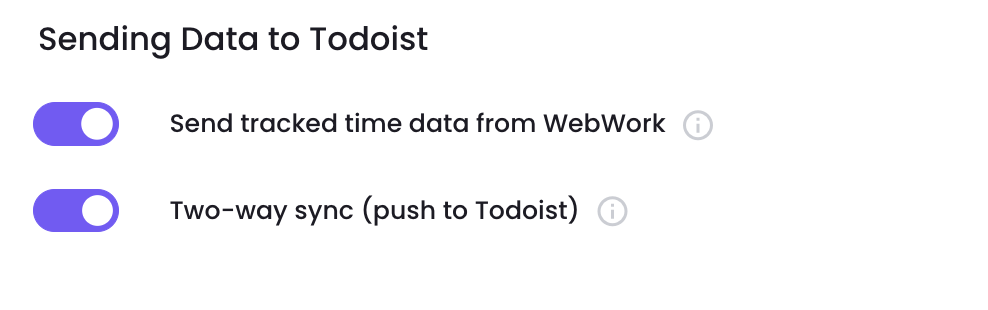
Since Todoist has no built-in time tracking, tracked hours aren’t written as native time entries. Instead, under Sending Data to Todoist, turn on Send tracked time data from WebWork to have tracked time added to the Todoist task as a comment, with a link back to the corresponding time entry in WebWork.
You can also turn on Two-way sync (push to Todoist) to have the edits and completions described above pushed back to Todoist as they’re made in WebWork.
Was this article helpful?
Thanks for your feedback.