The HR Cloud integration connects your HR data with WebWork, so you don’t have to maintain employee information, team structure, holidays, and time off in two separate systems.
Once connected, you can import HR Cloud employees into your WebWork workspace, sync departments and job positions, and bring approved time off and company holidays into WebWork.
WebWork checks HR Cloud for updates every hour, helping both systems stay aligned automatically.
What syncs between HR Cloud and WebWork?
With the HR Cloud integration, you can sync:
People: HR Cloud employees can be linked to existing WebWork members or invited to your workspace.
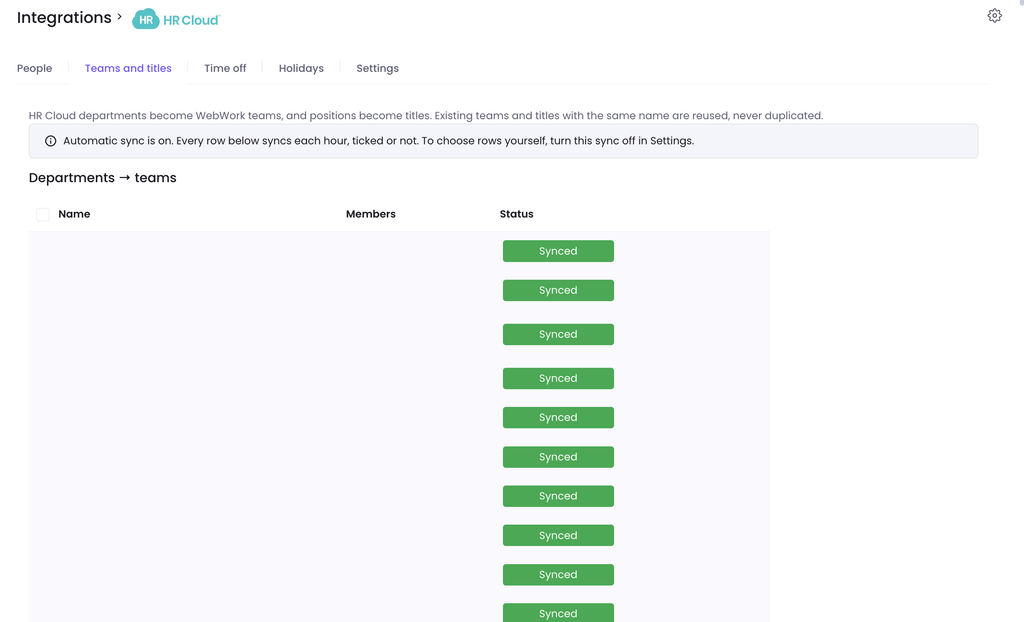
Teams and titles: HR Cloud departments become WebWork teams, while positions become titles.
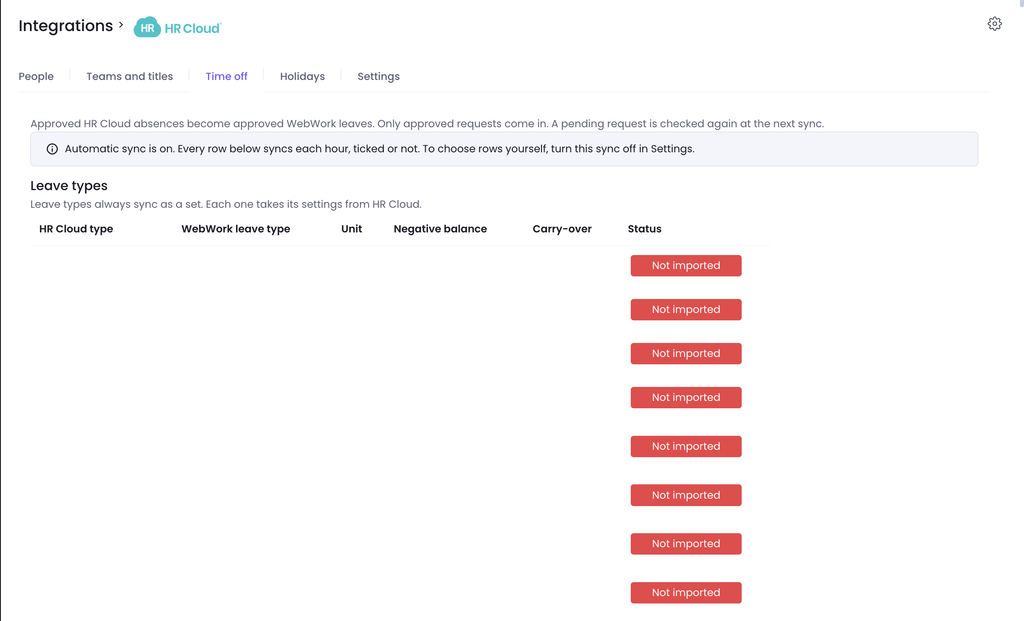
Time off: Approved HR Cloud absences become approved WebWork leaves. If an absence is canceled in HR Cloud, it is removed from WebWork as well.
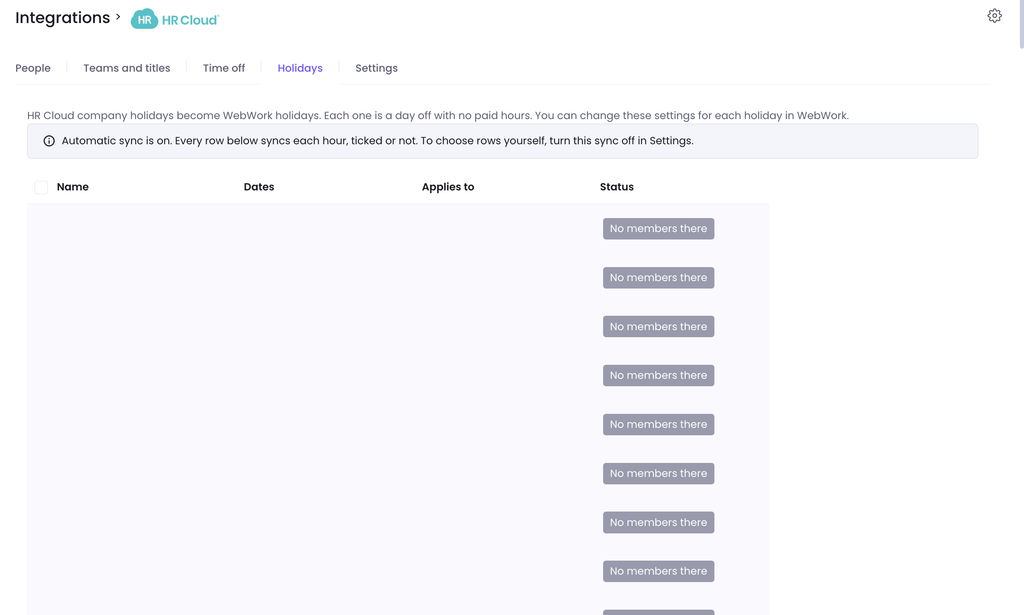
Holidays: Company holidays from HR Cloud can be added to WebWork automatically.
You can choose which automatic sync options you want to enable from the integration settings.
How to connect HR Cloud to WebWork
Connecting HR Cloud to WebWork takes about 5 minutes.
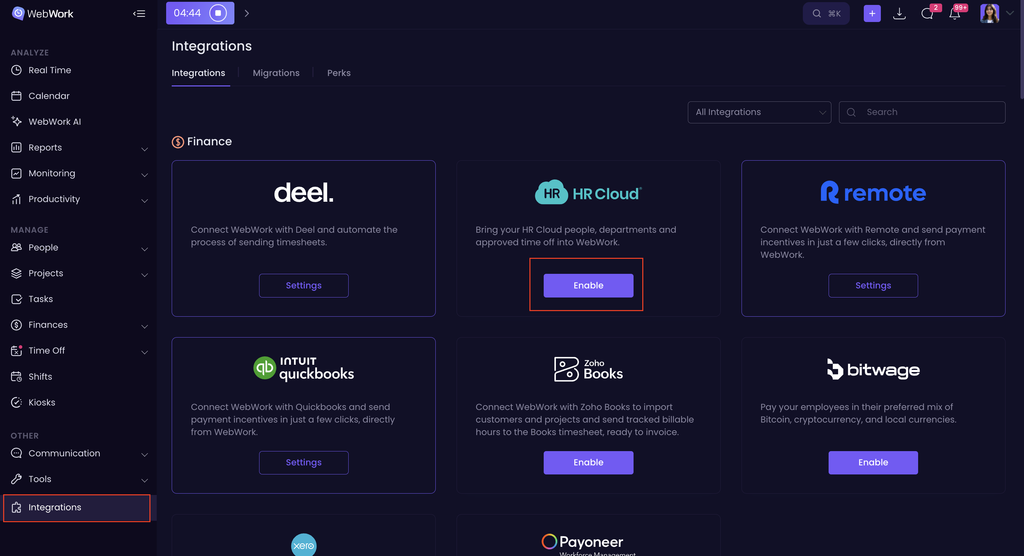
At first go to Integrations, find HR Cloud and click “Enable”:
Step 1: Create a service account in HR Cloud
You need to be an HR Cloud admin to complete this step.
In HR Cloud, go to System Settings → General → Service Accounts.
Click the + button to create a new service account.
In Service Account Name, enter WebWork Time Tracker.
Turn on Service Account Status. The service account will not work while this option is disabled.
Click Save.
HR Cloud will display a Key and Secret for the service account. Keep this page open—you will need both values in the next step.
Step 2: Connect HR Cloud in WebWork
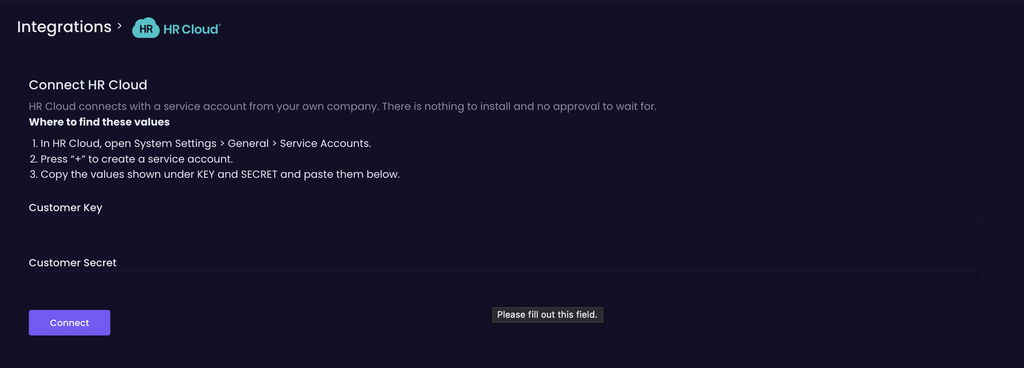
In WebWork, go to Integrations and select HR Cloud.
Enter the HR Cloud Key in the Customer Key field.
Enter the HR Cloud Secret in the Customer Secret field.
Click Connect.
Once the credentials are verified, your HR Cloud account will be connected to WebWork.
Important: Keep your Key and Secret private. Do not send them through email, chat, or other unsecured channels. If they are accidentally shared, delete the service account in HR Cloud and create a new one.
Step 3: Check time off access
HR Cloud enables API access to time off separately for each company account. After connecting your account, WebWork will indicate whether the required time off access is available.
If access is missing, contact HR Cloud Support and send them the following message:
Please enable API access to the time off entities for our company account: xLeaveRequest, xTimeOffType, xTimeOffPolicy and xEmployeeTimeOffBalance. We use them for our WebWork integration.
Once HR Cloud confirms that access has been enabled, return to the HR Cloud integration page in WebWork and use the option to check access again.
You can still use People, Teams and titles, and Holidays while waiting for time off access to be enabled.
Configure how people are matched
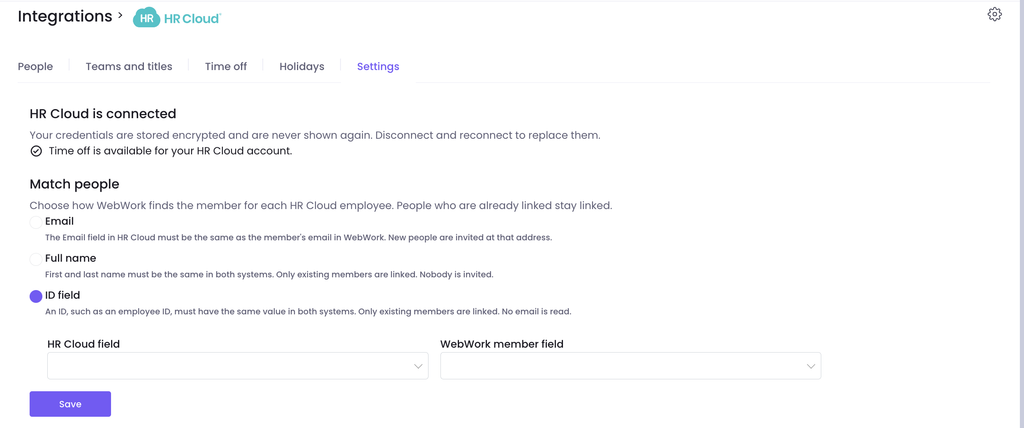
After connecting HR Cloud, open the Settings tab to choose how WebWork should match HR Cloud employees with WebWork members.
There are three matching options:
Email — The employee’s email address in HR Cloud must match the member’s email address in WebWork. If WebWork cannot find an existing member, a new member is invited using that email address.
Full name — The employee’s first and last name must match in both systems. Only existing WebWork members are linked; new members are not invited.
ID field — An ID field, such as an employee ID, must contain the same value in HR Cloud and WebWork. Only existing members are linked, and WebWork does not use their email addresses for matching.
If you select ID field, choose the corresponding HR Cloud field and WebWork member field, then click Save.
For example, you can match Finance Employee ID in HR Cloud with Finance Employee ID in WebWork.
Import people from HR Cloud
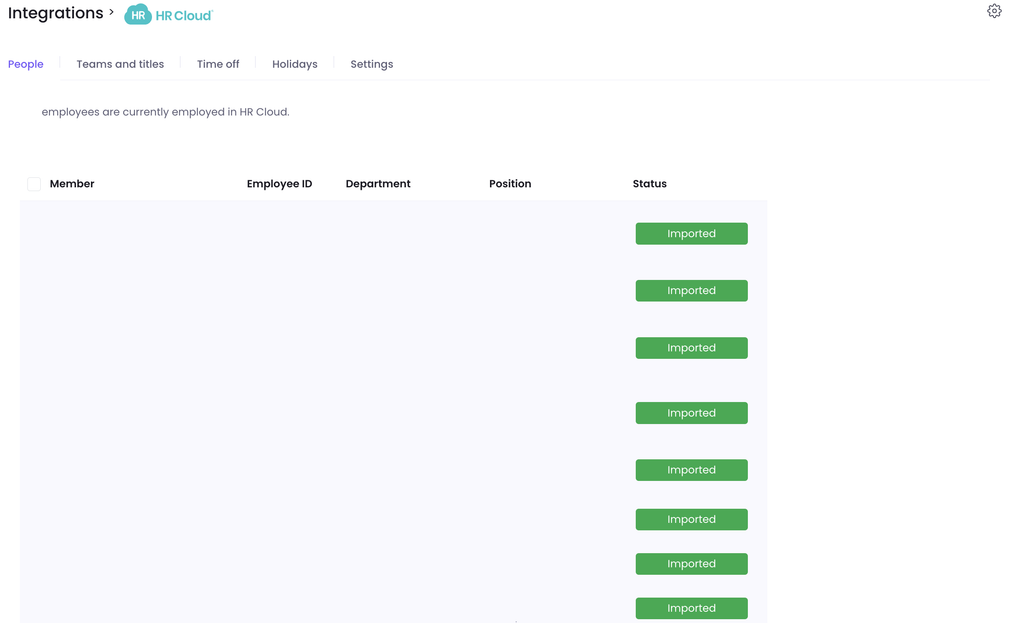
Open the People tab to see employees currently employed in HR Cloud.
The table shows information such as the employee’s:
Name
Employee ID
Department
Position
Import status
How employees are linked or invited depends on the matching method selected under Settings.
Once an employee has been successfully brought into WebWork, their status will appear as Imported.
Sync departments and positions
Open Teams and titles to synchronize your HR Cloud organizational structure with WebWork.
HR Cloud data is mapped as follows:
HR Cloud department → WebWork team HR Cloud position → WebWork title
If a WebWork team or title with the same name already exists, WebWork reuses it instead of creating a duplicate.
When automatic synchronization is enabled, WebWork checks HR Cloud every hour and keeps teams and titles aligned with HR Cloud.
Sync time off
Open the Time off tab to view leave information available from HR Cloud.
Approved HR Cloud absences become approved leaves in WebWork. Pending requests are not imported as approved leave. If a request is still pending, WebWork checks it again during the next synchronization.
Leave types are synchronized as a set and take their settings from HR Cloud. You can see information such as:
HR Cloud leave type
Corresponding WebWork leave type
Unit
Negative balance setting
Carry-over setting
Import status
When automatic time off synchronization is enabled, WebWork checks HR Cloud every hour.
If an approved leave that was previously synchronized is later canceled in HR Cloud, it is removed from WebWork as well. This prevents canceled absences from continuing to appear in WebWork reports.
As a result, approved absences appear as leave rather than unexplained missing work hours.
Sync company holidays
Open the Holidays tab to view company holidays available in HR Cloud.
HR Cloud company holidays become WebWork holidays. Each imported holiday is created as a day off with no paid hours. You can change the individual holiday settings afterward in WebWork.
WebWork also checks which employees the holiday applies to. If no linked WebWork member works at the corresponding location, WebWork does not create that holiday.
When automatic holiday synchronization is enabled, holidays are checked every hour.
Manage automatic synchronization
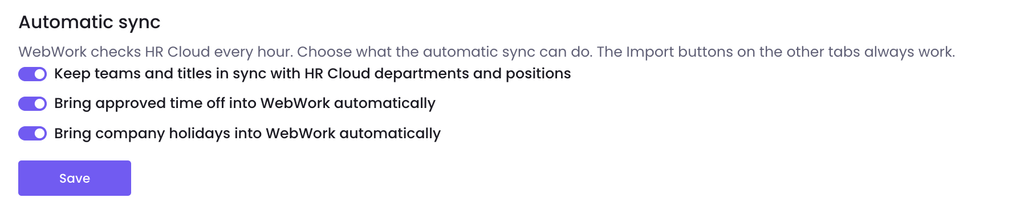
Go to Settings → Automatic sync to control which HR Cloud information WebWork keeps synchronized automatically.
You can enable or disable automatic synchronization for:
Teams and titles
Approved time off
Company holidays
When an option is enabled, WebWork checks HR Cloud every hour for relevant changes.
The import options available on the individual tabs can still be used when automatic synchronization is disabled.
Disconnect or update your HR Cloud connection
Your HR Cloud credentials are stored encrypted and are not displayed again after the connection is established.
If you need to replace the credentials, disconnect HR Cloud from WebWork and connect it again using the new Key and Secret.
If you believe your existing credentials have been exposed, delete the corresponding service account in HR Cloud, create a new one, and reconnect the integration in WebWork.