
The integration with QuickBooks enables you to automatically sync tracked hours, manage invoices, and ensure accurate payroll without manual entry. With this integration you can send QuickBooks the tracked hours of your users directly from WebWork. To enable the integration make sure you follow these steps:
- From your WebWork browser app go to Integrations,
- Then, from Finance section find Intuit QuickBooks
- Click Enable
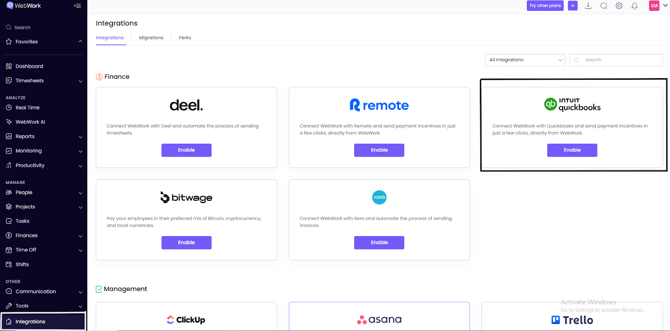
After this, a new window will appear, where you should sign in to your QuickBooks existing account and allow access to import data from there. Once you have given the permission to access your information in QuickBooks, you will authorize the workspace by selecting it from the given options. Now that you have already completed the mentioned steps you can start importing members and projects from QuickBooks to WebWork on your browser app.
From the Employees/Contractor section you can sync your employees from your QuickBooks account with the ones in your workspace. Note that employees with email addresses will be synced with the members already existing in the workspace having the same email address․ If the employees having an email on QuickBooks are not present in the WebWork workspace then these members will be newly added to the workspace. While employees without emails will be matched by their first names and last names with existing members in WebWork and synced. However, if the employees without emails are also not present in the workspace and the system cannot find matching first names and last names, then these members will neither be newly added nor synced.
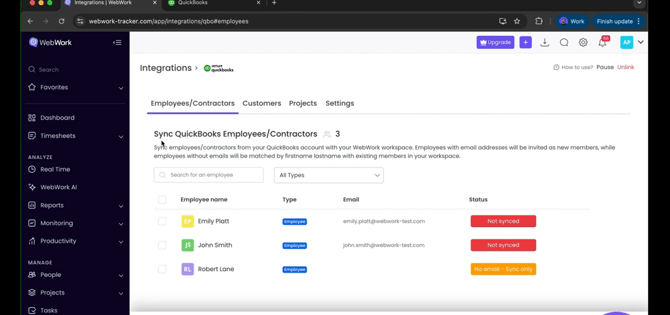
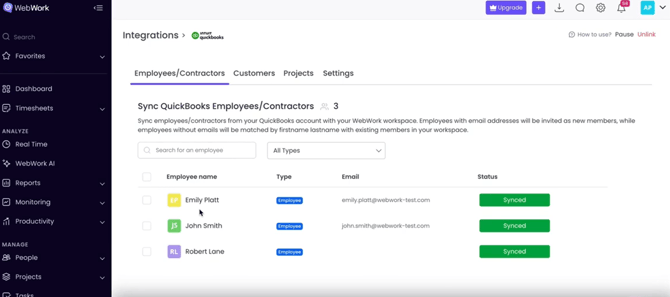
For syncing the members, click on the member name and then press Sync at the bottom. If the member is synced then you will see the status as Synced in green.
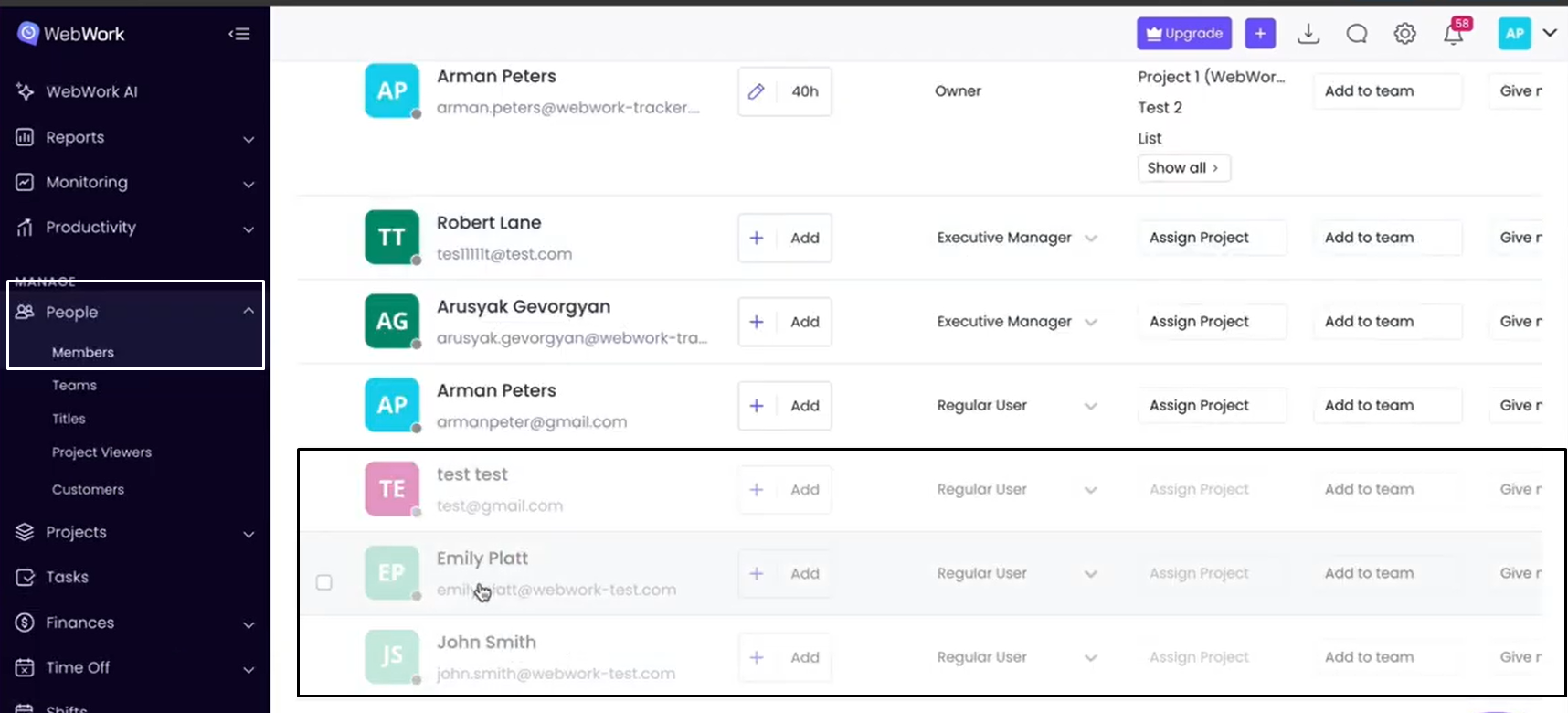
To view these members, you can simply go to the People section in your WebWork browser app, then click Members. Here you can find the synced users.
If you want to import your customers from QuickBooks to your WebWork workspace, you can return to Integrations, then Intuit QuickBooks, and then go to the Customers section. Select the customers you want to import and click Import at the bottom.
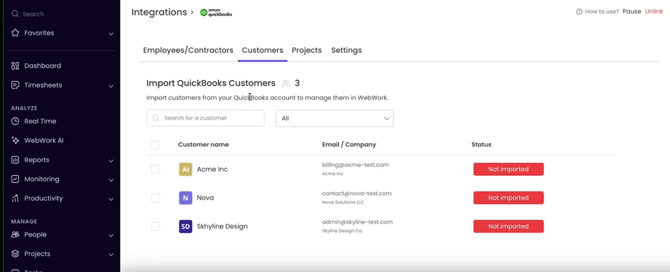
If the customer is imported, then you will see the status as Imported in green.
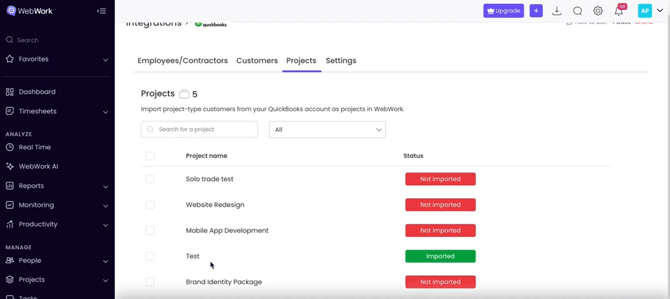
To view the imported customers you can go to the People section in your WebWork browser app, then click Customers.
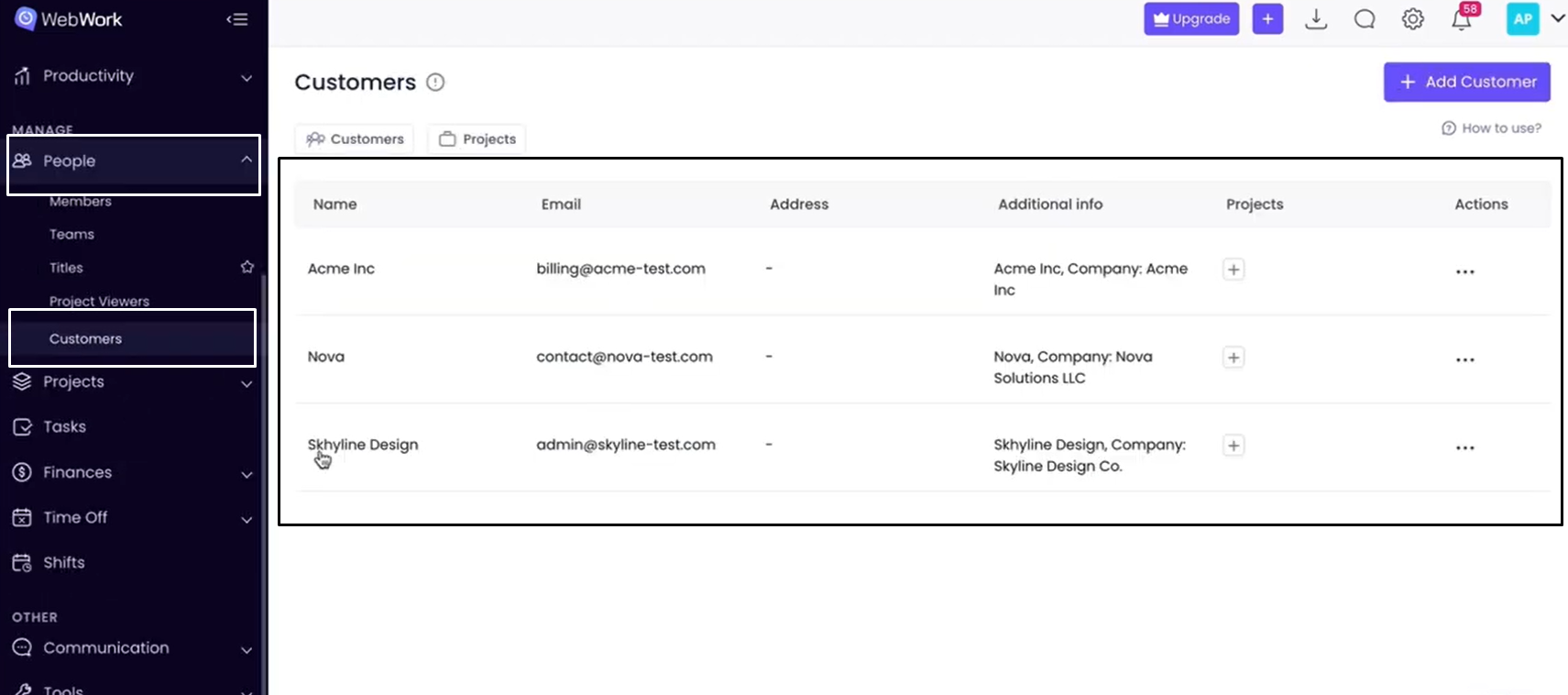
You can also import your existing projects in QuickBooks to WebWork by the same steps as you did for Customers. You will find your imported projects in the Projects subsection under Projects section.
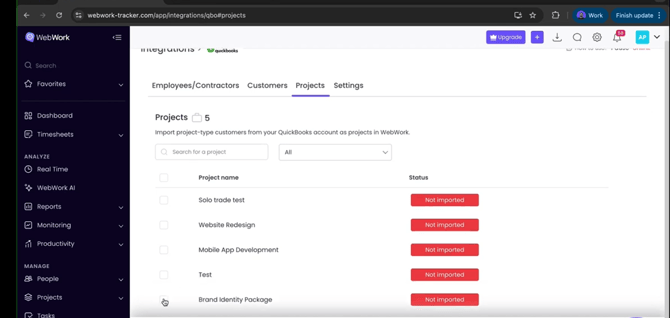
You can find the integration settings in the Settings section by clicking again Integrations, then QuickBooks. Here you can find the connection status (if connected then the status will be Connected) as well as the company ID. If you want to send data from WebWork to QuickBooks, you should also enable the Sending Data to QuickBooks button.
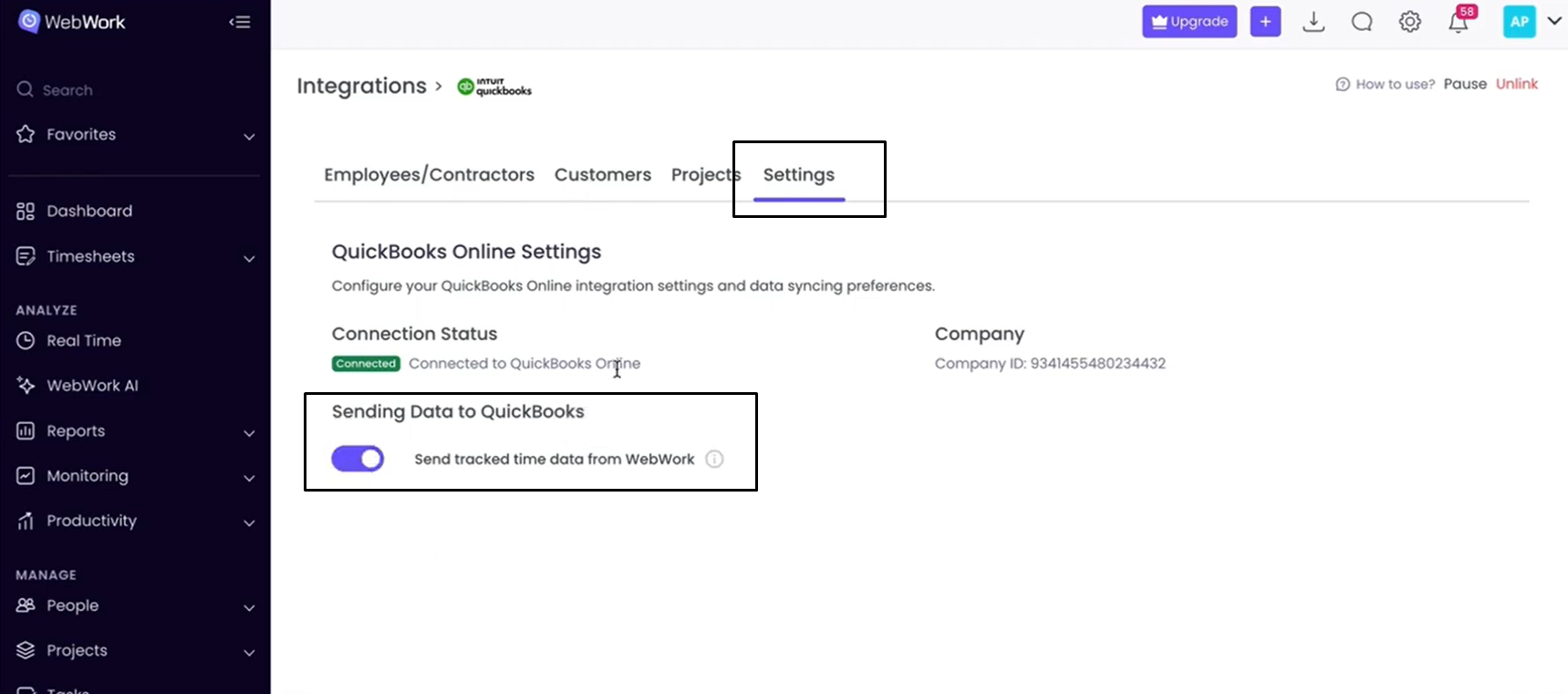
This means that every time a member tracks time for the imported projects from QuickBooks or adds manual time for them, this data will be sent to QuickBooks too.
To view the sent tracked time data in QuickBooks, you should first go to your QuickBooks account, then go to Projects.
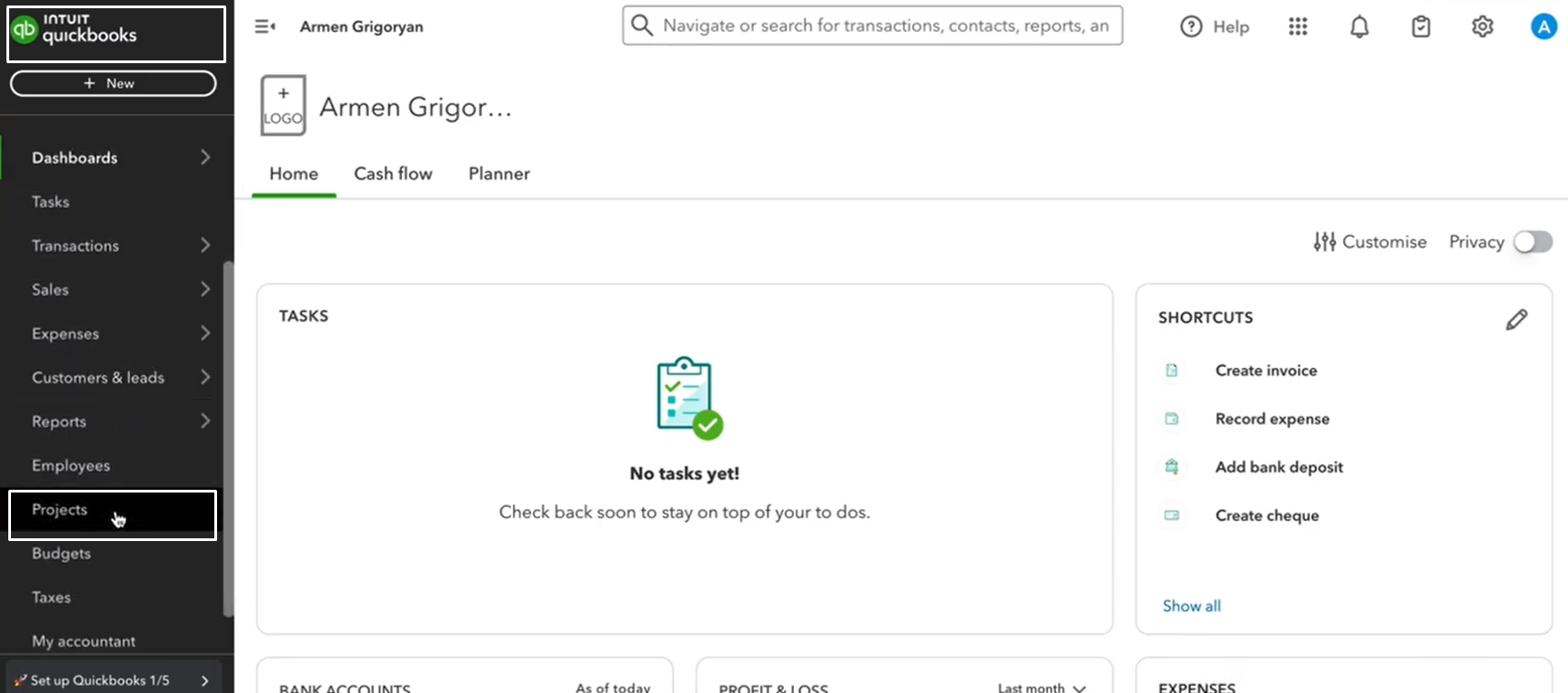
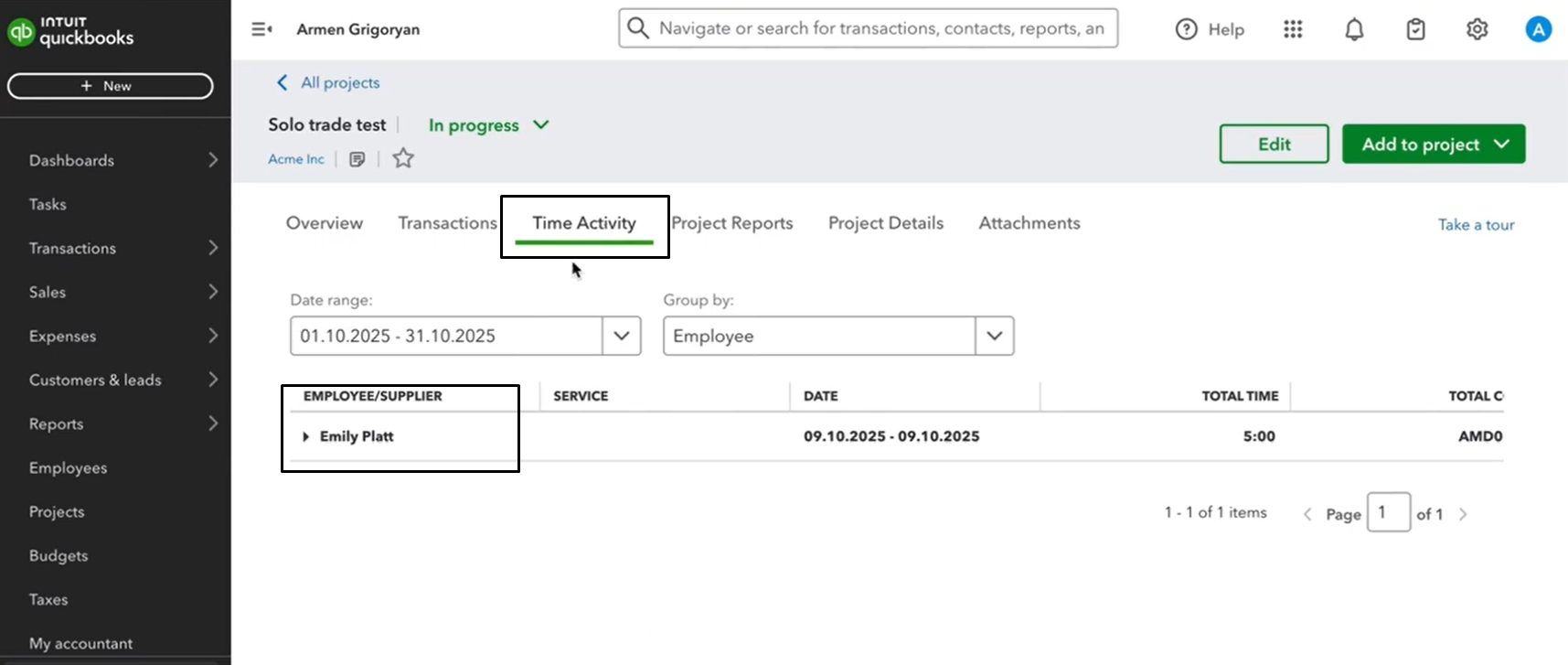
Here, under the Total Time column you can see the tracked time imported from WebWork. If you select the project in QuickBooks and then click Time Activity, you will be able to see the member that has tracked the time for the project, the date of the time tracking as well as the amount of it. By clicking on the member’s name you will get a more detailed breakdown of the time they tracked.
Was this article helpful?
Thanks for your feedback.