
How does our Zoho Books integration boost workflow on WebWork?
The WebWork Zoho Books integration connects your Zoho Books customers and projects to WebWork, so tracked hours can be attached to the right client and sent straight to the Zoho Books timesheet, ready to invoice.
How to enable the integration?
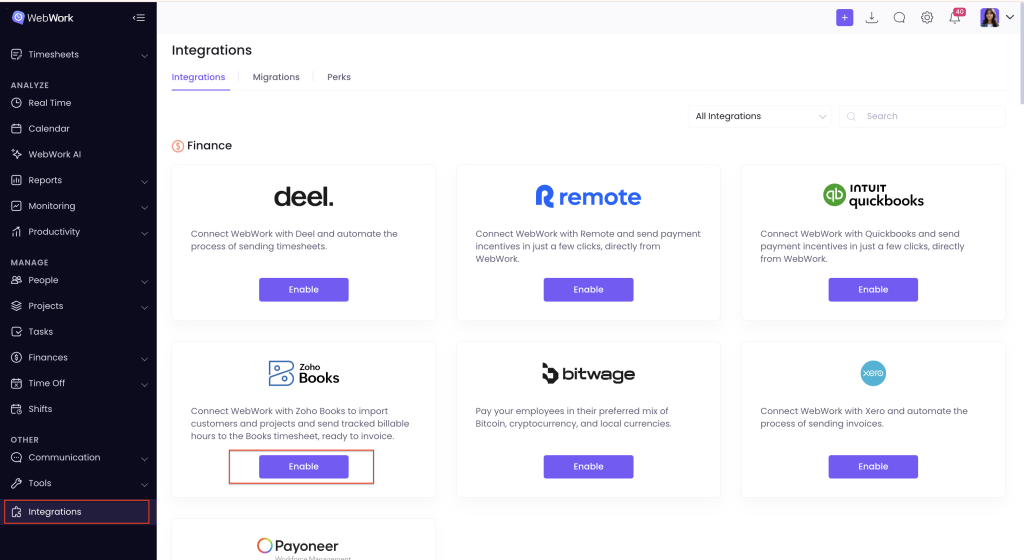
Go to the Integrations page and find Zoho Books under the Finance section, then click Enable.
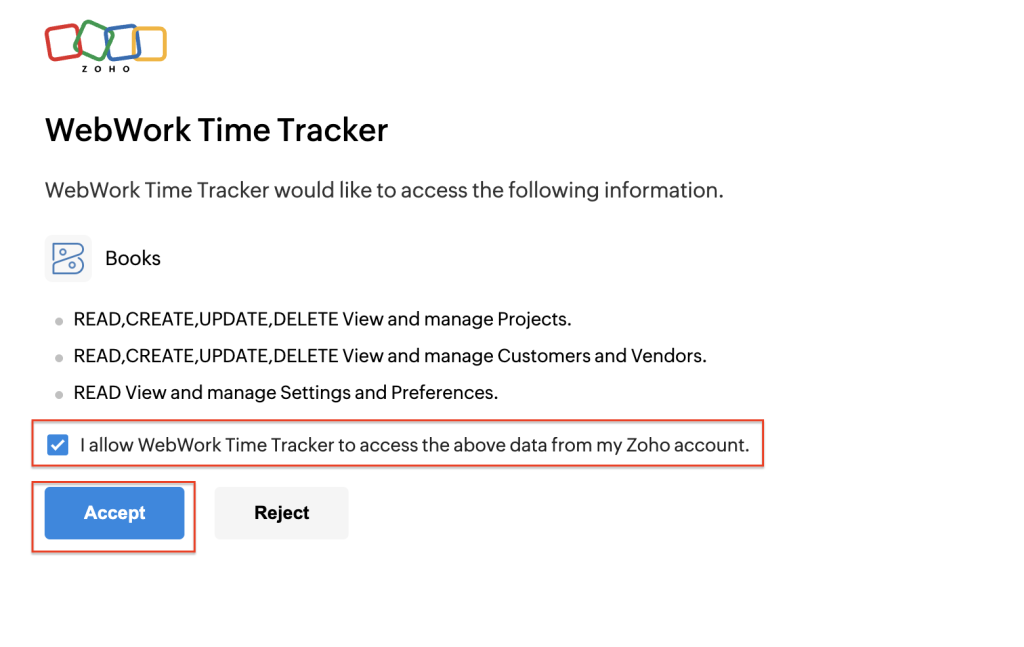
You’ll be taken to Zoho to sign in and authorize access. Review the permissions WebWork is requesting, viewing and managing your Projects, viewing and managing Customers and Vendors, and viewing your Settings and Preferences; check the box to allow access, and click Accept.
Once authorized, you’ll land on the main integration page, which has four tabs: Customers, Projects, Members, and Settings.
- Customers
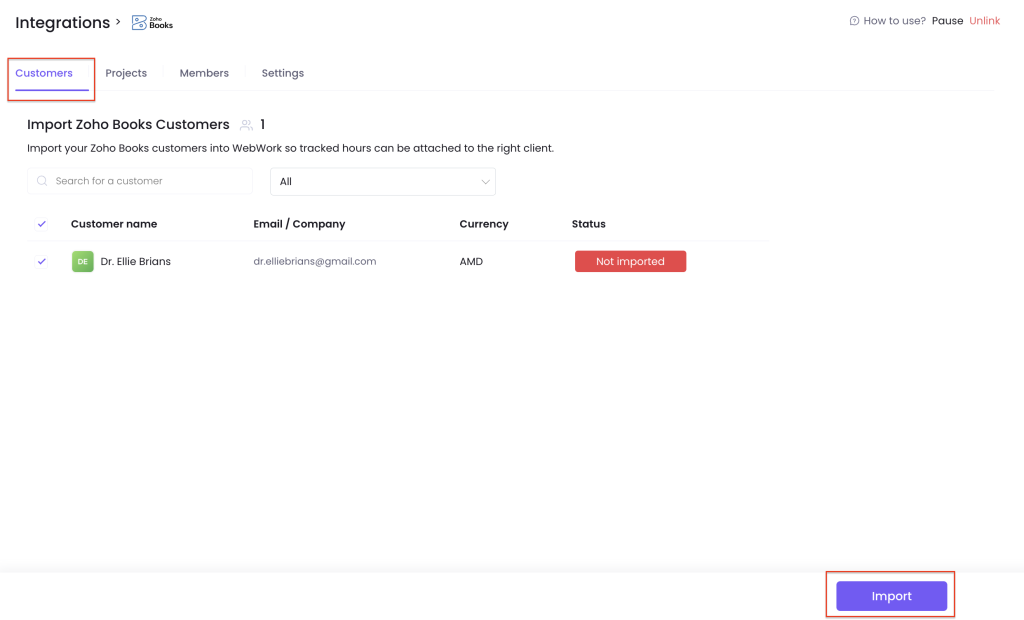
Import your Zoho Books customers into WebWork so tracked hours can be attached to the right client. Search or filter the list, select the customers you want, and click Import. Each customer shows as Not imported until you do.
- Projects
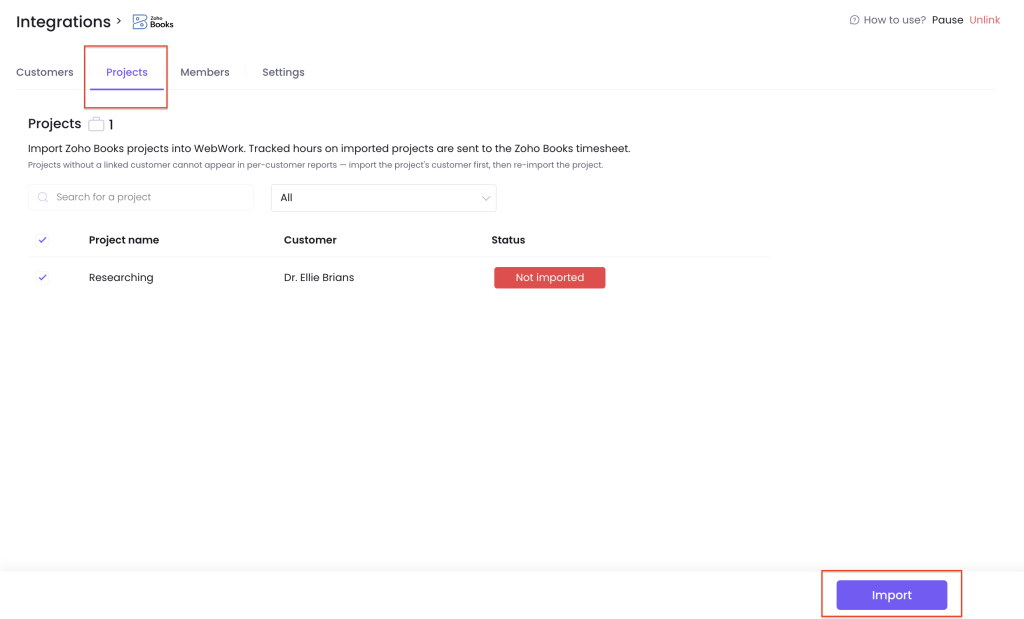
Import your Zoho Books projects into WebWork. Tracked hours on imported projects are sent to the Zoho Books timesheet. Keep in mind that a project without a linked customer can’t appear in per-customer reports — if that happens, import the project’s customer first, then re-import the project. Select the projects you want and click Import.
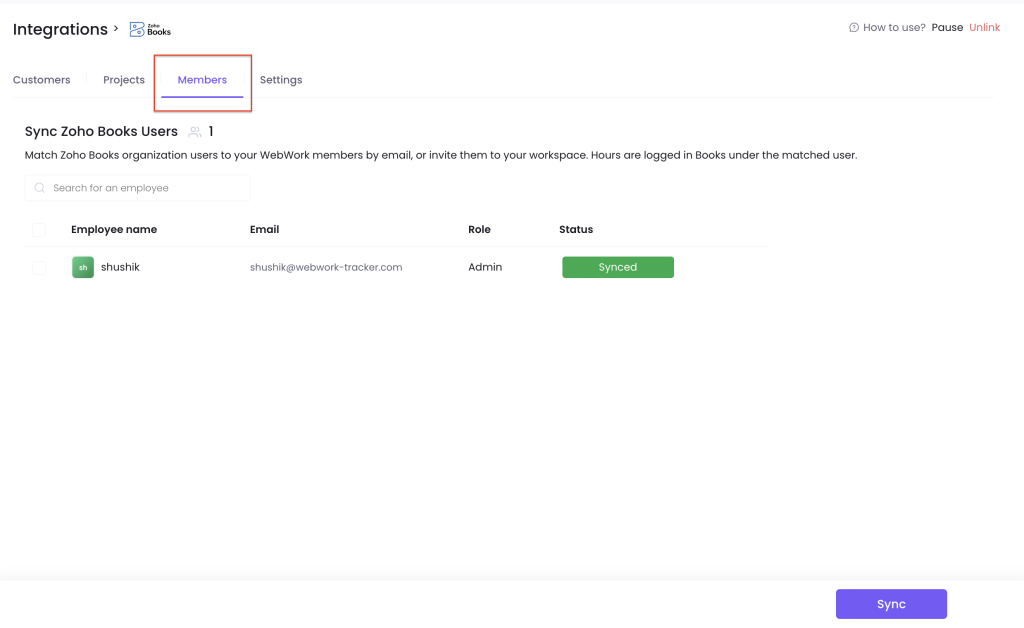
- Members
Match your Zoho Books organization users to your WebWork members by email, or invite them to your workspace directly from this tab. Hours tracked in WebWork are logged in Zoho Books under the matched user. Select the employees you want to sync and click Sync; synced members show a green Synced status.
Note that employees with email addresses will be synced with the members already existing in the workspace having the same email address․ If the employees having an email on Zoho Books are not present in the WebWork workspace then these members will be newly added to the workspace. While employees without emails will be matched by their first names and last names with existing members in WebWork and synced. However, if the employees without emails are also not present in the workspace and the system cannot find matching first names and last names, then these members will neither be newly added nor synced.
- Settings
This tab shows your Connection Status and which Organization you’re connected to, and lets you configure your syncing preferences. Turn on Send tracked time data from WebWork to start sending tracked hours to Zoho Books.
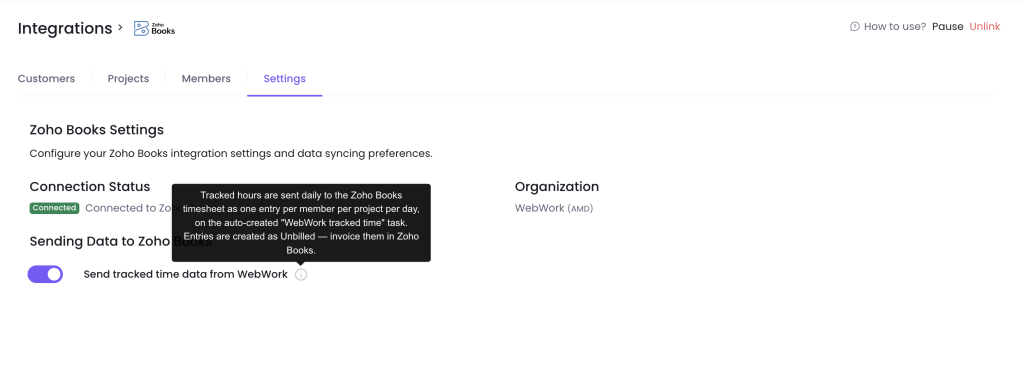
Once enabled, tracked hours are sent daily to the Zoho Books timesheet as one entry per member, per project, per day, logged on an auto-created “WebWork tracked time” task. Entries are created as Unbilled, so you can invoice them from Zoho Books whenever you’re ready.
Where to see imported data
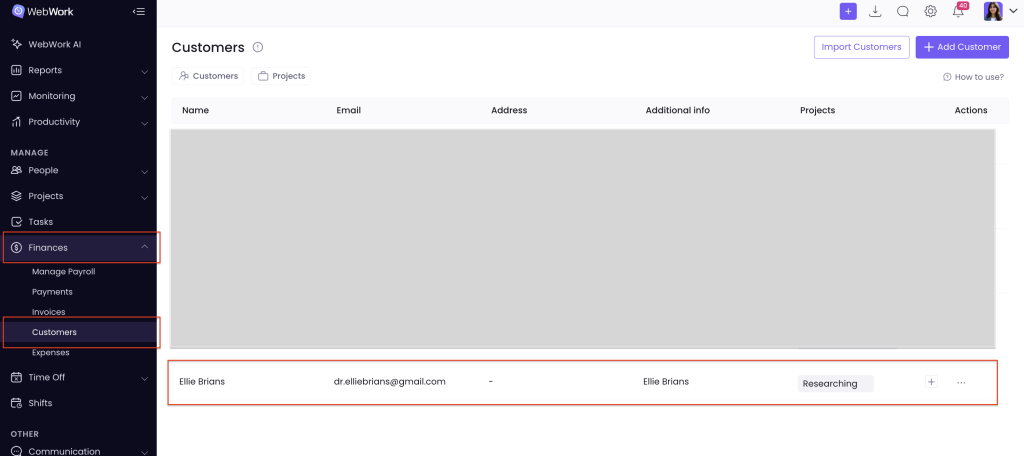
Imported customers appear on the Customers page (Finances → Customers) in WebWork.
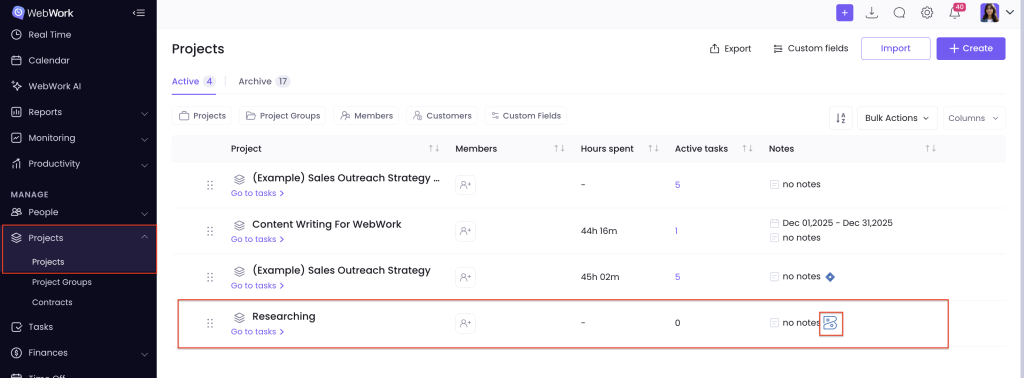
Imported projects appear on the Projects page the same way, marked with the Zoho Books icon.
Was this article helpful?
Thanks for your feedback.