
Ask WebWork AI about your work without leaving Slack. Mention @WebWork in a channel, or write to the WebWork app, to check hours, tasks, standups, holidays and birthdays, and to create tasks, projects and standups. The app also posts reports, birthday and holiday messages to your channels.
The Owner can always use WebWork AI in Slack. Other roles can when they are selected in Settings > WebWork AI > Permissions. WebWork AI is in every plan, with 10 credits a month on Pro, 25 on Plus and 50 on Premium, and questions asked in Slack use them. It doesn’t answer while it is turned off for your workspace in Settings > Features.
Before you start
- Connect Slack to WebWork: Slack Integration. On Pro, Slack is your one active integration.
- Make sure your Slack account is linked to your WebWork account. It is linked when both use the same email, or when you connected Slack to WebWork yourself. Otherwise, connect it in Settings > Security > Connected Accounts.
Add WebWork to a Slack channel
There are two ways to add WebWork to a channel.
From the channel details
- In Slack, click the channel name and open Agents & apps.
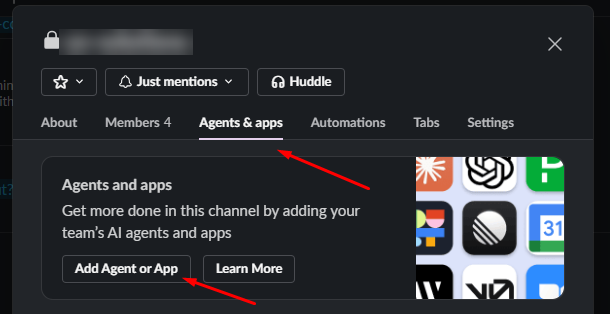
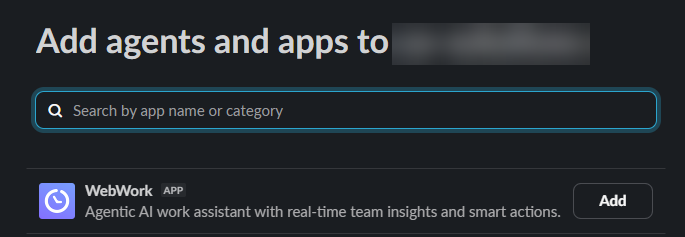
- Click Add Agent or App, then click Add next to WebWork.
By mentioning WebWork
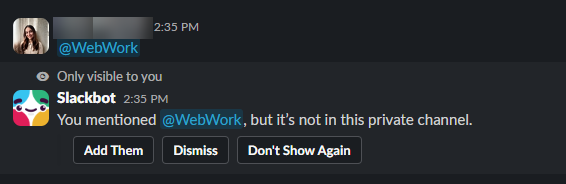
- Type @WebWork in the channel and send the message.
- In Slackbot’s reply, click Add Them.
Ask WebWork AI
There are two ways to ask WebWork AI:
- Mention @WebWork in a channel where the app is added.
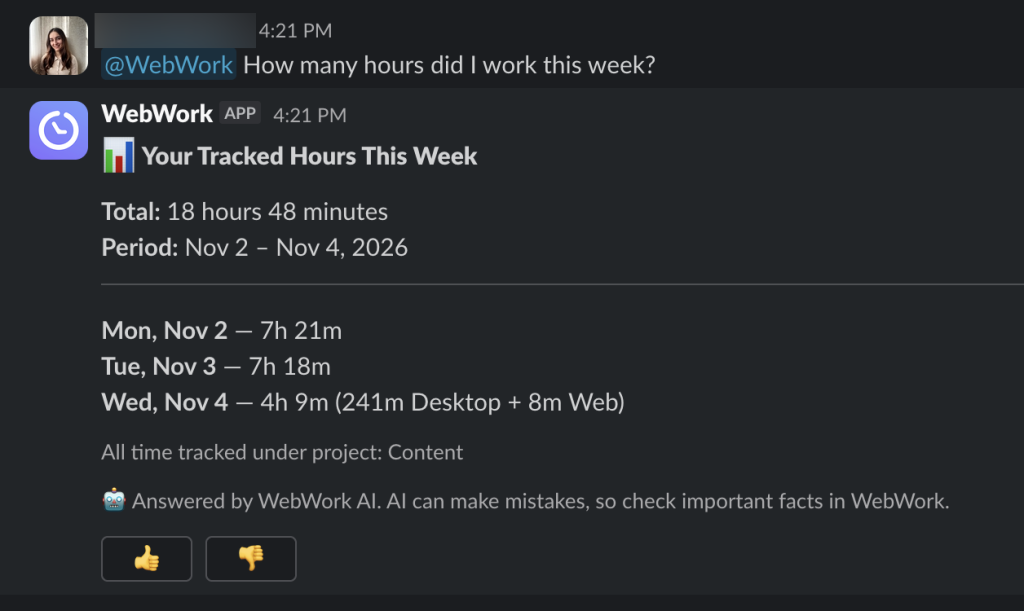
- Write to the WebWork app: in the Slack sidebar, under Apps, click WebWork and open the Messages tab.
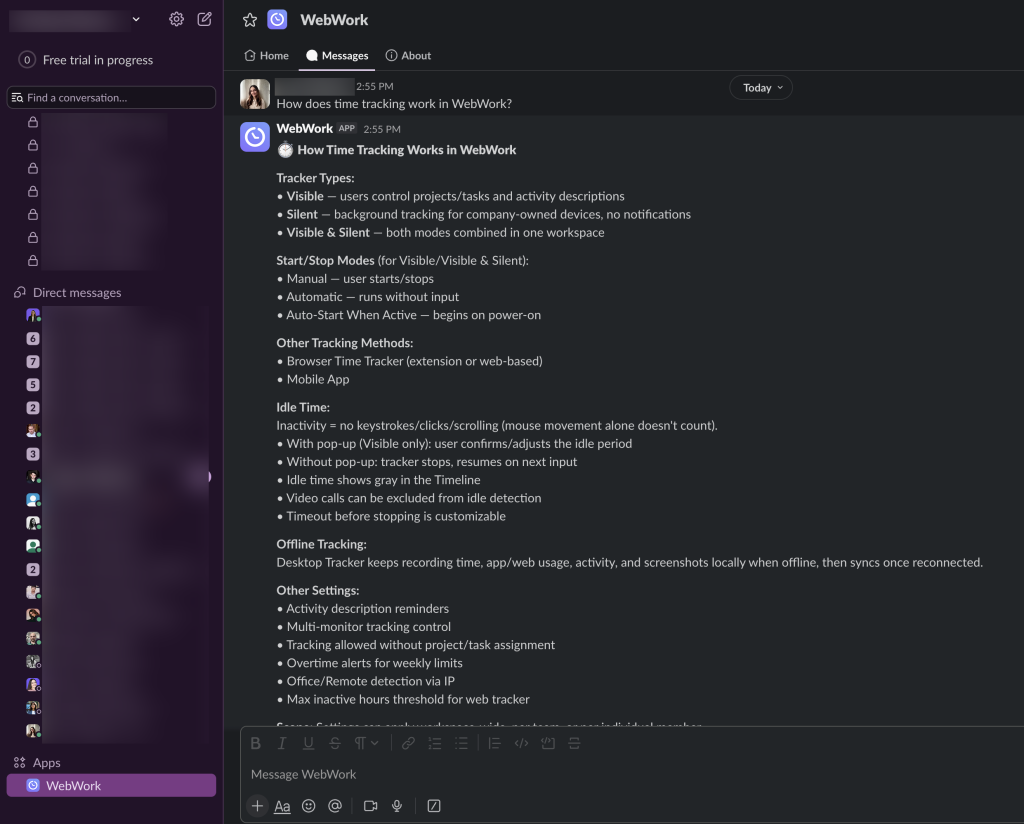
Write your question in your own words. WebWork AI answers from your workspace’s data, within your permissions, and asks for any details it needs to create something.
More example questions: WebWork AI in Slack and WebWork Chat.
Check hours, activity and attendance
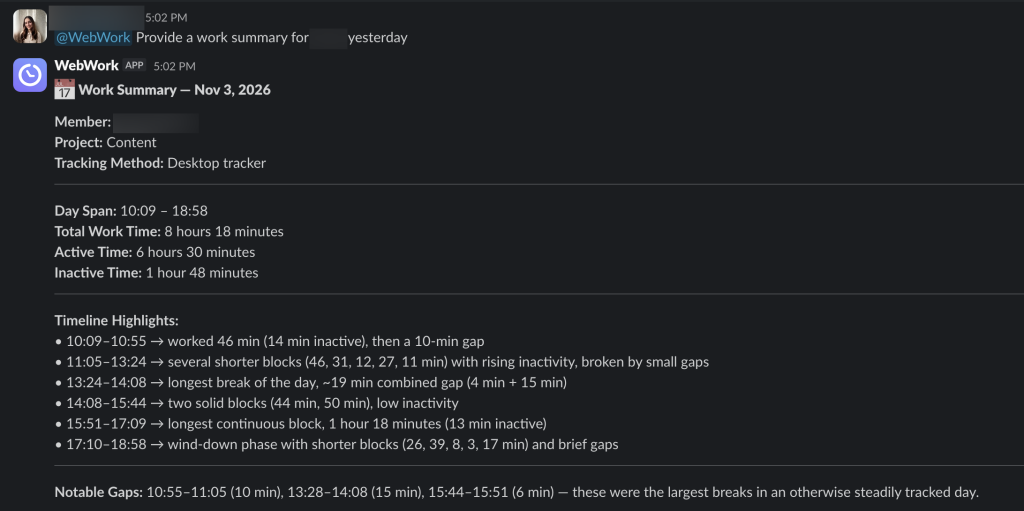
Ask about tracked time, activity, screenshots and productivity, within your permissions. For example: “How many hours did I work this week?”, “Provide a work summary for John Doe for yesterday.” or “Was anyone absent today?”
See and create tasks
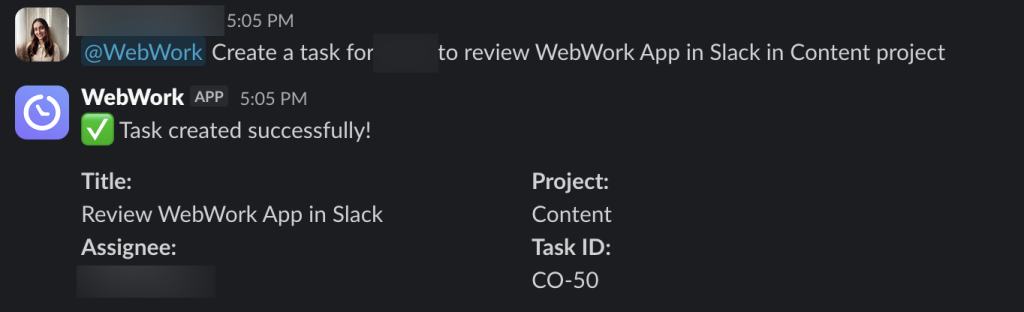
Ask “Show my tasks” or “What’s due today?” to see the tasks assigned to you. To create a task, ask “Create a task for Anna to review the UI design”. To create a project, ask “Create a new project called Q3 launch”.
Set up standups
Only Owners and Executive Managers create and remove standups.
To create a standup, mention @WebWork in the channel where it should run, with the days and the time: “@WebWork, we’ll do standups in this channel every weekday at 10:30 AM.” At that time, WebWork posts the standup in the channel and reminds the members who have not written theirs.
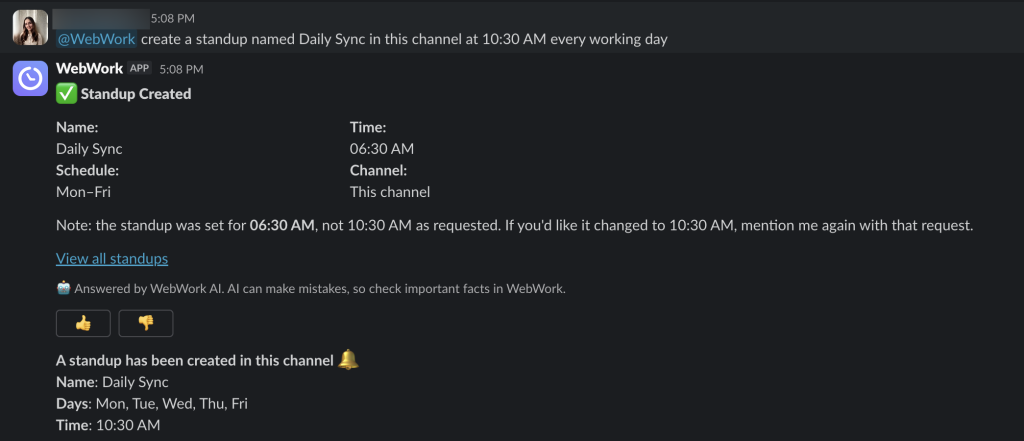
Ask “Which standups do we have?” to see each standup with its channel, time and days. To stop the standups of a channel, ask in that channel “@WebWork, remove the standups from this channel.”
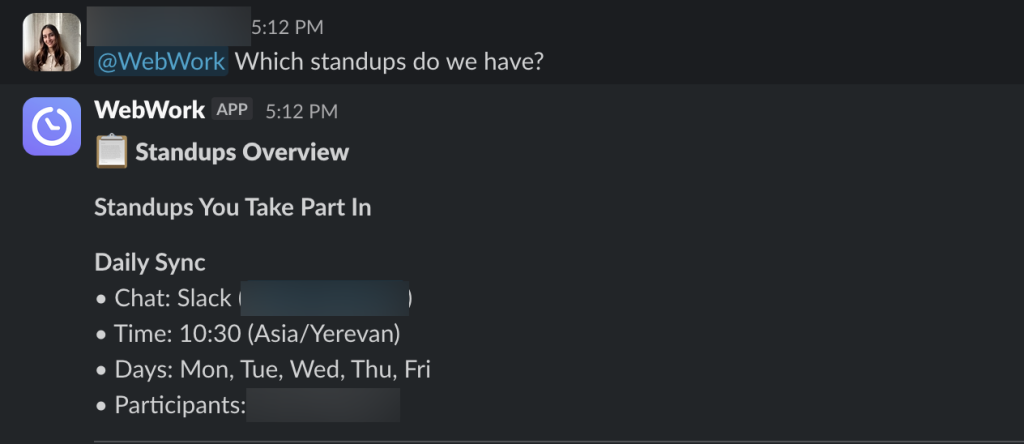
Who gets the reminder is set in the standup’s Members in WebWork. How to create and edit standups in WebWork: Standups.
Check holidays
Ask “What holidays are coming up?” or “Is Monday a working day?”. WebWork AI answers from your workspace’s holidays, each a working or a non-working day.
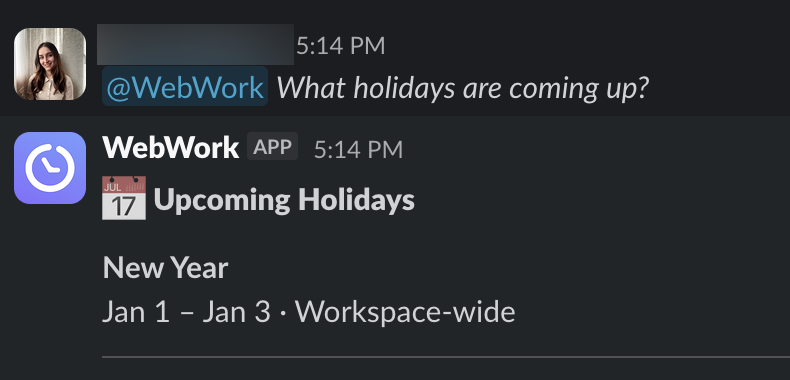
Owners and Executive Managers add holidays in Time Off > Holidays: Holidays and Memorial Days.
Ask about a teammate’s birthday
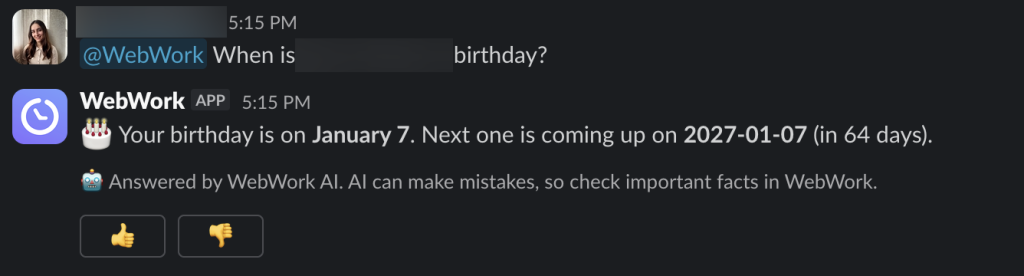
Ask “When is Name Surname’s birthday?”. WebWork AI gives the date when the member’s birth date is filled in on their WebWork account.
Get reports and birthday messages in a channel
WebWork posts birthday messages and daily or weekly reports to the channel you choose, at the time you choose.
- Go to Settings > WebWork AI > Chat Automations.
- Turn on Birthday Messages, Daily Report or Weekly Report, and select the channel and the time for each.
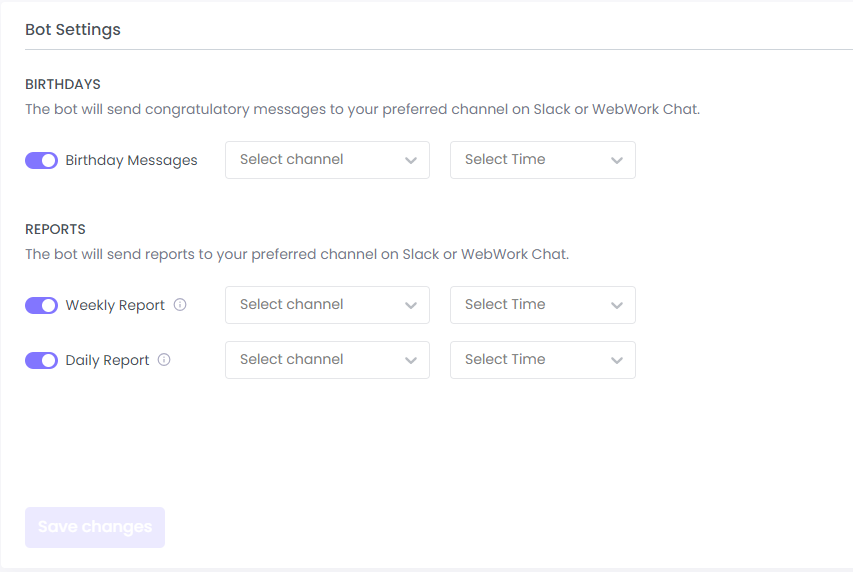
- Click Save changes.
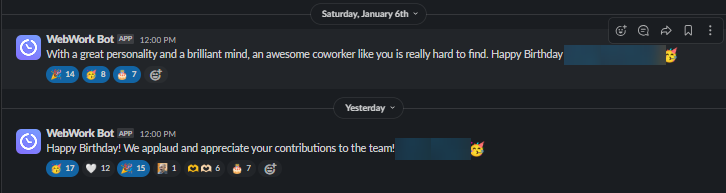
Birthday messages
On a member’s birthday, a congratulation is posted in the chosen channel at the chosen time, when the birth date is filled in on their WebWork account. A member with no birth date gets a message asking for it.
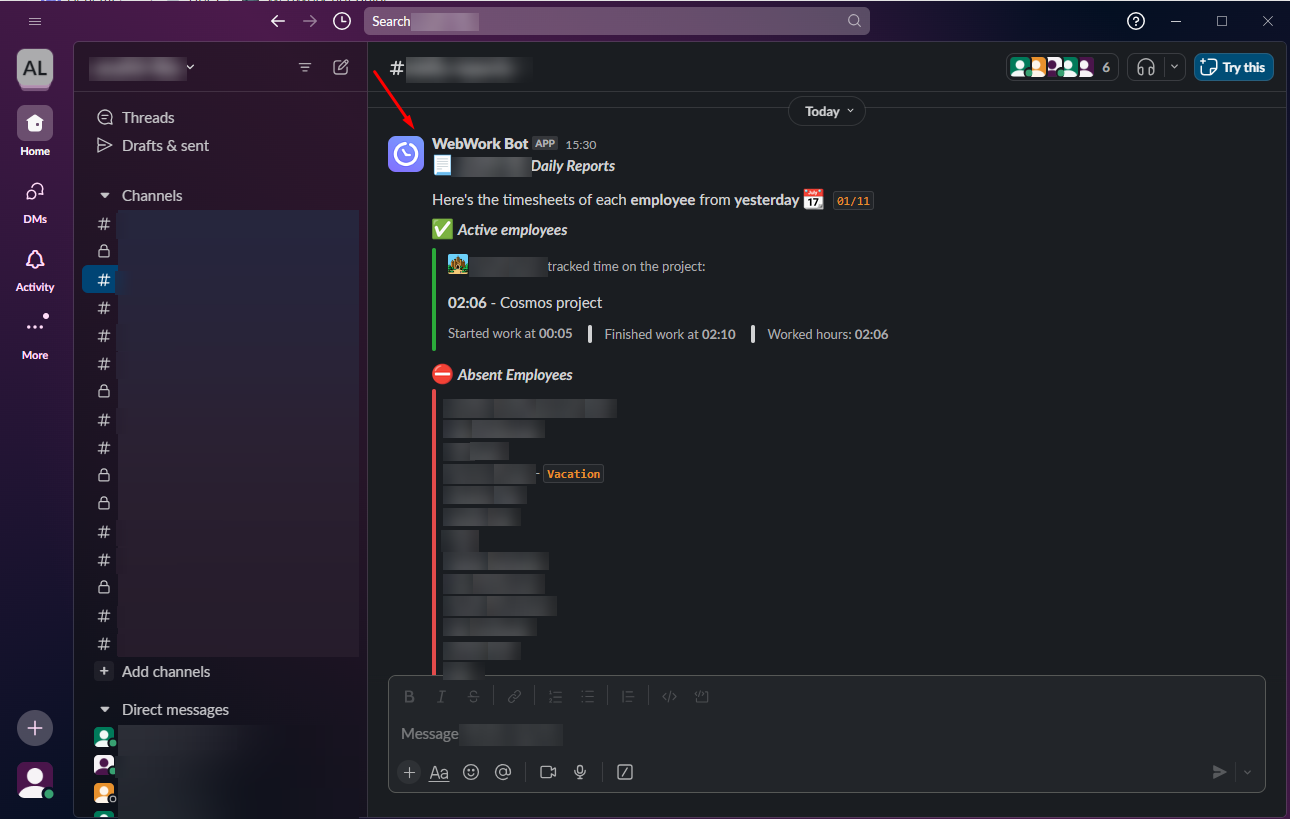
Daily and weekly reports
When a report is turned on, it is posted in its channel at its time.
Get holiday messages in a channel
When you add a holiday with a Slack channel, the channel gets a notice 2 days before, saying whether it is a working or a non-working day, with a greeting. On the day, the greeting is posted in the channel.

Built-in commands
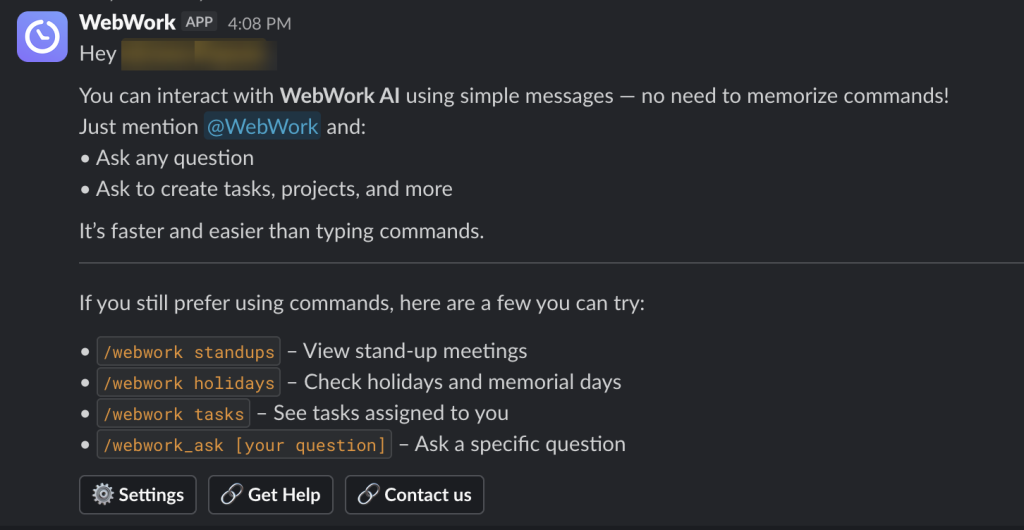
The WebWork app also has built-in commands that work independently of WebWork App. Type / in Slack, choose a WebWork command and send it. Only you see a command’s reply.
/webwork help: the list of commands, with Settings, Get Help and Contact us buttons./webwork tasks: the tasks assigned to you./webwork standups: your workspace’s standups./webwork holidays: your workspace’s upcoming holidays./webwork create standup: a window to create a standup in the channel, for Owners and Executive Managers./webwork_askand your question: asks WebWork AI, as a mention does.
Was this article helpful?
Thanks for your feedback.