
Attendance compares the time each member tracked with their schedule and gives every working day a status, such as Late, Absent or All Good. This article explains the rule behind each status, and why a member can show Absent or Late after tracking time.
The report is in Reports > Attendance, on every plan. It has four tabs: Daily, Custom Interval, Worked vs Expected and Chart. Attendance Report covers the tabs and their columns.
The members you see in the report depend on your role:
| Role | Members in the report |
|---|---|
| Owner, Executive Manager | Every member |
| Team Manager | The members of the teams they manage |
| Project Manager, Project Viewer | Members of their projects; other members’ time is limited to those projects. A Project Manager’s own row includes their time across projects. |
| Regular User | Their own row |
For other members, a Project Manager sees only time tracked on projects they manage. Their own row includes their time across projects. A member who worked on other projects that day can show Absent or Tracked Less to that manager.
Project Viewers never appear as rows. A member appears from the day they joined, up to the day they were blocked or removed.
Which schedule a member is measured against
There are two ways to set the schedule: one schedule for the whole workspace, or shifts for each member.
One schedule for the workspace, with Shifts off
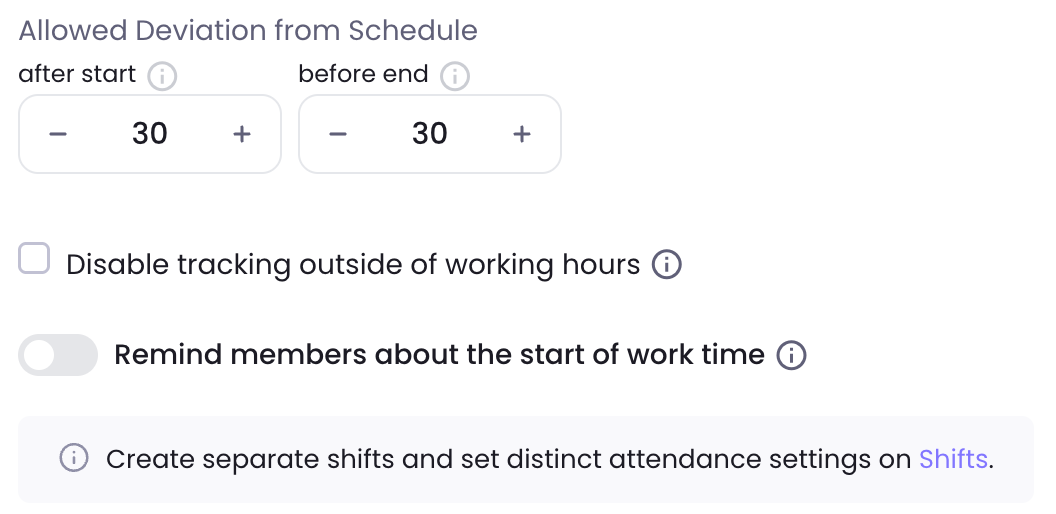
The Owner or an Executive Manager sets it in Settings > Attendance: Working Days, Daily Work Duration, Start Time, End Time and Allowed Deviation from Schedule, with its after start and before end minutes. This is how the Pro plan works, and how Plus and Premium work while Shifts is off in Settings > Features. For the setup, see Attendance Settings and How do I set up attendance settings for my workspace? (Pro Plan).
The Start Time must be before the End Time, so this schedule cannot cross midnight. Night work needs Shifts.
Shifts for each member, with Shifts on
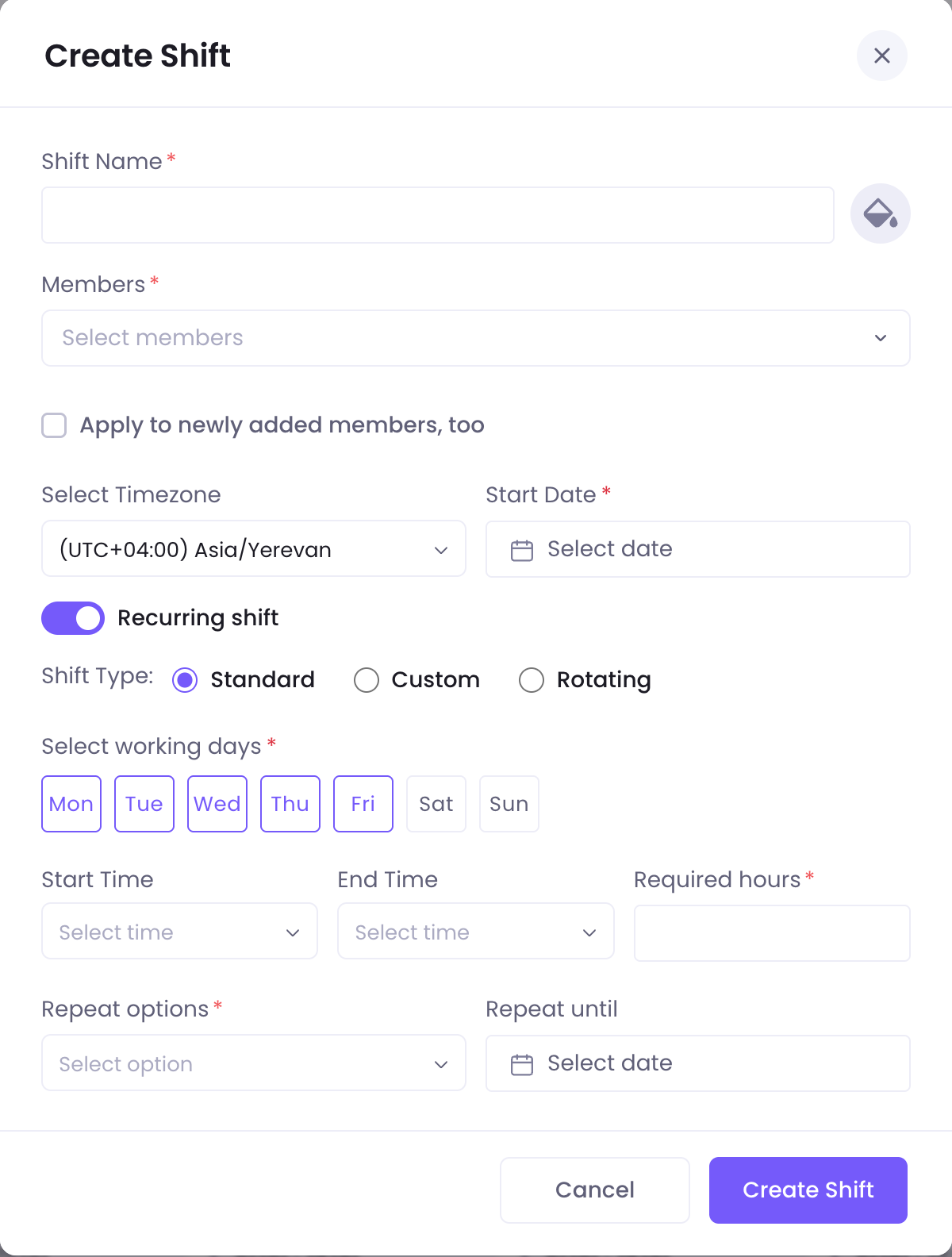
Each member is measured against their own shifts. Shifts are part of Plus and Premium, and of Pro with the Shift add-on; Why don’t I have Shifts in my workspace? explains the plan and the switch. The Owner and Executive Managers create and edit shifts. Team Managers create shifts for members they manage and can edit a shift only when they manage every assigned member. How to create shifts? shows the steps.
- Settings > Attendance then keeps only the two allowances, Disable tracking outside of working hours and Remind members about the start of work time.
- A member with no shift on a day has nothing expected of them. They are never Absent or Late that day. On a non-holiday day, the Daily row shows All Good when its Tracked time is above zero; otherwise it shows –. Manually added time alone does not change that.
What each status means
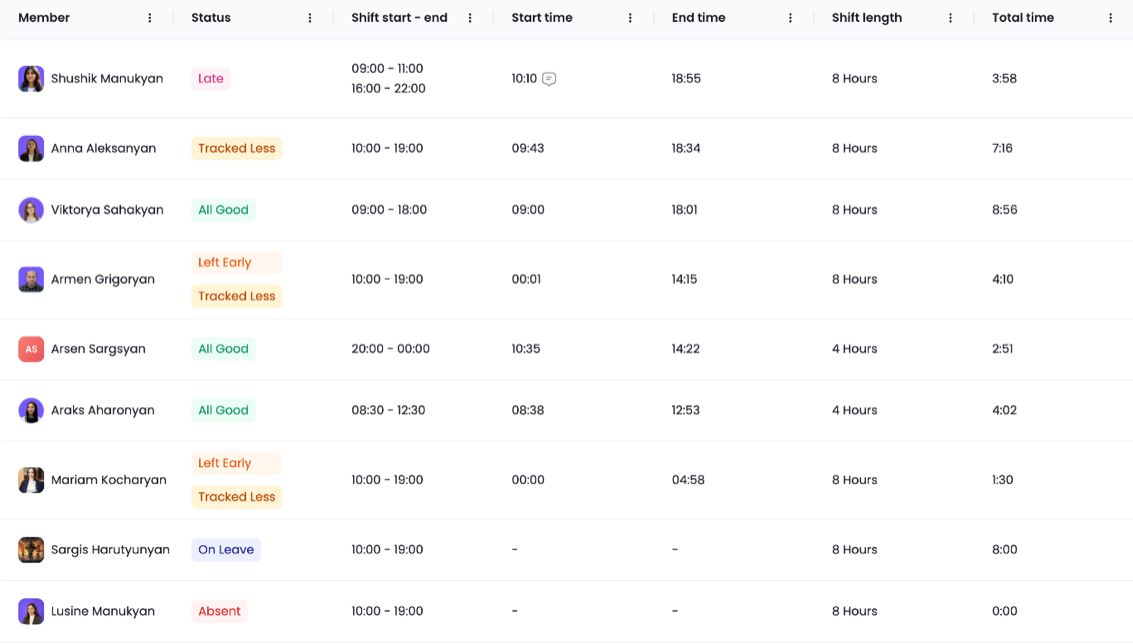
A row on the Daily tab can show more than one status at once, such as Late and Tracked Less.
| Status | When it shows |
|---|---|
| Late | The first time of the day starts more than the after start allowance after the start time. With a Start Time of 09:00 and a 10-minute allowance, 09:10 is on time and 09:11 is late. |
| Left Early | The last time of the day ends more than the before end allowance before the end time. |
| Tracked Less | The day’s total is under the required hours: the Daily Work Duration, or the shift’s Required hours. A day with no time at all is Absent, not Tracked Less. |
| Absent | A working day with no time at all, once the start time has passed. |
| Not Started | Today, before the start time, while the member has no time yet and is not tracking. |
| On Leave | The member has approved leave that day, unless a holiday or the no-shift rule applies. |
| All Good | A working day with saved time and no Late, Left Early, Tracked Less or On Leave status. |
On a holiday the Status cell stays empty.
With Shifts off, each status needs its part of the workspace schedule:
- With no Start Time, nobody is ever Late, and Absent counts from midnight.
- With no End Time, nobody shows Left Early.
- With no Daily Work Duration, nobody shows Tracked Less.
A workspace with only its working days set therefore shows only Absent, On Leave and All Good.
To list the members with one status:
- Go to Reports > Attendance and open the Daily or the Custom Interval tab.
- Open the status filter, which reads All Members.
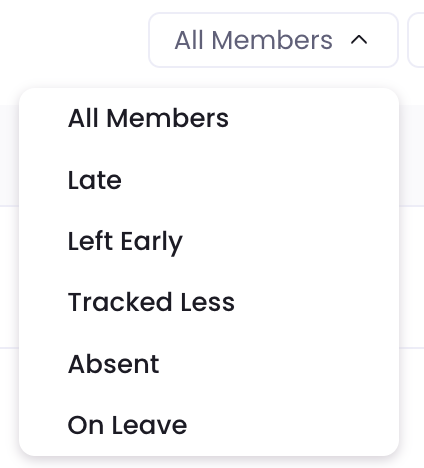
- Select Late, Left Early, Tracked Less, Absent or On Leave.
Which time counts
- Any time on the day keeps a member from Absent: time from the Desktop App, the Silent Tracker, the web tracker, the browser extension, the mobile app or a kiosk, manually added time, idle time that was kept, and paid breaks.
- The start, which decides Late, is the earliest of those, leaving out paid breaks and leave. Manually added time counts, so time added from 09:00 makes the start 09:00. The end, which decides Left Early, is the latest.
- The total, which decides Tracked Less, adds all of them, with manual time, kept idle time and paid breaks. Unpaid breaks never count.
- The Tracked time column of the Daily tab is narrower: it holds only the time a tracker recorded. Manual time, kept idle time, paid breaks and kiosk time count toward Total time but not Tracked time. Why do totals differ between views and reports? explains each total.
Whose clock decides Late and Left Early
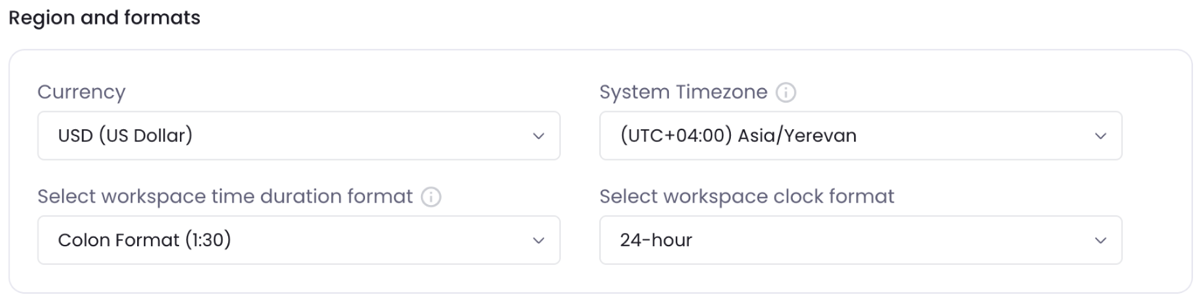
With Shifts off, the schedule runs on one clock for everyone: the workspace’s System Timezone, set in Settings > Workspace > Configuration as Workspace’s System Timezone shows. A member in another time zone is still measured against the workspace’s clock.
To give members their own clock, use Shifts: each shift has Select Timezone, and its Start Time and End Time are typed in that zone.
With no System Timezone set, the Daily report uses UTC to decide whether a date is today and whether the scheduled start or end has passed. Set a System Timezone so these checks use the workspace’s clock.
“Today” and “now” are read in the System Timezone, or in UTC when none is set.
Shifts that cross midnight, and flexible shifts
- A shift that ends after midnight counts on two dates. The part before midnight belongs to the day it starts, and the part after midnight to the next day. The Required hours are split between the two days by their length.
- A day that holds only the after-midnight part has no expected start, so the member is never Late that day. They are still Absent if they track nothing.
- A flexible shift, one with no Start Time or End Time, is never Late or Left Early. On the Daily tab, a flexible shift shows Not Started while no time has arrived and the member is not tracking. Once time arrives, it can show All Good before the required hours are complete. Absent and Tracked Less are checked at the end of the day.
Leave and holidays
- Approved leave, even for a few hours, suppresses Late, Left Early, Tracked Less and Absent for the whole day. On Daily, it shows On Leave unless a holiday or the no-shift rule applies.
- A leave policy of the Remote work kind, such as Work From Home, is not an absence: the day is judged as a normal working day. How to create Leave Policies? covers the policy kinds.
- A holiday set as a Non-Working Day clears the day for the members it applies to: everyone when it names no team or member, otherwise those teams and members. A working holiday changes nothing. See Holidays and Memorial Days.
- On the Daily tab, a holiday wins over leave on the same date: the Status cell stays empty.
When a status updates
Attendance is worked out each time the report opens, from the time WebWork holds and the schedule as it is now. No status is saved at the end of the day.
- While online, the Desktop App normally sends time every 4 to 9 minutes and attempts an upload when the member stops tracking. Time tracked offline arrives when the app is back online, as Offline Time Tracking explains. The status changes the next time the report opens.
- In the first minutes after Start, a member who began after the start time can therefore show Absent, with – as their end time, until their first minutes arrive.
- On the Daily tab, Left Early and Tracked Less wait until the scheduled end time, and both stay hidden while the member is tracking. With Shifts off and no End Time set, Tracked Less can appear earlier in the day. Custom Interval can also mark a short total before the scheduled end.
Changing the workspace schedule changes past days too. Editing a shift’s times changes every day since its start date, and deleting a shift removes it from past days as well.
To change a schedule from one date onward and keep the past days as they are:
- Edit the old shift and set Repeat until to its last day, as How to manage shifts? shows.
- Create a new shift that starts the next day.
How Custom Interval and Worked vs Expected differ from Daily
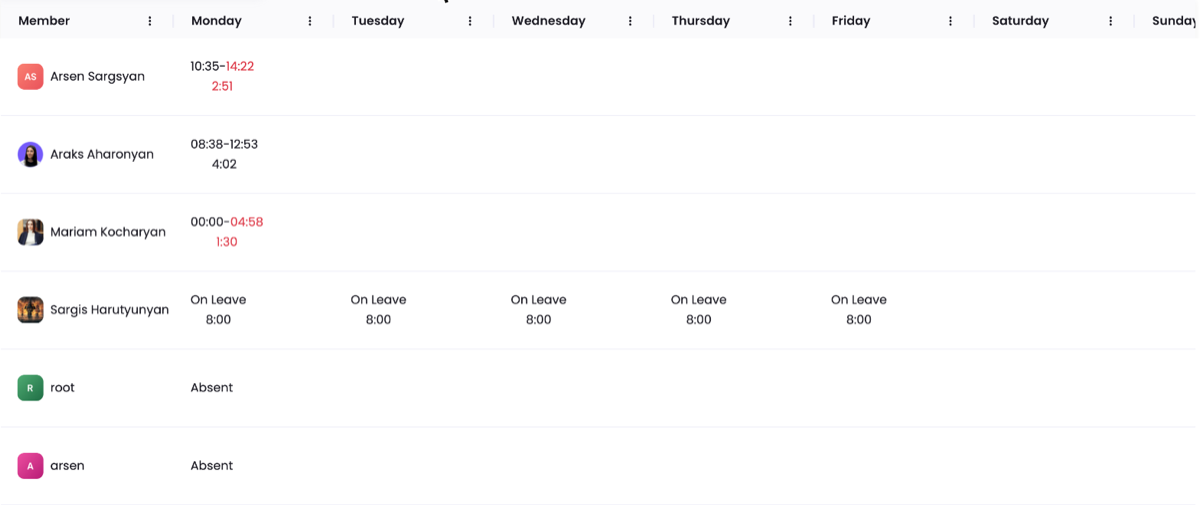
- Custom Interval is a grid of members by date. A cell shows Absent, On Leave with its hours, or the start and the end with the day’s total. The start is red when late, the end is red when the member left early, and the total is red when they tracked less. A member tracking now shows tracking as the end.
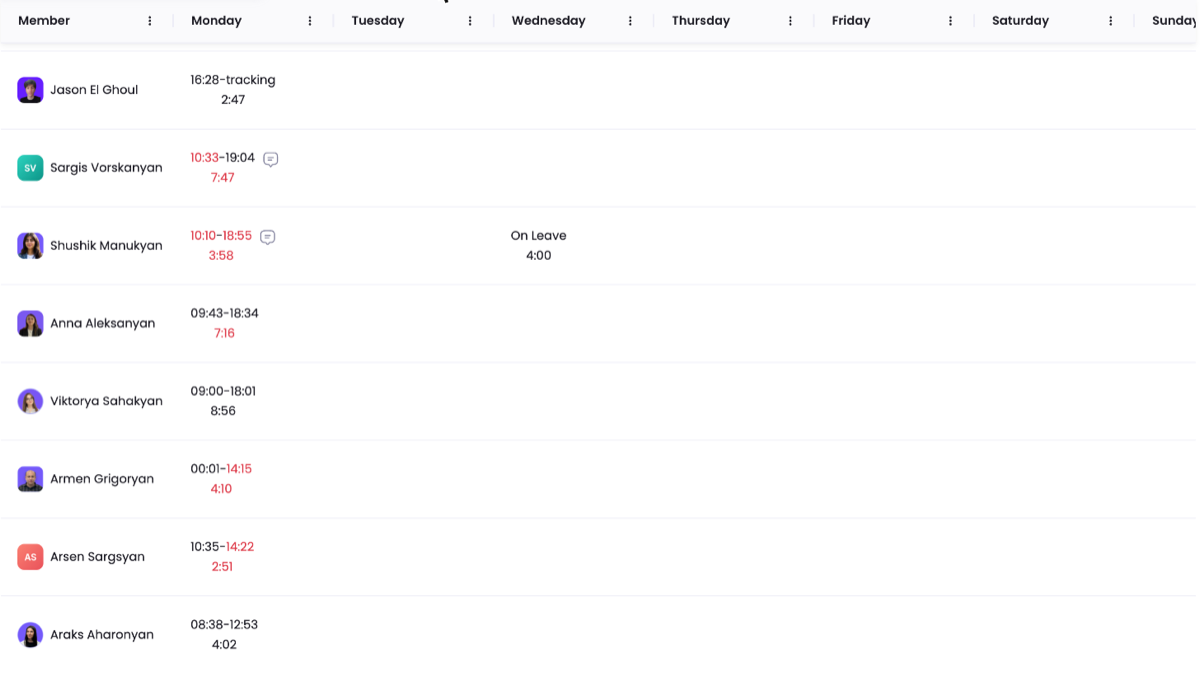
- Custom Interval shows Absent for today from midnight. It has no Not Started, so before the start time it can differ from the Daily tab.
- Worked vs Expected compares a date range: Difference = (Tracked time + Paid leave + Paid holiday) – Expected. With Shifts on, Expected comes from the member’s shifts. With Shifts off, it comes from the Daily Work Duration on the working days.
- Expected counts only up to today, and only from the day the member joined. A member with no expected hours shows Not Scheduled, and when no schedule is set at all, the tab says so.

- The Tracked time column of Worked vs Expected includes manual time, idle time and paid breaks.
Where members and managers see attendance outside the report
- A Regular User’s Dashboard has an Attendance card with Working days, Working hours and a Weekly Report that counts Late, Early Leaving, Less Tracking, Absent and On Leave. The card uses its own count: it counts today as Absent until the member’s first minutes arrive, even before the start time.
- In the Desktop App, the Shifts tab shows the member’s shifts. With Shifts off, the tab is titled Schedule and shows the workspace’s working days, hours and required hours. Both show System time zone:, which is the workspace’s System Timezone, or UTC when none is set. See Shifts in Desktop Tracker.
- On Plus and Premium with Shifts on, the Dashboard has an Attendance tab for the Owner, Executive Managers and Team Managers. A Team Manager sees only their members. On Pro the tab shows but cannot be opened.
How members are asked why they were late or left early
Two switches in Settings > Tracking > Advanced, under Desktop App Notifications, ask members for a reason in the Desktop App: Notify members when they are late from the scheduled time and Notify members, if they turned off the tracker earlier than the scheduled time. Each has Require to type the reason *. The section is hidden when the workspace tracks in Silent mode. Tracking Settings covers the switches.

- The late prompt, Looks like you’re late, opens a few minutes after the member starts, once their first minutes reach WebWork. After a reason is sent, it does not ask again that day.
- The You left early yesterday prompt checks the preceding day, skipping non-working holidays. It asks only if that day was scheduled and the member left early. If Saturday and Sunday are days off, starting on Monday does not trigger a prompt about Friday. Starting on Saturday can.
- The late prompt is suppressed by approved leave for today. The early-leaving prompt checks leave on the day it asks about and skips non-working holidays when choosing that day. The late prompt can still appear on a holiday that matches the working schedule. Both prompts require a Daily Work Duration or shift Required hours above zero. The Silent Tracker never shows them.
- On Daily, a comment icon appears beside Start time when a member gave a reason for a late start, and beside End time for an early leave. Point to the icon to read the reason. On Custom Interval, the comment icon is in the day’s cell. See Where can I see why my employees were late or left early?.

- On Plus and Premium, Owners and Executive Managers can turn on the Late coming notification in Notification Preferences. It fires when a member’s first time of the day starts late.
Troubleshooting
A member shows Absent, but they were tracking
- Their first minutes have not arrived yet. Wait up to 10 minutes and open the report again.
- They tracked in another workspace. Why am I appearing absent when the Desktop Tracker is on? shows how to check.
- You are a Project Manager viewing another member, so only time tracked on projects you manage counts.
A member shows Late, but they were on time
- Check the System Timezone in Settings > Workspace and compare it with the member’s local time zone.
- The member works in another time zone than the workspace’s clock. Give them a shift with their own zone under Select Timezone.
- The after start allowance is 0, so one minute after the start time is late.
A member shows Late or Absent on a day off
- With Shifts off, check Working Days in Settings > Attendance if the member shows Absent. Late, Left Early and Tracked Less can still appear when someone records time on an unselected day. Use Shifts when members need different schedules.
- With Shifts on, check which days the member’s shift covers: its days, its start date and Repeat until.
Nobody is ever Late
- Start Time is empty in Settings > Attendance.
- With Shifts on, the member has a flexible shift, or no shift that day.
A member shows Tracked Less, but they worked their hours
- Unpaid breaks do not count toward the total.
- For a shift that crosses midnight, the hours are split between the two dates.
Statuses changed for a past month
The schedule or a shift was edited or deleted since then. Statuses are worked out again each time the report opens, from the schedule as it is now.
Still having issues?
If the Desktop App is involved, update it and follow How to send error logs?. Contact support with the member, date, report tab, schedule, time zone, and the status you expected.
Was this article helpful?
Thanks for your feedback.