
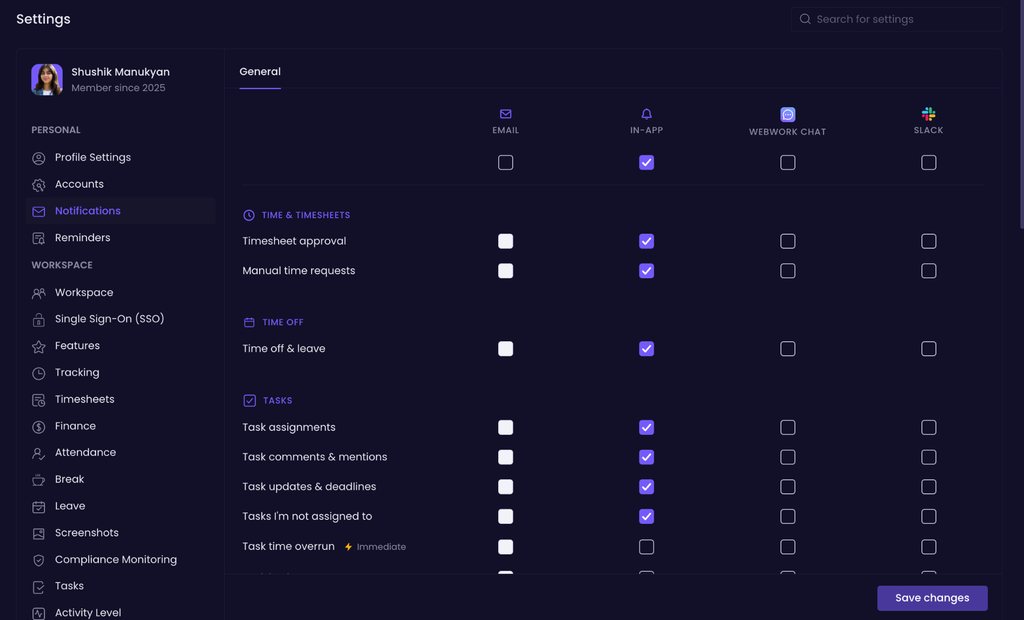
You can customize which type of notifications to receive and how you receive each type of notification. Notification preferences can be configured independently, so you can choose the most convenient channel for each notification type.
Notifications can be sent through:
- In-App
- WebWork Chat
- Microsoft Teams (if integrated)
- Slack (if integrated)
How to configure notification preferences
- Go to Settings.
- Select Notifications under Personal.
- Find the notification type you want to configure.
- Select the channels where you want to receive that notification:
- In-App
- WebWork Chat
- Microsoft Teams
- Slack
- Repeat this for other notification types as needed.
- Click Save changes.
Each notification type has its own channel settings, so enabling a channel for one notification does not automatically enable it for others.
Available notification types
Notification preferences are organized into the following categories:
Time & timesheets
- Timesheet approval
- Manual time requests
Time off
- Time off & leave
Tasks
- Task assignments
- Task comments & mentions
- Task updates & deadlines
- Tasks I’m not assigned to
- Task time overrun — Immediate
- Task budget overrun — Immediate
Projects
- Project assignments & changes
- Project time overrun — Immediate
- Project budget overrun — Immediate
Shifts
- Shift schedule
Payments & billing
- Payments & payouts
Video calls
- Video calls
Team & workspace
- Team & workspace activity
Integrations
- Account & settings updates
Feature requests
- Feature requests
Real-time tracking notifications
The following notifications are marked as Immediate:
- Non-productive app usage
- Tracker stopped
- Tracker started
- Late coming
WebWork AI
- Scheduled AI task results
Reports
- Summary report emails
- Tracked hours report emails
Example
If you want to receive task assignments in the app but don’t want an email every time you’re assigned a task:
- Find Tasks → Task assignments.
- Enable In-App.
- Leave Email, Microsoft Teams, and others disabled.
- Click Save changes.
You can use the same approach to create different notification preferences for each notification type.
Immediate notifications
Some notifications are marked Immediate. These notifications are intended for events that may require your attention right away, such as a tracker stopping, a task exceeding its time limit, or late coming.
The Immediate label describes the notification’s urgency; you can still choose which supported channels should receive it.
Summary
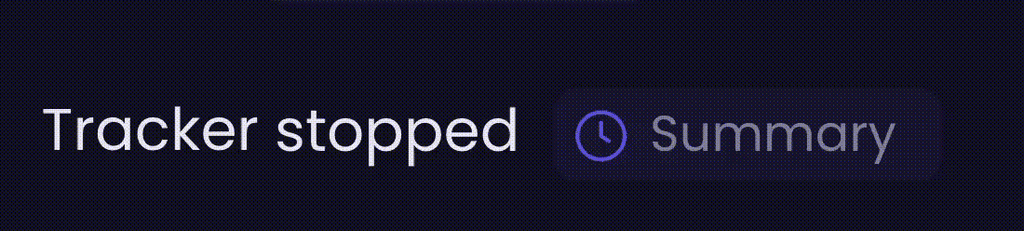
Events are combined into one notification every 10 minutes. The summary option exists so that larger teams do not generate a constant stream of individual alerts. Managers see attendance and focus issues while the day is still running, which gives them the chance to act instead of reviewing the problem afterwards in a report. If you want to change the notification mode from Summary to Immediate, click on the button “Summary”:
Was this article helpful?
Thanks for your feedback.