
The Send Log menu is in the Desktop App. For the Silent Tracker, contact support and ask them to request the log from the device. Tell support your workspace and the member name shown in People > Members.
For a Silent Tracker already connected to a workspace, keep the affected computer account signed in, the computer online and the Silent Tracker running. The tracker sends the requested log when it next checks its settings.
To send a log from the Desktop App, follow these steps:
-
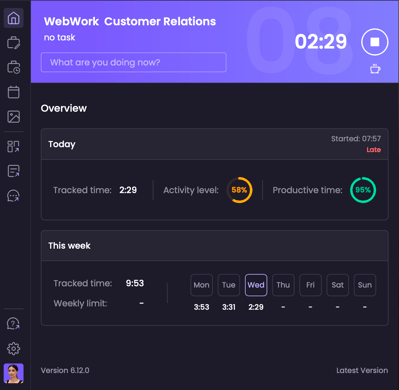
Open the WebWork Desktop App
-
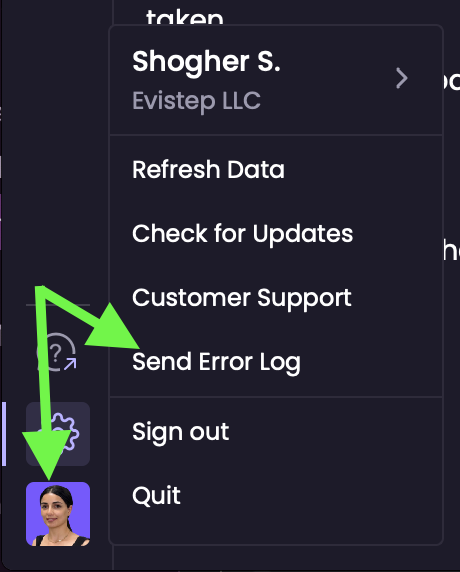
Click on your avatar in the lower left corner. This will display a list of available actions you can take.
-
From the available actions, click on Send Log. The system will automatically compile and send the log to our technical team for investigation.
-
After completing the steps to send the log, reach out to us providing as much detail as possible including screenshots or a screen video illustrating the issue and when it happened.
We are available to assist you through:
-
Live chat: The live chat icon is available at the bottom right corner of WebWork page
-
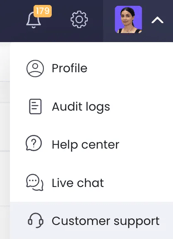
Ticket system: Find it in the dropdown menu on the upper right corner of your dashboard
-
Email: contact@webwork-tracker.com
-
We will investigate your log and reach out to you with solutions shortly. For each way to reach support and what to include, see How to contact WebWork support?
Was this article helpful?
Thanks for your feedback.