
With the Gusto integration, you can export your team’s earned amounts from WebWork in Gusto Payroll format. You then import the file into Gusto and run payroll there.
The Gusto integration is export-only. You don’t connect your Gusto account to WebWork, and WebWork doesn’t send payments to Gusto or sync data with it.
Payroll, including the Gusto export, is available on the Plus and Premium plans. On the Pro plan, you can get it with the Payments & Payroll Add-On for $1.5 per user/mo.
Before you start
Make sure you have:
- A Gusto account
- Hourly rates set for the members you’ll pay through Gusto. WebWork uses these rates and the tracked time to calculate earned amounts. You can set rates for members, projects, or contracts.
Step 1: Set Gusto as the payment method
- Go to Finances > Manage Payroll
- Find the member you want to pay through Gusto
- Under Pay Through, select Gusto
- Select their Pay Period
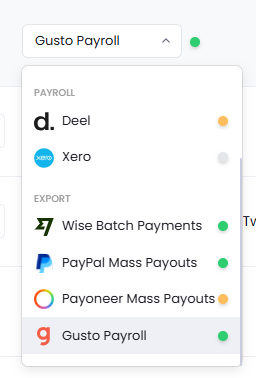
Repeat this for each member you pay through Gusto.
The payment method is set per member, so you can pay some members through Gusto and others through another method, such as PayPal, Wise, or Payoneer. To learn more about these settings, see How to set up and manage payroll.
Step 2: Export the Gusto file
You can export the file from two places:
| Export from | Use it when you want to |
|---|---|
| Reports > Rates & Amounts > Export tab | Pay members for the hours they tracked in a date range |
| Finances > Payments | Pay invoices that are already in WebWork, or export a single payment |
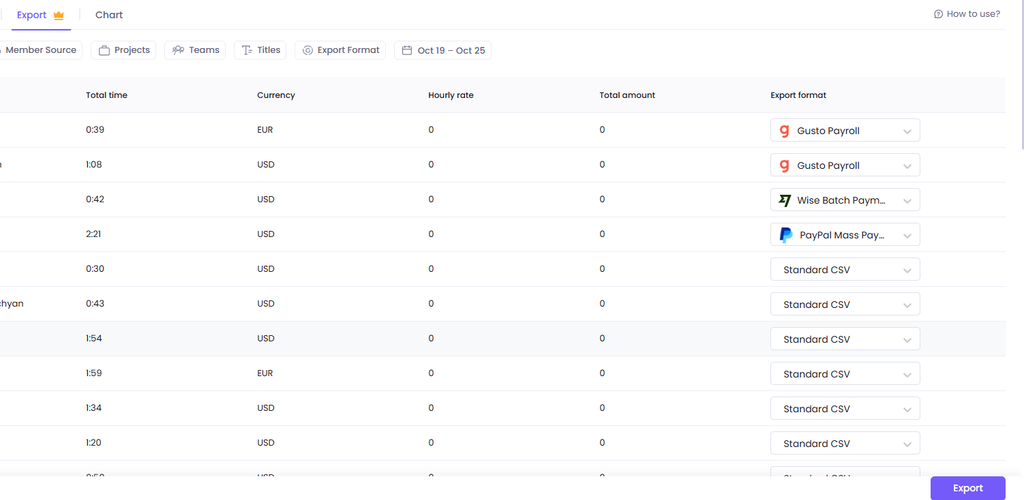
Export from the Rates and Amounts report
- Go to Reports > Rates and Amounts
- Open the Export tab
- Select the date range
- Use the Members, Projects, and Export Format filters to choose what to include
- In the Export Format column, check that Gusto Payroll is selected for each member you pay through Gusto
- Click Export
You’ll get a zip file. The Gusto data is in export-gusto.csv. If other members in the export use a different format, such as Wise or PayPal, their files are in the same zip.
For more on this report, see Rates and Amounts Report.
Export from Payments
To export invoices:
- Go to Finances > Payments
- In the payment method filter at the top left, select Gusto
- To export all invoices that match the filter, click Export at the top right.
To export a new payment:
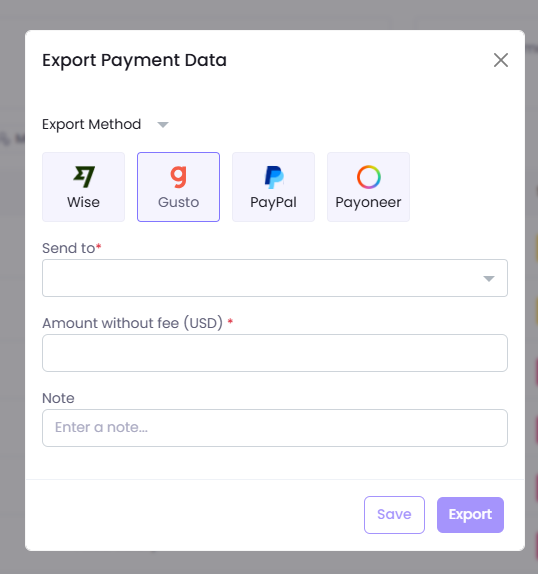
- Go to Finances > Payments > Create payment
- Switch Payment System to Export Method and select Gusto
- In Send to, select the member
- Enter the Amount without fee
- Add a Note if needed
- Click Export
For more on payments and invoices, see How to pay your team on WebWork.
Step 3: Import the file into Gusto
In Gusto, you import the file with Smart Import when you run payroll:
- In Gusto, go to Pay > Run payroll and choose a payroll
- Click Import payroll data
- Upload the file you exported from WebWork and click Upload and continue
- Check that the hours and amounts match your WebWork export, then click Import
- Complete the remaining steps and submit payroll
Note: The data you import replaces any existing entries in that Gusto payroll.
Was this article helpful?
Thanks for your feedback.