
On Monitoring > Screenshots, a 10-minute block with no image shows a label in its place, such as No screenshot or Screenshots off. The side panel can also show Unknown where you expect the name of an app. This article explains what each label means and why it appears. The Desktop App and the Silent Tracker take screenshots. The web tracker, the browser extension, the mobile app and a kiosk do not.
To fix screenshots that are missing, start with Why are screenshots not displaying?
What each label means
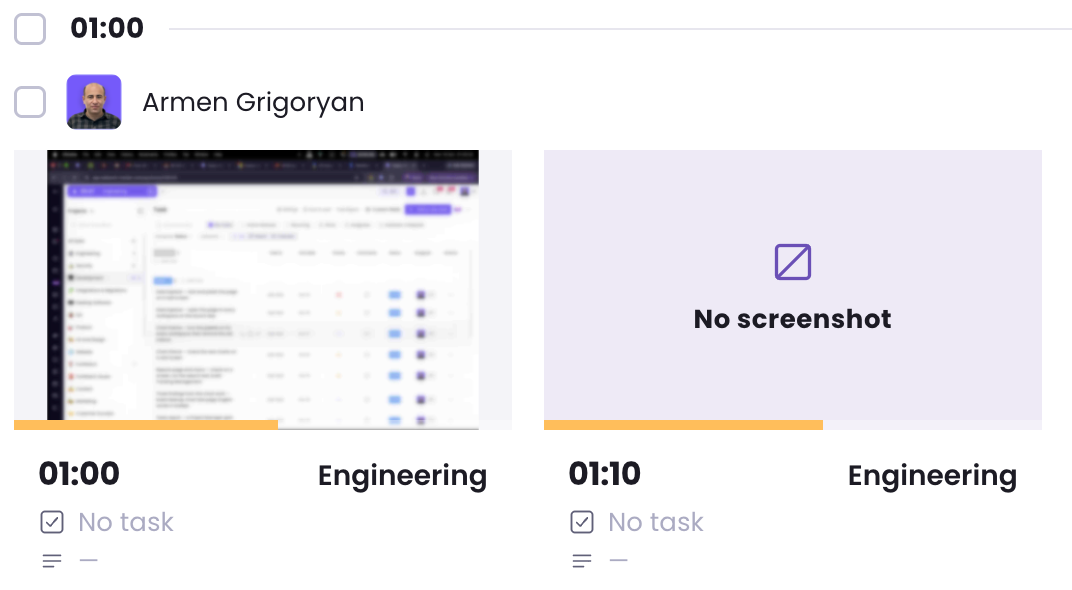
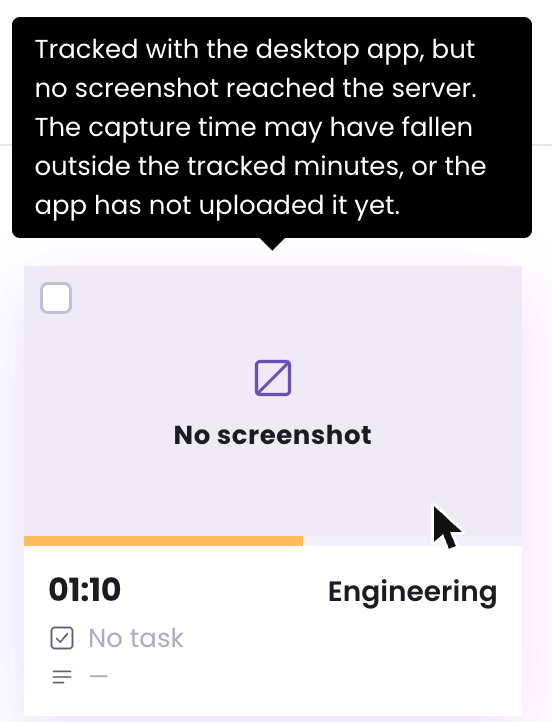
On the Every 10 min tab, each tile is one 10-minute block. Point to a tile without an image to read why it has none. Click the tile to read the same text on the Screenshot tab of the side panel.
| Label | What it means |
|---|---|
| No screenshot | The time was tracked with the Desktop App or the Silent Tracker, but no screenshot reached WebWork. The next section lists the causes. |
| Screenshots off | Screenshots are off for this member on this project. |
| Deleted | The screenshots of this block were deleted. The tracked time is still there. |
| Idle | The block holds idle time. This label has no explanation when you point to it. |
| Manual time | The block holds time added by hand. Manual time has no screenshots. |
| Web tracker, Extension, Mobile, Kiosk | The time was tracked with the web tracker, the browser extension, the mobile app or a kiosk, which take no screenshots. |
A block uses one label for all of its 10 minutes. It can show Idle or Manual time even when other minutes in the block have screenshots.
Screenshots off follows the member’s screenshot mode on that project as it is set today. After you turn screenshots back on, a block tracked while they were off shows No screenshot. After you turn them off, a block whose screenshot failed shows Screenshots off. To see where the mode is set, read Screenshots: Modes, Settings, and Privacy.
Why a block shows “No screenshot”
The member tracked this time with the Desktop App or the Silent Tracker, and one of these happened. Both apps work the same way here, except that the Silent Tracker shows no preview.
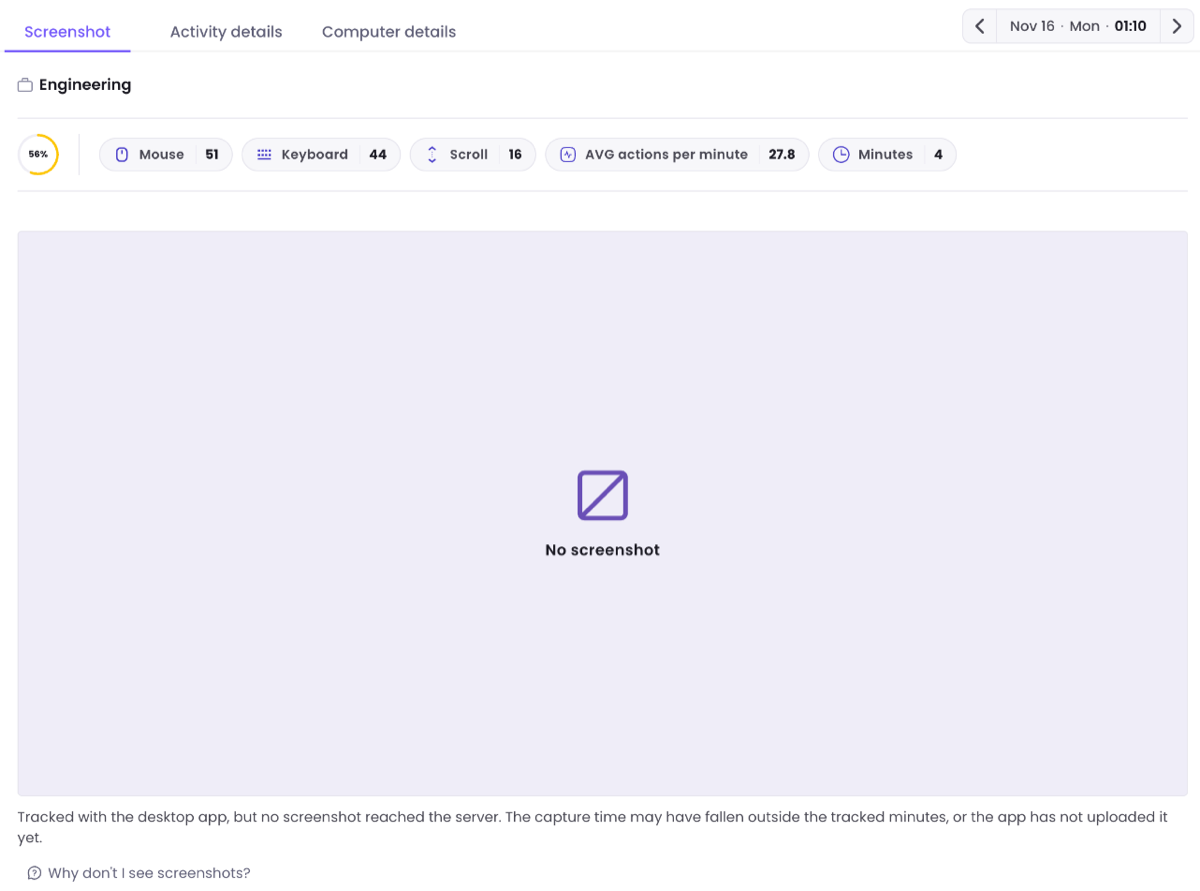
- The session was short or started late in the block. The app plans its screenshots for each 10-minute block of the clock, at random moments at least one minute apart. A session that starts partway through a block gets only as many screenshots as fit in the whole minutes left, and none when less than a minute is left. Stopping the timer cancels the screenshots not taken yet.
- The minute was not saved. A screenshot shows only on a minute that is part of the saved time.
- The screenshot was deleted from its preview. In Visible mode, the Desktop App shows a preview for 10 seconds after each screenshot, or for 50 seconds when the member opens it larger. A member who is allowed to delete screenshots can delete it there, and it is never sent. Regular Users can do this while Allow deleting screenshots by regular users is on, managers while Allow deleting screenshots by managers is on, and the Owner always.
- The capture failed. The app saves nothing for that moment and writes the failure to its log. On Linux with Wayland, screenshots come only through the WebWork GNOME extension: How to fix black screenshot issues on Linux?
- A video screenshot could not be built. In Video mode, the app records 10 frames and builds a short animation. It needs at least 3 good frames, and it drops a video larger than 7.5 MB.
- The screenshot is not uploaded yet. The app sends each screenshot 3 to 30 seconds after taking it. Offline, it keeps the screenshot on the computer and sends it when the connection returns. After a failed send, it tries again every 10 minutes.
- The screenshot was never sent. The app keeps an unsent screenshot for 7 days and then deletes it. A screenshot whose file was removed from the computer, for example by a cleanup app, is also never sent: Keep cleanup apps from deleting WebWork data.
Why a tile’s image does not load
When the image of a tile cannot be loaded, Every 10 min shows No screenshot with no explanation, and All screenshots shows an empty tile. Expired image links and the end of the time screenshots are kept are two possible causes. A failed connection can leave the same empty tile.
The links to the images last 12 hours. A page left open longer can show such tiles for blocks it had not shown yet. Reload the page.
WebWork keeps screenshots for a set time, by the plan the workspace was on when the screenshot was taken. After that time, the image is gone:
| Plan | Screenshots are kept for |
|---|---|
| Pro | 90 days |
| Plus and Premium | 365 days |
| Legacy | 180 days |
To keep a copy for longer, use Scheduled Screenshot Export.
Black, blank or wallpaper-only screenshots
- Mac, Desktop App. Without the Screen Recording permission, the app keeps tracking and keeps taking screenshots. What those screenshots show is covered in How to fix screenshot issues on Mac? and macOS Permissions for WebWork Desktop Tracker.
- Mac, Silent Tracker. It does not track at all until Accessibility and Screen Recording are both granted. The result is no time, not empty screenshots.
- Linux with Wayland. Without the WebWork GNOME extension, nothing is saved, and the block shows No screenshot: How to fix black screenshot issues on Linux?
- Windows. See How to fix missing screenshots on Windows?
The Desktop App does not pause screenshots when the screen locks or the screensaver starts. It keeps taking them until Stop tracker after … minutes of no activity stops the tracker. You set those minutes in Tracking Settings.
Why a screenshot shows fewer monitors than the computer has
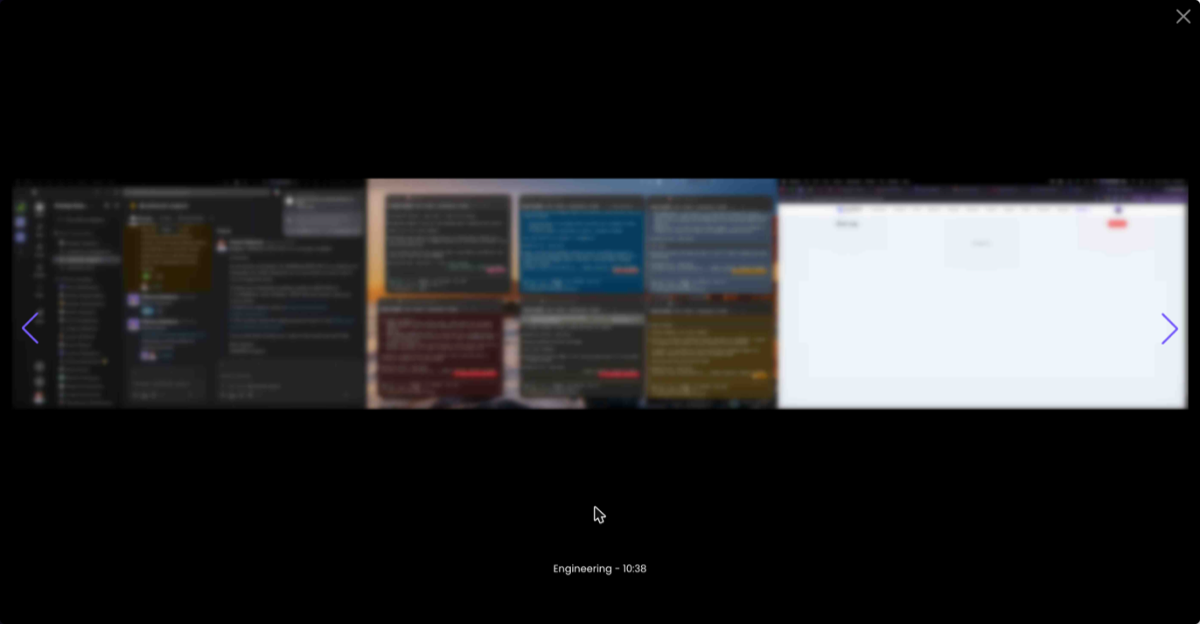
By default, one screenshot shows all connected monitors side by side.
A member can lower that number in the Desktop App, under Settings > Monitors, in Select how many monitors can be captured. The app then captures that many monitors, in the order the computer lists them. The member chooses how many monitors, not which ones.
The member can change the number only while Allow workspace members to select which monitors to track is on, in Settings > Tracking > Desktop Software. It is on unless someone turned it off. With it off, the number in the Desktop App is greyed out and shows all monitors, but a lower number the member chose earlier still applies.
To capture every monitor again:
- Go to Settings > Tracking > Desktop Software. Under Apply settings to, select Member and choose the affected member. Select Rewrite settings, turn on Allow workspace members to select which monitors to track, then select Apply changes.

- Ask the member to open Settings in the Desktop App and select the highest number under Monitors.
- If you do not want the member to change the number, select Rewrite settings again, turn the setting off and select Apply changes.
The number is saved on that computer. It stays after the member signs out, and it applies to every workspace the member uses there. A monitor connected later is left out while the number is lower. More on this setting: Will WebWork take screenshots of all monitors if there are several?
Why a screenshot is blurred
The Desktop App blurs a screenshot on the computer, before sending it. A blurred screenshot cannot be unblurred later. A screenshot is blurred in these cases:
- The member’s screenshot mode is Blurred, for the workspace, for the project or for the member on that project.
- Enable category-based screenshot blurring is on in Settings > Screenshots, and the app or website in front belongs to a selected category. This setting is not available on the Pro plan, and the Silent Tracker does not apply it.
- Enable HIPAA compliance restrictions is on in Settings > Workspace > Security. It switches screenshot modes to blurred and hides window titles in Activity details.
Screenshot blur level (%) sets how strong the blur is. All of these are covered in Screenshot Settings.
What “Unknown” means on the Activity details tab
The Activity details tab of the side panel lists the app, the window title and the website of each minute. Unknown in place of the app means WebWork has no app name for that minute. The Desktop App records no app name in these cases:
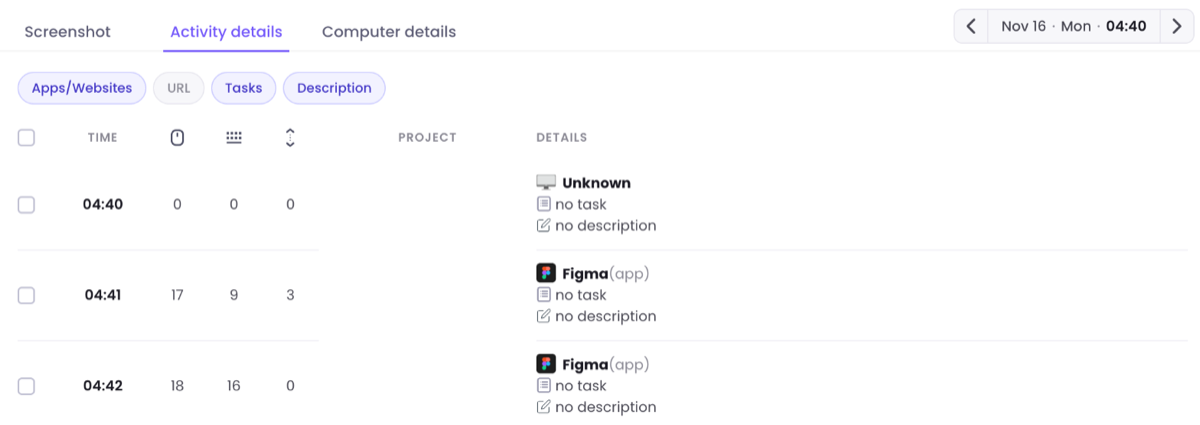
- On a Mac, the app in front has no regular window.
- On Windows, Windows does not let the Desktop App read the program in front.
- On Linux, the Desktop App cannot read the app’s name. It reads app names through X11.
What the tab shows follows Select the category to be shown in Activity Details in Settings > Screenshots, which offers Platform name and Window Titles. With only Window Titles selected, Unknown stands for an empty window title. On the Pro plan, window titles never show.

A window title longer than 60 characters is shortened in the middle. Emoji and some other characters show as a question mark.
Why a website is missing
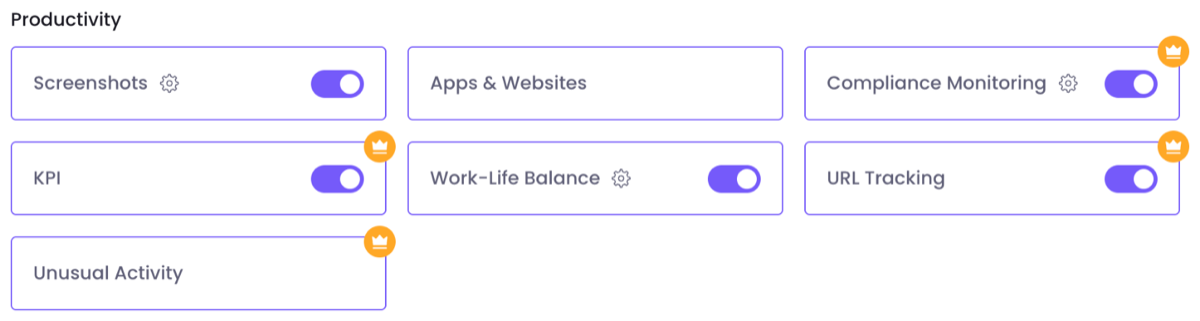
A website shows only when URL Tracking is on in Settings > Features and URL is selected at the top of the tab. URL Tracking is off until someone turns it on, and on the Pro plan it needs the add-on.
Whether a website shows also depends on the browser and its permissions. The table lists the browsers supported on Windows and Linux, and the browsers listed in WebWork’s permissions window on a Mac.
| System | Browsers |
|---|---|
| Windows | Chrome, Edge, Opera, Firefox |
| Linux | Chrome, Firefox, Edge, Opera |
| Mac | Chrome, Opera, Safari |
On a Mac, each browser also needs the Automation permission: macOS Permissions for WebWork Desktop Tracker.
What deleting a screenshot removes
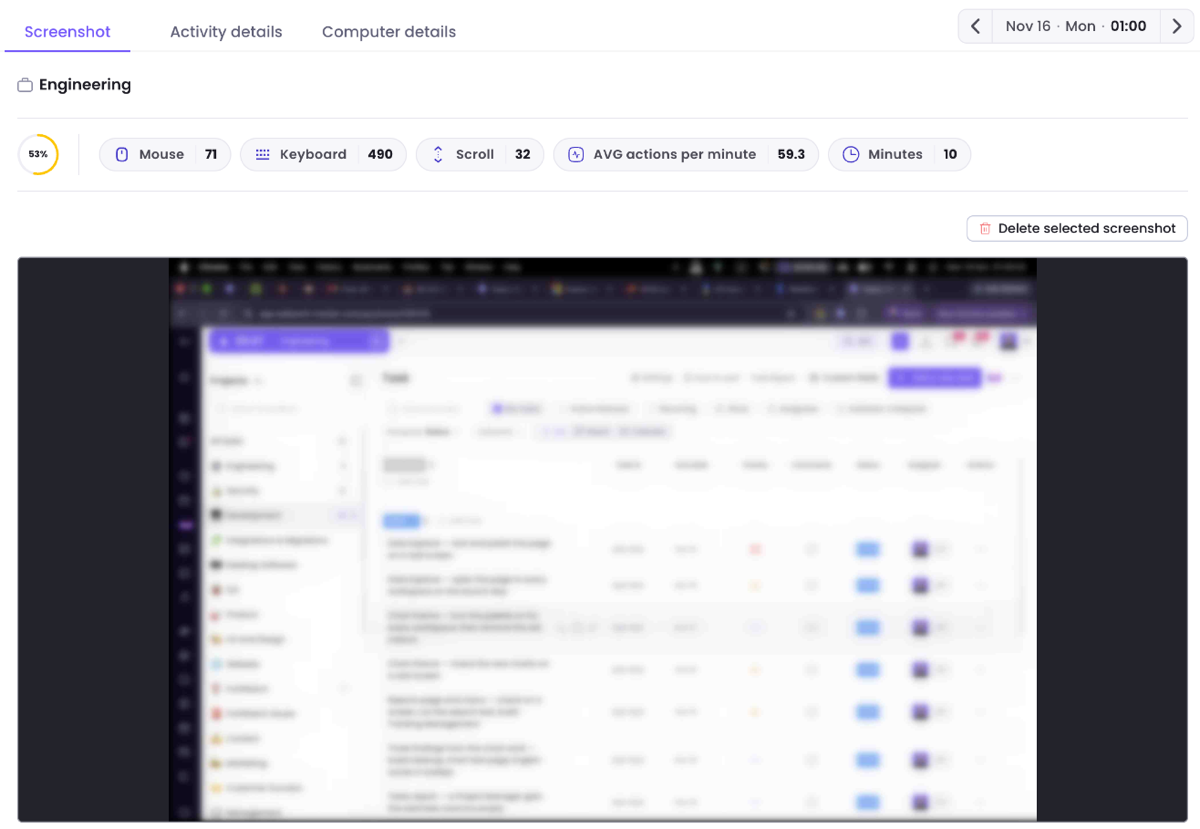
- On the Screenshot tab of the side panel, Delete selected screenshot removes the image and keeps the tracked time. The tile shows Deleted when no other screenshot is left in that block. If others remain, the tile still shows them.
- On the Activity details tab, Delete selected removes the selected minutes together with their screenshots and activity.
- In the Desktop App, Delete on the Screenshots tab removes the screenshot only. The time stays.
Delete selected on the Activity details tab deletes tracked time. To remove only an image, use the Screenshot tab.
Who can see screenshots
- Regular Users see their own screenshots only while Allow regular users to view their screenshots is on in Settings > Screenshots. With it off, Monitoring > Screenshots is closed to them, and the Screenshots tab of their Desktop App stays empty.
- Project Viewers see screenshots only while Allow project viewers to view members’ screenshots is on.

- Turning off Screenshots in Settings > Features stops screenshots in every project and closes Monitoring > Screenshots for everyone.
The Screenshots tab of the Desktop App shows the member’s last 12 screenshots from the past 24 hours, once they are uploaded: Screenshots in Desktop Tracker.
Still having issues?
Update the tracker you use. For the Desktop App, send the tracker log: it holds every failed capture. For the Silent Tracker, ask support to request its log from the device. Tell support the member, the date, the times of the blocks with no screenshot and your time zone.
Was this article helpful?
Thanks for your feedback.