
With the Scheduled Screenshot Export add-on, you can export your team’s screenshots every day, week or month. You download each export as ZIP files and keep your own copy before your plan’s retention deletes the screenshots. The add-on costs $0.50 per member per month on every plan. The Workspace Owner and Executive Managers who can see screenshots set up the schedules, get the emails and download the exports.
An Executive Manager can’t use scheduled exports when the Workspace Owner has hidden screenshots from them or restricted their access to the Productivity & Monitoring sections.
To download the screenshots of one date or a date range once, see How to download screenshots?
Turn on the add-on
Only the Workspace Owner or an Executive Manager can turn on the add-on.
- Go to Settings > Billing > Add-ons.
- On the Scheduled Screenshot Export card, turn on the toggle.
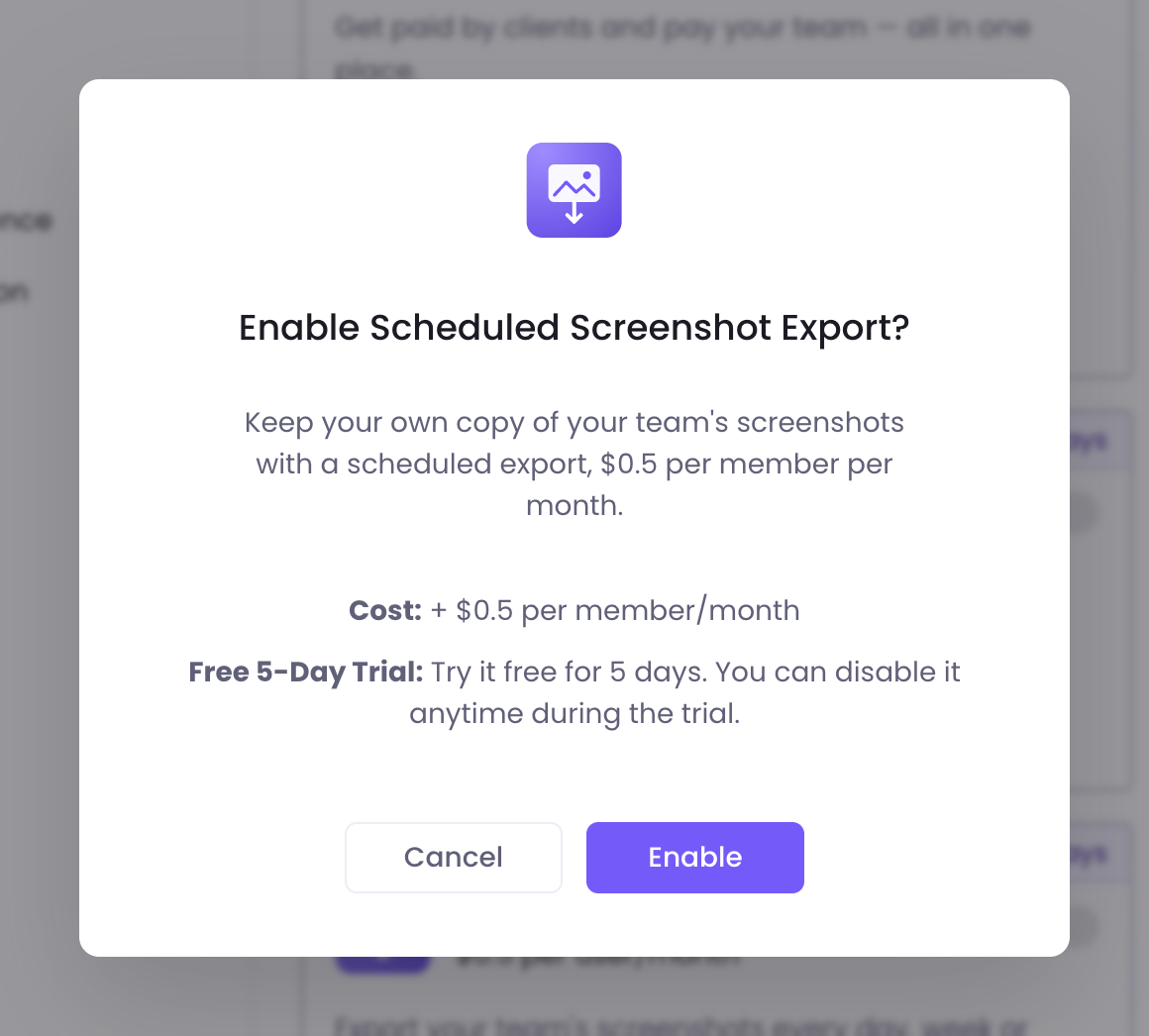
- Click Enable.
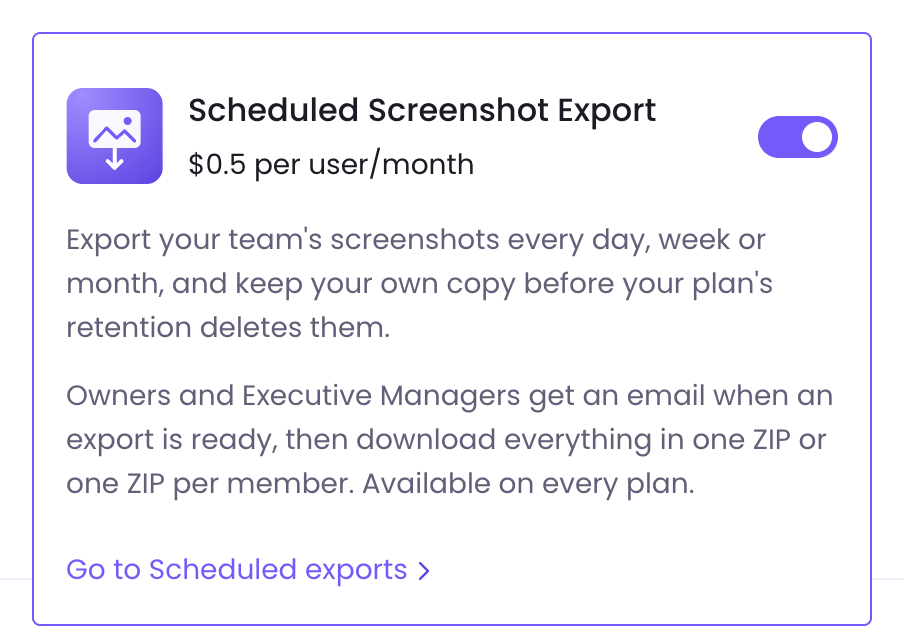
For the first 5 days after you first turn on the add-on, you can turn it off on the same card. After that, the toggle opens a support request to turn it off. When the add-on is off, each schedule pauses at its next run, and past exports stay open until their Available until date.
Open Scheduled exports
There are two ways to open Scheduled exports:
- Go to Monitoring > Screenshots and click Scheduled exports next to Download Screenshots.
- Go to Settings > Screenshots and click Scheduled exports.

The page lists your schedules under Schedules and the exports that have run under Exports. Until the add-on is on, it shows the notice Scheduled screenshot export is an add-on.
Create an export schedule
A workspace can have up to 5 schedules.
- Click New schedule.
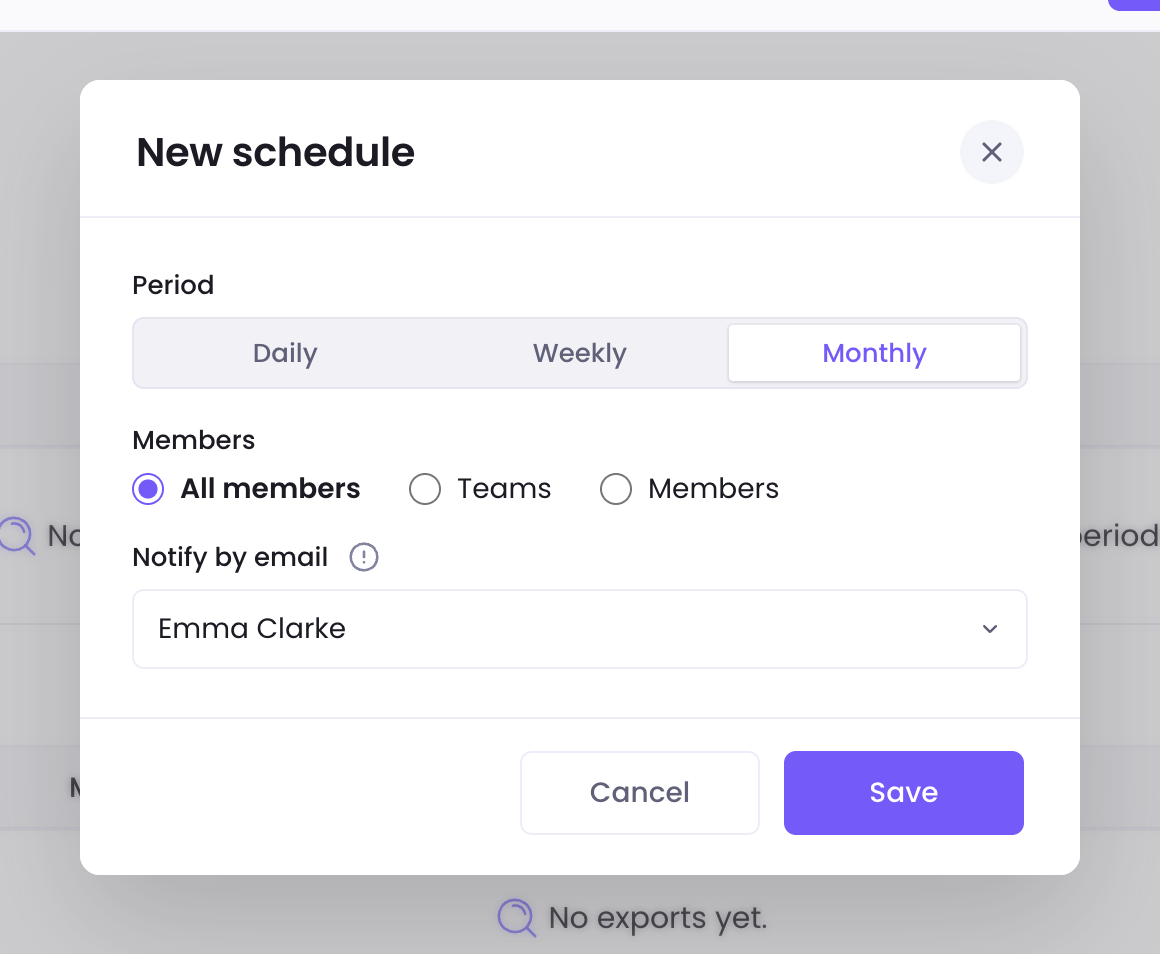
- Under Period, select Daily, Weekly or Monthly.
- Under Members, select All members, Teams or Members. For Teams or Members, choose them in Select teams or Select members.
- Under Notify by email, choose the Owners and Executive Managers who get an email when each export is ready.
- Click Save.

When exports run
| Period | Each export covers | It starts |
|---|---|---|
| Daily | The day before | Every day at 4:00 |
| Weekly | Monday to Sunday of the week before | Every Tuesday at 4:00 |
| Monthly | The calendar month before | The 2nd of every month at 4:00 |
Times are in your workspace’s time zone. The first export runs after the next period closes, and Next run shows when each schedule runs next. All members also covers members archived during the period. With Teams, each export takes the people in those teams when it runs.
Export the last period right away
Click Run now on a schedule to export its last complete period without waiting for the next run. The people under Notify by email get the email when the export is ready. Run now exports only the last complete period, and a schedule runs at most once in 24 hours, scheduled runs included.
Download an export
When an export is ready, the people under Notify by email get an email with an Open export button. If no screenshots were captured in the period, the email says so and there is nothing to download. Exports download in your browser; WebWork doesn’t send them to cloud storage.
Download each export before its Available until date. WebWork keeps no separate copy of an export: each ZIP is made from your workspace’s screenshots when you download it, so it follows your plan’s retention. Pro keeps screenshots for 90 days, and Plus and Premium for 365 days; Available until counts that time from the first day of the period. Screenshots deleted since the export ran are left out.
Your workspace can download up to 20 GB of exports a month, or 2 GB per member when that is more. Downloaded this month shows how much is used. When the limit is reached, downloads stop until the 1st of the next month.
| Option | What you get | Available |
|---|---|---|
| Everything in one ZIP | One file, with a folder per member inside | When the export is 4 GB or smaller |
| One ZIP per member | One file per member, downloaded one after another | Always |
- Click Open export in the email, or click Open next to the export under Exports.
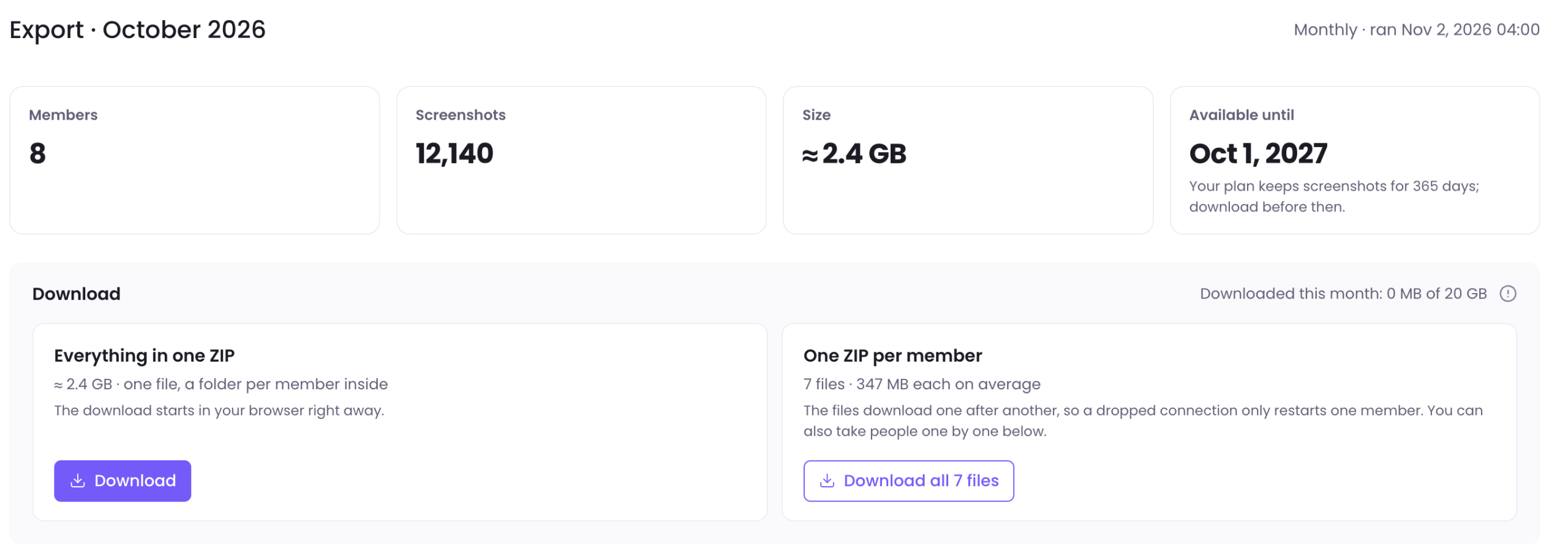
- Under Download, click Download for Everything in one ZIP, or Download all files for One ZIP per member.
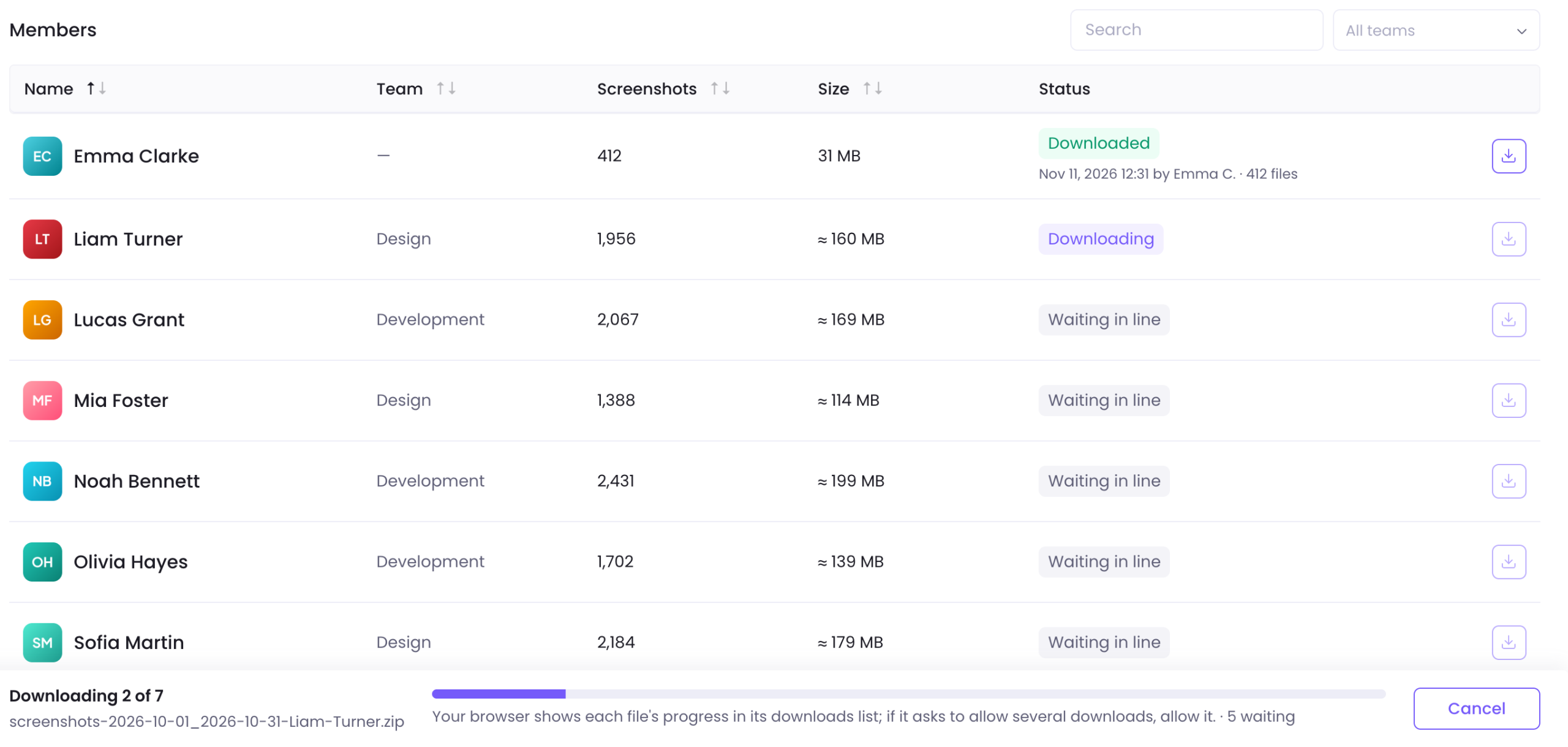
If your browser asks whether to allow multiple downloads, allow it.
The files save to your browser’s downloads list. In the Members list, a row shows Waiting in line, then Downloading, then Downloaded once the whole file has reached your browser. If a row shows Failed, click Retry. Cancel stops the files still waiting; the file in progress finishes.
Download one member’s screenshots
Find the member with Search or the All teams filter, and click the download icon on their row. Members with no screenshots show No screenshots in this period.
What’s in a ZIP
Each ZIP has a folder per member, and a folder per day inside it, such as Member name / 2026-10-07 / screenshot_2026-10-07_10-30_1.jpg. A member’s file is named screenshots-<start date>_<end date>-<Member-Name>.zip.
Change or delete a schedule
To change a schedule, click the Edit icon on its row, make your changes and click Save. To remove it, click the Delete icon and confirm with Delete. Exports of a deleted schedule stay under Exports until their Available until date.
Resume a paused schedule
A schedule that can’t run pauses: its Status shows Paused, and the Workspace Owner and the people under Notify by email get an email. While a schedule is paused, no exports are made, and the periods it skips are not exported later.
| Why it paused | To resume |
|---|---|
| The add-on is off | Turn on the add-on in Settings > Billing > Add-ons. Schedules paused for this reason resume on their own. |
| The person who set it up can no longer export | Click Resume on the schedule. |
A resumed schedule exports from the next period. To export the last complete period right away, click Run now.
Was this article helpful?
Thanks for your feedback.