
WebWork Desktop Tracker needs a few macOS permissions to record activity levels, take screenshots and log the apps and websites you work in. Which permissions it needs depends on your macOS version:
- macOS 27 or later: Screen & System Audio Recording, Input Monitoring, and Automation for each browser you use.
- macOS 26 or earlier: Screen & System Audio Recording, Accessibility, and Automation for each browser you use.
On macOS 27, make sure WebWork Desktop Tracker is up to date before you grant the permissions. Older versions do not ask for Input Monitoring and cannot record activity on macOS 27 even when every other permission is granted.
The permissions window
When WebWork starts and a required permission is missing, it opens a window titled Give WebWork permissions to work correctly. Each row shows a permission, whether it is Granted or Denied, and a button that opens the matching page in System Settings. On macOS 27 the window lists Input Monitoring; on macOS 26 and earlier it lists Accessibility instead.
For each row marked Denied:
- Click the Open … settings button. System Settings opens on the right page.
- Turn on the toggle next to WebWork Tracker.
- Quit and reopen WebWork. The row changes to Granted.
If the window does not appear, grant the permissions manually as described below.
Screen & System Audio Recording
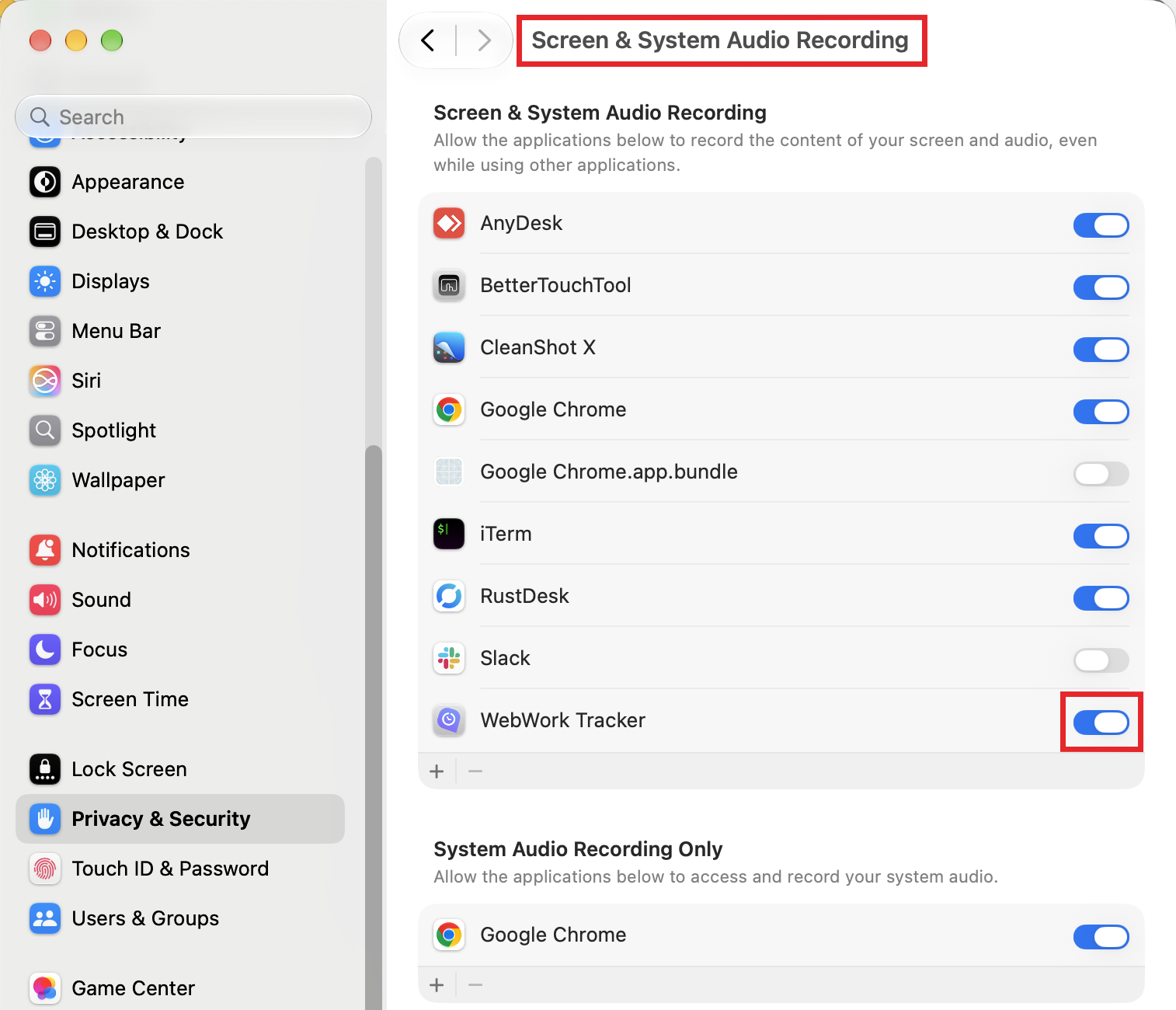
WebWork uses this permission to take the periodic screenshots your workspace has enabled. Without it, screenshots show only your wallpaper or a black image.
- Open System Settings and go to Privacy & Security > Screen & System Audio Recording.
- Turn on the toggle next to WebWork Tracker.
- Quit and reopen WebWork. macOS applies this permission only after the app restarts.
Still seeing wallpaper-only screenshots? See How to fix screenshot issues on Mac.
Input Monitoring (macOS 27 or later)
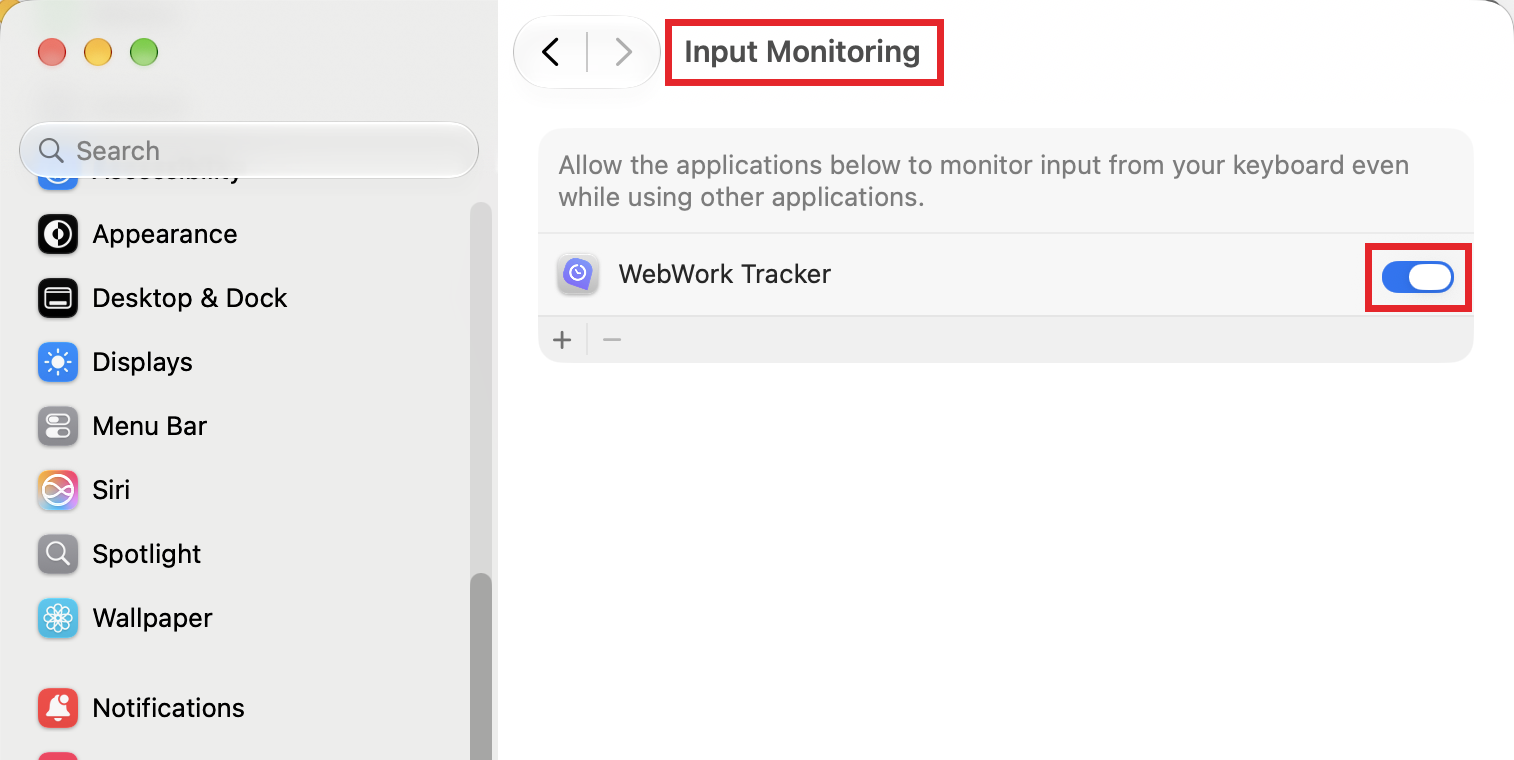
WebWork counts your mouse and keyboard activity to calculate your activity level and to detect when you are idle. On macOS 27 this requires the Input Monitoring permission. Without it, your activity level stays at 0%, the tracker treats you as idle and stops after the inactivity limit, then starts again when you move the mouse.
- Open System Settings and go to Privacy & Security > Input Monitoring.
- Turn on the toggle next to WebWork Tracker. If WebWork is not in the list, click + and add it from the Applications folder.
- Quit and reopen WebWork.
If your Mac is managed by your company, note that Apple does not let management profiles pre-approve Input Monitoring or Screen Recording. Each person has to turn these on in System Settings. If a toggle is greyed out, ask your IT team to remove any profile that denies the permission for WebWork.
Accessibility (macOS 26 or earlier)
On macOS 26 and earlier, WebWork uses the Accessibility permission instead of Input Monitoring to count mouse and keyboard activity.
- Open System Settings (or System Preferences on older versions) and go to Privacy & Security > Accessibility.
- Turn on the toggle next to WebWork Tracker.
- Quit and reopen WebWork.
On macOS 27 WebWork does not need this permission, and the Accessibility page has become Device Control and Data Access. Grant Input Monitoring instead.
Automation (website URLs)
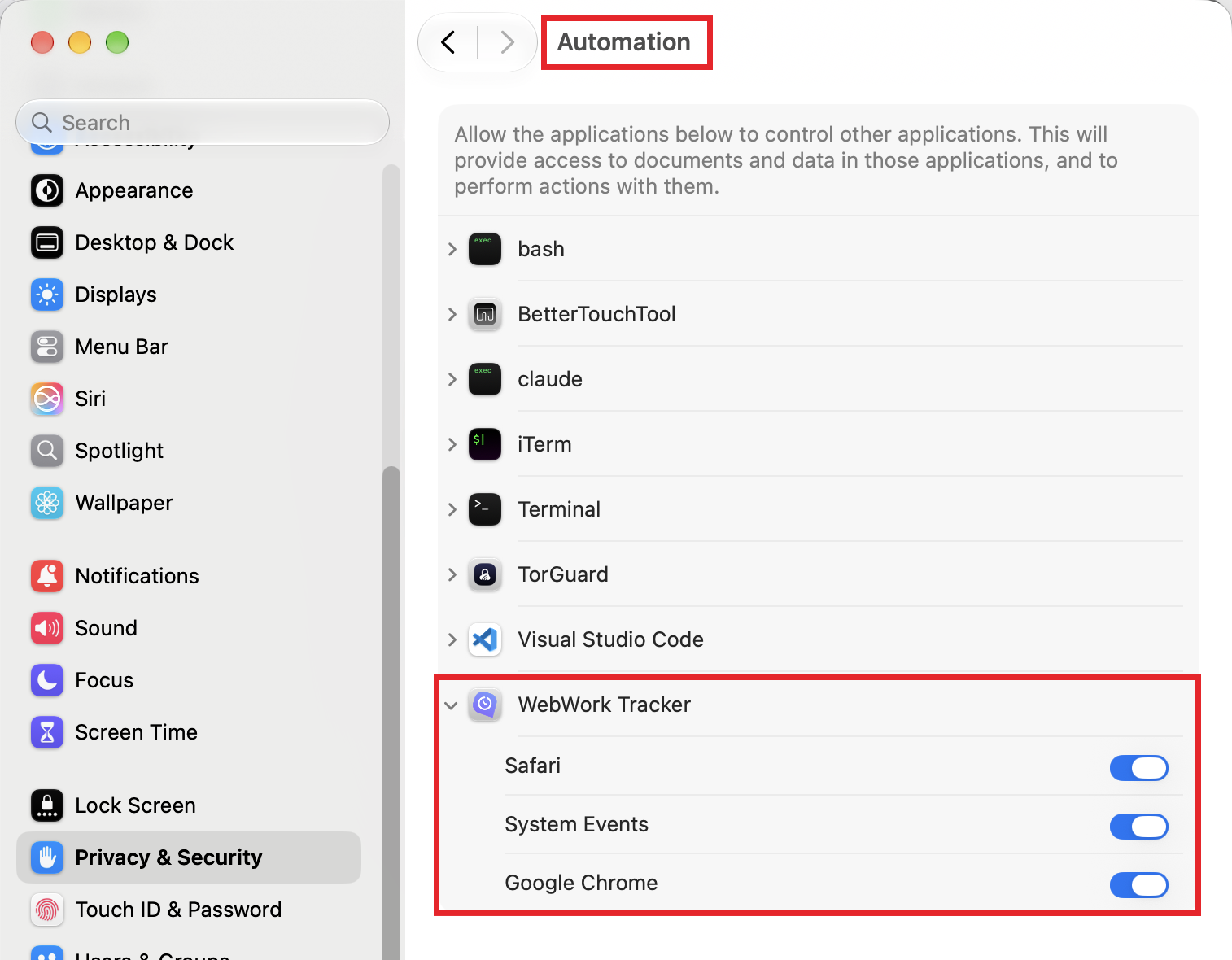
WebWork records the names of the apps and windows you use without any extra permission. To record the URL of the website you are on, it reads the active tab from your browser, and macOS asks you to allow this for each browser separately. This is the Automation permission.
The easiest way to grant it: the first time WebWork reads a URL from a browser, macOS shows a prompt saying that WebWork Tracker wants access to control that browser. Click Allow. The permissions window also lists your installed browsers with a Grant button for each.
To check or change it manually:
- Open System Settings and go to Privacy & Security > Automation.
- Expand WebWork Tracker.
- Turn on the toggle for each browser you use, and keep System Events on. WebWork uses System Events to start at login and to install updates.
WebWork cannot read the active tab from Firefox on macOS, so it records Firefox as an app but not the websites you open in it.
If tracking still does not work
- Make sure WebWork is up to date. See How to download, install, and use WebWork on Mac.
- After changing any toggle, quit and reopen WebWork. Permission changes do not apply to a running app.
- If a toggle is greyed out, your Mac is managed by your company. Ask your IT team.
- Marked idle while you work: How to fix activity detection issues on Mac.
- Screenshots show only your wallpaper: How to fix screenshot issues on Mac.
Was this article helpful?
Thanks for your feedback.