
Integration
To set up the Slack integration, see Slack Integration.
Mention
Users can interact with the WebWork Slack App in multiple ways. Commonly used methods include:
-
Mentioning WebWork in Channels
In any Slack channel where WebWork is added, users can @mention WebWork to initiate a conversation.
WebWork will respond to queries or commands based on the user’s message content and their access level.
-
Messaging WebWork via the App Interface
Users can open the WebWork app from the bottom-left Apps section in Slack and go to the Messages tab to start a direct conversation.
What You Can Do:
-
Ask questions about:
- How to use WebWork
- Available features
-
Inquire about tracked data such as time, activity, screenshots, and productivity.
Access to this data depends on your permissions.
Example questions:
- “Provide work summary for John Doe for yesterday.”
- “How many hours did John Doe work yesterday and on what projects and tasks?”
-
Request creation or updates for items such as:
- Projects
- Tasks
- Standups
- Holidays
- Team members’ birthdays
- Inviting a member
WebWork will prompt you to provide any required details and will handle the request accordingly.
Commands
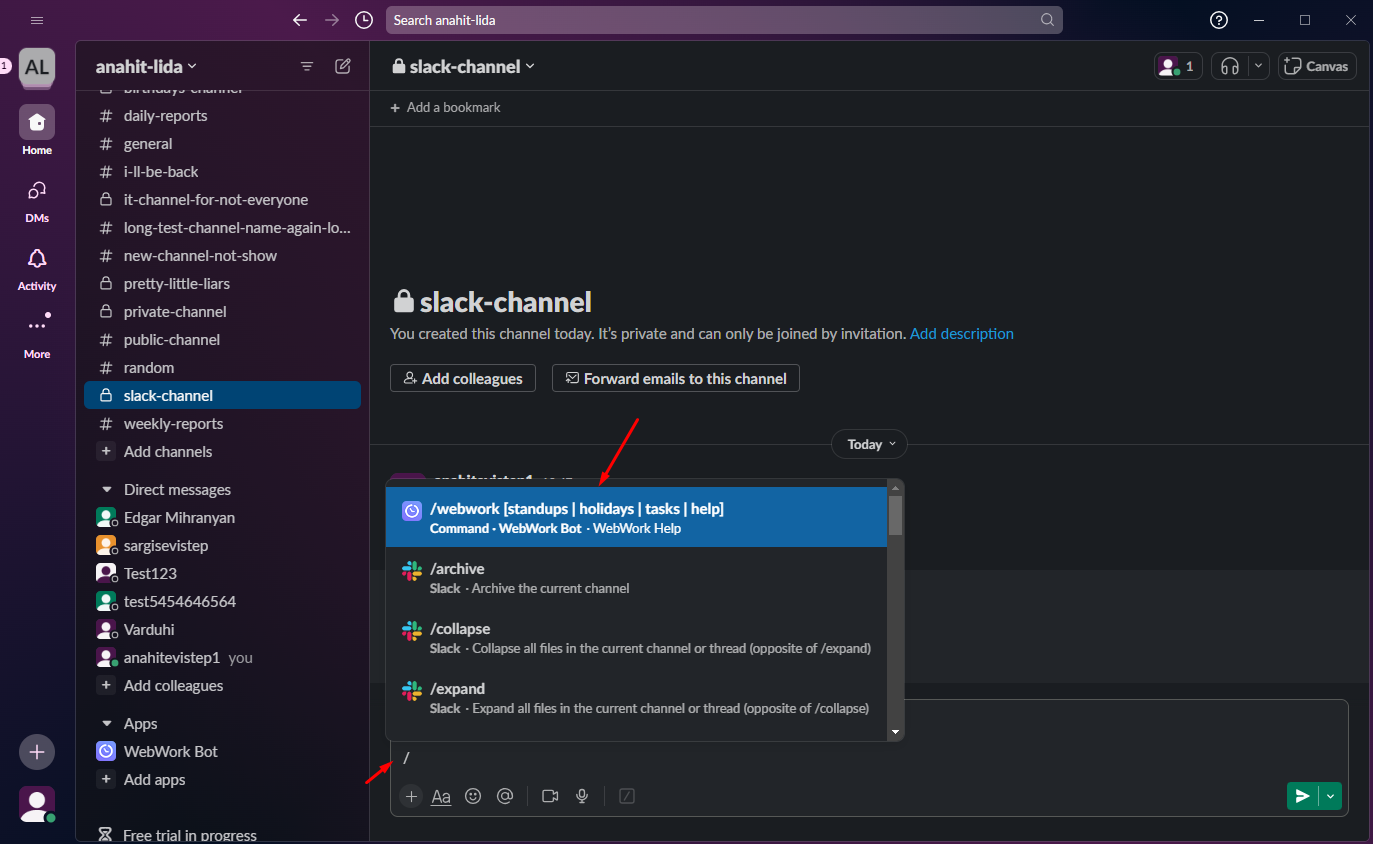
- When the user types a slash in the channel/direct message there are open options including the webwork commands: (/webwork)
- /webwork standups
- /webwork holidays
- /webwork tasks
- /webwork help
- /webwork_ask and your question
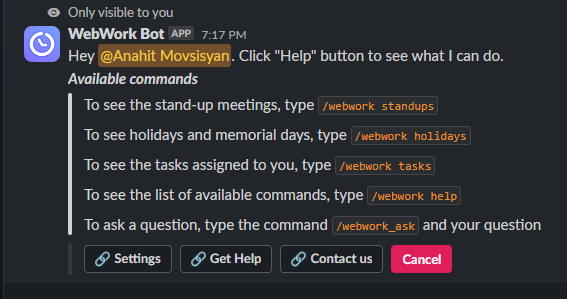
- Help section:
/webwork standups – /webwork_ask standups list
- When the user types a slash in the channel there are open options including the webwork commands: (/webwork_ask)
-
- /webwork_ask standups list/show my standups
- /webwork_ask holidays/holidays list/show my holidays
- /webwork_ask tasks/tasks list/show my tasks
- /webwork_ask When is Name Surname’s birthday?
/webwork help
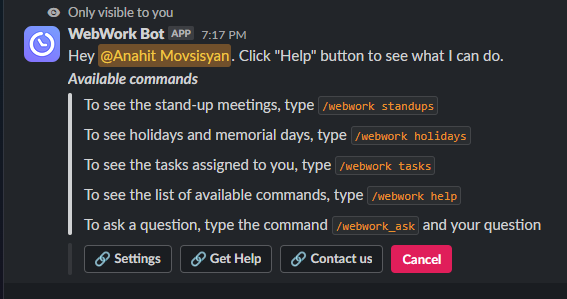
- When the user selects the /webwork help → shown all the available commands with their explanations
- When the user selects the /webwork and types something that differs from the mentioned commands → there are shown all the available commands with their explanations
- When the user selects the /webwork_ask and types something that differs from the mentioned command → ChatGPT answers the question
/webwork standups – /webwork_ask standups list
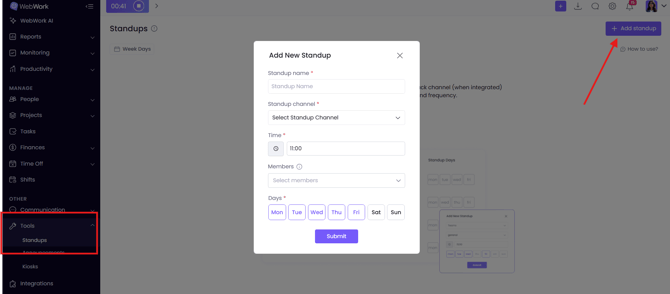
- When the user selects the /webwork standups or /webwork_ask standups list (or one of the above-mentioned commands), are shown all the standups if there are any standups created for the workspace and the channel (Standups are created by the Owner/Executive Manager from the “Tools” section on the Dashboard’s sidebar)
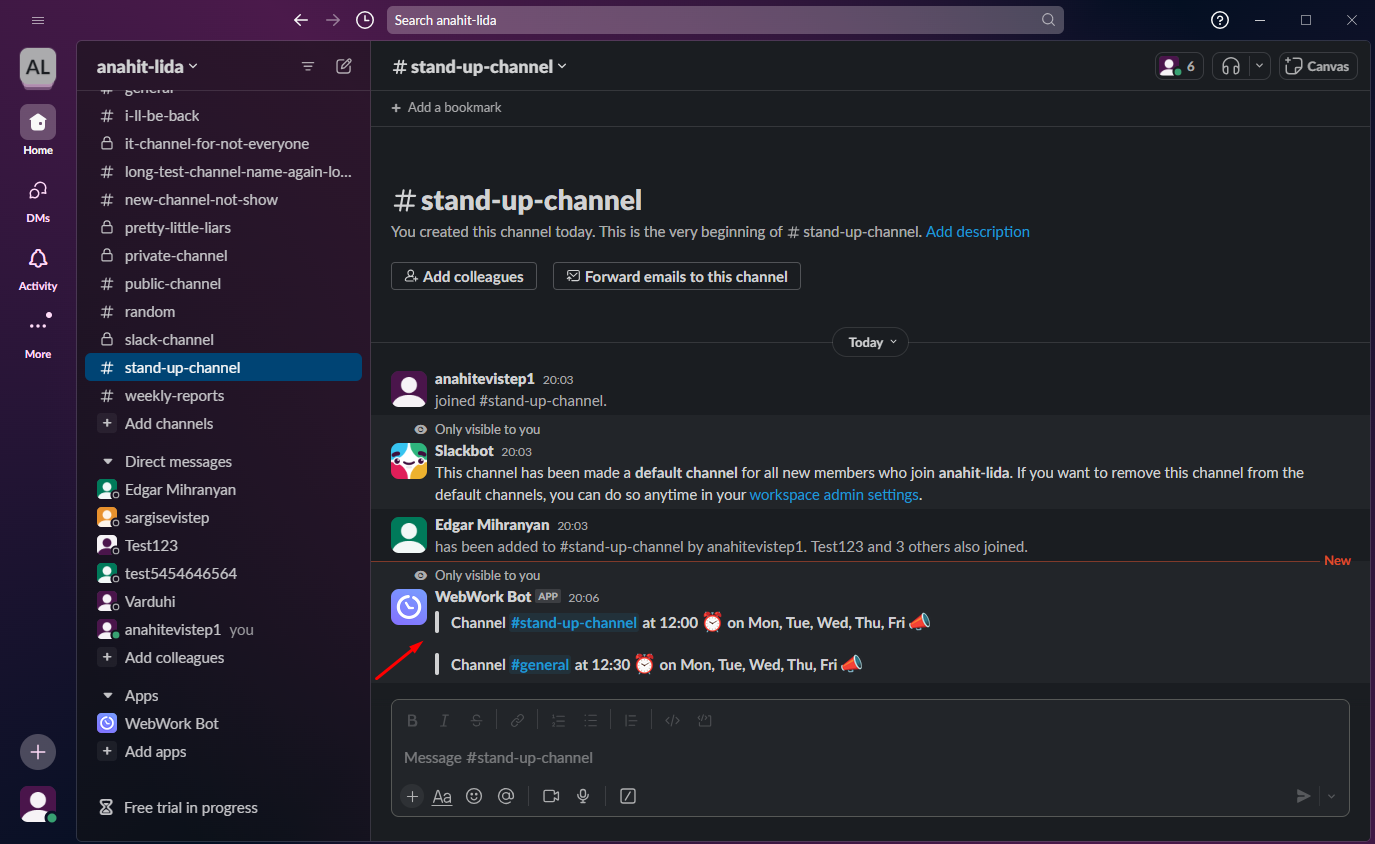
-
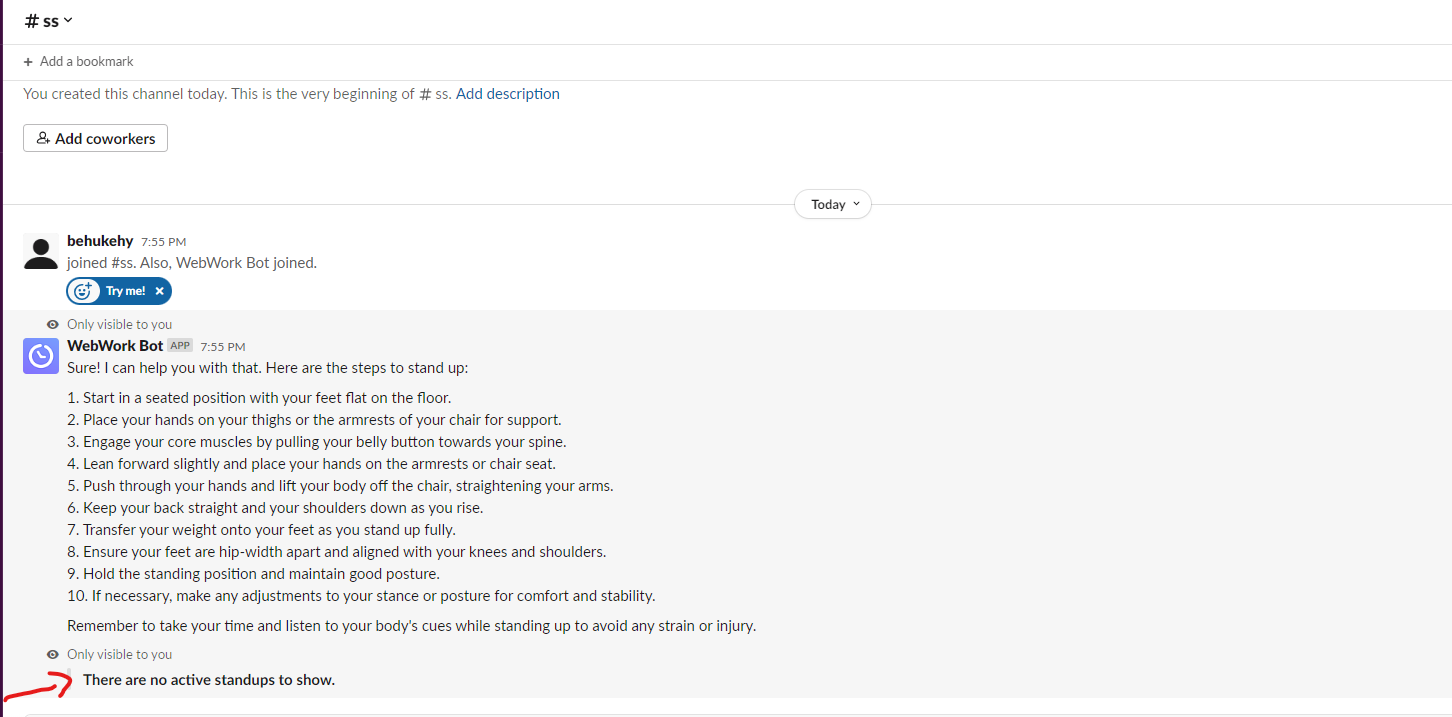
If there is no standup created for the workspace and the user selects the /webwork standups or /webwork_ask standups list (or one of the above-mentioned commands) there is shown the message “There are no active standups to show.”.
/webwork create standup – /webwork_ask create standup
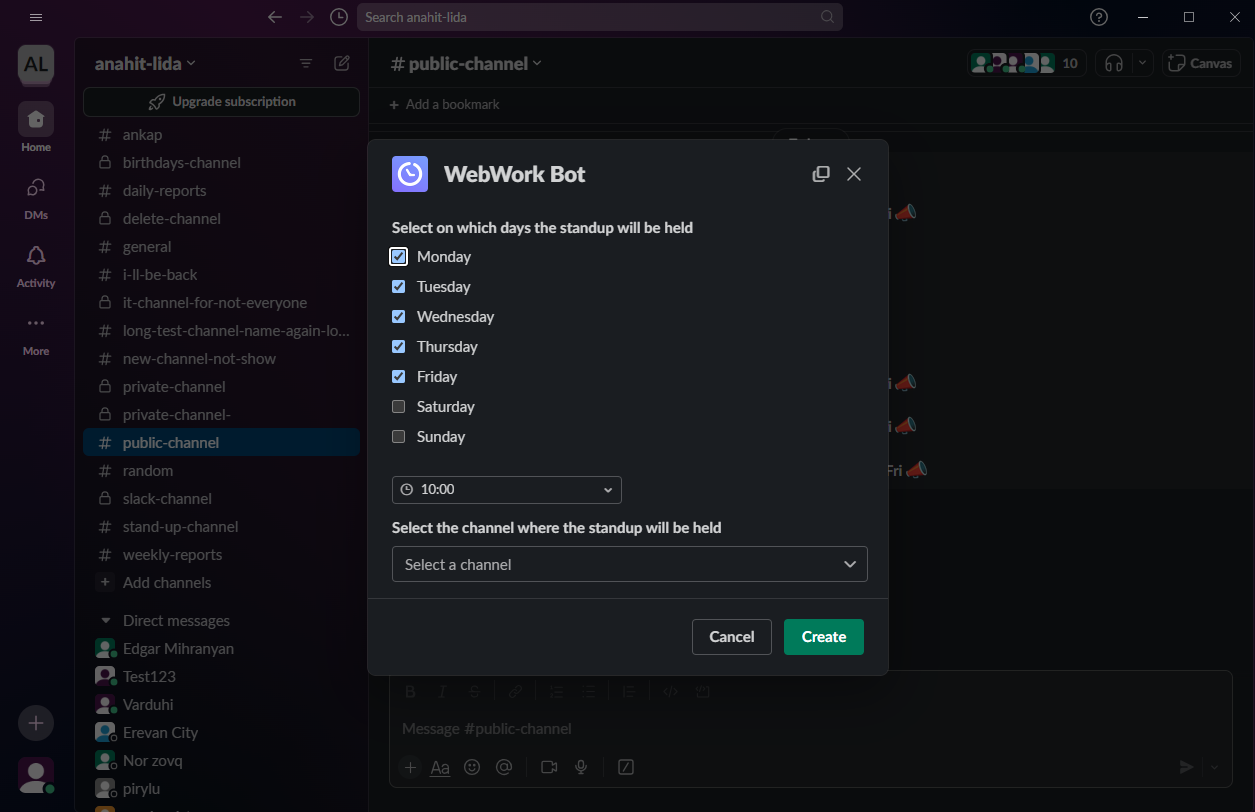
- When the user types**/webwork create standup or /webwork_ask create standup** in the channel and has permission to create standup (permission has the Owner and Executive Manager) → opens modal where can set the days of the week and the time for standup
- If the user has permission and chooses days and times → clicks on the “Create” button there is shown the message: “Success 🎉 Standup created for your selected channel.”.
-
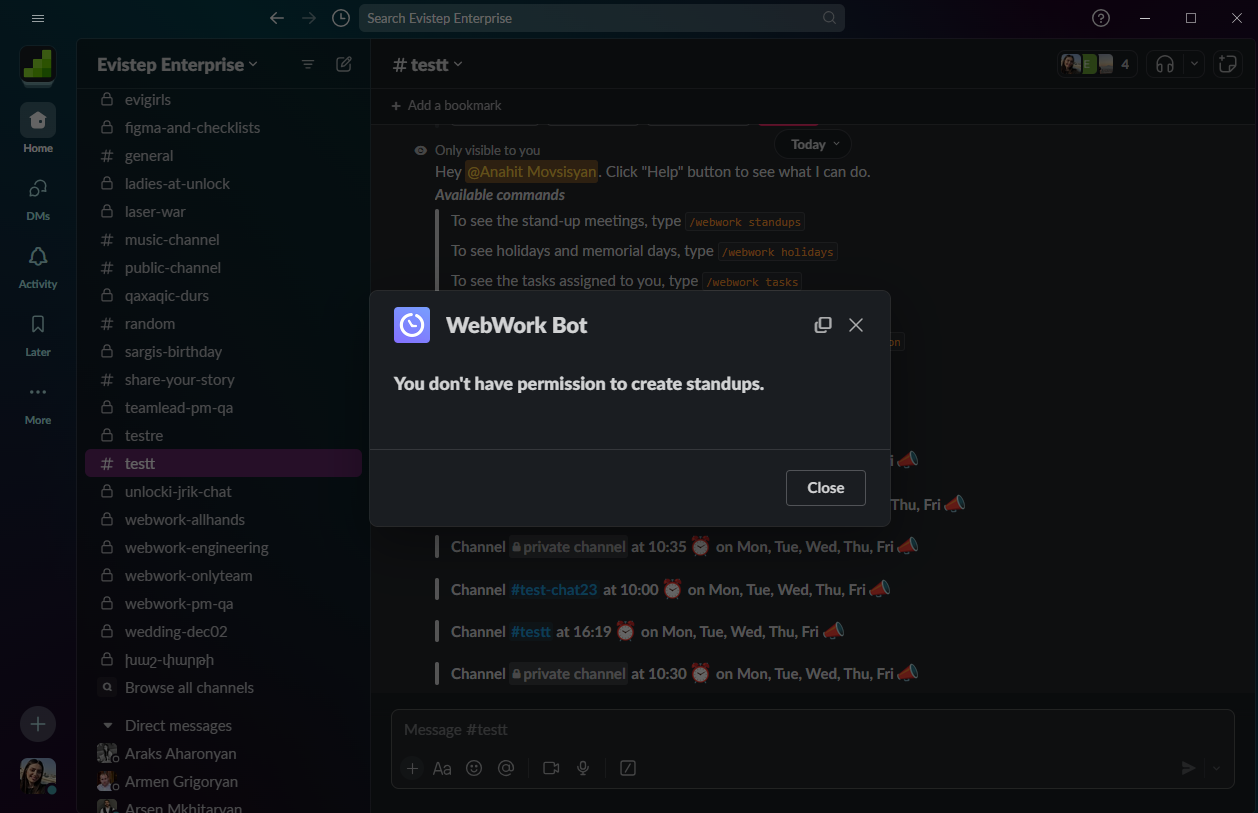
If the user doesn’t have permission to create the standup and types in the channel /webwork create standup or /webwork_ask create standup there is shown the message “You don’t have permission to create standups.”.
-
When the user types /webwork_ask remove standup or /webwork_ask delete standup in the channel and he has permission there is shown the message “Standups have been removed from this channel.”
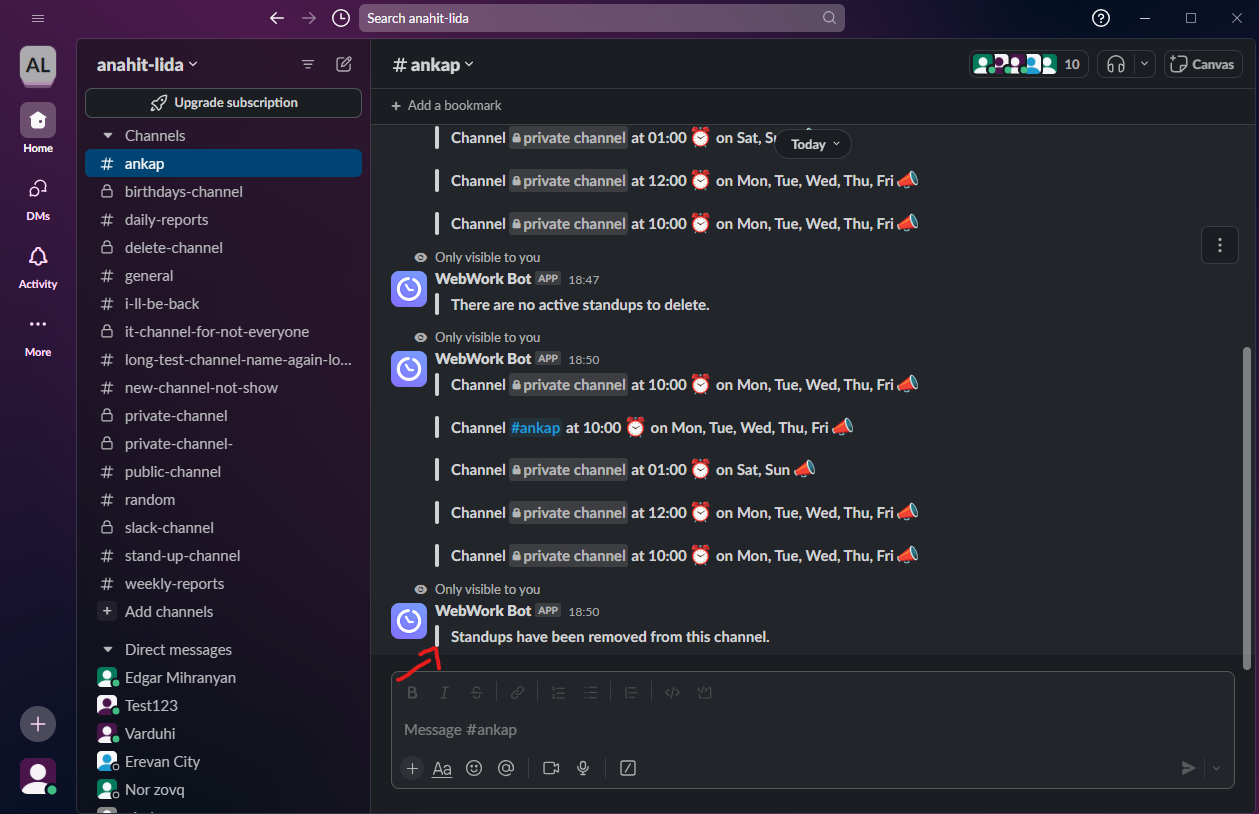
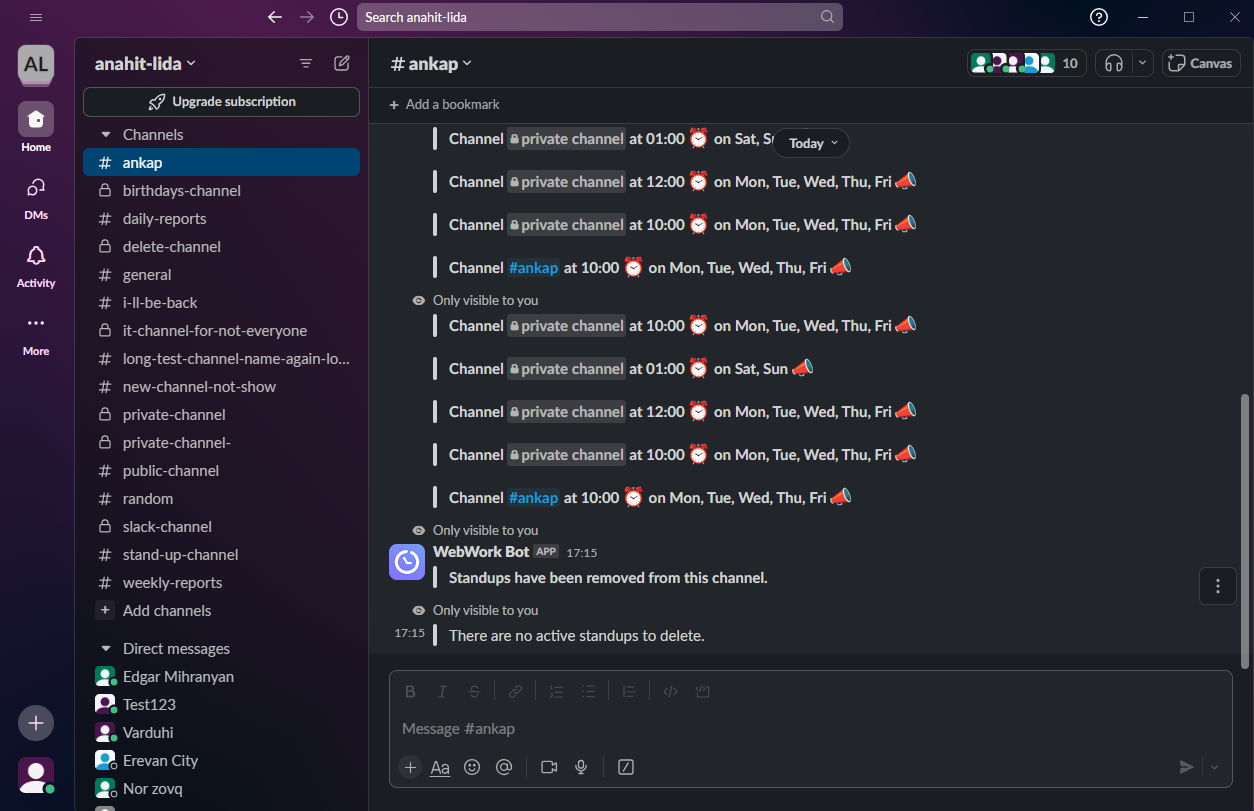
- If there isn’t any standup created for this channel and the user types /webwork_ask remove standup or /webwork_ask delete standup in the channel and he has permission → there is shown the message “There are no active standups to delete.”
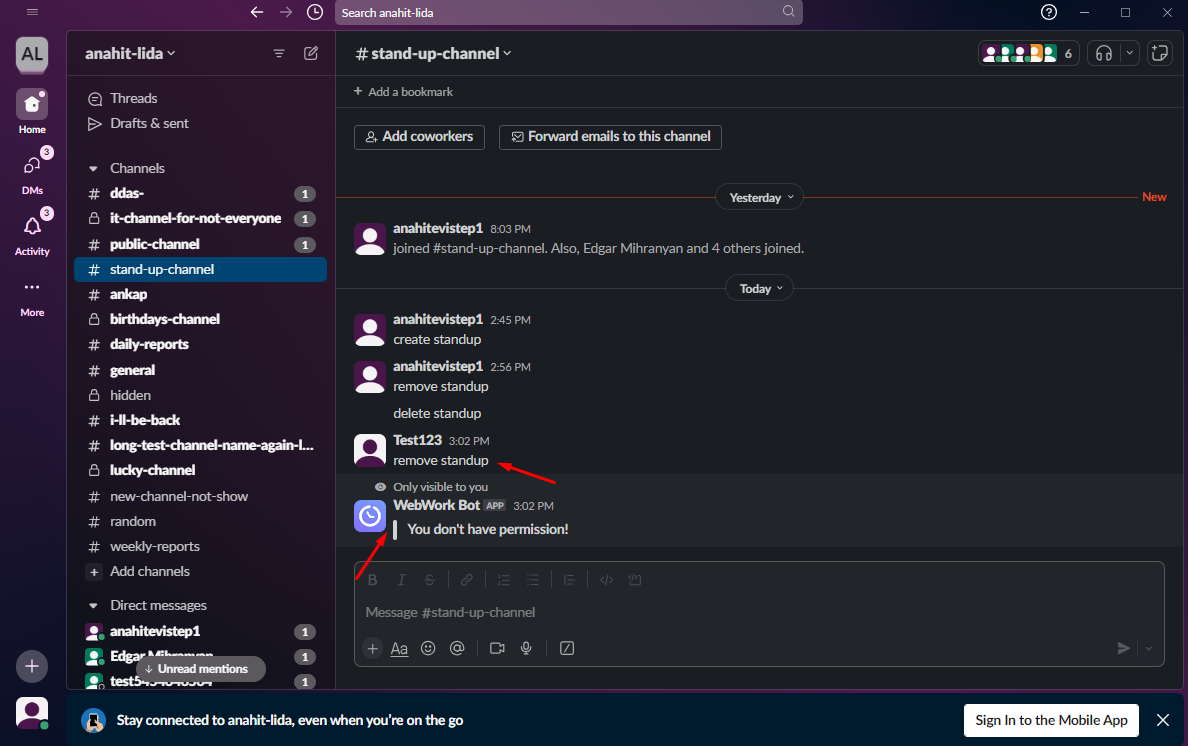
- If the user doesn’t have permission to create a standup and types /webwork_ask remove standup or /webwork_ask delete standup on the channel is displayed the message “You don’t have permission!”
-
When the Owner/Executive Manager creates a standup for the workspace and chooses the channel where it should be shown, the standup message is displayed at the selected time in the selected channel.
standup reminder
- If the user didn’t write standup, the WebWork app reminds him to write → From standups the Owner/Executive manager chooses members to whom the reminder should be sent
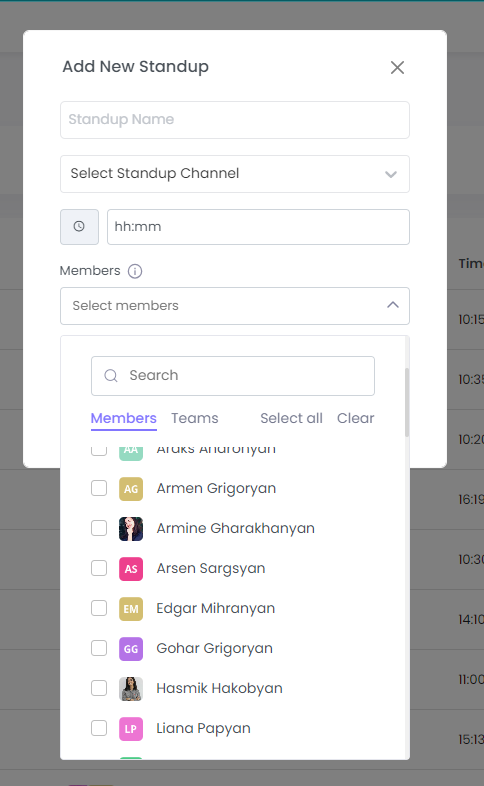
Follow the link to learn how to create/edit standups from your WebWork account.
/webwork holidays or /webwork_ask holidays
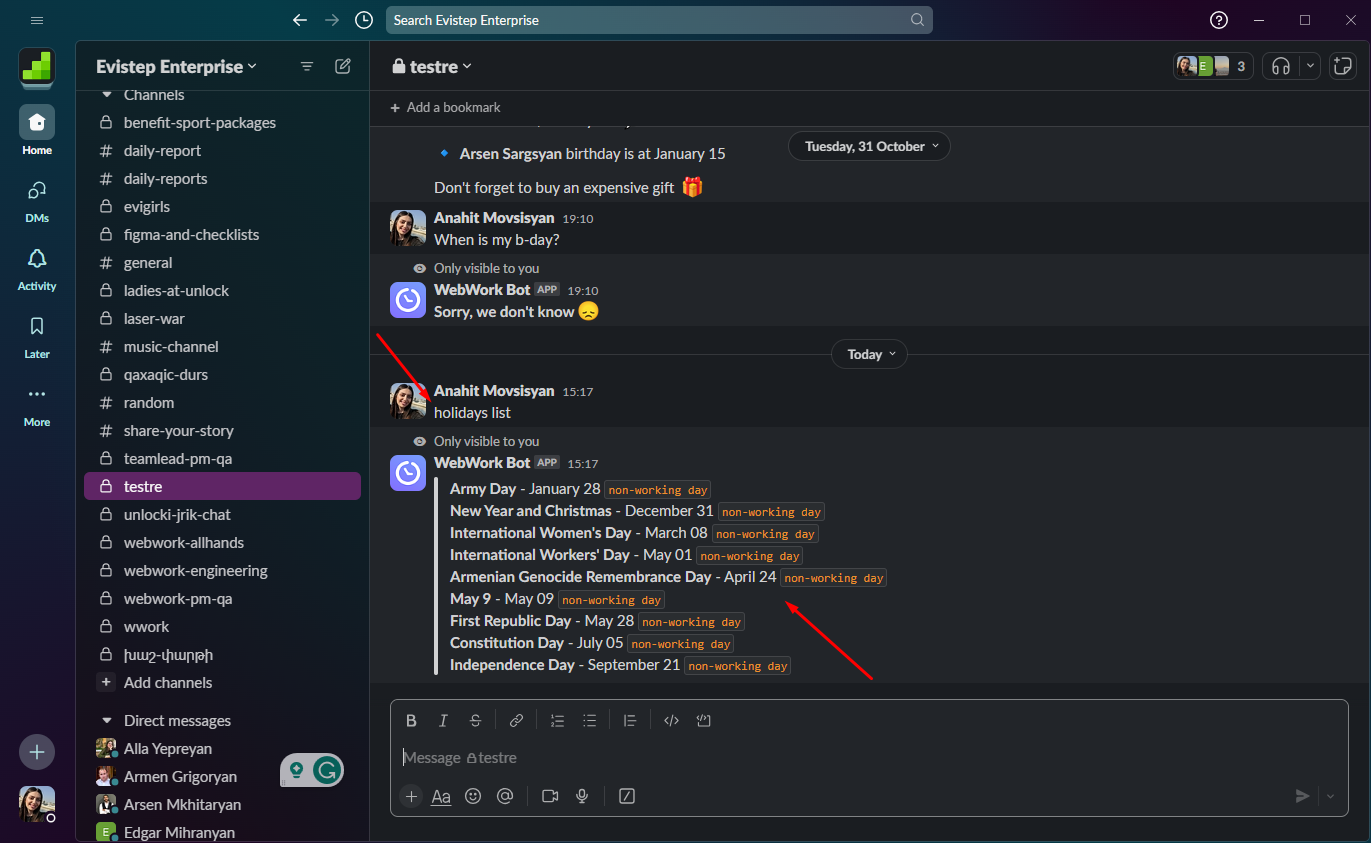
- Lists all upcoming holidays for the workspace. (Holidays are created by the Owner or Executive Manager from the Time Off section in the Dashboard sidebar.)
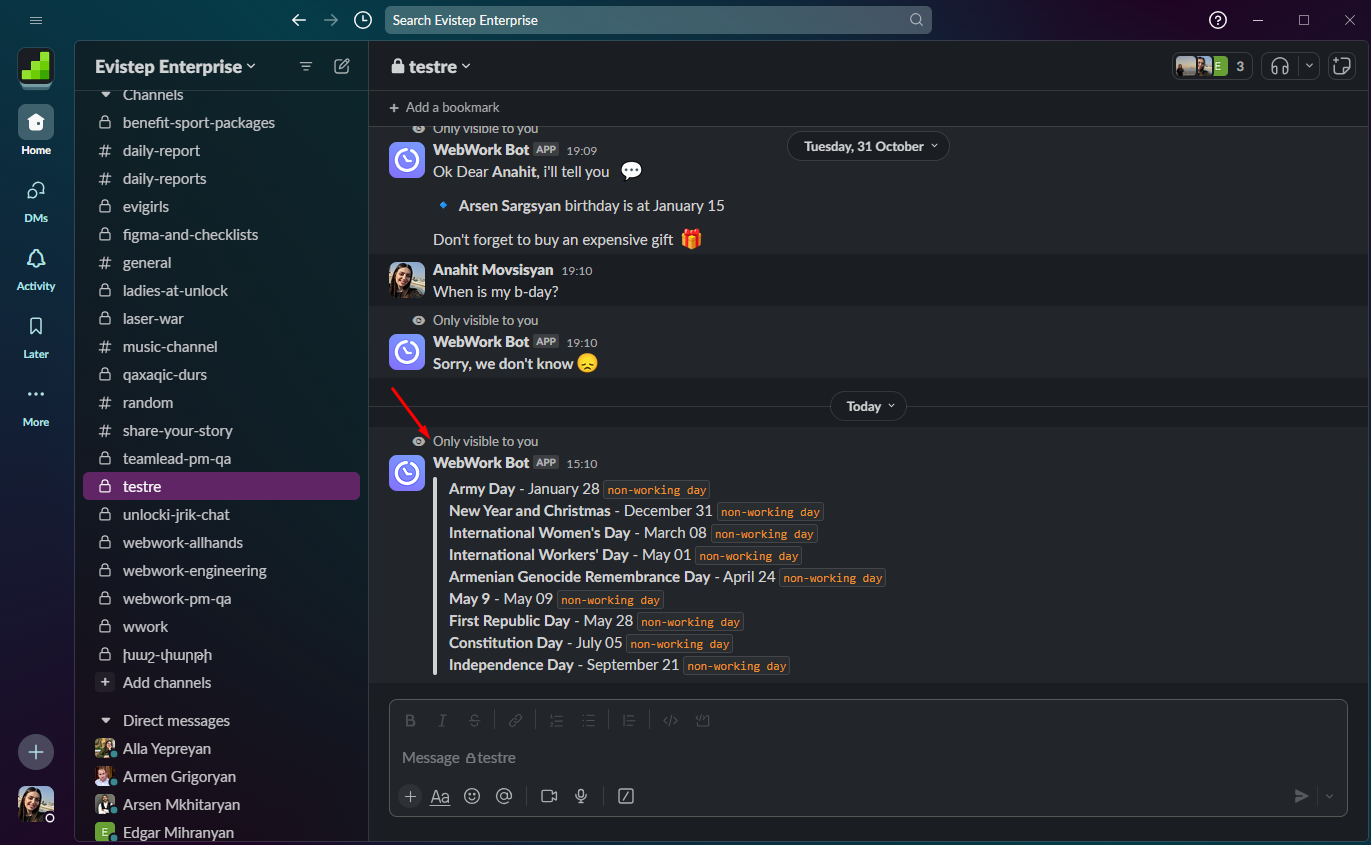
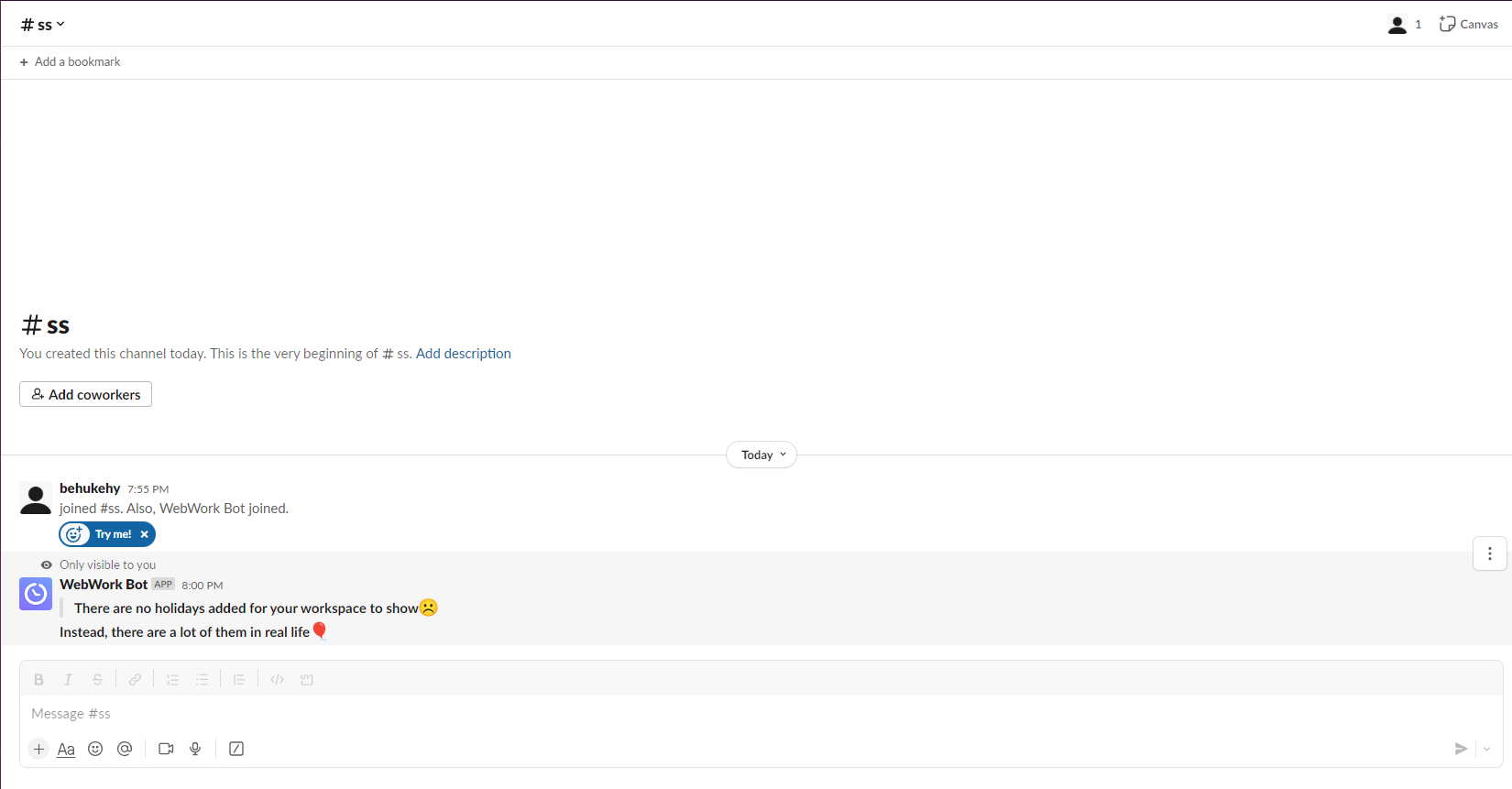
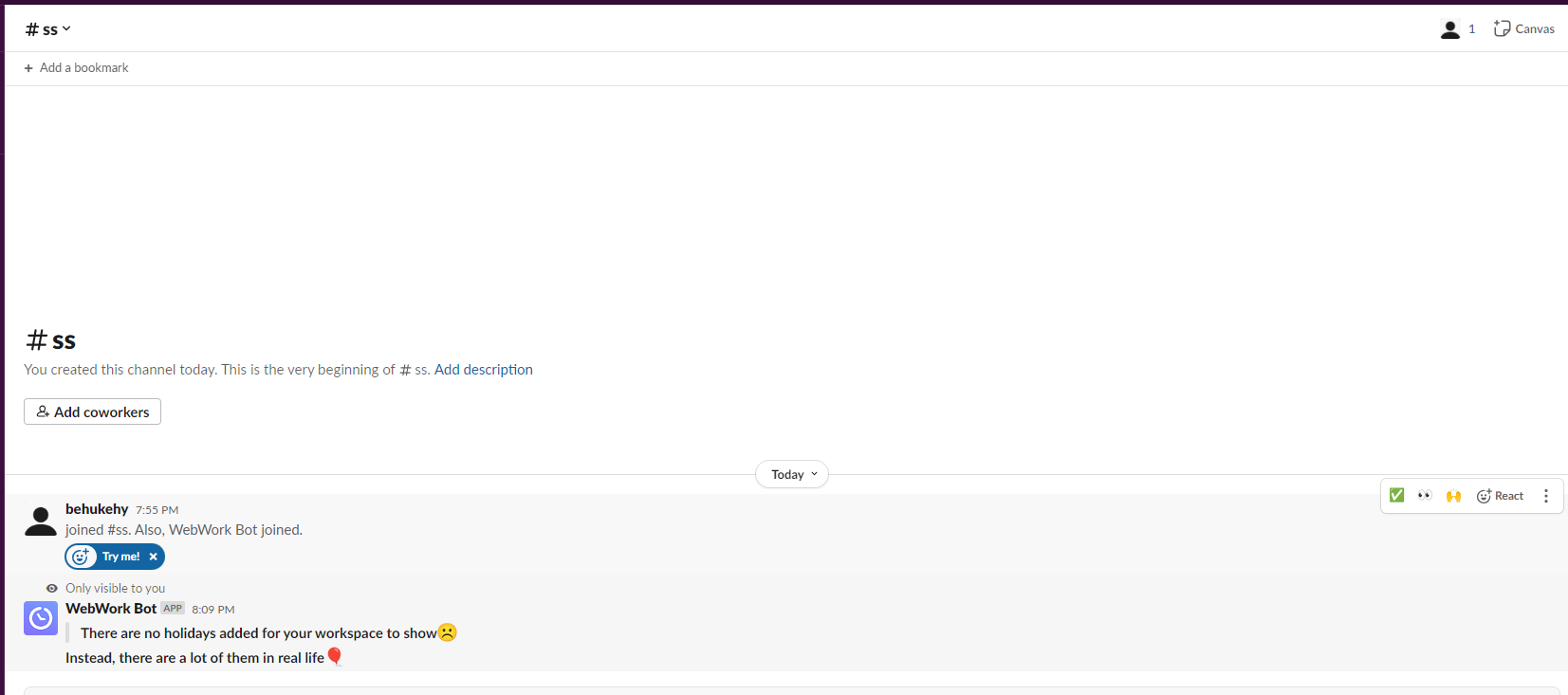
- If no holidays are configured, the bot replies: “There are no holidays added for your workspace to show ☹️”.
/webwork tasks
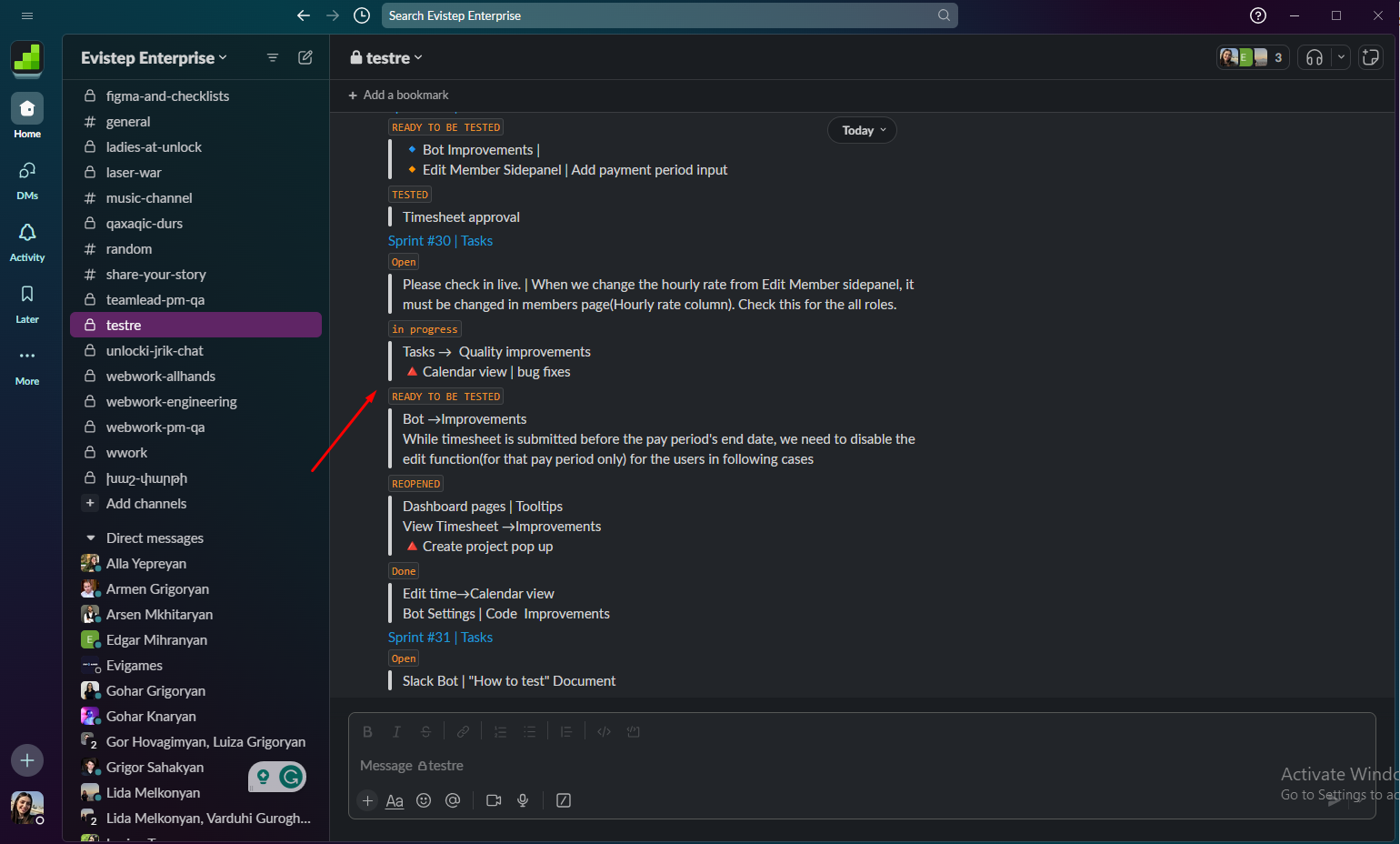
- When the user selects the /webwork tasks or /webwork_ask tasks (or one of the above-mentioned commands → all his/her tasks are shown to the user in this workspace (The tasks are being assigned to the user from the Task section by the Owner/Executive Manager/Project Manager)
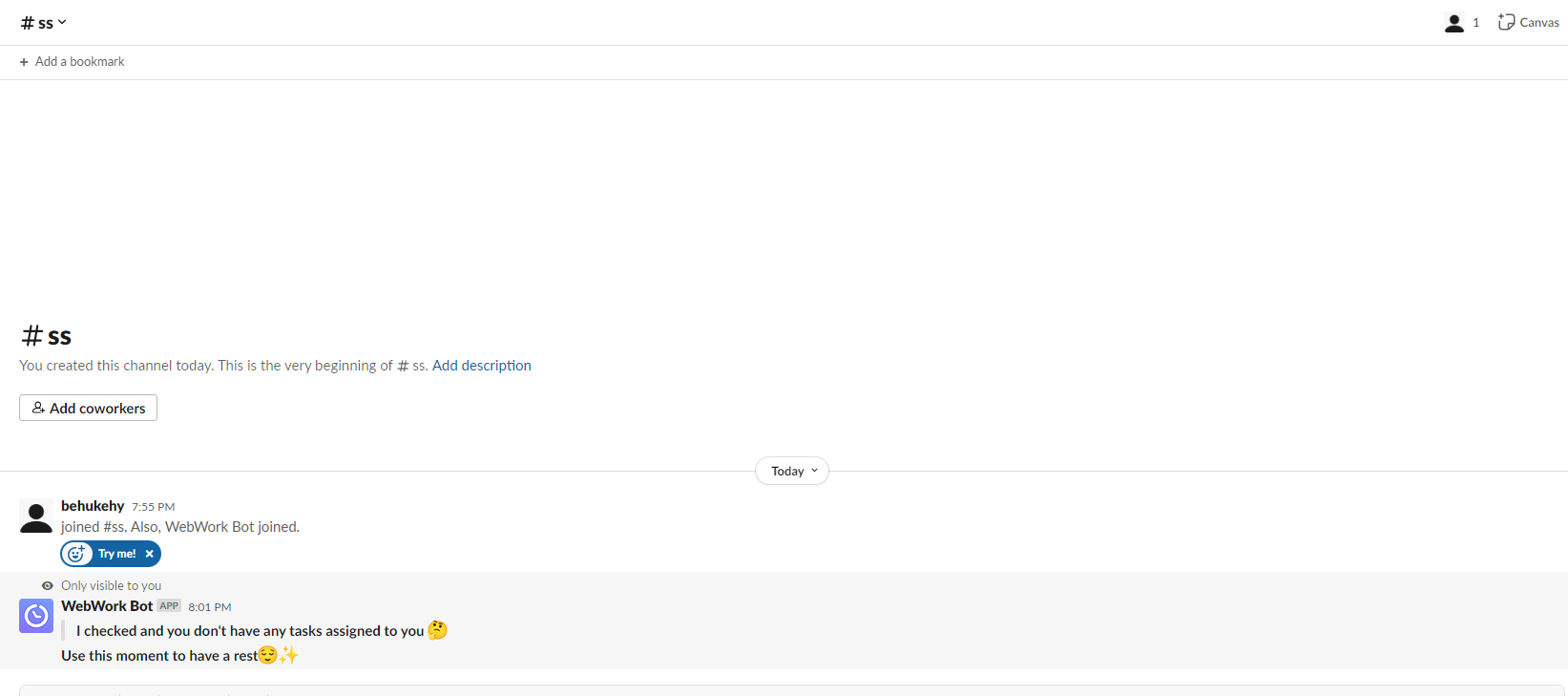
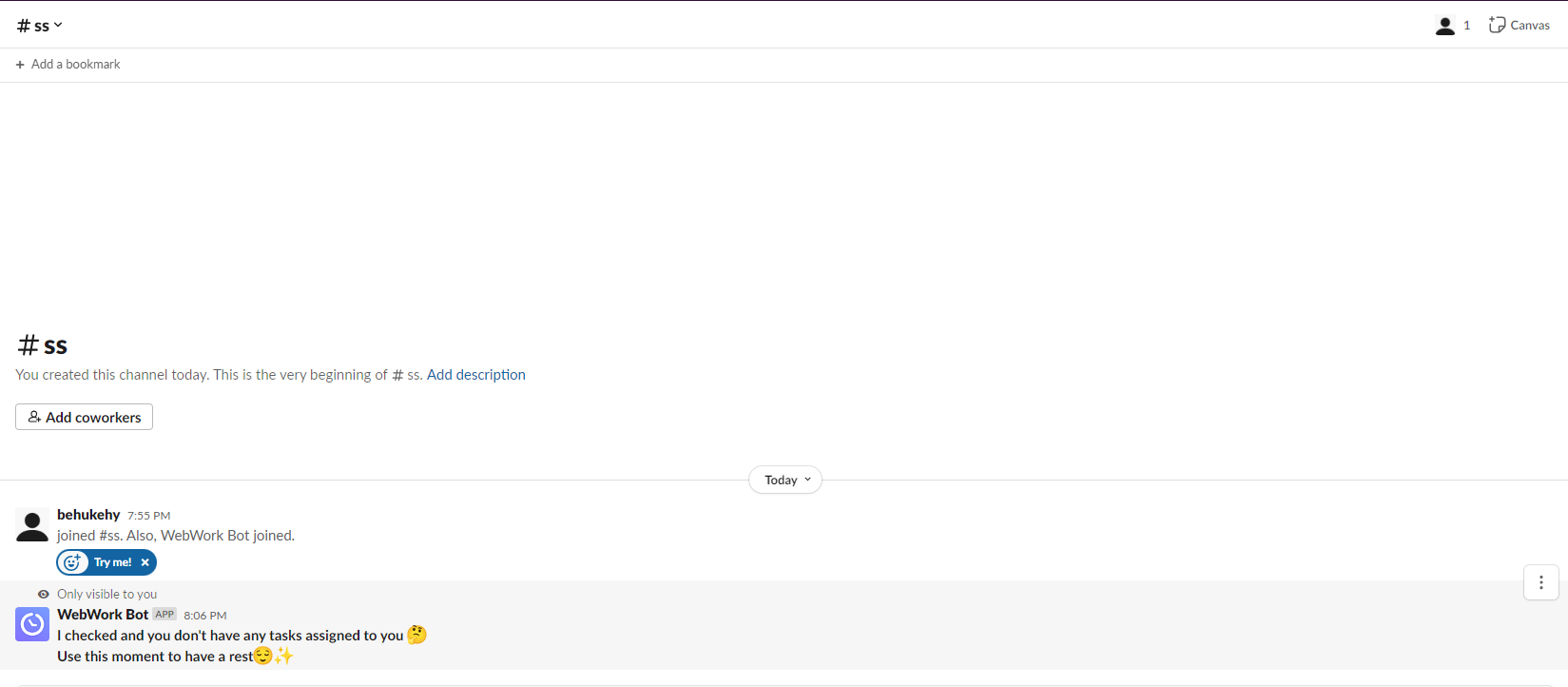
- If there isn’t any task assigned to the user and the user selects the /webwork tasks or /webwork_ask tasks (or one of the above-mentioned commands → shown a message “I checked and you don’t have any tasks assigned to you 🤔”
Follow the link to learn how to create tasks.
-
When a user chooses any command and their Slack email differs from the email associated with their Webwork account, a popup is displayed prompting them to enter their preferred email.
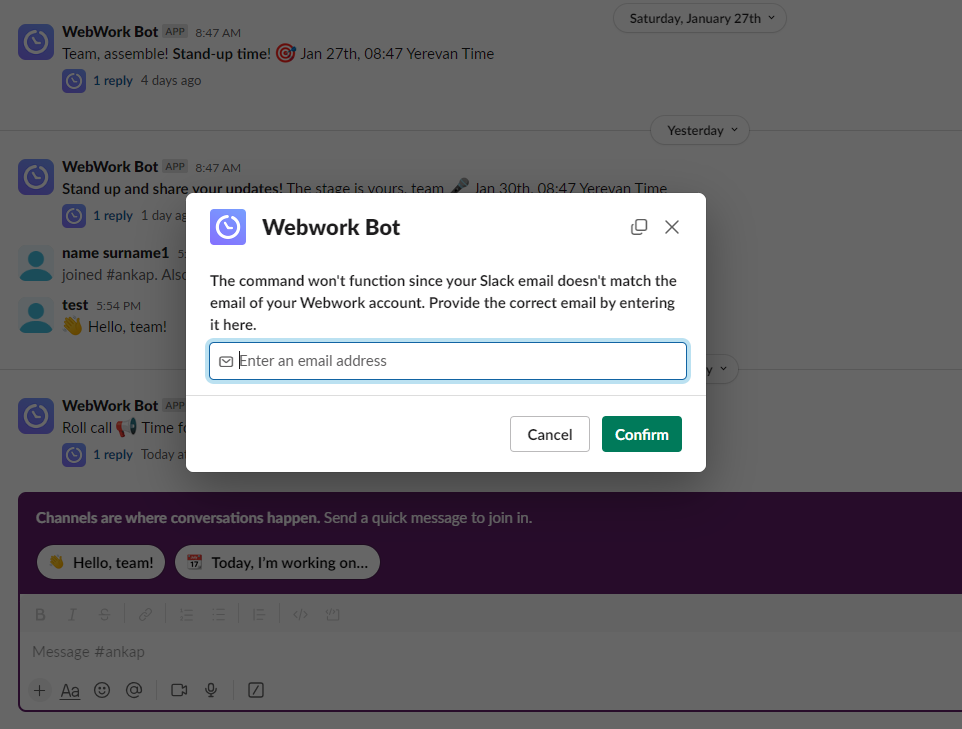
Commands that need to ask to WebWork Slack app direct message or /webwork_ask and question
birthdays
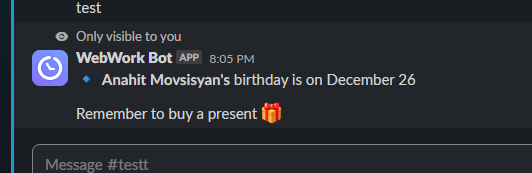
- When the user types When is the “user’s name and last name” birthday? and the user exists in the workspace and has personal information → is shown the information
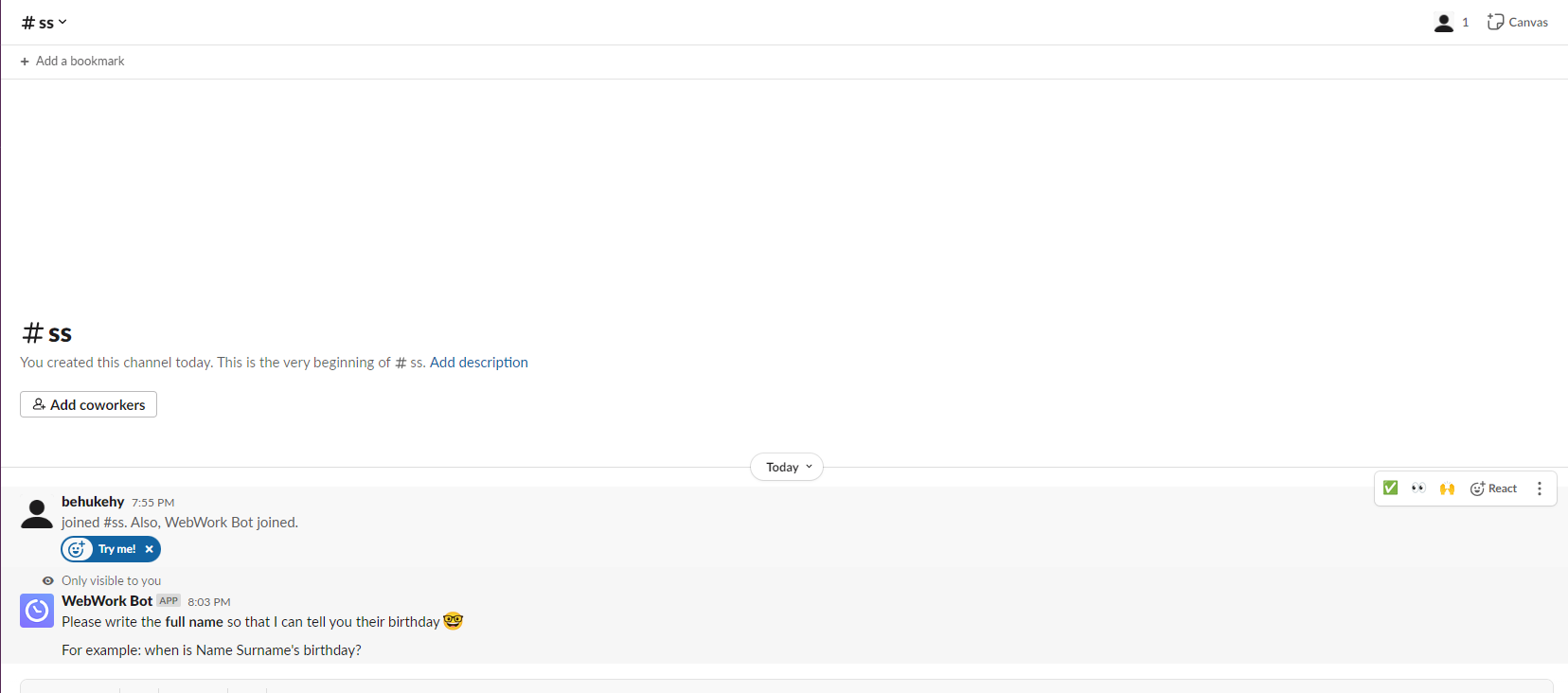
- If the user doesn’t exist in the workspace or doesn’t have personal information → there is shown the message “Please write the full name so that I can tell you their birthday 🤓 For example: when is Name Surname’s birthday?”
tasks
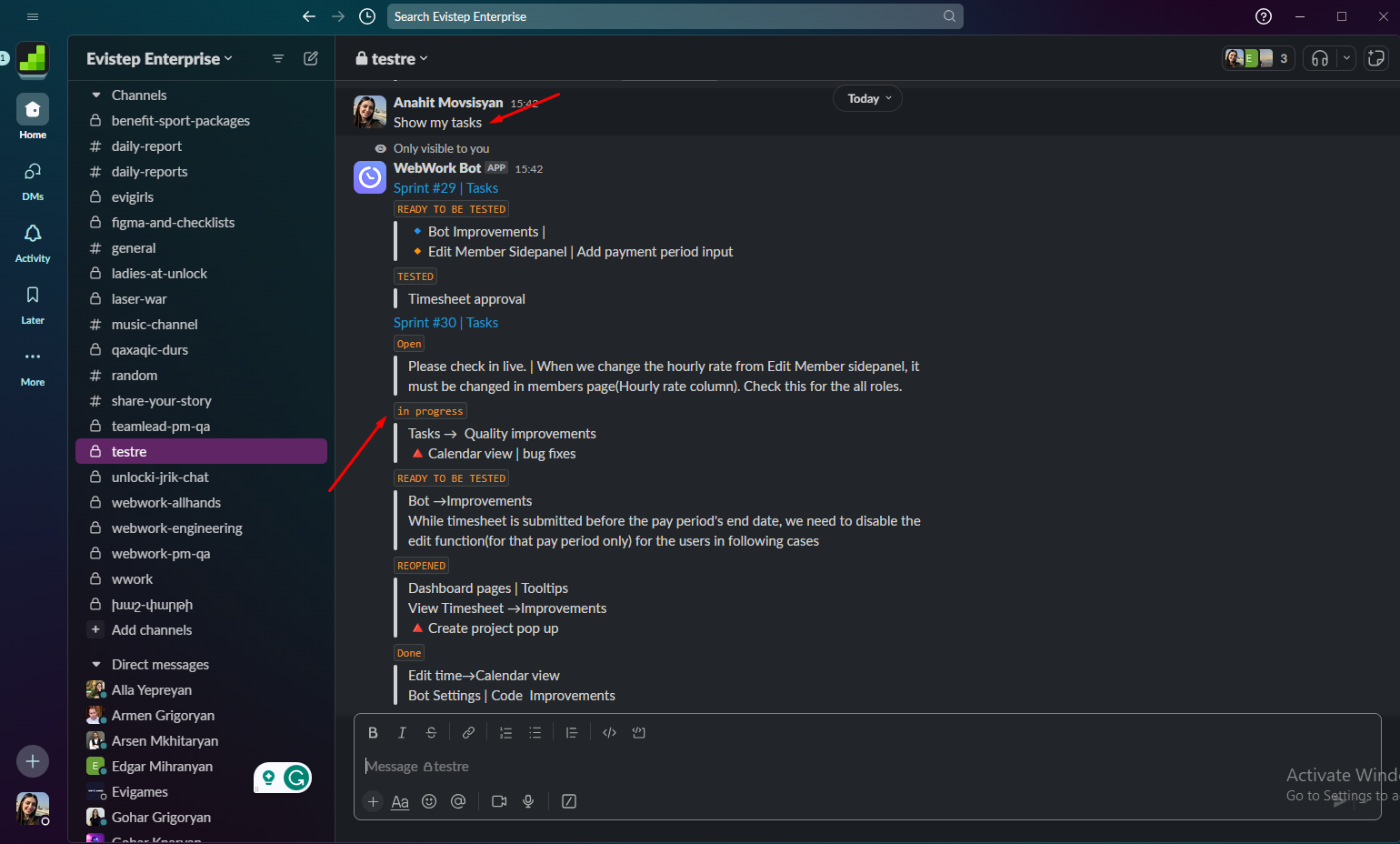
- When the user types Show my tasks or I want my task list in the channel → there are shown all the tasks assigned to the user. (The tasks are being assigned to the user from the Task section by the Owner/Executive Manager/Project Manager)
-
If there isn’t any task assigned to the user and he/she types Show my tasks or I want my task list → shown a message “I checked and you don’t have any tasks assigned to you 🤔”
Follow the link to learn how to create tasks.
holidays
- Type holidays or holidays list to list all workspace holidays.
- If no holidays are configured, the bot replies: “There are no holidays added for your workspace to show ☹️”.
Follow the link to learn how to create holidays.
standups
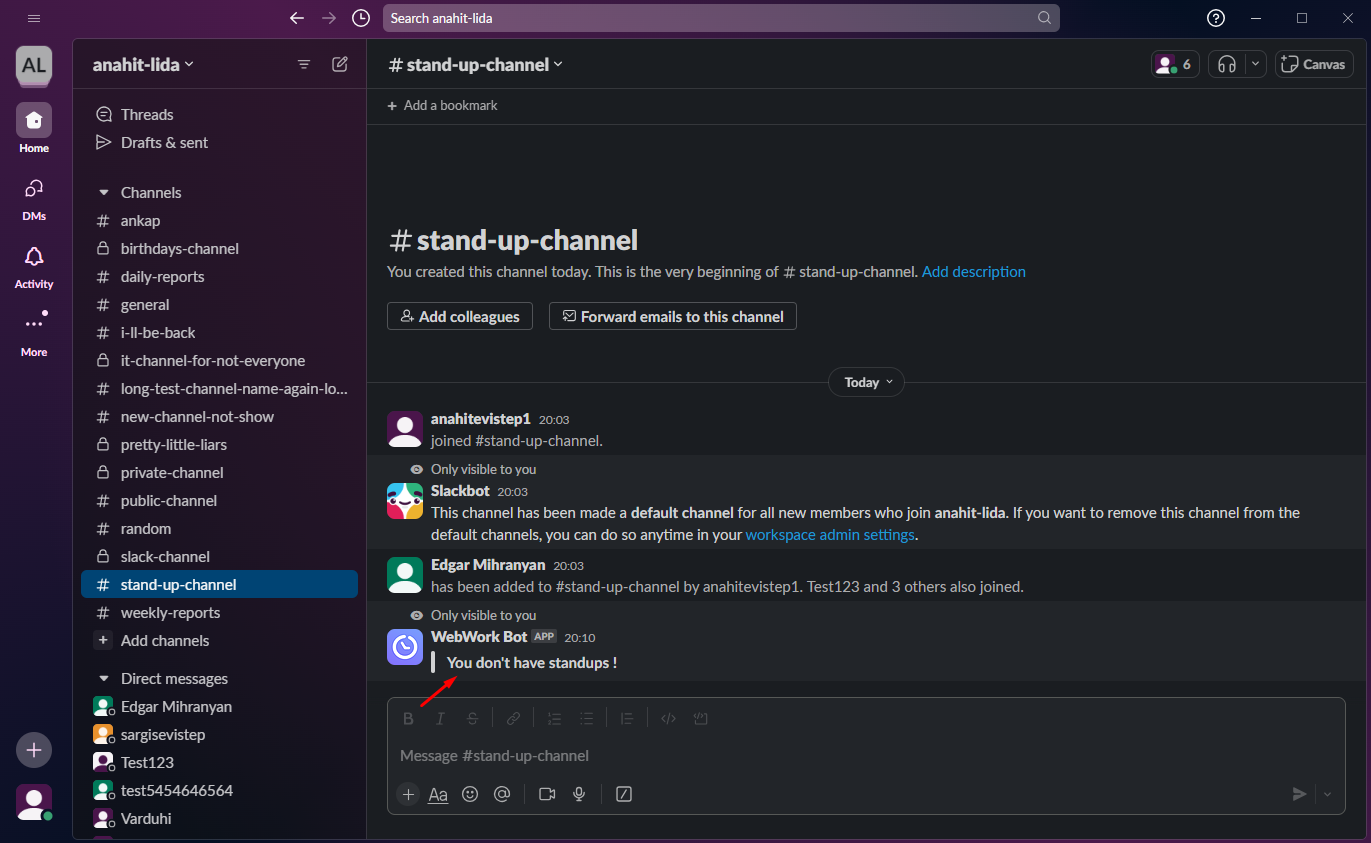
- When the user types the standups list in the channel → all the standups created for this workspace are shown
- If there isn’t any standup created for this workspace and the user types standups list → there is shown the message “There are no active standups to show.“
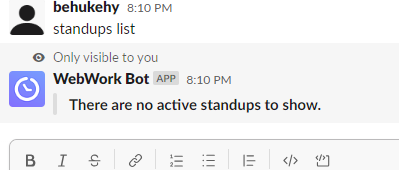
Follow the link to learn how to create/edit standups from your WebWork account.
Automatically sent messages
- The WebWork Slack app settings are seen by the Owner/Executive Managers. They can choose channels and times for sending messages. (Also, they can turn off the settings for not sending any messages) → https://www.webwork-tracker.com/app/settings/webwork-ai/chat-automations
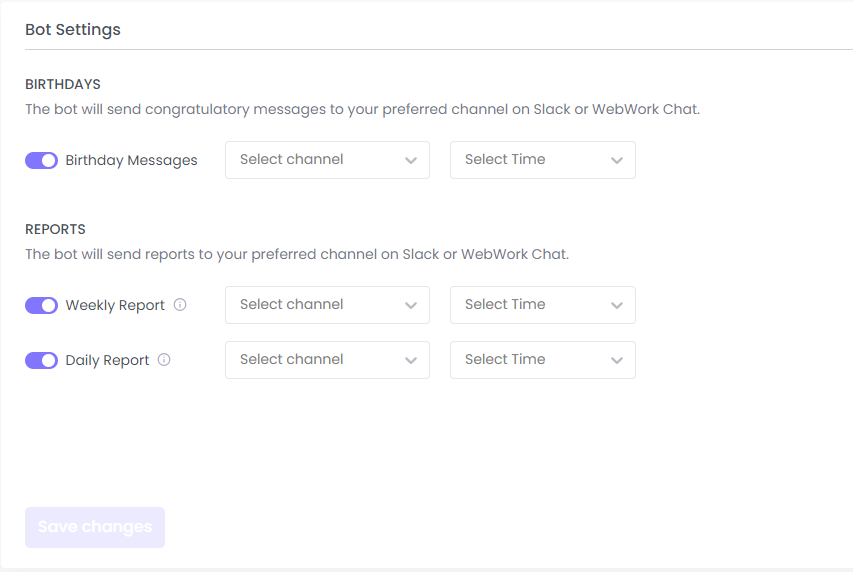
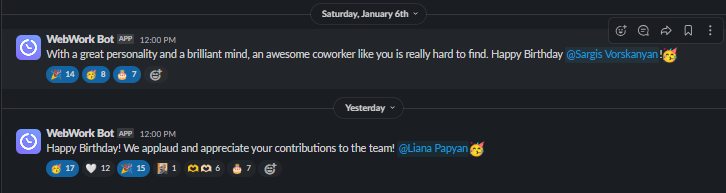
- If the user’s information about the birth is filled out on the user’s WebWork account, a congratulatory message is displayed on the selected channel on the selected day and time (from the settings which can select Owner/Executive Manager)
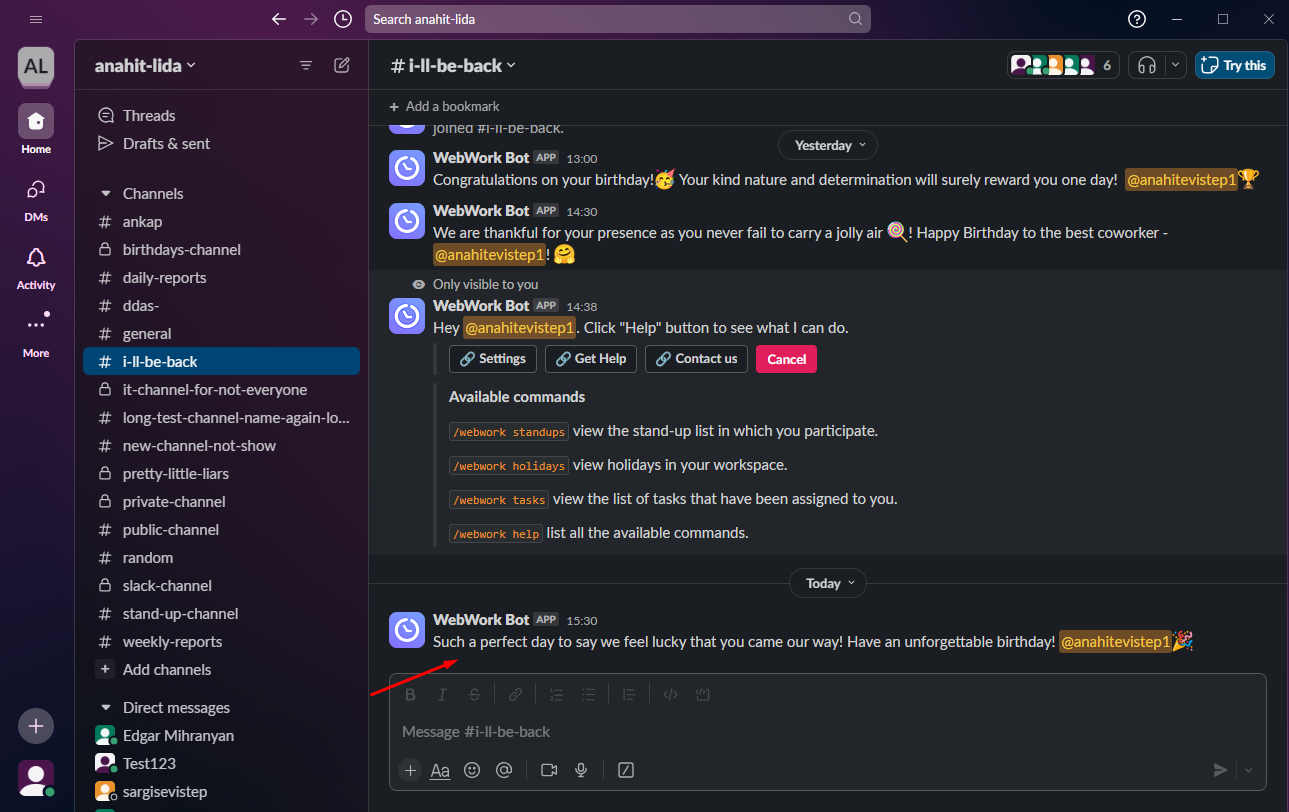
- When the Owner/Executive Manager from the settings turns on the daily/weekly reports and chooses channels and times → messages are sent automatically to the respective channels and times
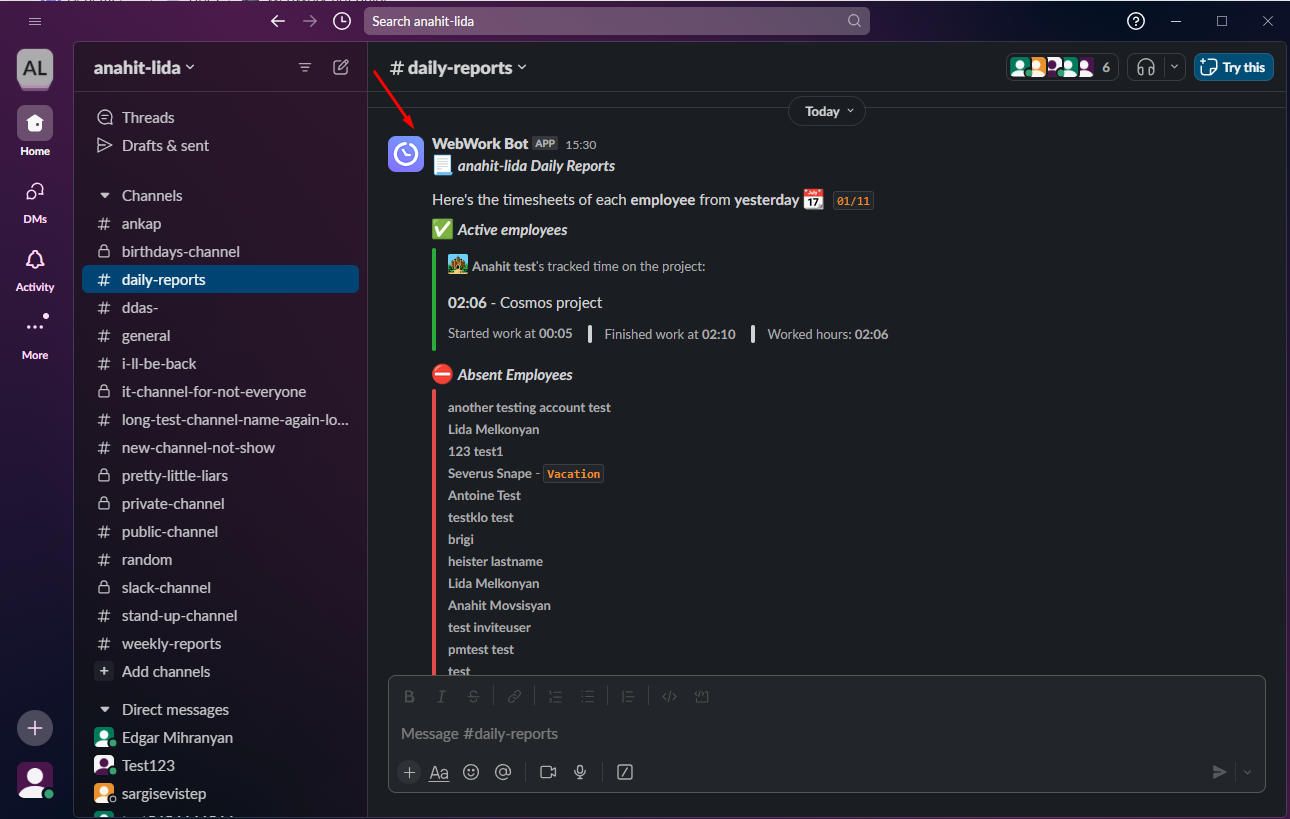
- When the Owner/Executive Manager creates a holiday for the workspace and for the channel → there is a notification about the upcoming Holidays and Memorial Days 2 days in advance. The notification includes whether it is a working or a non-working day and a holiday greeting. Also on the selected day, the greetings message is displayed in the channel.

- If the user’s information about the birth is not filled out on the user’s WebWork account, a reminder message is displayed.

See also:
- Slack Integration — enable and connect WebWork to your Slack workspace
- WebWork AI in Slack — natural-language AI questions and bot commands
Was this article helpful?
Thanks for your feedback.