
With the Stripe integration, you can pay your team members by card and get paid by your clients through invoices. In WebWork, Stripe payments show as Card.
Paying team members by card is available on the Plus and Premium plans. Getting paid through invoices is available on Plus and Premium, and on the Pro plan with the Payments & Payroll Add-On.
| What you want to do | Who needs a Stripe account | Where |
|---|---|---|
| Pay a team member | Only the member who receives the money | Finances > Payments |
| Get paid by a client | Only the member who sends the invoice. The client pays with a card. | Finances > Invoices |
Before you start
Make sure that:
- The workspace Owner’s email address is verified.
- Your amounts are in USD. Card payments and invoices paid by card are in USD only.
- Each member you’ll pay has connected Stripe, as in Step 1.
Step 1: Connect Stripe to receive payments
Every member who’ll receive card payments connects their own Stripe account. Connect yours too if clients will pay your invoices.
- Go to Settings > Finance and open the Get Paid tab.
- In Card payment, click Connect with Stripe.
- On Stripe, follow the steps to set up your account and enter your details.
Pay a team member by card
The Owner can pay members, and so can Executive Managers with permission to manage workspace payments and billing. You don’t need a Stripe account to pay. You pay with the cards saved in Settings > Billing, the same cards as for your WebWork subscription.
Create the payment
- Go to Finances > Payments and click Create Payment.
- Under Payment System, click Card.
- In Send to, select the member. A card icon next to a name means the member has connected Stripe.
- Enter the Amount without fee, and add a Note if needed.
Choose who pays the fee and pay
- In Who should pay the fee, select Sender or Receiver.
- In Card, select a saved card or New Card. With a new card, Stripe opens for its details after you click Pay, and the card is saved to Settings > Billing.
- Check the fee and Total, then click Pay. To pay later instead, click Save Payment.
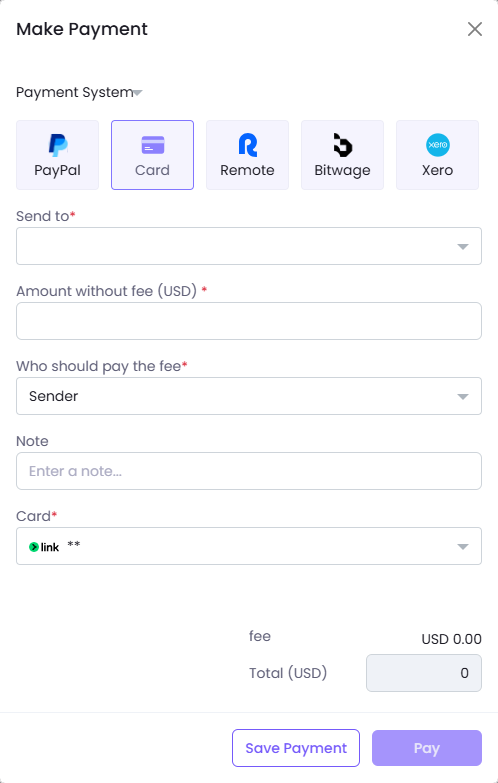
If the member hasn’t connected Stripe, Pay stays unavailable. Click Save Payment, and pay it once they connect.
Pay a saved payment later
A saved payment stays on Finances > Payments with the status Pending, and Overdue from the next day. To pay it, click Pay on its row.
Payments created automatically from approved timesheets or salary frequency show here too. To pay one by card, select Card in its Payment method column, then click Pay. To set them up, see How to set up and manage Payroll?
Get paid by clients through invoices
Clients pay your invoices by card, straight from the invoice. They don’t need a Stripe or WebWork account.
- Go to Finances > Invoices, click Create Invoice, and select Custom Invoice or Time-based Invoice.
- In Bill To, select Your Customer and pick the customer. Fill in the rest of the invoice in USD.
- Turn on Accept Payment and select Card (Powered by Stripe).
- Click Save & Share and choose how to share it.
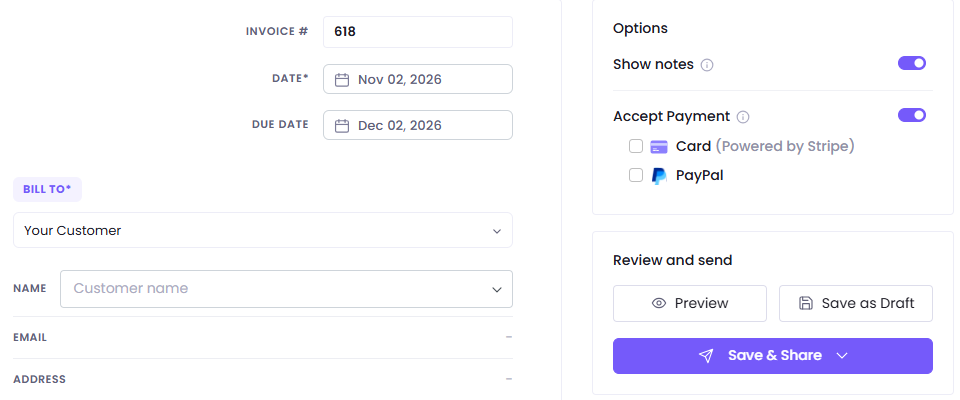
The client opens the invoice, clicks Pay with Card, and pays on Stripe. The card fee is added to the amount the client pays. When the payment goes through, the invoice is marked Paid.
The money goes to the Stripe account of the member who created the invoice. That includes invoices you send for other members’ work, so those members don’t need Stripe.
For more on invoices, see How to create invoices? and Types of Invoices.
Track payments
Each payment and invoice shows its status on Finances > Payments and Finances > Invoices.
| Status | What it means |
|---|---|
| Pending | Saved and not paid yet |
| Overdue | Not paid by its due date. A saved payment is due the day you save it. |
| Processing | Paid, and waiting for Stripe to confirm |
| Paid | Paid through WebWork. Set automatically when the payment goes through. |
| Failed | The payment didn’t go through. Click Retry on its row to try again. |
| Marked as paid | Paid outside WebWork. Set with Mark as Paid in the row’s menu. |
Was this article helpful?
Thanks for your feedback.