
You sign in to WebWork on the Log In page with your email and password, with your Google or Slack account, or with your company’s single sign-on (SSO). This article covers resetting a forgotten password, setting a password for an account that signs in with Google or Slack, two-factor sign-in, and the sign-in messages you may see.
Sign in to WebWork
The Log In page offers three ways in: your Email and Password, the Google or Slack button, and Log in with SSO. There is no Microsoft button; Microsoft sign-in works only when your workspace uses Microsoft as its single sign-on.
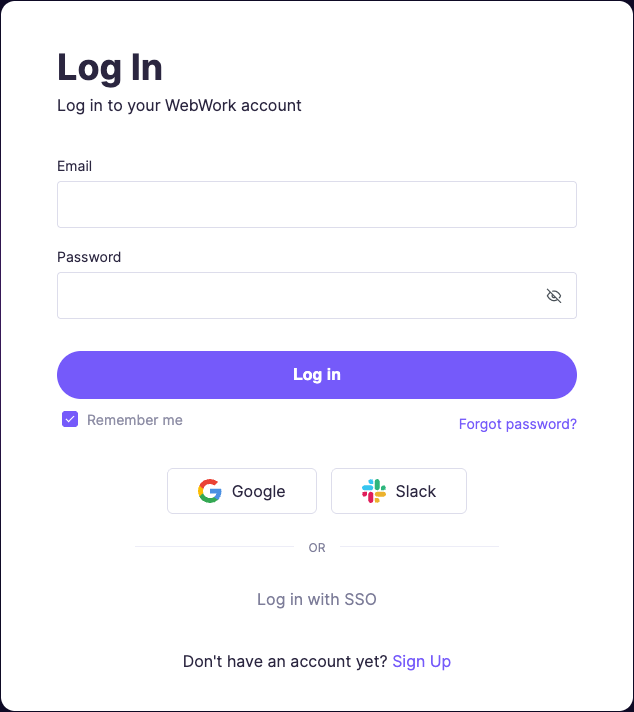
When your workspace requires SSO, a password sign-in is refused with a message such as Your workspace requires Google SSO. Sign in with the button the message names, or with Log in with SSO.
Reset a forgotten password
- On the Log In page, click Forgot password?.
- Enter the email address of your WebWork account and click Send.
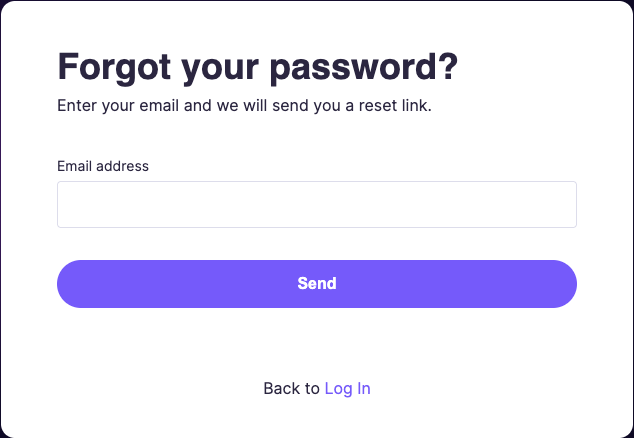
- Open the email from WebWork and set a new password from its link within 15 minutes.
A new password has 8 to 36 characters, with at least one uppercase letter, one lowercase letter and one number, and no spaces. It cannot be your current password or either of the two before it. It also cannot be a common password, contain your name or email address, or repeat one character three times in a row. Your workspace can ask for more, such as a special character or a longer password.
The link works once, and a newer request cancels the older link. An old link shows This password reset link is invalid or has expired. Please request a new one.
When the email does not arrive, check the Spam or Junk folder, and check that you entered the email address of your WebWork account: the page confirms every request the same way, whether or not the address has an account. In a workspace that requires SSO, no reset email is sent; sign in with SSO instead.
Change your password while signed in
- Go to Settings > Account > Security.

- Under Password Management, click Change Password, then enter your Old Password, your New Password and Confirm New Password.
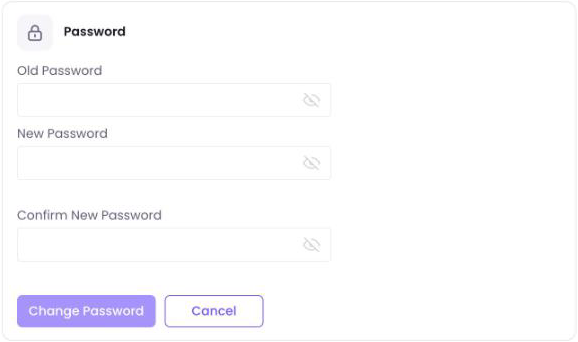
- Click Change Password to save, then sign in again with the new password.
Changing your password signs you out of WebWork in every browser. The Desktop App and the mobile apps stay signed in until you sign out of them. The steps in full are in Account Settings.
Accounts that sign in with Google or Slack
An account made with Google or Slack has no WebWork password. When you change a sensitive setting, such as creating an API token, WebWork asks you to verify your identity with your authenticator app or a 6-digit code sent to your email instead. Security & Sensitive Account Changes lists those settings.
To add a password, go to Settings > Account > Security and click Set Password, or use Forgot password? on the Log In page. If an app asks for a password you never set, set one this way and use it there.
The Slack button signs you in to the WebWork account with the email address your Slack account has verified.
Two-factor sign-in
With two-factor authentication on, signing in on the web takes a second step after your password: your passkey, a 6-digit code from your authenticator app, or a 6-digit code sent to your email, which works for 10 minutes. You turn each method on in Settings > Account > Security, as Account Settings describes.
When you have lost access to your second step, click Lost access? Use Recovery Code and enter the recovery code WebWork showed you when you first set up two-factor authentication.
Signing in with the recovery code turns two-factor authentication off for your account. Set it up again in Security right after you sign in.
After several wrong codes, WebWork shows Too many wrong codes. Try again in 15 minutes.
Messages you may see
| Message | Where | What to do |
|---|---|---|
| Wrong email/password combination. | Web | Check the email address, then reset your password. |
| the credentials do not match | Desktop App | The email or password is wrong, or your account is not active. Reset your password; if it still fails, ask your workspace owner whether your account is active. |
| user do not have team | Desktop App | Your account has no active, unblocked membership in a workspace. Ask your workspace owner to invite you again or restore your membership. |
| Too many attempts | Web | Wait a few minutes before you try again. |
| Non-successful result returned | Desktop App | Sign-in failed without a specific error message. Update the Desktop App and try again. If it stays, contact support with the message and the app’s version. |
| Your workspace requires Google SSO. | Web | Sign in with the button the message names, or with Log in with SSO. |
| Slack has not verified this email address. Sign in another way. | Web | Sign in with your email and password, or with Google. |
What owners and admins can do
- Nobody at WebWork or in your workspace can see your password; it is stored in a form no one can read.
- Owners and admins cannot reset a member’s password. A member resets their own with Forgot password?.
- Only you can change the email address of your account: How to change account email address?
- WebWork has no list of the devices where you are signed in.
Still having issues?
- Update the Desktop App or the mobile app to the latest version, and try again. For the Desktop App on Windows, How to solve login problems on Windows App? covers more fixes.
- Try signing in on the web at app.webwork-tracker.com, to see whether the problem is in one app only.
- Contact support from the email address of your account, with the app you used, its version and the exact message you see. If you can open the Desktop App’s profile menu, also send an error log, as How to send error logs? shows. Security & Sensitive Account Changes explains how support confirms it is you.
Was this article helpful?
Thanks for your feedback.