
KPIs let you set performance targets for your team’s productivity metrics, and see at a glance who’s meeting them. They’re available under Productivity Insights, on Plus plans and above.
Who can set KPIs
- Owners and executive managers can set KPIs at the workspace, team, or job title level.
- Team managers can set KPIs for their own team only.
The KPIs page
Go to Productivity → KPIs to see the full picture. The page lists your workspace, every team, and every job title, each shown against five metrics:
- Avg. activity level
- Avg. inactive time
- Avg. productive time
- Avg. meeting time
- Avg. focus time
For each row and metric, you’ll see the actual average for the selected date range. If a KPI target has been set for that metric, it’s shown next to the actual value with a checkmark if the target is met, or an X if it isn’t. If no target has been set yet, you’ll see a Set KPI link instead, letting you add one on the spot.
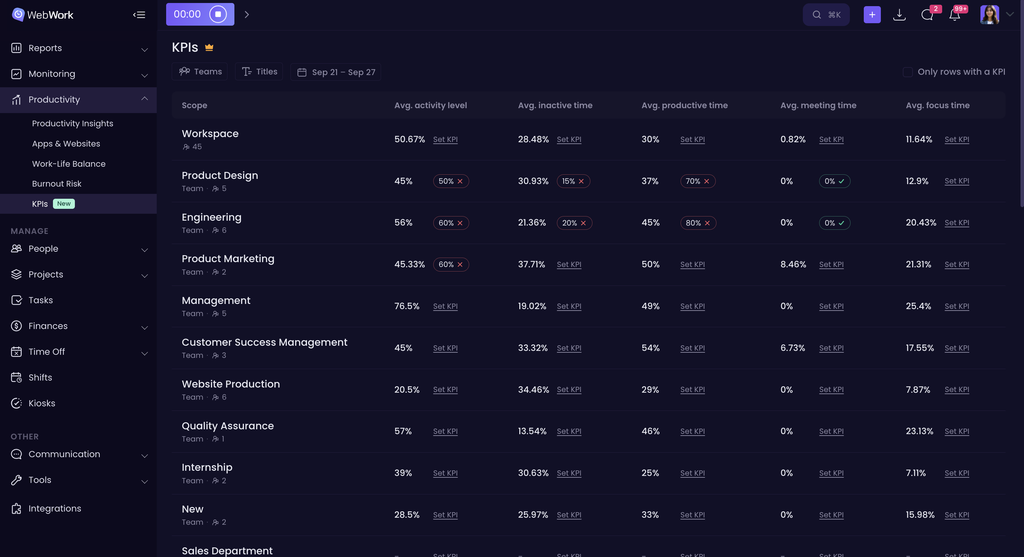
Each metric is targeted independently, for example, a team can be meeting its meeting-time KPI while missing its productive-time KPI, and both will show clearly in the same row.
Note that for specific categories (avg. inactive time and avg. meeting time) the KPI is considered met if the actual number is lower than the defined number. In other cases the actual number should either be the same or higher than the defined number.
Use the Teams and Titles filters, plus the date range picker, to narrow down what you’re looking at. Turn on Only rows with a KPI to hide scopes that don’t have any targets set yet.
KPIs in Productivity Insights
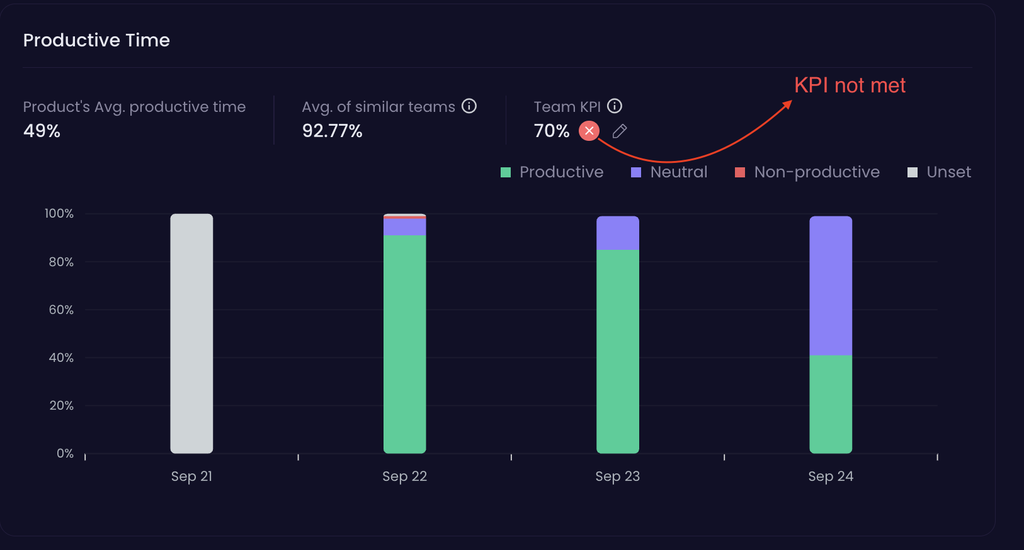
You can also view and edit the KPIs from the Productivity Insights page under Productivity. KPIs will only be visible if you have per team, per title or the workspace view. Under specific widgets you can identify the KPI number and next to it you will see whether it’s met or no. If you are a team/executive manager or the owner of the workspace then you will also see a pencil button, clicking which you can edit the KPI right away, from this section:
Was this article helpful?
Thanks for your feedback.