
You can book a live call with a WebWork specialist on the website’s demo page, which also opens from Book Demo in the website’s top menu. On the call, the specialist shows how WebWork fits your team’s workflow, helps you with onboarding and discusses custom pricing for mid-size and large teams. A demo is free, lasts 30 minutes and is open to any team, with or without a WebWork account.
On any plan, you can book an onboarding call on the same page. The team offers onboarding calls mainly to larger teams, and a smaller team can ask for one.
The demo page books a live call with a person at a time you choose. To explore WebWork by yourself, open the interactive demo, which needs no signup, or watch the short demo video on the demo page and the product videos.
Request a demo or an onboarding call
- On the demo page, fill in First Name, Last Name, Business Email and Team Size. Company Name is optional.
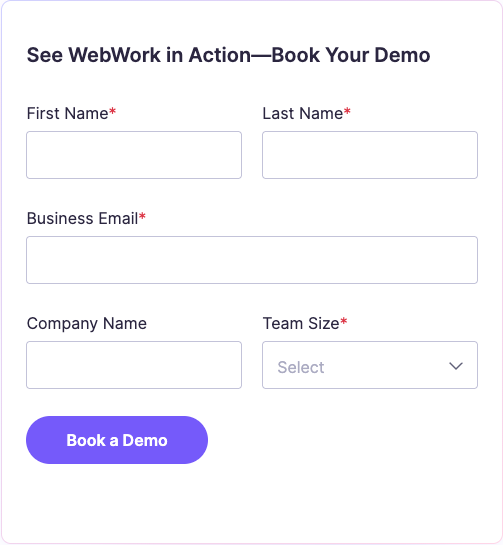
- Click Book a Demo.
If a calendar opens, choose a time for the call in it, as the next section describes.
If the page shows Request submitted instead of a calendar, you have not chosen a time for the call yet. To arrange one, open Live Chat on the Contact page, as Get help with a booking below describes.
Choose a time for the call
- Check the Time zone shown under the calendar.
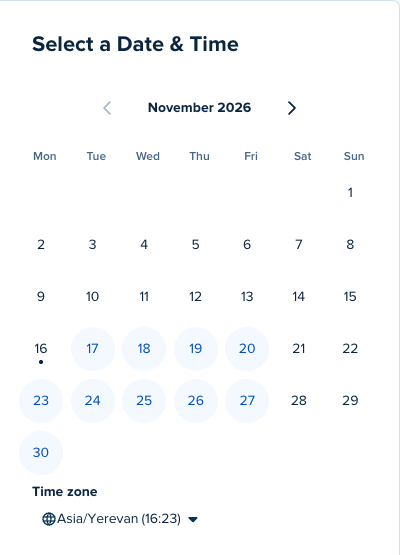
- Select a date.
- Select a time.
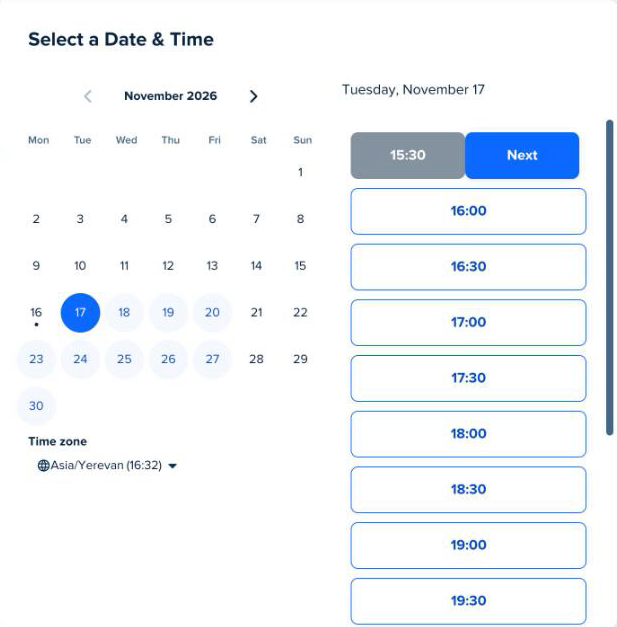
- Click Next.
Complete your booking
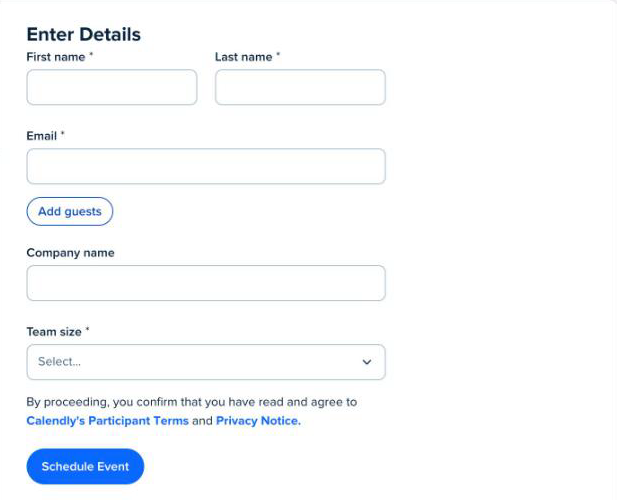
- Enter your First name, Last name and Email, and select your Team size. Company name is optional.
- To invite teammates, click Add guests and enter their email addresses, up to 10.
- Click Schedule Event.
Find the meeting link
The link to join the call is in the confirmation email, sent to the email address you booked with. When the email is not in your inbox, check the Spam or Junk folder.
Get help with a booking
When the form or the calendar does not work, or nobody joins the call you booked, ask the support team in the chat.
- On the Contact page, click Live Chat.
- Describe the problem. If nobody joined the call, include the date, time and time zone you booked.
- If the chat shows Talk to a person or Have a person reply, click it to ask for a person from the support team.
Was this article helpful?
Thanks for your feedback.