
If you were invited to WebWork to join an existing workspace with a visible time tracker, start here.
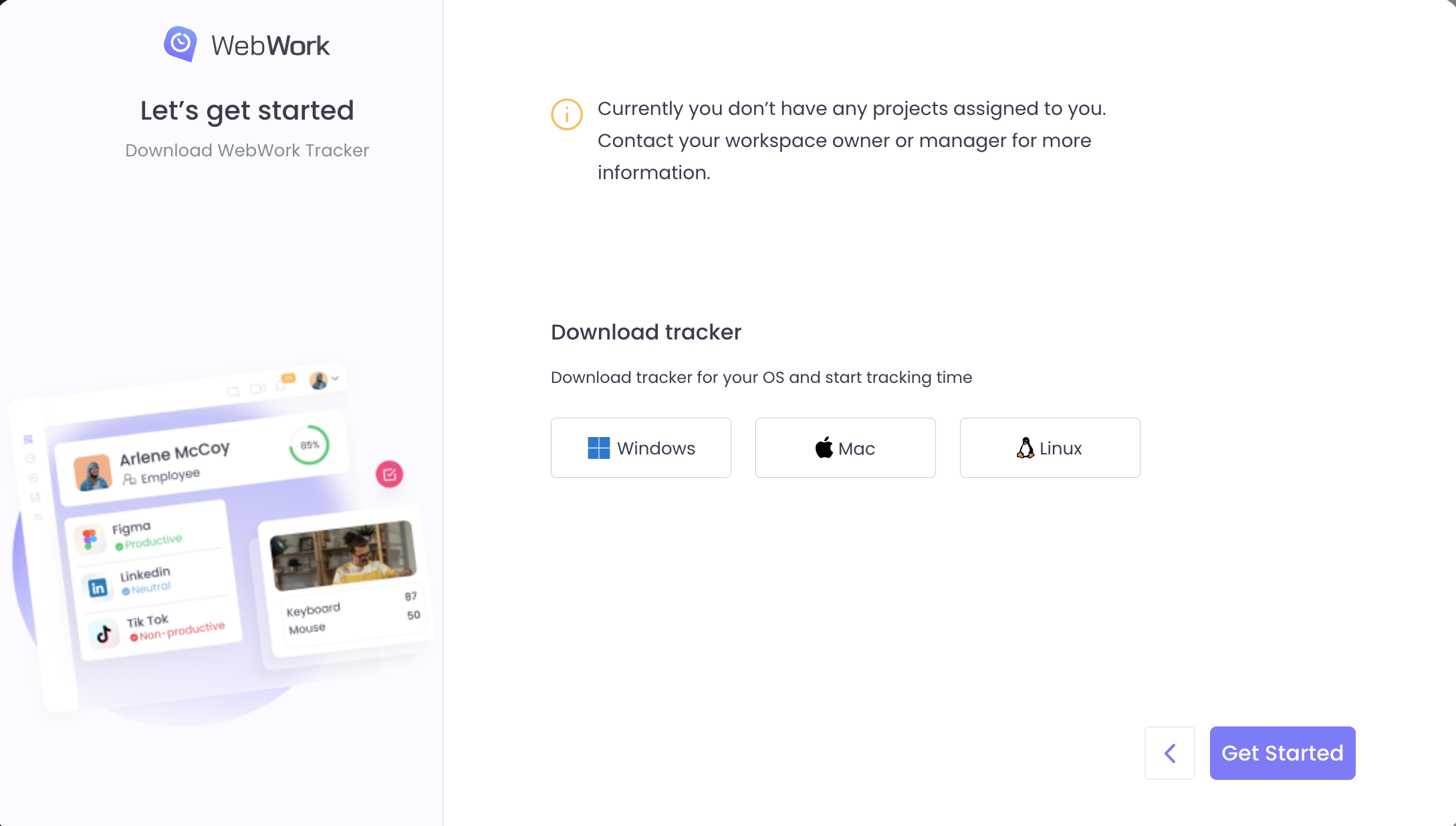
Download and install the Desktop App to experience all features of WebWork.
- Accept your invitation
Open the invitation in your inbox and accept it - Set up your profile
Fill in your first name, last name, email, password, and click Create profile - Go through the onboarding
- Download and install the Desktop Time Tracker App or track time on the web, depending on your workspace requirements
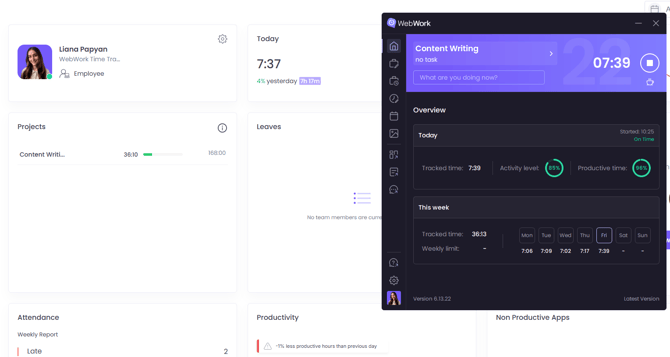
- Start tracking time
Why did I get an email about a free trial?
Accepting an invitation creates no workspace of your own and starts no trial for you. When a trial email arrives, first check which workspace it names.
- It names a workspace you own. The email is about the trial of your own workspace, and it does not concern the workspace you were invited to. To see the workspaces you belong to and your role in each, go to Settings > Account > Workspaces.
- It names the workspace you were invited to. That workspace sends its trial and suspension emails to Executive Managers with permission to manage workspace billing. Its trial suspension email also goes to the addresses listed under Invoice Recipient Emails in Settings > Billing > Payment Profile. The Owner, and an Executive Manager with that permission, manage the plan and the payment method in Settings > Billing.
Was this article helpful?
Thanks for your feedback.