
Enabling Outlook Calendar Integration
Outlook Calendar integration allows you to sync your Outlook calendar with WebWork. Available on Plus and Premium plans.
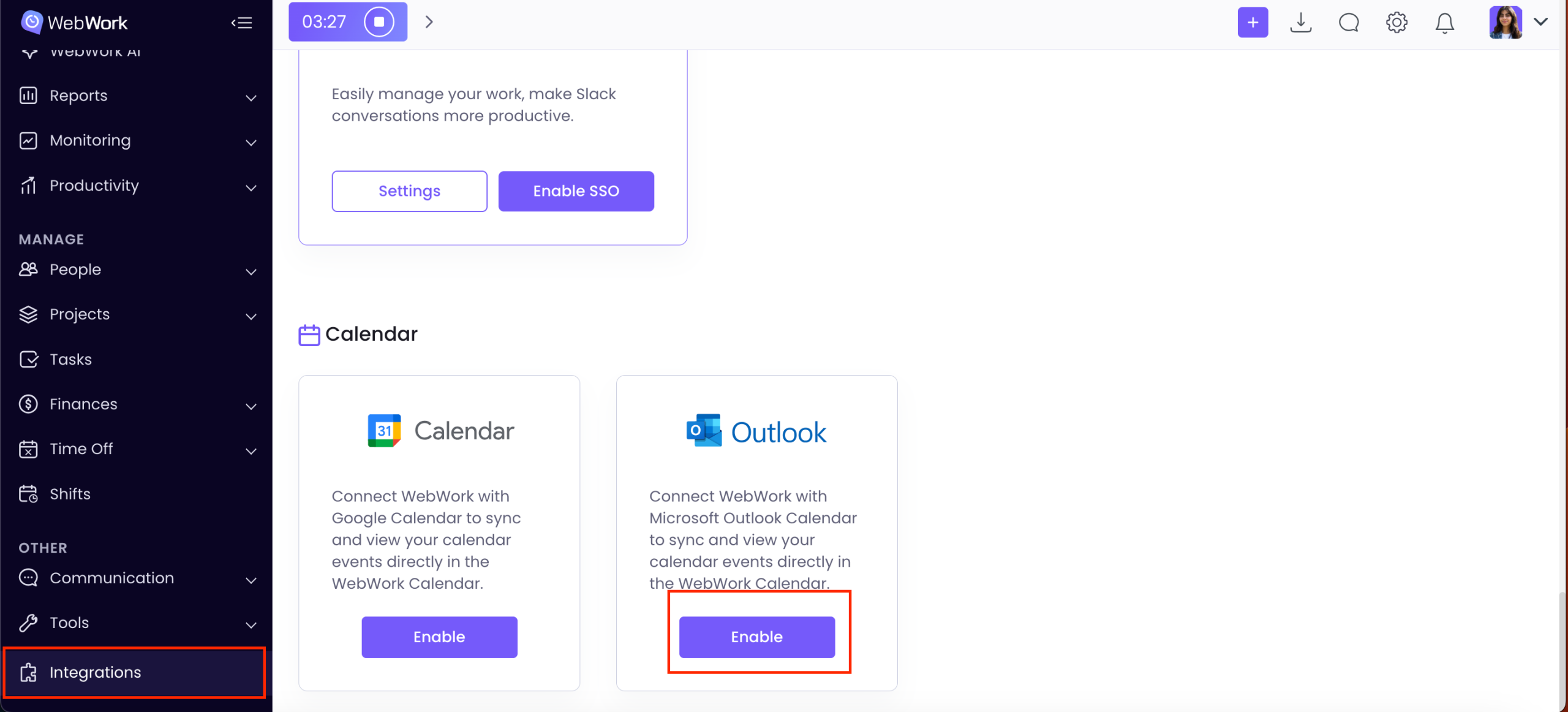
In order to enable it, go to Integrations > Outlook Calendar > Enable.
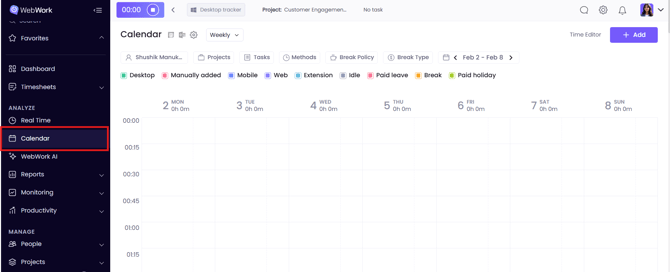
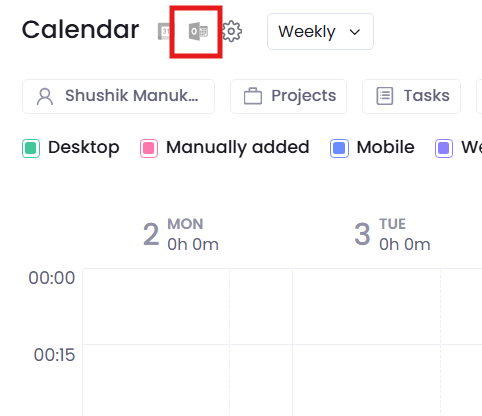
Or go to WebWork Calendar and click the Outlook icon on top > Connect.
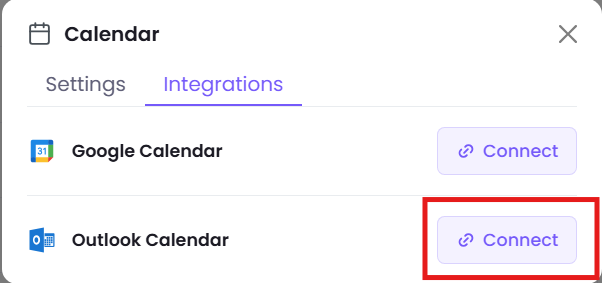
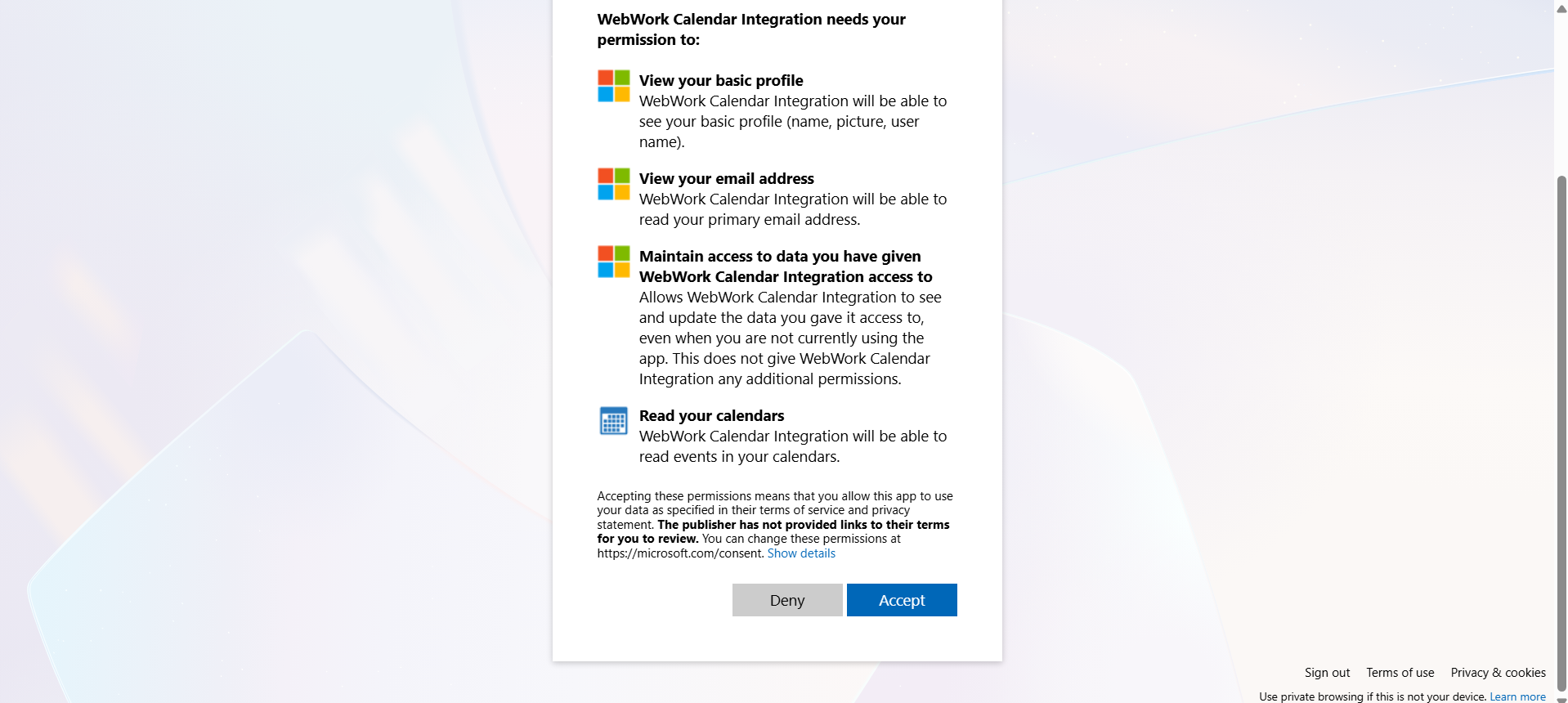
In the opened page, give WebWork access to your Outlook Calendar by clicking Accept:
Now that you have connected the two, select which events and calendars you want to display in your WebWork Calendar.
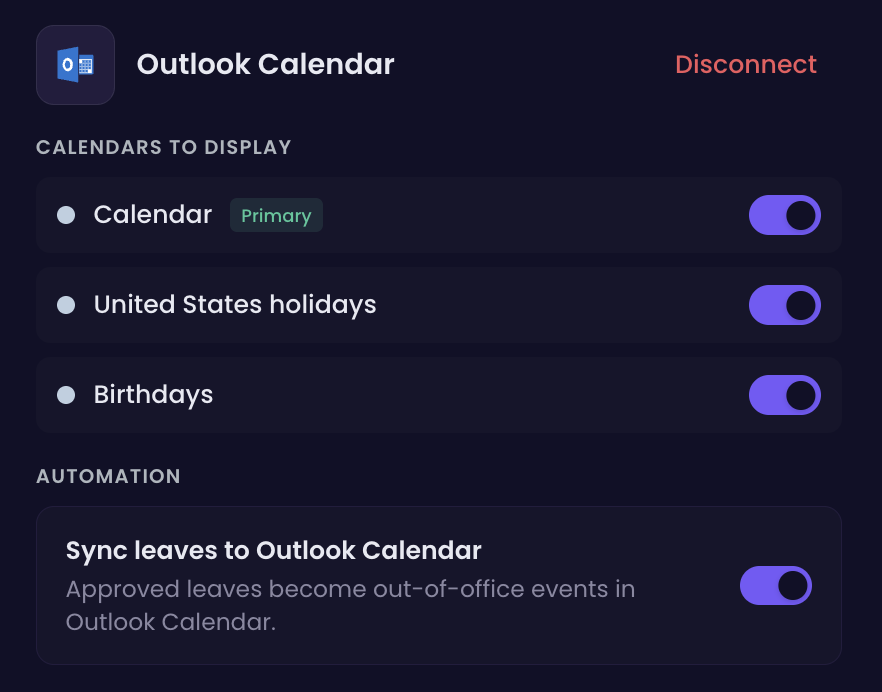
Sync Approved Leave with Outlook Calendar
You can also sync leave and time off with Outlook Calendar. When synced, approved leaves from WebWork will become out-of-office events in Outlook Calendar.

That’s it. You can now see your calendar events next to your tracked hours.
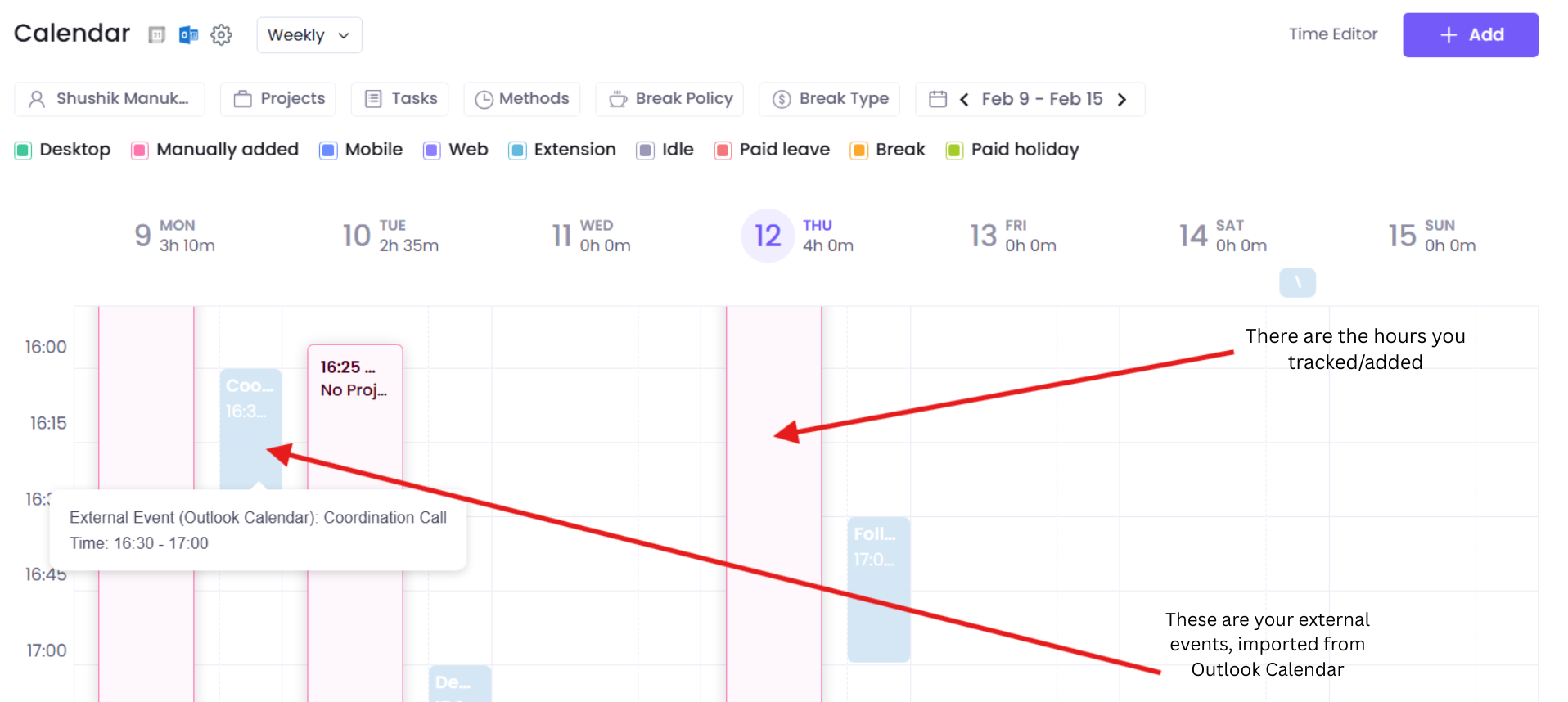
Note that enabling this option allows you to view only your personal events from Outlook Calendar, regardless of your role as an executive manager or workspace owner.
Learn more about WebWork’s Calendar here.
Was this article helpful?
Thanks for your feedback.