
Keeping track of your team’s schedule is easy with the WebWork calendar feature. In order to view the daily, weekly, monthly, or yearly calendar of your workspace, you can go to Calendar and select the mode you would like to view.
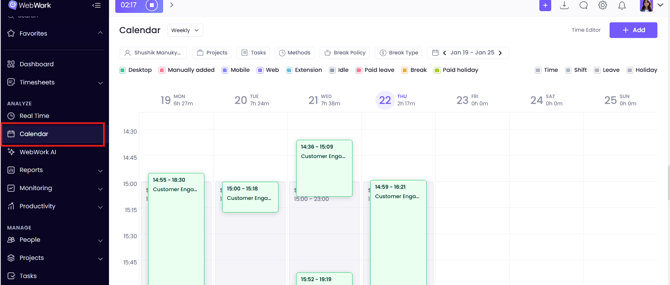
Adding or Editing Time
You can add time from this section by clicking on Add and choosing what time you want to add specifically. Next to the Add button, you can also see an easy way to be redirected to the Time Editor page. You can do this by clicking on the relevant button. In this article, you can learn more about WebWork’s Time Editor page.
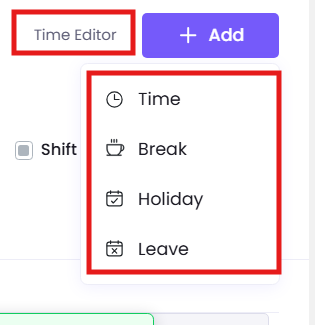
Another way to add time is by simply clicking on a blank space on the page in daily or weekly modes. You can click on the day and time in the Calendar when you want to add your time, after which a pop-up will appear where you can fill in the necessary information and add the necessary time. In monthly or yearly modes you can add time by clicking on the day on the calendar you want to add time for.
If you want to edit tracked or manually added time, you can drag and move the shift to the date and time you want, and it will be updated accordingly.
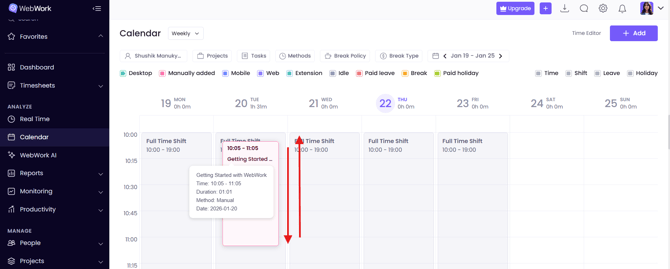
Filters
There are different filters that allow you to customize your Calendar view. On the right side of the screen (Time, Shift, Leave, Holiday), you can choose the general type of data you want to display. Meanwhile, on the left side are filters indicating the methods (such as tracking methods, time registration methods, or break/leave policies). For example, if Leave on the right is enabled, but Paid leave on the left is disabled, you won’t see the leave blocks on the calendar in red, but you will still be able to see the leave for that day in the top part.
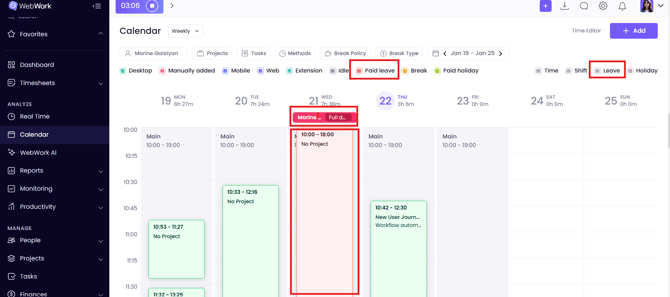
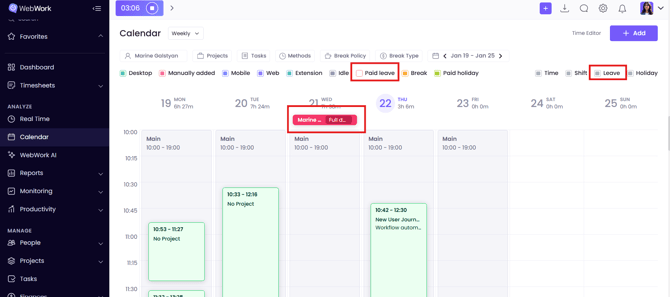
Daily Mode
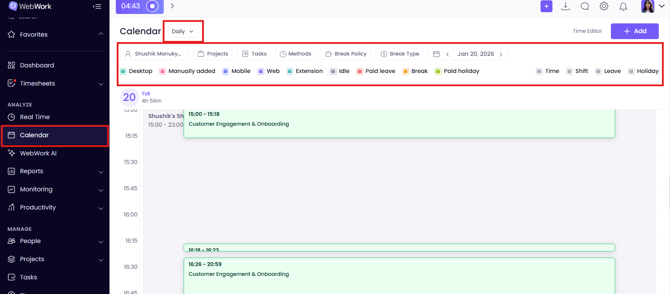
The daily mode view provides you with information about a specific member’s shift, their tracked hours on projects or tasks, the breaks or leaves they have taken, and much more. You can filter your view using the filters above. Each of the filters is illustrated in a different color, making it easy to distinguish between them. Additionally, the regular shift of the member is indicated in light grey and the tracked time appears as colored blocks on top of it. The color depends on the tracking source (Desktop, Manual, Mobile, Web, etc.) as shown in the legend above.
Weekly Mode
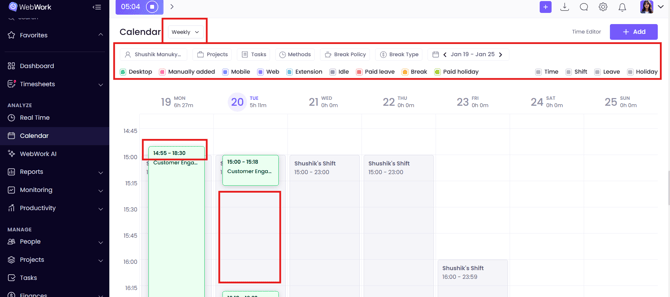
The weekly mode is also shown based on a specific member chosen by you. Weekly mode helps you navigate through the member’s shifts. You can see when the member started the tracker by the time indicated, when they stopped it by the gaps between sessions, and all other information about their breaks, leaves, manual, or idle times. Again, the filters are available above.
Monthly Mode
The monthly view enables you to see information regarding a specific member’s or team’s leaves and holidays. Therefore, you will have filters by team or member.
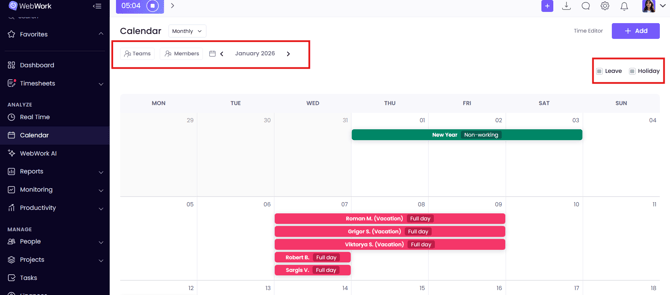
When selecting a member, you will see that member’s non-working days in green (which mostly apply to the whole workspace and are also showcased in the member’s calendar) and the leaves taken by the member for themselves (not workspace-wide) in red. When selecting a team, you will see holiday information that refers to that team.
Yearly Mode
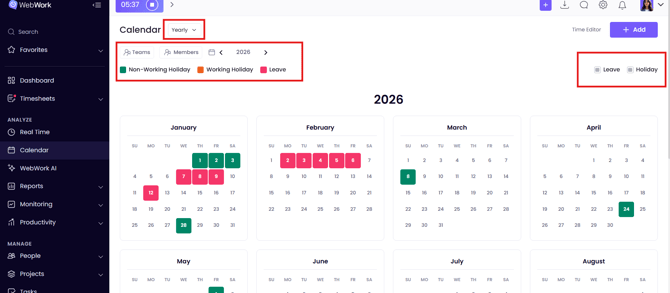
The yearly mode enables you to see the holidays, both working and non-working, as well as leaves that refer to the whole workspace, specific teams, or members. If neither a specific team nor a member is selected, this view will demonstrate the holidays or leaves referring to the whole workspace. As soon as you choose a team/member, you will see only the holidays/leaves related to them. Again, non-working holidays, working holidays, and leaves are shown in different colors, making the interaction with the platform as user-friendly as possible and enabling you to remove unnecessary information to avoid visual noise by applying filters.
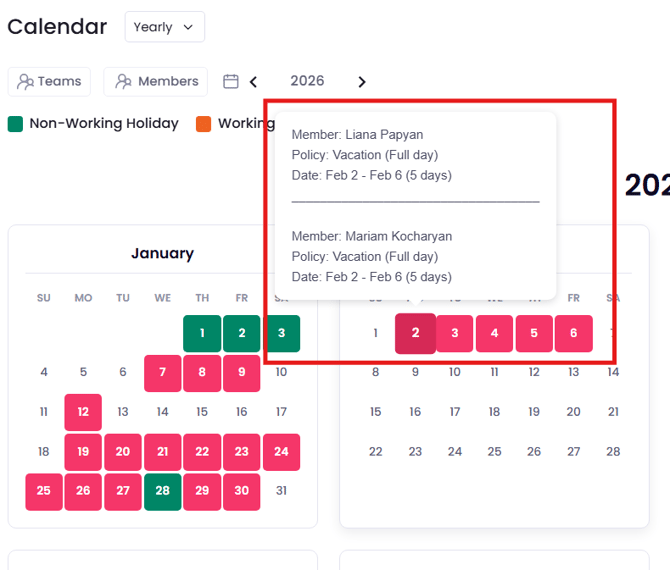
Note that in yearly view, if there is more than one member taking a leave/holiday for a specific day, than you can see that information by hovering over the day.
Google & Outlook Calendar Integrations
This is available under Plus or Premium subscription plans.
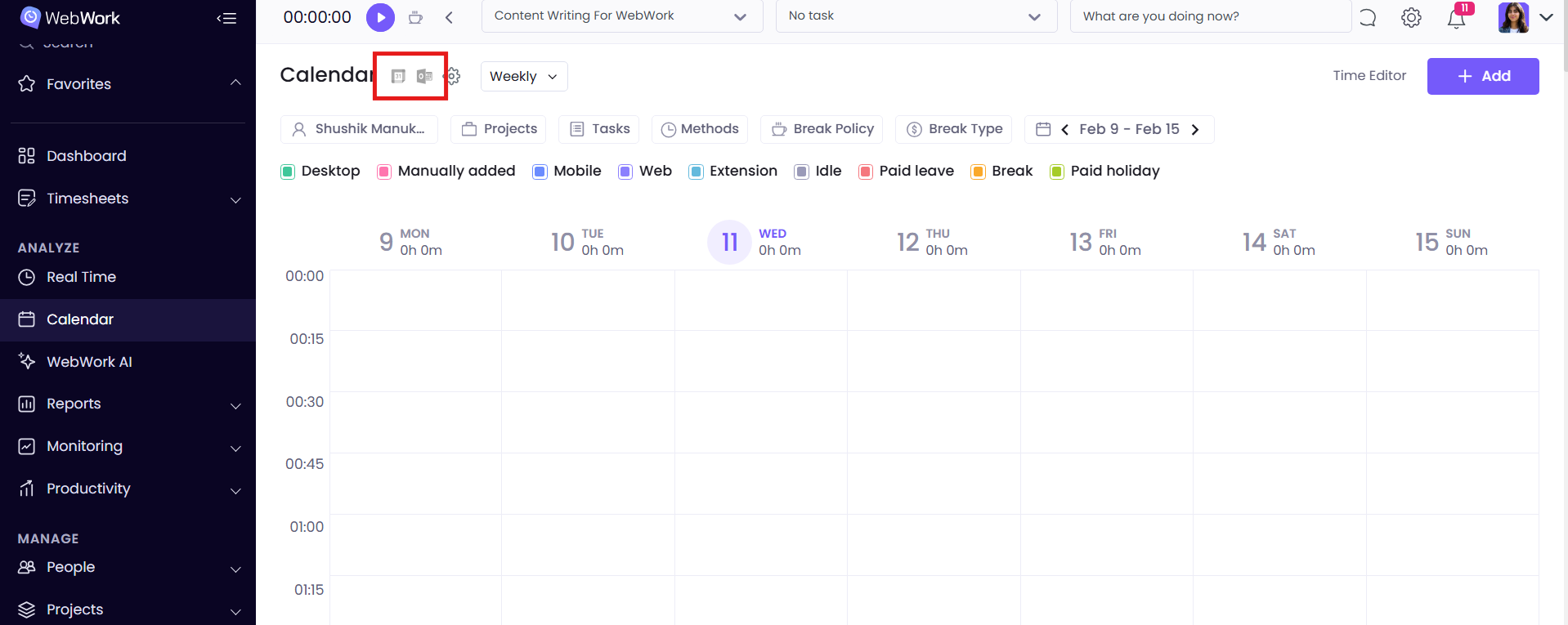
There is also an opportunity to connect your WebWork’s calendar to your Google or Outlook Calendar by enabling the integration from the same page. This integration will allow you to view the events that are present in your other calendars (Google or Outlook) directly within WebWork. To enable the integration, you should click on either Google or Outlook icon next to Calendar in WebWork:
or, you can click on the Settings button and then select the integration:
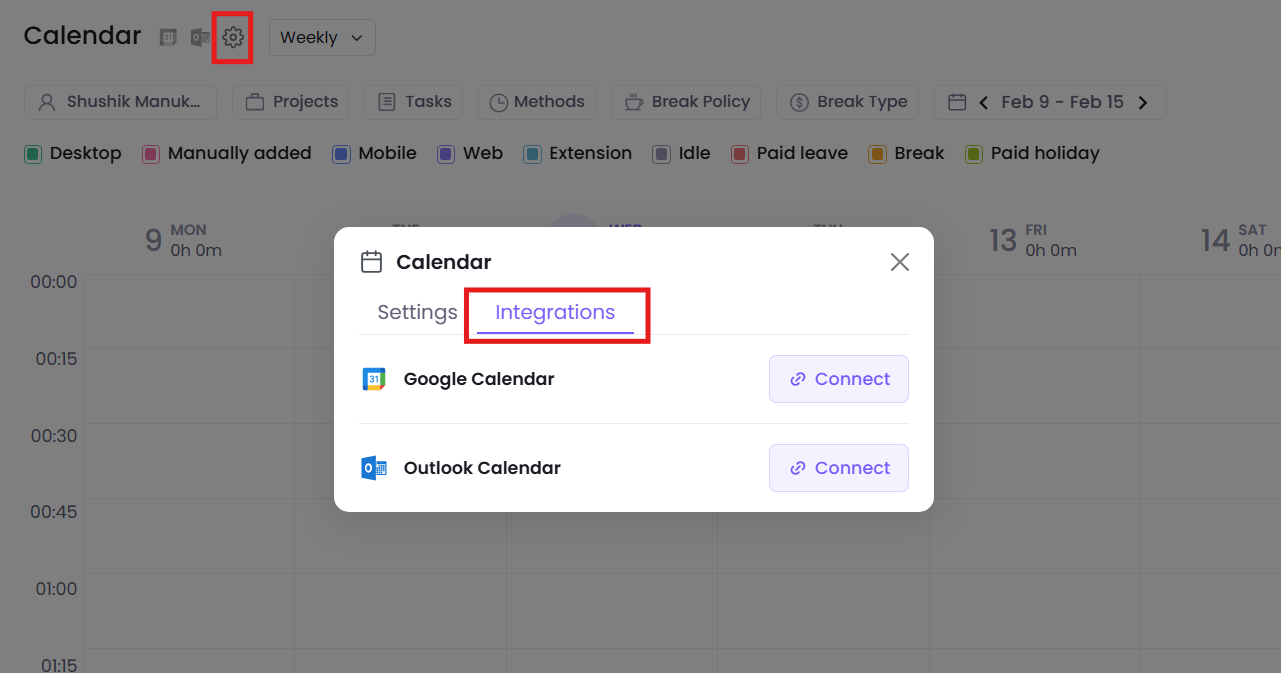
When you click on Connect, you will be redirected to your Google/Outlook Calendar page and will be asked from WebWork to give permission to access your information there. After giving the permission, you will be back to your WebWork’s page and will have to select what exactly you want to be transferred to your WebWork’s calendar, and also select from which calendar (because you may have multiple Google/Outlook calendars, hence you should choose from which calendar the information should be imported):
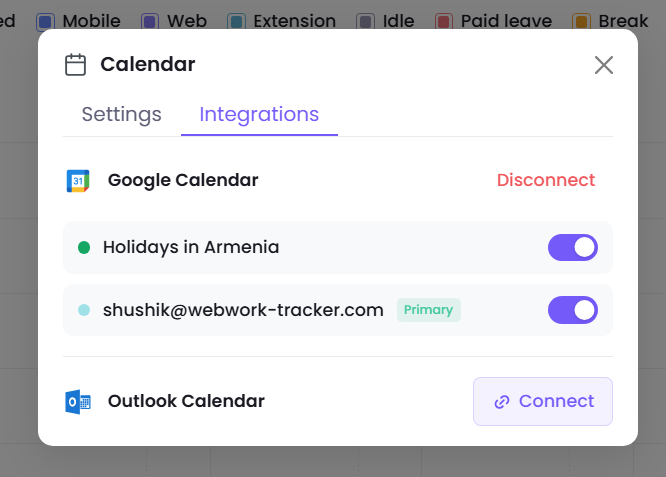
This is all, you have enabled the integration!
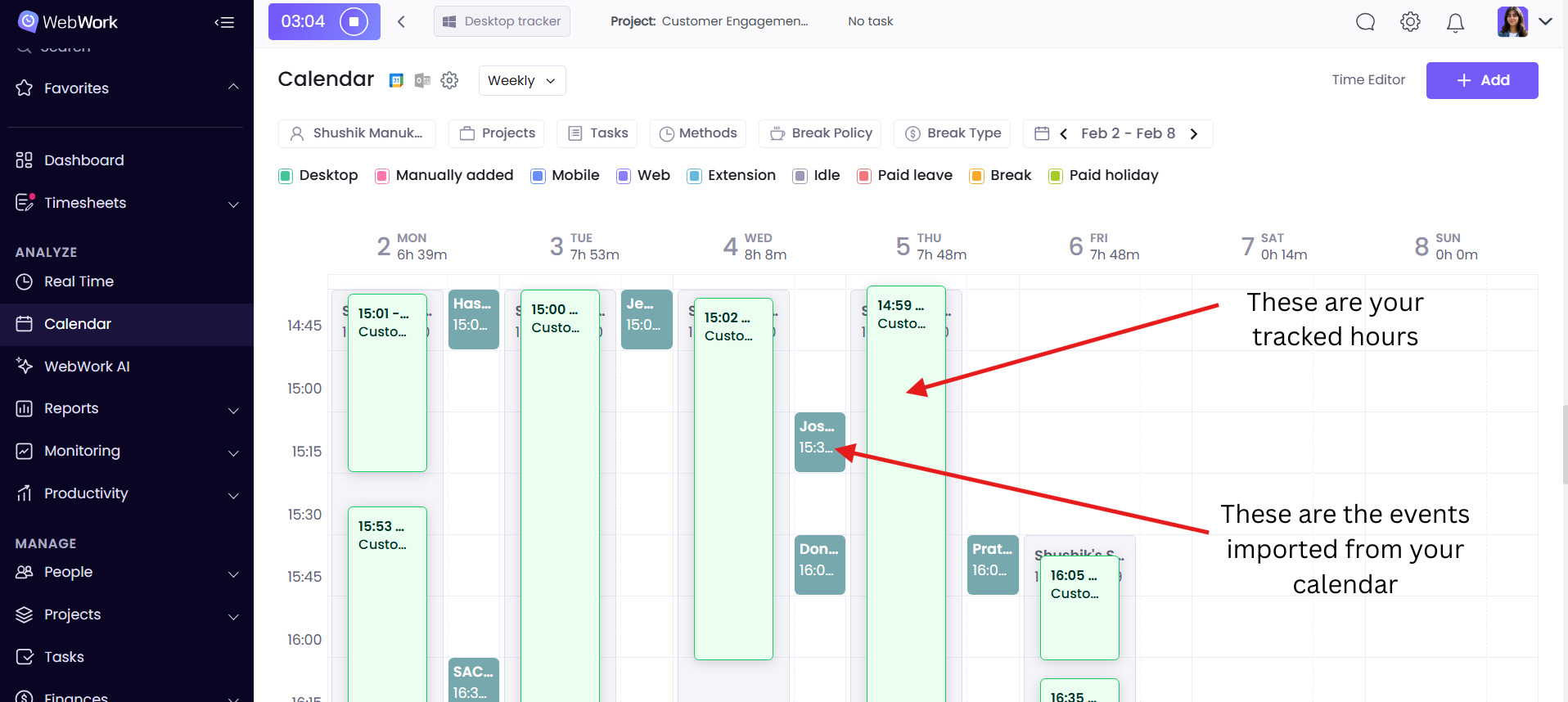
Note that enabling this option allows you to view only your personal events on the WebWork calendar, regardless of your role as an executive manager or workspace owner.
Was this article helpful?
Thanks for your feedback.