
The WebWork MCP connector lets you manage your WebWork data through AI assistants like Claude or ChatGPT, using natural language instead of navigating the dashboard.
It’s a standard Model Context Protocol server, so it works with any MCP-compatible assistant (Claude, Cursor, VS Code, and others) through the same connection.
The Necessary Steps
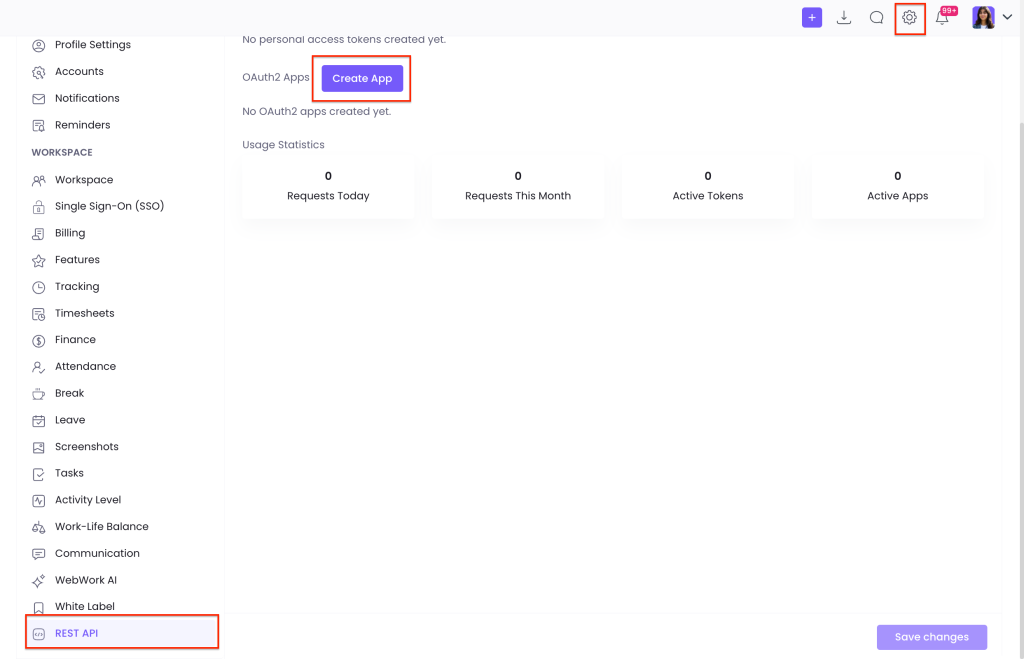
Firstly, go to WebWork Settings, click REST API, and in the OAuth2 Apps section click Create App.
IMPORTANT: REST API is available only to workspace Owners and Executive Managers with a verified email address:
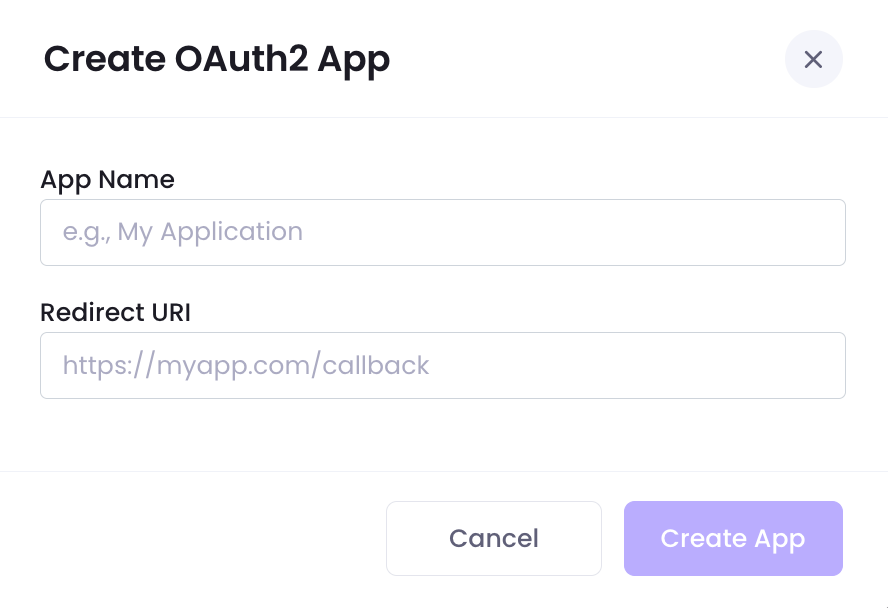
The app name can be the name of the AI assistant you are connecting, for example: Claude. The Redirect URI must match your AI assistant’s callback URL exactly:
- Claude (web, desktop, mobile):
https://claude.ai/api/mcp/auth_callback - ChatGPT: the Callback URL ChatGPT shows while you create the connector. It starts with
https://chatgpt.com/connector/oauth/and is different for every connector. - Other assistants (Cursor, Devin, Gemini CLI, Claude Code and others): see the Redirect URI table in the MCP Connector Quickstart.
Then confirm your identity with the verification code WebWork emails you.
Connecting ChatGPT?
Start in ChatGPT: create the connector, choose OAuth, open the advanced OAuth settings and copy the Callback URL. Keep that ChatGPT window open, create the WebWork app with that URL as the Redirect URI, then go back to ChatGPT and paste the Client ID and App Secret. If you close the window or create the connector again, ChatGPT generates a new Callback URL and you need a new WebWork app. The screenshots below show Claude.
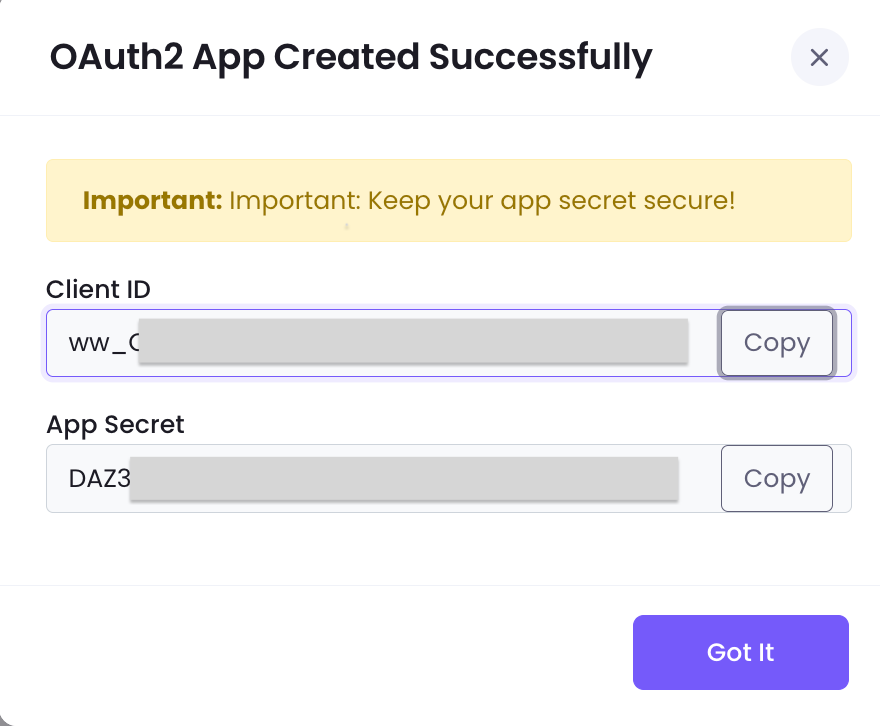
This is what you should see if you have successfully created the OAuth2 App.
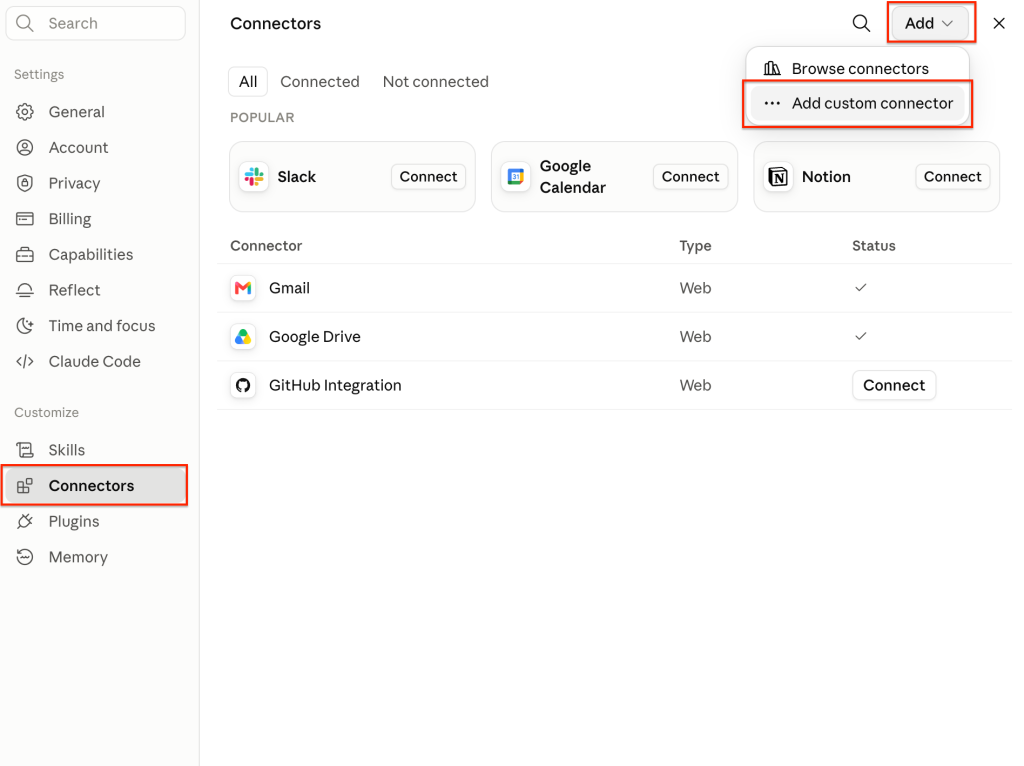
After this, go to your AI assistant and click on Settings:
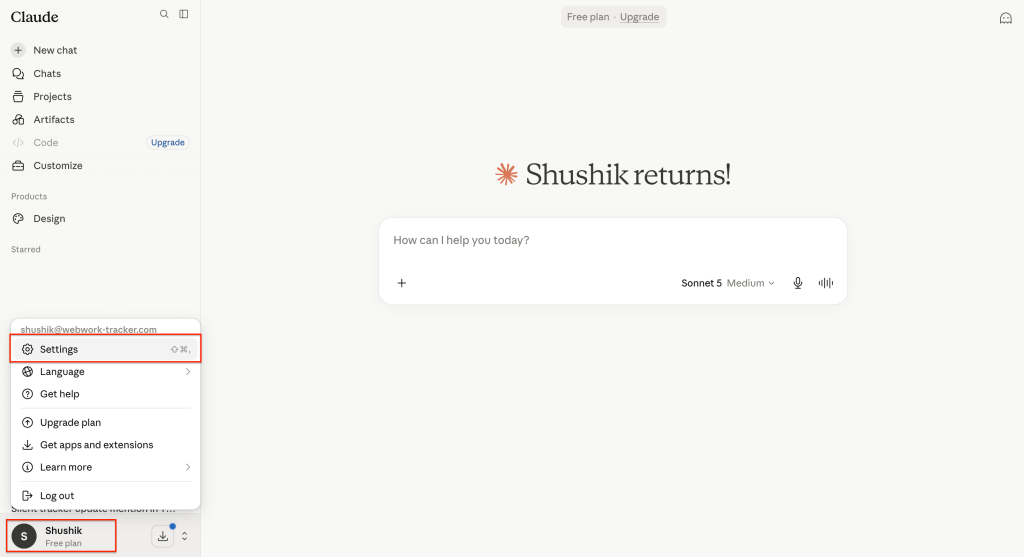
Then, click on Connectors and Add custom connector:
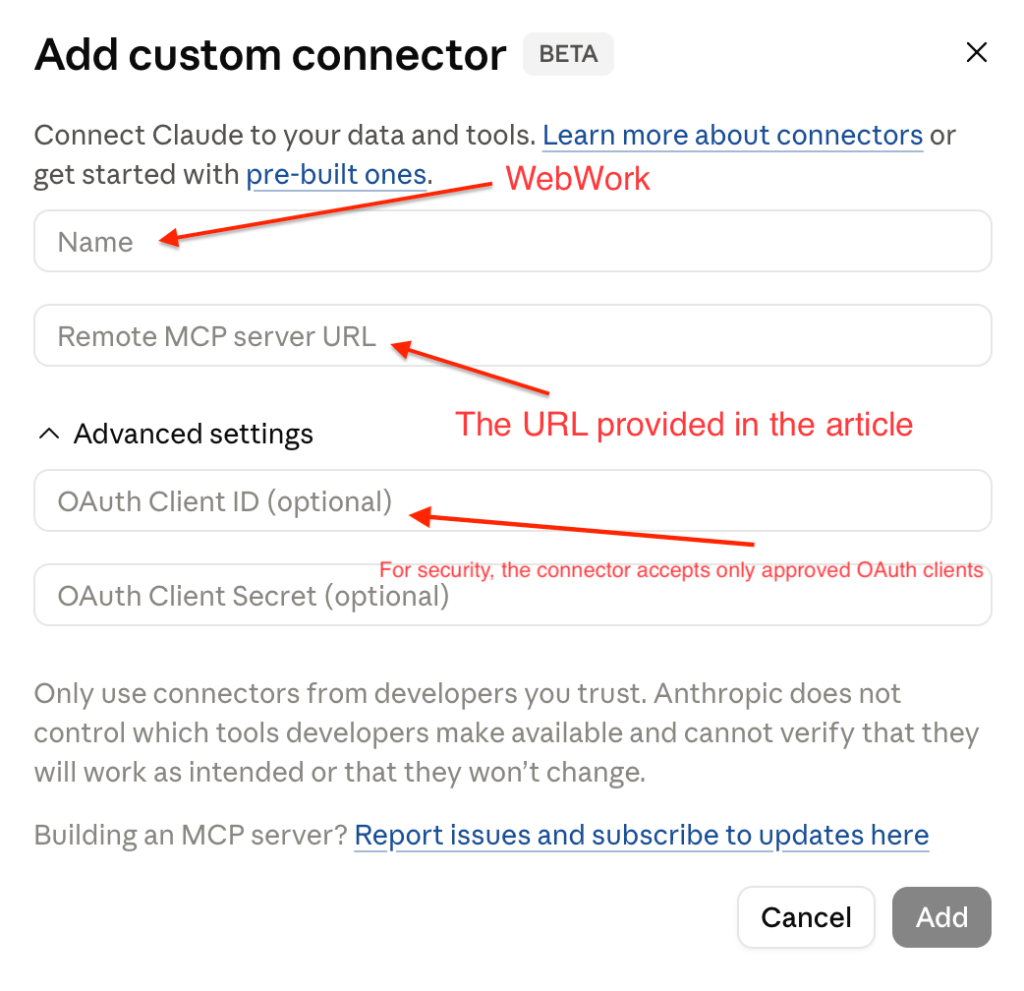
You should see a pop-up windows where you should put the following MCP URL: https://mcp.webwork-tracker.com/mcp
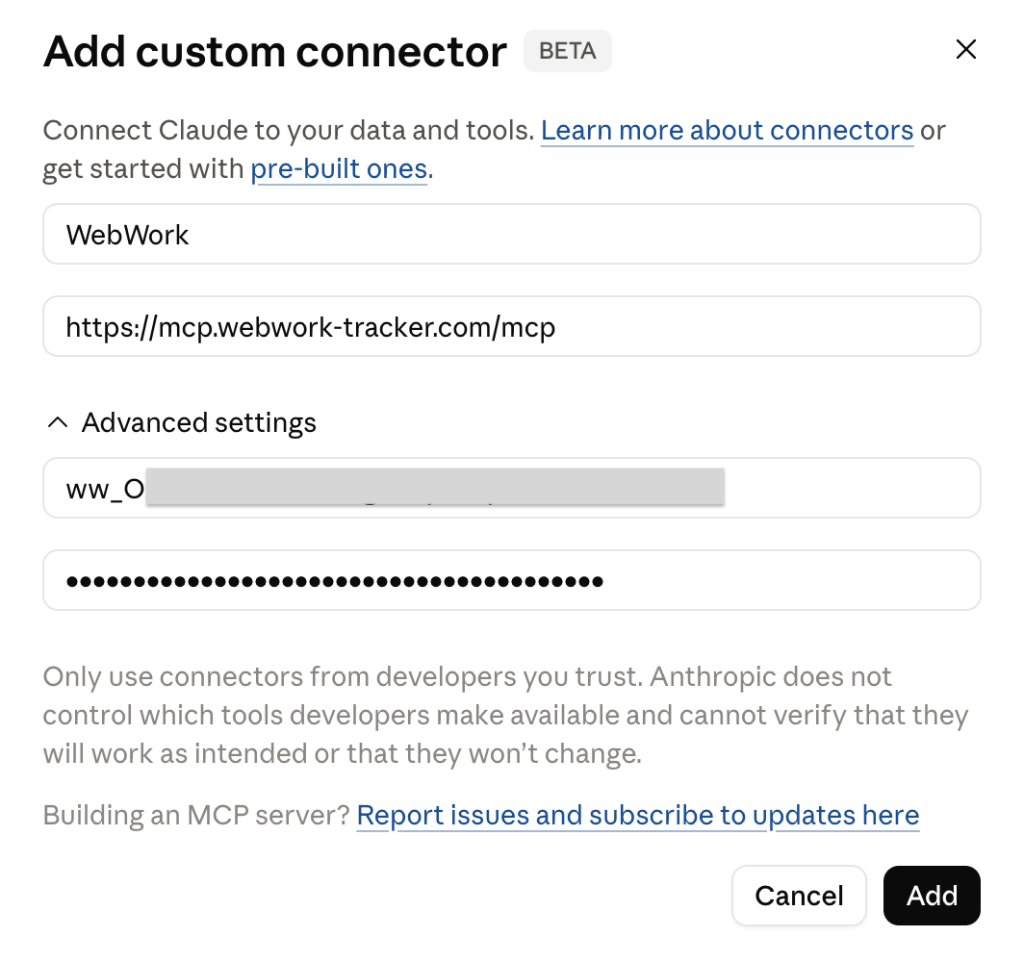
For security, the connector accepts only approved OAuth clients — a custom connection works only with the OAuth credentials WebWork issues for it, and other client credentials are rejected. Here you should put the Client ID and App Secret provided from WebWork in the Rest API section.
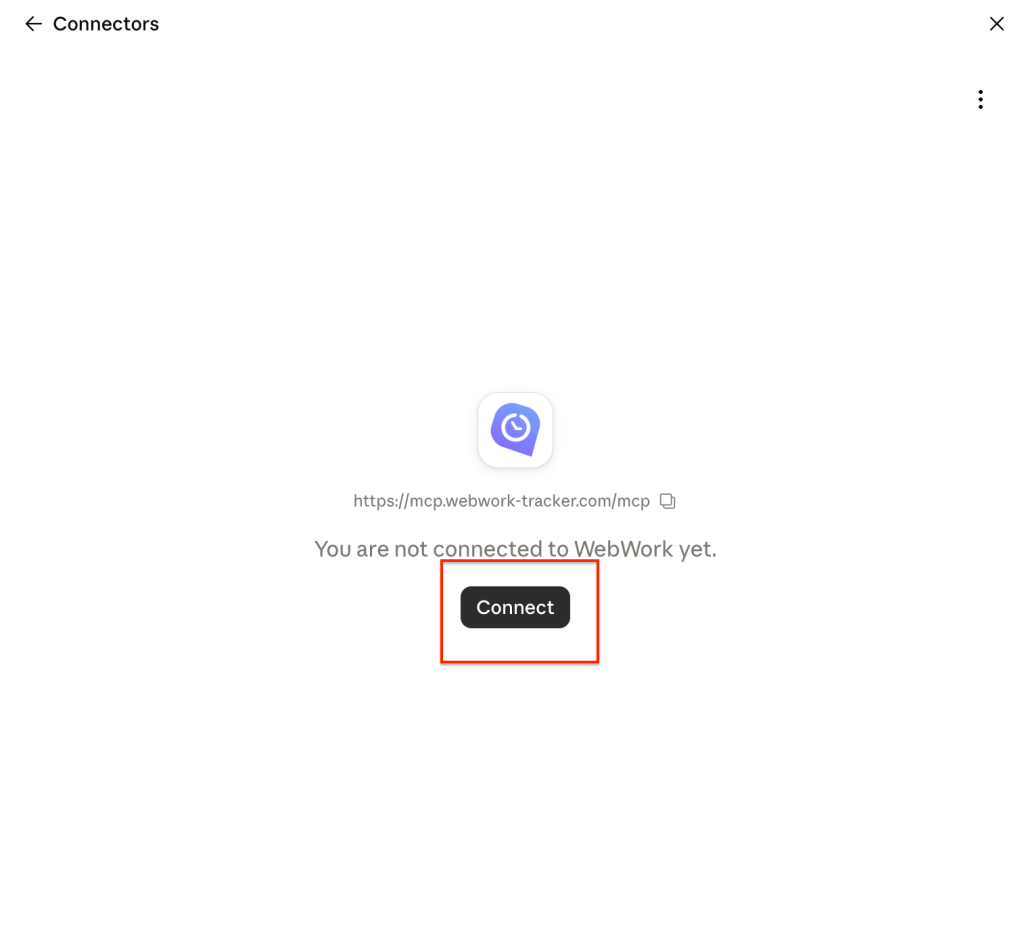
Then, click connect and authorize:
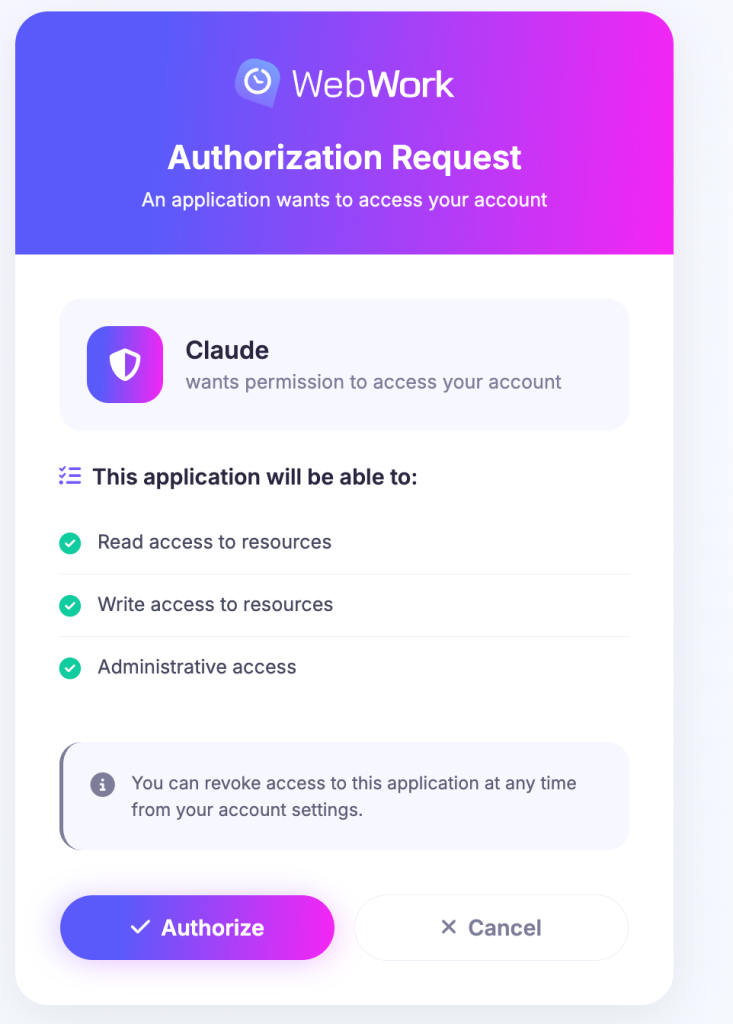
Congratulations, WebWork is now connected to your AI assistant!
What you can do
Ask your assistant in plain language, and it will call the right action behind the scenes. For example:
- Projects and tasks — “List my projects,” “What are the open tasks in the Mobile App project?,” “Create a task and assign it to Maria.”
- Time tracking — “What is Alex tracking right now?,” “Start the timer for Alex,” “Add 2 hours to yesterday.”
- Approvals — “Show pending timesheets,” “Approve this week’s timesheets,” “Reject this leave request with a reason.”
- Reports — “Tracked-hours report for last week,” “Activity report for June 1–15,” “Who was late yesterday?”
- People — “List members,” “Invite jordan@example.com as a Regular User.”
In total, the connector covers more than 120 actions across workspaces, projects, tasks, members, contracts, time tracking, timesheets, time requests, leaves, expenses, time entries, project viewers, reports, teams, titles, shifts, custom fields, and more.
Who can use it
- Your WebWork account must be a workspace Owner or Executive Manager.
- Your email address must be verified.
Every action runs as you, the signed-in user, so the connector respects your existing role and permissions. It never lets you do more than you’re already allowed to do in WebWork — if you ask for something outside your permissions, the assistant will get a permission error back instead of completing the action.
Permissions and safety
- When you connect, you grant read, write, and/or admin access, and your AI assistant lets you approve individual actions.
- Destructive actions (like deleting or archiving) always require your explicit confirmation before they happen.
- Some actions send real emails — for example, inviting a member, adding a project viewer, or approving a leave request. Your assistant will tell you before it sends anything.
- You can disconnect at any time to revoke access, whether from your AI assistant’s settings or your WebWork account.
Was this article helpful?
Thanks for your feedback.