
The integration with Make allows you to connect WebWork with more than 3000 apps.
Connect Make with WebWork
1. Go to Integrations > Make > Create & Edit Scenarios
2. Log in to your Make account
You can use the following triggers and actions:
The Trigger is what activates your Zap.
The Action is what the Zap will perform.
Triggers
Whenever any of the following events happens, it leads to an automated action:
New Contract Events
Triggers when a new contract is created.
New Task Events
Triggers when a new task is created.
Watch New Time Request
Triggers when a user has requested time.
New Member Events
Triggers when a new member is created.
Watch Approved Time Request
Triggers when a time request is approved.
Watch Rejected Time Request
Triggers when a time request is rejected.
New Project Events
Triggers when a new project is created.
Watch Approved Timesheet
Triggers when a timesheet is approved.
Watch Rejected Timesheet
Triggers when a timesheet is rejected.
Actions
Whenever an event is triggered, the following actions can happen:
Create a Contract
Adds a contract to the system based on the information you provide.
Create a Task
Adds a new task to the system based on the information you provide.
Update a Member
Updates an existing member in the system.
Create a Member
Adds a new member to the system based on the information you provide.
Make an API Call
Performs an arbitrary authorized API call.
Update a Project
Updates an existing project in the system.
Create a Project
Adds a new project to the system based on the information you provide.
Update a Contract
Updates an existing contract in the system.
Update a Task
Updates an existing task in the system.
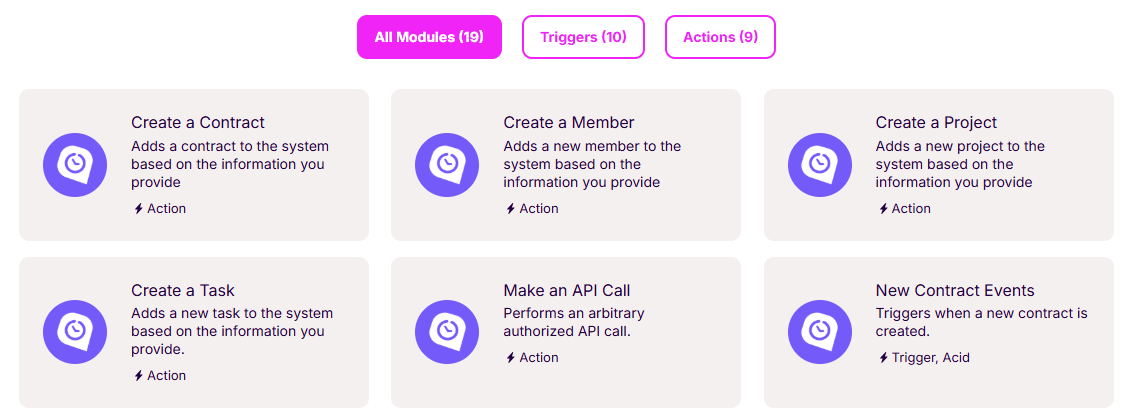
Connect Apps with WebWork Through Make
- Go to your organization on Make
- Click Create scenario
- Search for the app you want
- Select the trigger you want (e.g. Create Project)
- Fill out details like the project name, start date, deadline, and others
- Click Save
- Click Add another module
- Select the other app and the action
- Click Create connection
- If you aren’t logged in, log in to the app to complete authorization
- Click Run once to check if everything is working
- If the automation works, click Save
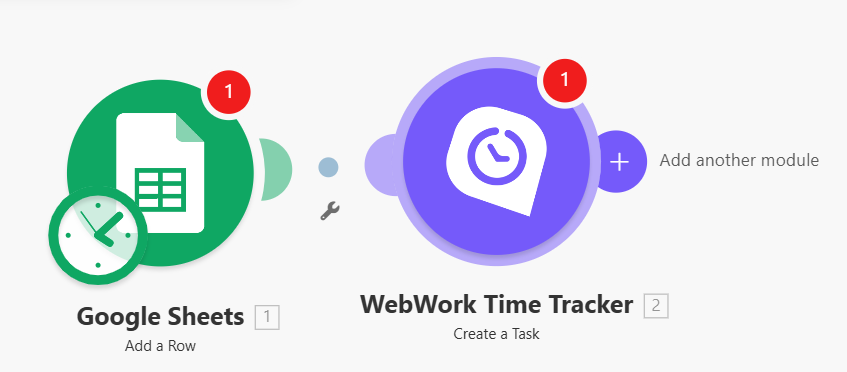
That’s it. Now you have connected your desired apps with WebWork.
WebWork also supports integration with Zapier. Learn more about it here.
Using Make AI Agents & AI Toolkit with WebWork
In addition to standard automation scenarios, Make also offers Make AI Agents and the Make AI Toolkit, which allow you to build more intelligent, dynamic workflows.
What is Make AI Agents?
Make AI Agents allow you to build autonomous workflows.
What is the Make AI Toolkit?
The AI Toolkit gives you AI-powered modules inside your scenarios.
How It Works with WebWork
You can insert AI modules between a WebWork trigger and an action in another app.
Example workflow:
-
Trigger: Watch Approved Timesheet (WebWork)
-
AI Toolkit: Summarize the timesheet
-
Action: Send summary to Slack / Email / CRM
Was this article helpful?
Thanks for your feedback.