
Comments sit under each task, in its Comments tab. Every member who can open the task can comment on it. A project viewer reads comments and writes them only with paid collaboration turned on.
Add a comment
- Open the task and scroll to Comments.
- Type your comment. The toolbar under it attaches a file, records a voice note, mentions someone with @, adds an emoji or a link, and starts a bulleted or numbered list.
- Press Enter, or click the send icon.
Mention a member
- Type @ in the comment. A list opens with the project’s members under People and the latest tasks under Tasks.
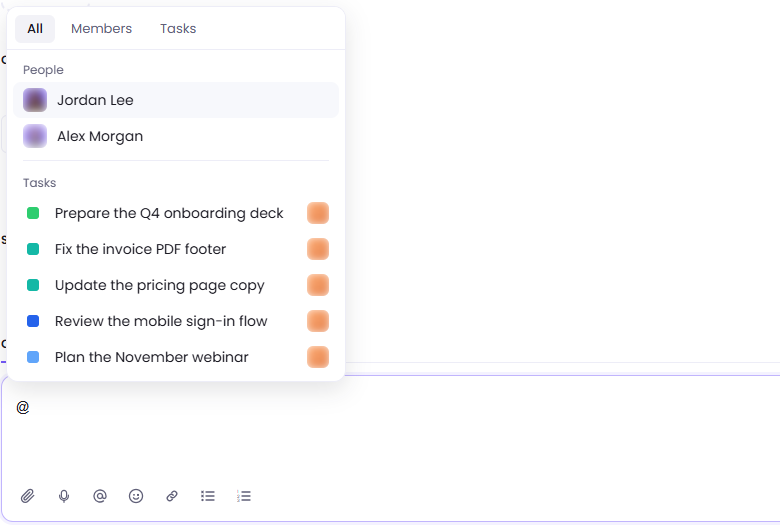
- Keep typing the name, then select the member. They get a notification about your comment.
The Members tab of the list shows members only, and the Tasks tab tasks only.
Reference another task
- Type @, then the task’s title or its ID, such as CO-50, or part of either. The list narrows to the matching tasks, closed tasks and subtasks included.
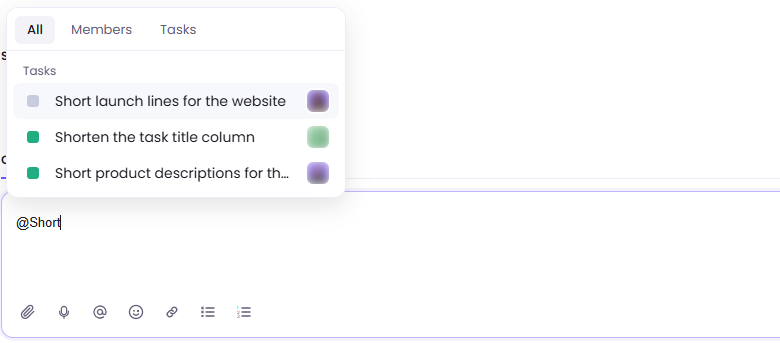
- Select the task. It appears in your comment as a chip with its current status.
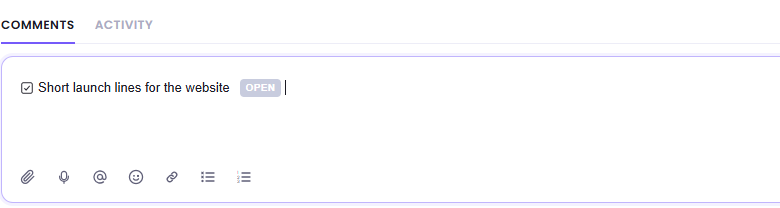
Once the comment is sent, click the chip to open the task in a new tab, or hover it to see the task’s status, assignees, due date and priority. A task reference sends no notification.
If the task is deleted later, the chip says This task has been deleted. If you cannot see the task, it says This task isn’t accessible to you.
Reply, react, edit or delete
Click Reply under a comment to answer it in a thread. Hover a comment to see its quick reactions, an emoji picker and More actions, which holds Edit and Delete for your own comments.
Was this article helpful?
Thanks for your feedback.