
Compliance Monitoring gives workspace owners visibility into their team’s device security. WebWork’s desktop app checks each member’s devices against a set of security criteria and reports the status in one centralized view, so you can see at a glance which devices meet your requirements and which don’t.
Compliance Monitoring is available on Premium and above, or as an add-on for $1 per member per month.
What gets checked
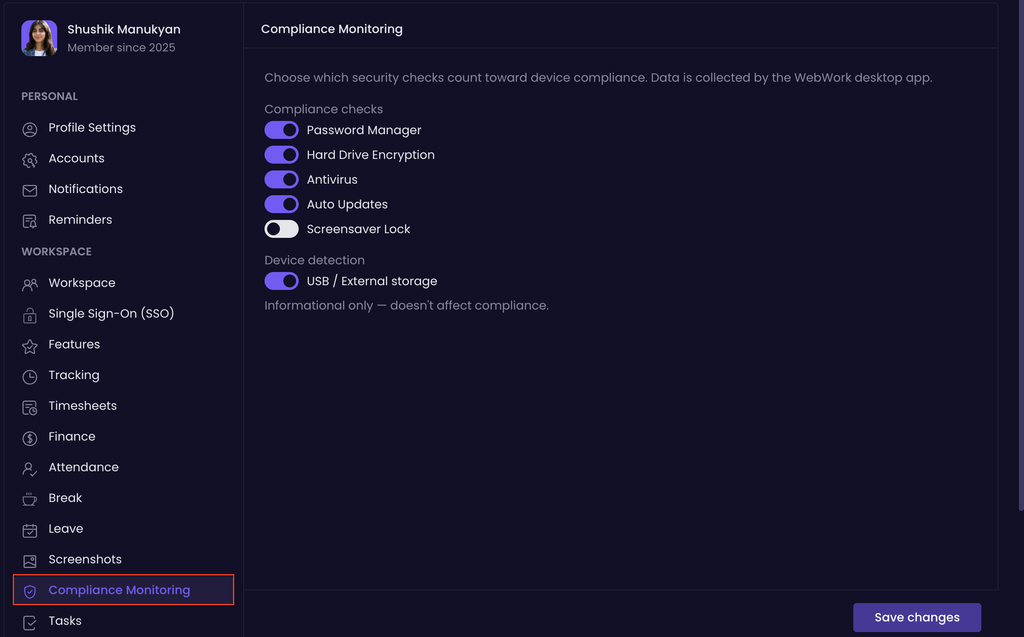
The desktop app checks each device for:
- Password Manager — whether a password manager is in use
- Hard Drive Encryption — whether the device’s storage is encrypted
- Antivirus — whether antivirus software is active
- Auto Updates — whether automatic OS updates are turned on
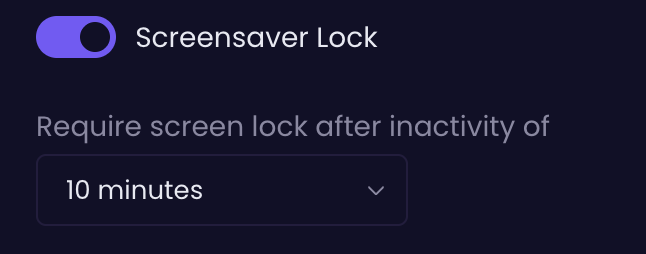
- Screensaver Lock — whether the screen locks after a set period of inactivity
You can also turn on USB / External storage detection. This is informational only and doesn’t count toward a device’s compliance status, it simply flags whether external storage was connected.
Configuring which checks count
To choose which checks apply to your workspace:
- Go to Profile Settings > Compliance Monitoring
- Toggle each check on or off under Compliance checks
- Set Require screen lock after inactivity of to the amount of idle time you want to allow before a device is expected to lock (e.g. 10 minutes)
- Toggle USB / External storage under Device detection if you want that flagged as well
Only the checks you’ve toggled on here count toward a device’s compliance status. If you have not checkmarked any of these, they will appear as secure in the monitoring section.
Viewing compliance across your team
Go to People > Members, then open the Compliance tab.
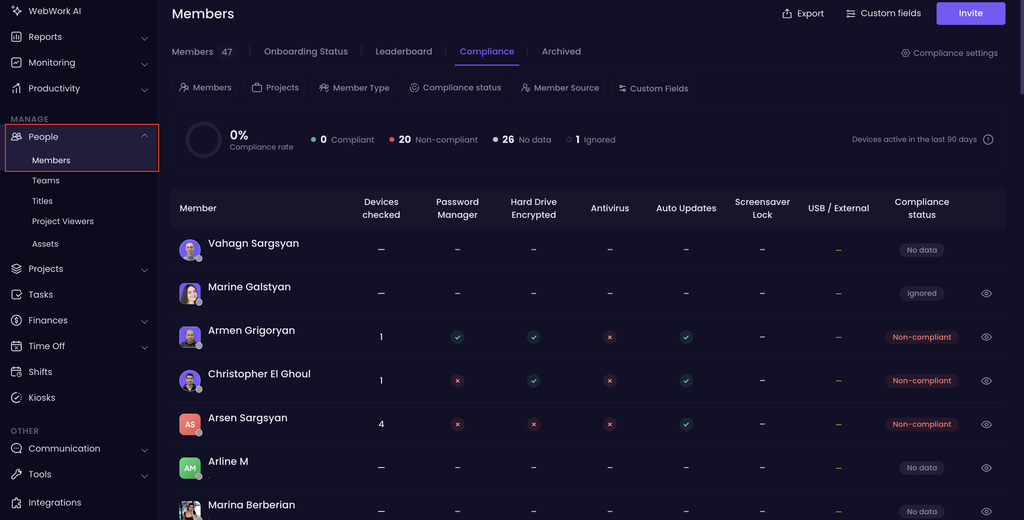
At the top, you’ll see your workspace’s overall Compliance rate, broken down into:
- Compliant — devices that pass every enabled check
- Non-compliant — devices that fail at least one enabled check
- No data — devices the desktop app hasn’t reported on yet
- Ignored — devices you’ve excluded from compliance tracking
This summary covers devices active in the last 90 days.
Below it, the table lists each member with a column for every check: Devices checked, Password Manager, Hard Drive Encrypted, Antivirus, Auto Updates, Screensaver Lock, USB / External, along with their overall Compliance status. A green check means the device passes that check, a red x means it fails, and a dash means there’s no data for it.
You can filter this view by Members, Projects, Member Type, Compliance status, Member Source, and Custom Fields. A Compliance settings shortcut in the top-right takes you straight to the configuration page described above.
Reviewing a member’s devices
Click into a member’s profile and open the Devices/Assets tab to see their compliance details device by device.
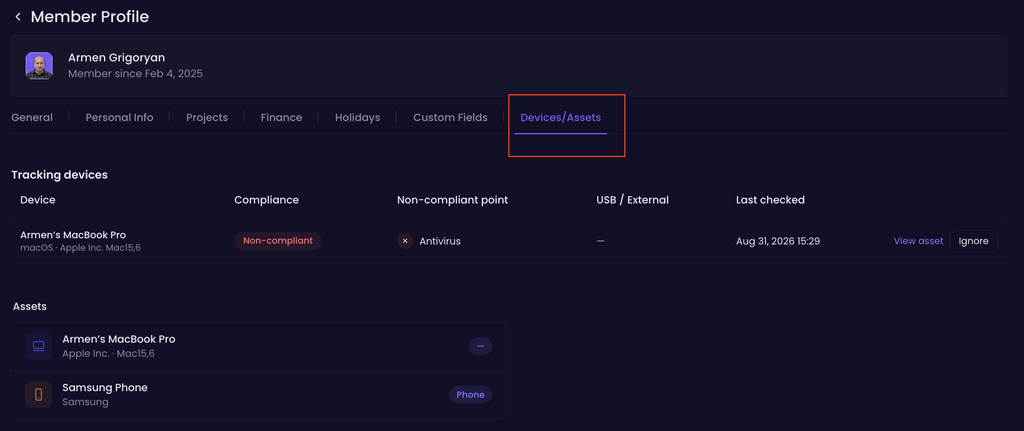
The Tracking devices table shows each device’s Compliance status, its specific Non-compliant point (which check it’s failing), whether USB / External storage was detected, and when it was Last checked.
From here you can:
- Click View asset to see the device listed as an asset
- Click Include on a device you’d previously ignored, to bring it back into compliance tracking (devices can be ignored from this same table)
Underneath, the Assets section lists all of the member’s registered devices and assets, whether or not they’re currently being tracked for compliance.
Was this article helpful?
Thanks for your feedback.