
The Audit Log is the record of the changes made in your workspace: who changed what, when, and from which app and IP address. The Workspace Owner and Executive Managers can open it. It is available on the Plus and Premium plans.
Open the Audit Log
- Click your profile picture at the top right.
- Select Audit logs.
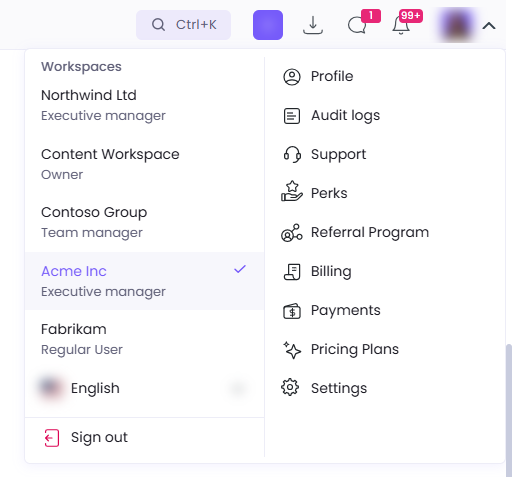
The log opens on the last 30 days, newest first and grouped by day. Each day shows how many events it holds.
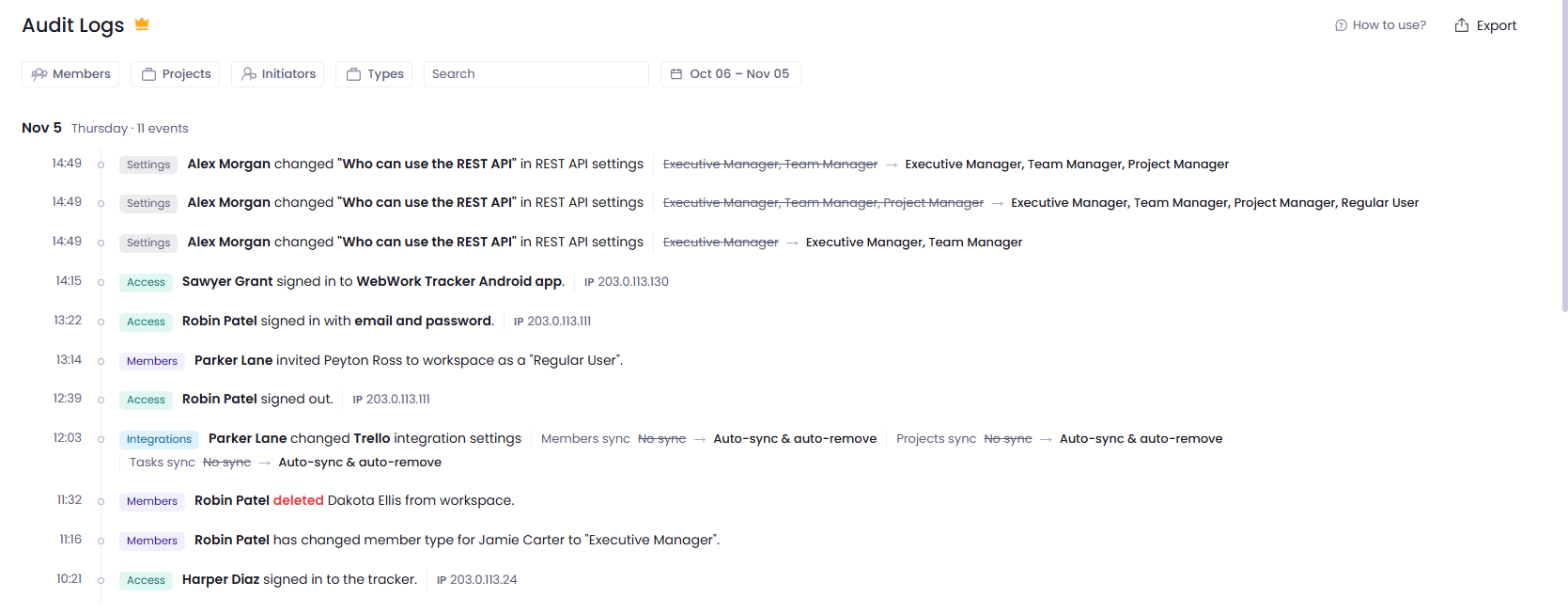
What an entry shows
Each entry is one line: the time, a type badge, who made the change and what changed. A changed setting shows its old value crossed out and the new value next to it. A deleted item shows deleted in red.
A sign-in or sign-out carries the Access badge. It names how the member signed in, such as with email and password, with Google, or in the desktop, iOS or Android tracker app, and shows the IP address it came from.
What the Audit Log records
| Type | What it records |
|---|---|
| Members | Members invited, removed or changed to another member type. A member’s team or title set, changed or removed. Shifts created, updated or deleted, and members assigned to or unassigned from a shift. Leave requests edited or deleted. |
| Projects | Projects and tasks created, renamed, archived or deleted. Project groups. |
| Settings | Changes to the workspace settings, including the REST API settings and custom fields. |
| Finance | Payroll, invoice and payment settings, and who has access to finances. |
| Reports | Scheduled reports sent, and screenshots deleted or exported. |
| Billing | Plan, billing period and automatic renewal changes. |
| Access | Sign-ins and sign-outs, with the app or sign-in method and the IP address. |
| Integrations | Integrations connected, reconnected or disconnected, imports, and changes to an integration’s settings. |
| Tools | Standups and announcements. |
| Time Off | Holidays. |
Asset changes carry an Assets badge and have no option in the Types filter.
Finance entries appear only if you have access to finances. Without it, the log holds no finance entry and the Types filter has no Finance option.
Filter the log
The filters combine, so the log shows only the entries that match all of them.
| Filter | Shows |
|---|---|
| Members | The entries about a member |
| Initiators | The entries made by a member |
| Projects | The entries of a project |
| Types | The entries of the types you select |
- Click Types, or another filter.
- Select the options to show.
- Click Apply.
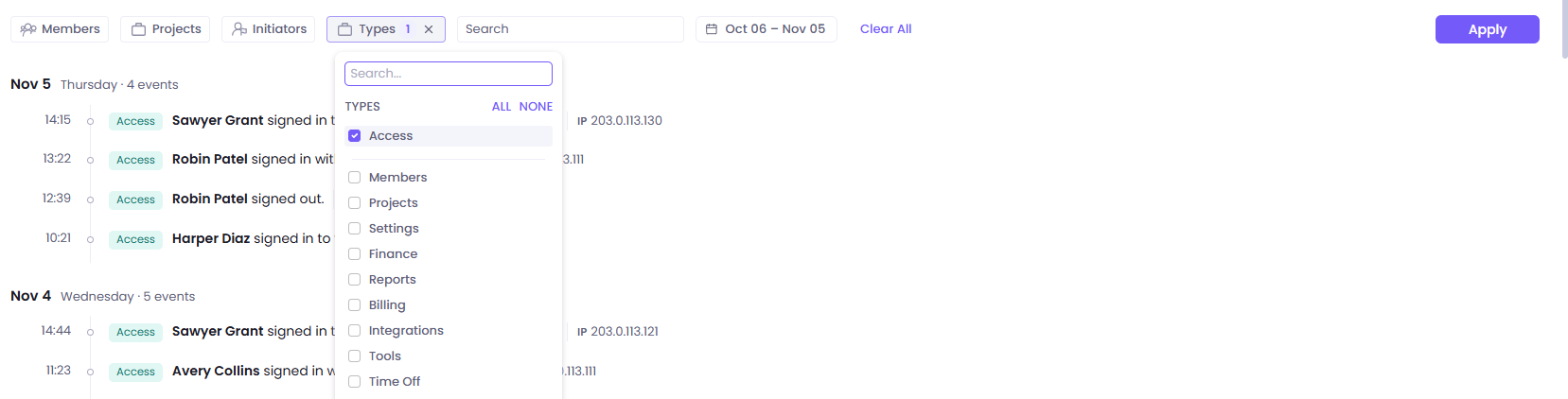
Clear All removes every filter.
Search
Type a member, a project, a task or any word in Search and press Enter. An entry matches when it holds every word you typed.
Date range
- Click the dates next to Search.
- Select This Week, Last Week, Last 7 Days, Current Month or Previous Month, or click a start day and an end day.
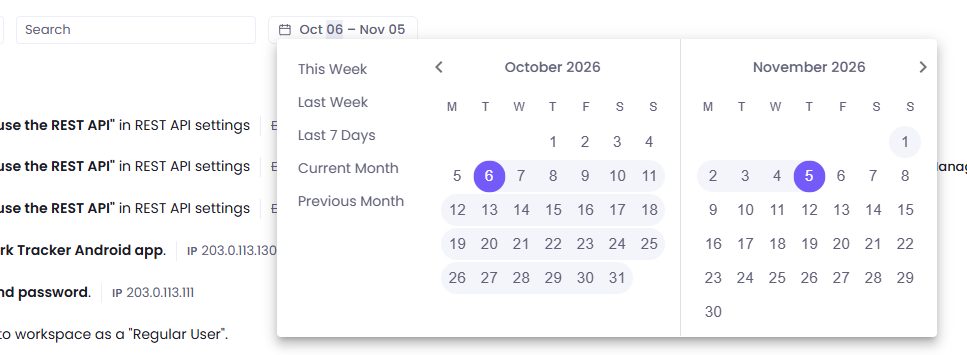
- Click Apply.
Export the log
- Click Export at the top right.
- Select CSV or XLS.
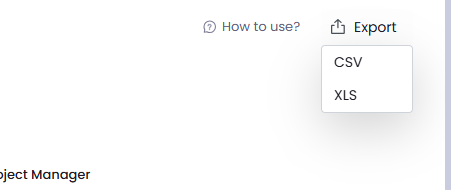
The file holds the entries that match the current filters and date range, with the IP address of each sign-in and sign-out.
Was this article helpful?
Thanks for your feedback.