
The Bitbucket integration connects a Bitbucket workspace to WebWork. Repositories become WebWork projects, Bitbucket accounts are linked to your members by the email they commit with, and your team’s commits and pull requests appear next to their tracked time in Productivity > Code Activity.
The Owner, Executive Managers and Team Managers connect the integration and import members and projects. Its settings are changed by the Owner and Executive Managers; a Team Manager sees them. The integration is included in every plan; on the Pro plan, one integration is active at a time.
Before you start
- Sign in to Bitbucket with an account that is an admin of the workspace you connect. WebWork creates one webhook on the workspace, and Bitbucket lets only admins add one. Without it WebWork gets no updates from Bitbucket: tracked time is not posted on merged pull requests, git events do not move tasks, and new repositories are not auto-synced.
Connect Bitbucket
- In Integrations, click Enable below Bitbucket.
- On the Bitbucket page, review the access WebWork Time Tracker asks for and click Grant access.

- Back in WebWork, select the Bitbucket workspace to connect and click Submit.
The integration opens with three tabs: Manage Members, Projects and Settings. The line under the title names the connected workspace and the date, and Open Code Activity opens the report.
If the page says WebWork isn’t getting updates from Bitbucket yet, the connected account is not an admin of the workspace. Unlink the integration and connect it again with an admin account.
Link Bitbucket accounts to members
WebWork links a Bitbucket account to a member by the email address used in its commits. Bitbucket shares no member’s email address, so an account WebWork has not seen commit yet stays Not linked.
- Open Manage Members. The count shows how many accounts are linked; All, Linked and Not linked filter the list.
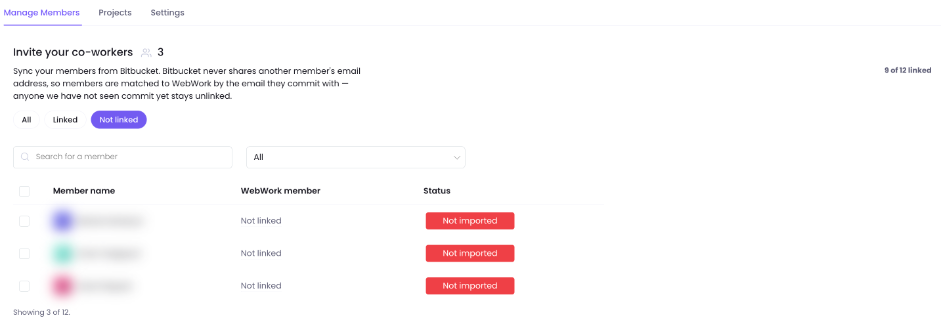
- Select the accounts to import and click Import.
Import links each selected account to the member whose email it commits with. An account with no email match is linked to the one member with the same name, and left alone when several members share that name. An account that matches nobody is invited to the workspace by its commit email. The Owner and Executive Managers invite; a Team Manager’s import links only the members of their teams.
A member whose commits carry another email shows under Uncredited commits in Code Activity. Ask them to commit with the email of their WebWork account.
Import repositories as projects
Each repository you import becomes a WebWork project with the same name. Bitbucket has no issue tracker, so the integration imports no tasks: create tasks in WebWork and name them in your commits by task ID.
- Open Projects. All, Imported and Not imported filter the list, and the search finds a repository by name.
- Select the repositories and click Import. An imported repository shows Imported.
Importing a repository that is already a project changes nothing. A project you deleted in WebWork comes back when you import its repository again.
Keep projects in sync
In Settings, under Projects, choose how WebWork follows the Bitbucket workspace. Last sync shows when the last import ran.
| Option | What happens |
|---|---|
| No auto-sync | Nothing changes until you import. |
| Auto-sync new repositories | A repository created in the workspace, or moved into it, becomes a project on its own. |
| Auto-sync & archive removed | The same, and a repository deleted in Bitbucket archives its project. The project is never deleted: its tasks and tracked time stay, and importing the repository again restores it. |
Turn on Code Activity settings
Under Code Activity in Settings, three switches decide what WebWork does with git activity. A new connection starts with all three off, and each change saves at once.
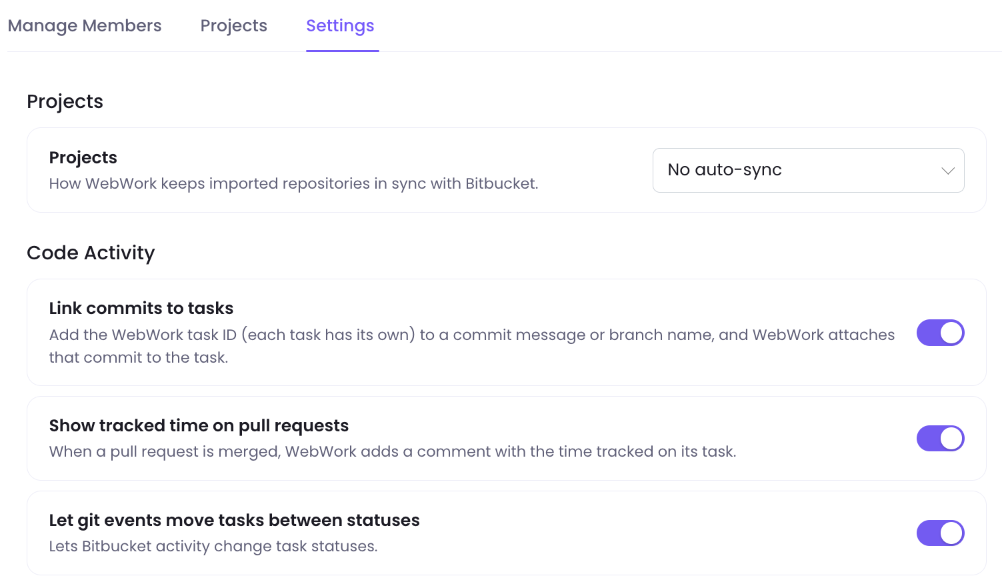
- Link commits to tasks: WebWork reads the task ID in a commit message or branch name, and Code Activity shows the commit under that task with the time tracked on it. While it is off, Code Activity shows no linked tasks.
- Show tracked time on pull requests: when a pull request is merged, WebWork comments on it with the time tracked on its task, such as “WebWork: 5h 09m tracked on this task.”
- Let git events move tasks between statuses: shows the status rules below.
A task’s ID is in the Task Id column in Tasks, such as WEB-42. Put it in the commit message or the branch name; for a pull request, in the source branch name or the title.
How the linked work looks in the report: Code Activity.
Status rules
Each rule moves the task a branch, commit or pull request names to the status you pick. Leave a rule on Don’t change to ignore that event.
- Branch created or pushed to
- Pull request opened or marked ready for review
- Pull request merged
- Pull request merged into the main branch, which overrides the rule above
- Pull request closed without merging
- Reviewer requested changes
A rule acts only in repositories imported as projects, and only when the person who pushed, opened or reviewed is linked to a member in Manage Members. A closed task is never moved.
See the work in Code Activity
Once Bitbucket is connected, Code Activity appears under Productivity for the Owner, Executive Managers and Team Managers, with a Bitbucket tab. It shows commits, merged pull requests, review times, the linked tasks and the time tracked on them, up to 7 days at a time. A Team Manager sees their own teams.
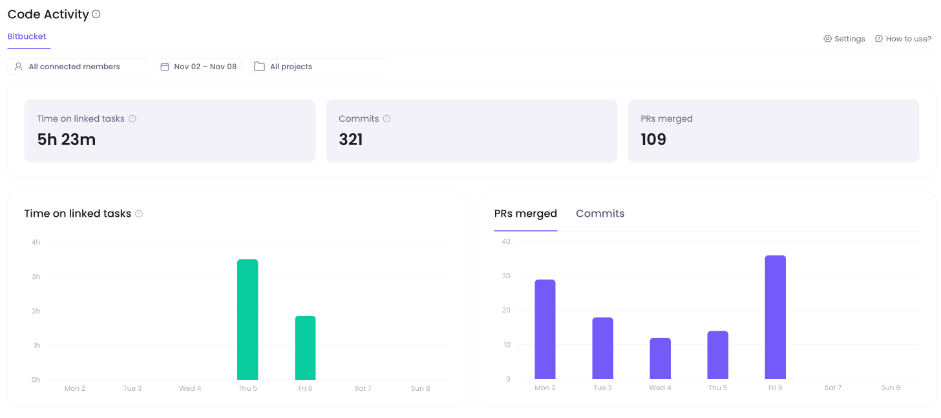
The filters, each block of the report and the uncredited commits: Code Activity.
Unlink Bitbucket
In the integration’s header, open the menu and click Unlink Bitbucket. WebWork removes its webhook from the Bitbucket workspace. Imported projects, linked members and tracked time stay. Connecting again starts with every setting off.
Was this article helpful?
Thanks for your feedback.