
You can install the WebWork Silent Tracker on all your company’s Windows computers at once with Microsoft Intune. Intune installs it in the background, and each person who signs in to a computer appears in your workspace as a member, with no invitation. The workspace Owner and Executive Managers can download the installer. The Silent Tracker is included in the Pro, Plus and Premium plans.
Install the Silent Tracker only on company-owned computers, and tell your employees that their computers are tracked.
Before you start
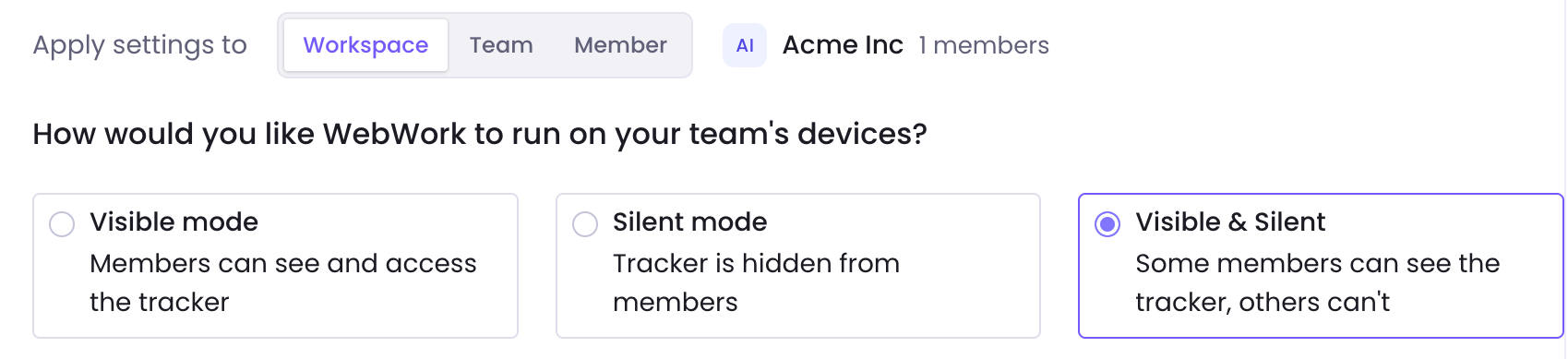
- Your workspace uses Silent mode or Visible & Silent, set in Settings > Tracking > General. Which tracker mode should you use? compares the modes.
- The computers run 64-bit Windows 10 version 1809 or later, or Windows 11, on an Intel or AMD processor, and are enrolled in Intune.
- A Microsoft Entra device group holds the computers you want to track.
- You can add apps in the Intune admin center, for example with the Intune Administrator role.
Download the installer
- In WebWork, click the Downloads icon at the top right and open the Windows tab.
- If your workspace uses Visible & Silent, click Silent Tracker. Then click Download Silent Tracker for Windows.
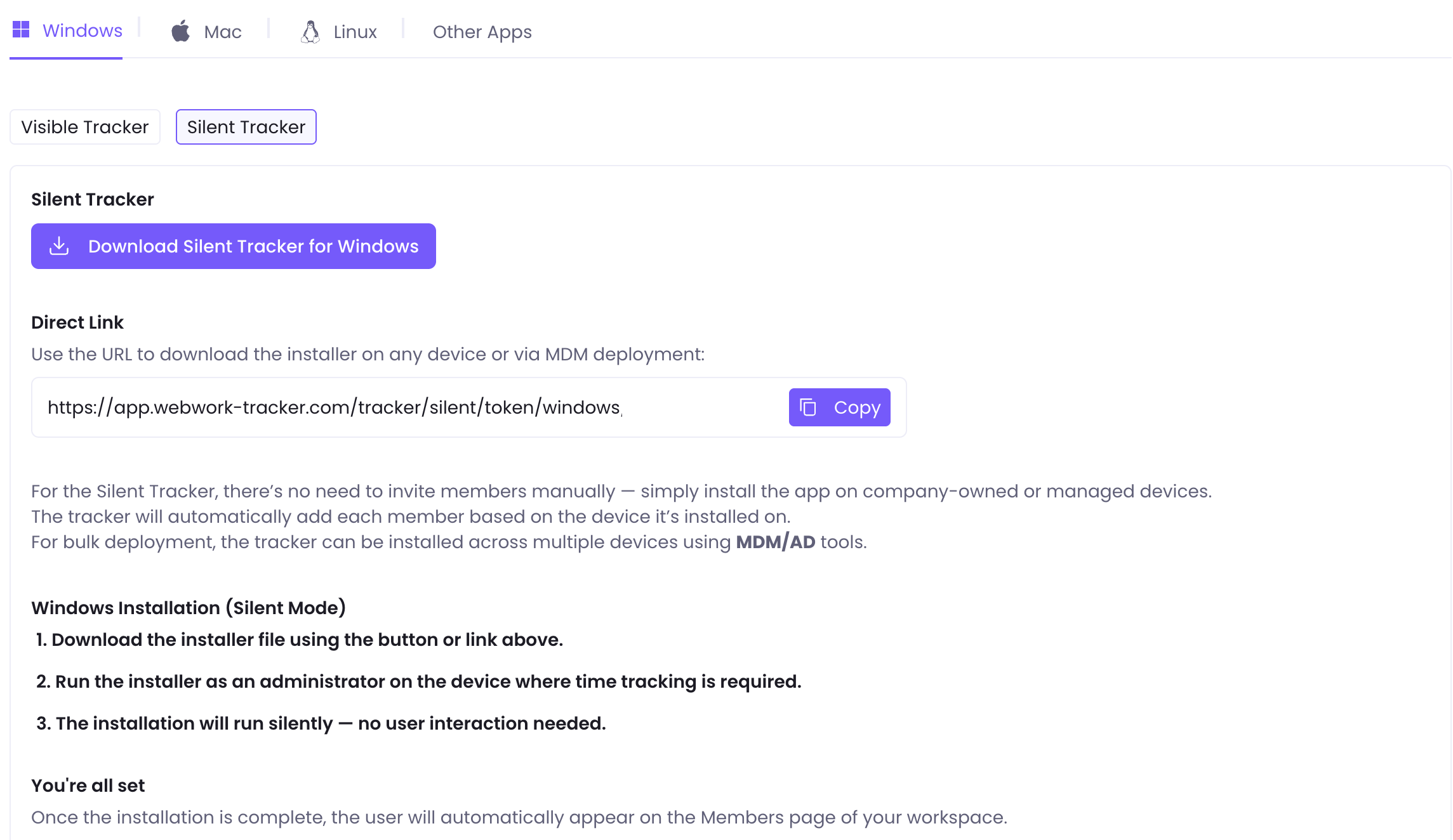
Keep the file name exactly as downloaded, such as webwork-tracker-6.16.14-silent~<token>.msi. The token after the ~ connects each computer to your workspace. Anyone with this file can add computers to your workspace. The Direct Link on the same page downloads the latest installer, named with your workspace token, and works without signing in. Share the file and the link only with your IT team.
Package the installer for Intune
Intune takes Windows apps as .intunewin files. Microsoft’s Win32 Content Prep Tool makes one from the installer and keeps the installer’s file name inside it.
- Put the installer alone in a folder, such as
C:\WebWork\source. - Download the Microsoft Win32 Content Prep Tool.
- Run it in Command Prompt, with your installer’s file name:
IntuneWinAppUtil.exe -c C:\WebWork\source -s "<your installer’s file name>" -o C:\WebWork\output - Use the
.intunewinfile the tool saves inC:\WebWork\output.
Add the tracker to Intune
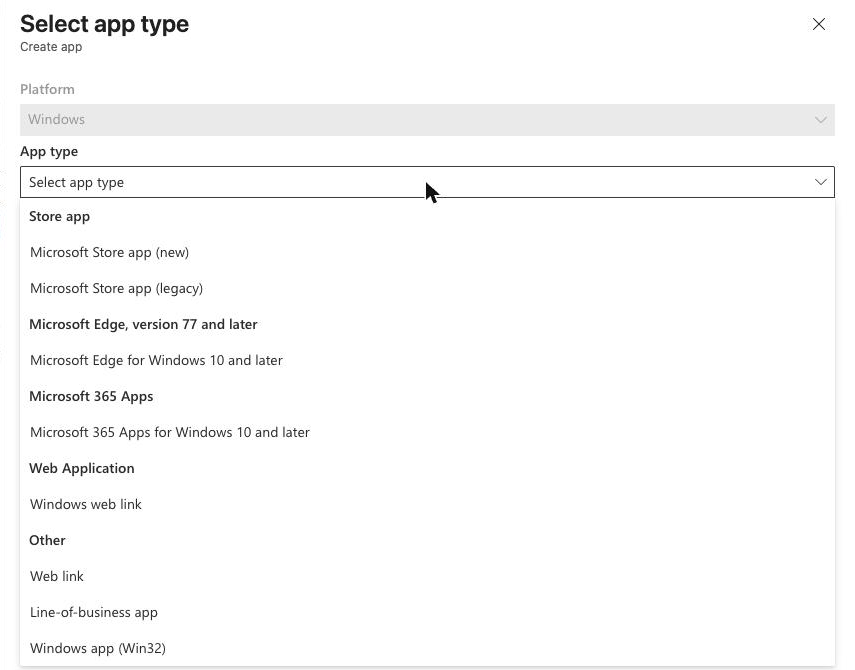
Add the tracker as a Windows app (Win32). A Win32 app keeps the installer’s file name, and with it your workspace token.
- In the Intune admin center, go to Apps > Windows and click Create. Select Windows app (Win32), then click Select.
- Click Select app package file, choose the
.intunewinfile and click OK. Enter WebWork as the Publisher and click Next.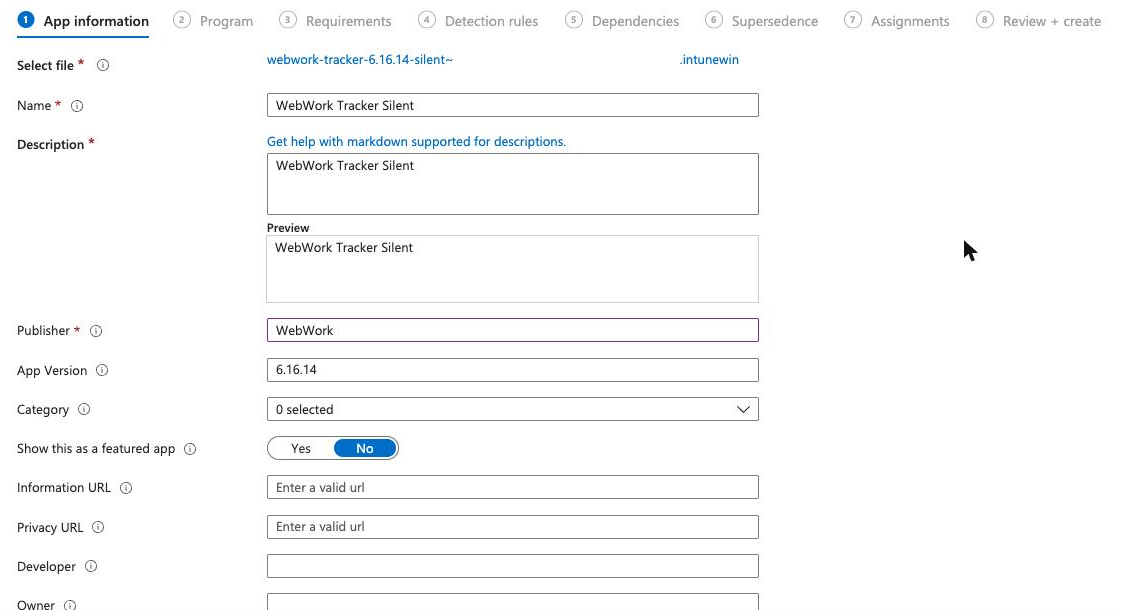
- On Program, keep the install command Intune fills in:
msiexec /i "webwork-tracker-6.16.14-silent~<token>.msi" /qn. Set Device restart behavior to Intune will force a mandatory device restart and click Next.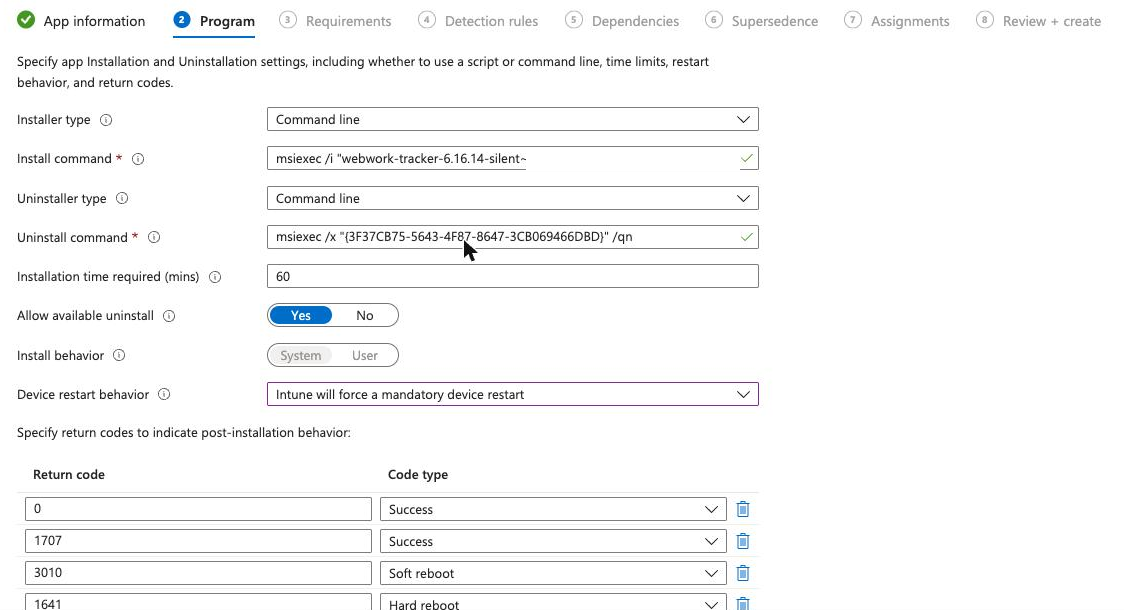
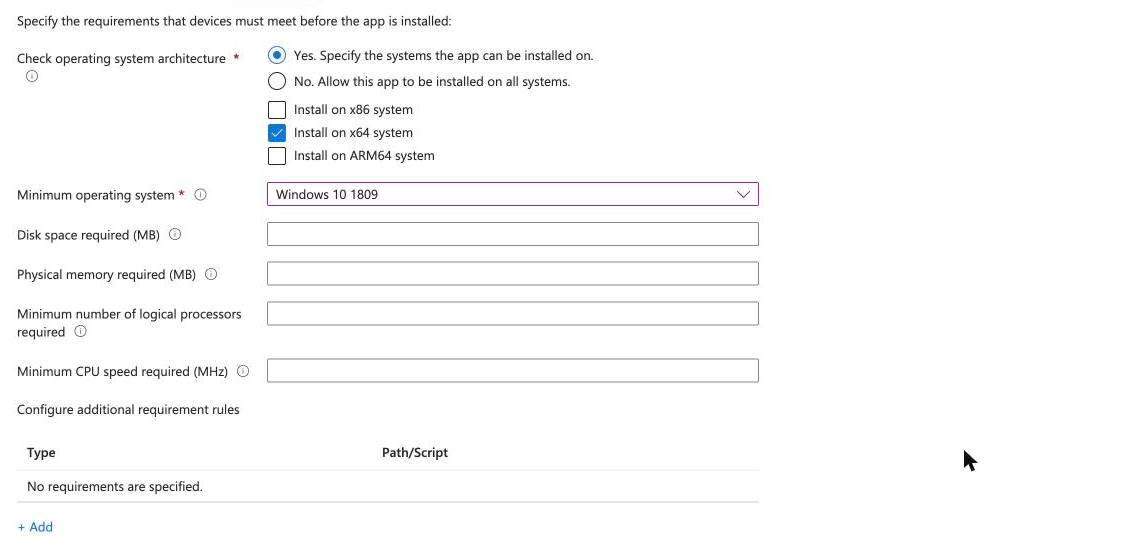
- On Requirements, set Check operating system architecture to Yes, select Install on x64 system, choose Windows 10 1809 as the Minimum operating system and click Next.
Set how Intune finds the tracker
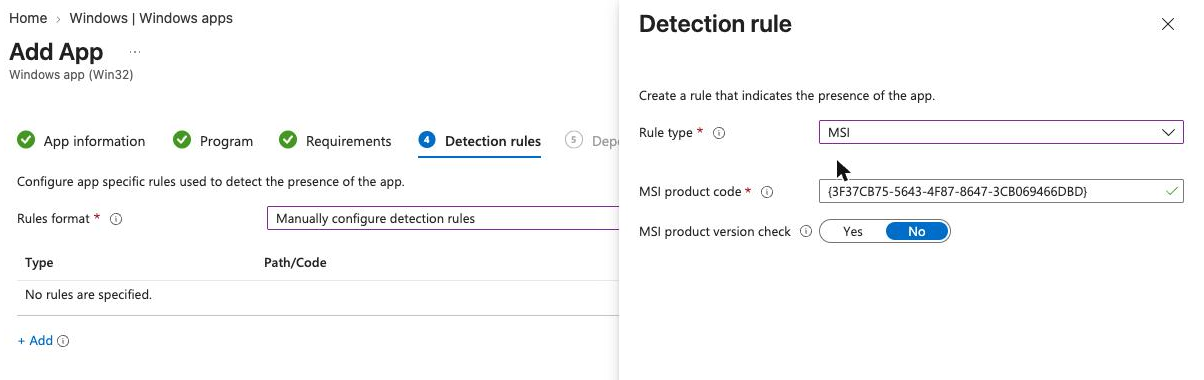
- On Detection rules, choose Manually configure detection rules and click Add.
- Select MSI as the Rule type. Intune fills in the product code. Click OK, then Next.
- Click Next on Dependencies and on Supersedence.
Assign the tracker to your computers
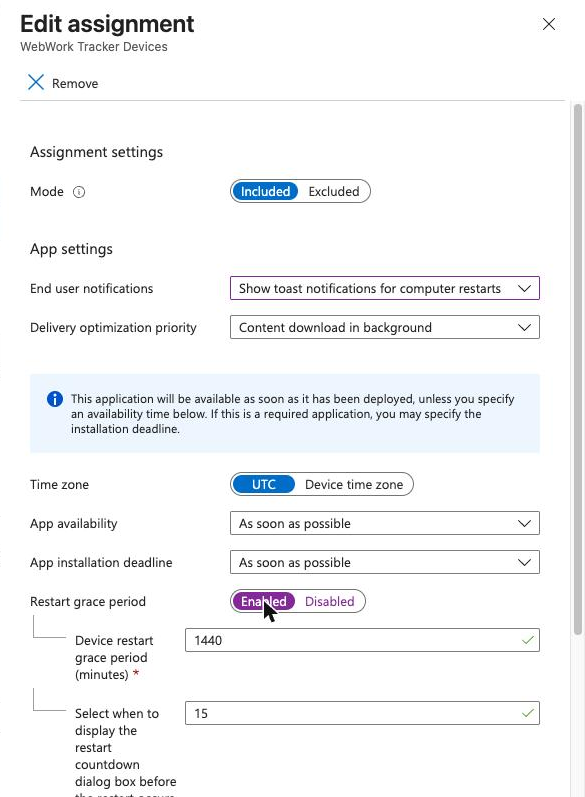
- On Assignments, under Required, click Add group and select your device group.
- Click the group’s row. Set End user notifications to Show toast notifications for computer restarts, turn on Restart grace period so people see a countdown before their computer restarts, and click OK.
- Click Next, then Create. Intune uploads the app and installs it on each computer at its next check-in.
Each person’s tracker starts when they sign in to Windows. Until the restart, a copy also runs under the Windows SYSTEM account, so a member named SYSTEM can appear for the computer.
Check that the tracker works
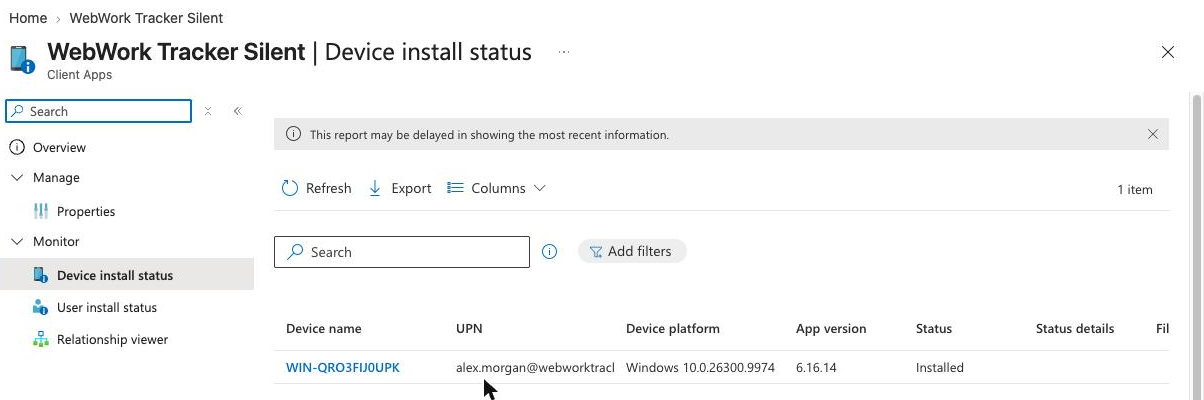
- In Intune, open the app and go to Device install status. A computer shows Install Pending until it restarts, then Installed.
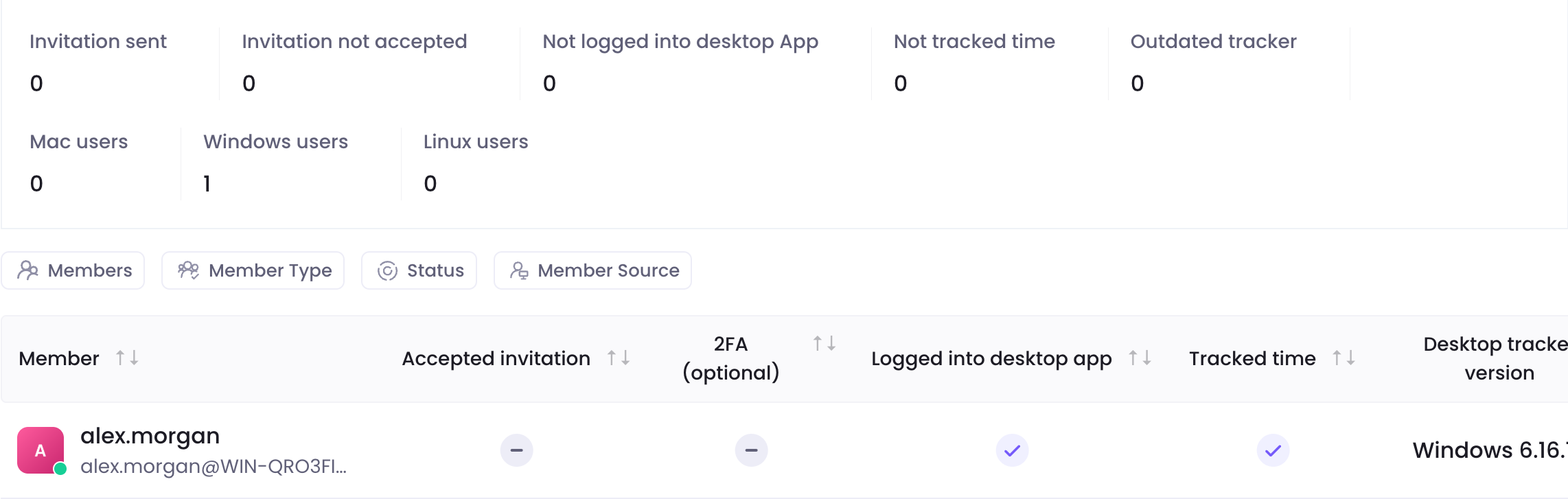
- In WebWork, go to People > Members. Right after the install, a computer can appear as a member named SYSTEM, with
SYSTEM@COMPUTER-NAMEunder it. WebWork renames it to the first Windows user who signs in, such asalex.morgan@COMPUTER-NAME.

- To see the computers that use the Silent Tracker and their tracker version, open the Onboarding Status tab.
To restart a computer now, open it in Intune under Devices and click Restart.
Each Windows account that signs in to a computer becomes its own member and takes a seat. The same person on two computers is two members, and an IT admin who signs in to a computer becomes a member too.
Install a new version
The Silent Tracker does not update itself. To install a new version on your computers:
- Download the new installer from WebWork, keep its file name as downloaded, and package it as above.
- Add it as a new Windows app (Win32) with the same settings.
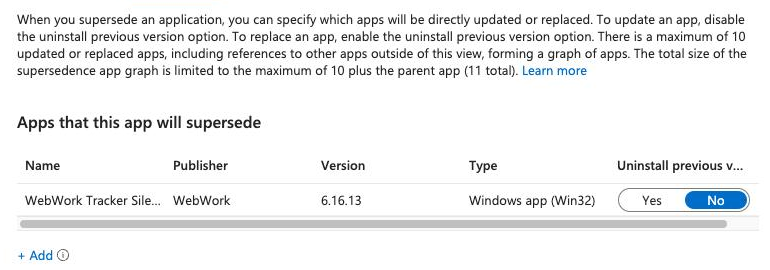
- On Supersedence, click Add, select the previous WebWork Tracker Silent app and set Uninstall previous version to No. The new installer replaces the old version.
- On Assignments, add the same device group under Required, then click Next and Create.
The computers keep their members, and the tracker version on the Onboarding Status tab changes once each computer has the new version.
Remove the tracker
Intune does not remove Win32 apps when you retire a device. To remove the tracker, use the newest WebWork Tracker Silent app in Intune:
- Open the app in Intune and go to Properties. Next to Assignments, click Edit.
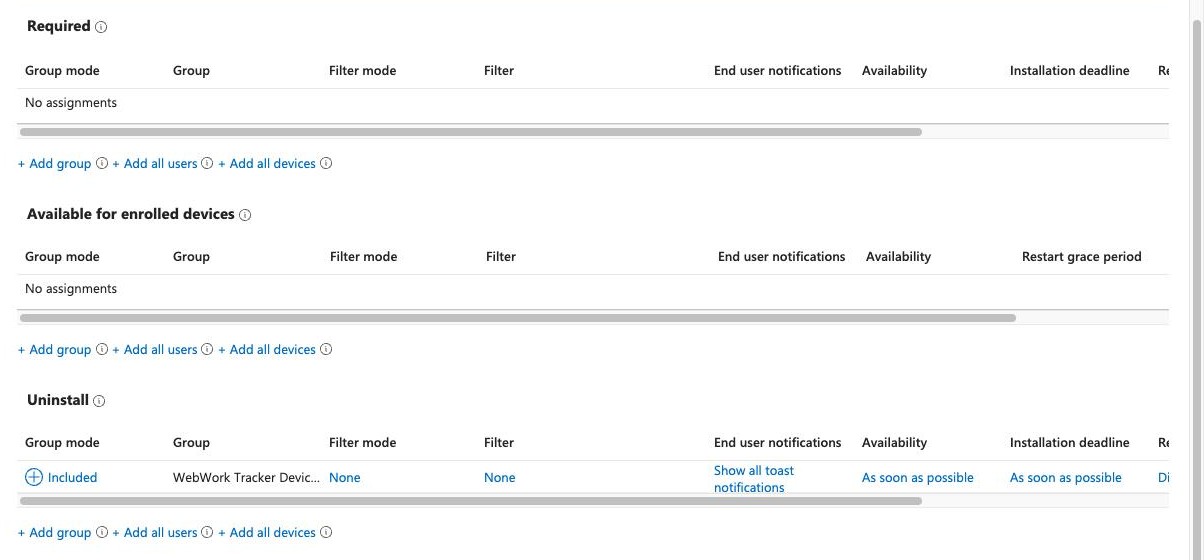
- Remove your device group from Required and add it under Uninstall. Click Review + save, then Save.
- In WebWork, archive the computers’ members in People > Members, so they no longer take seats.
The uninstall leaves the startup shortcut C:\ProgramData\Microsoft\Windows\Start Menu\Programs\Startup\WebWorkTrackerSilent.lnk on each computer. It starts nothing, and you can delete it.
Still having issues?
| Problem | What to do |
|---|---|
| No member appears for a computer | Check that C:\ProgramData\WebWork Silent Tracker\AUTH_DATA_wt.ini exists on the computer and that Task Manager lists WebWorkTrackerSilent.exe on its Details tab. If the file is missing, the installer was renamed: download it again, package it and add it as a new app. |
| The member stays SYSTEM | Restart the computer and sign in to Windows. |
| Device install status shows Not applicable | The computer does not meet the requirements, such as a computer with an Arm processor. Check that it runs 64-bit Windows 10 version 1809 or later, or Windows 11, on an Intel or AMD processor. |
| Device install status shows Failed | Open the computer in Device install status and note the error code. |
Still stuck? Contact support with the computer’s name, the error code from Device install status and the tracker’s log. Silent Tracker: common questions shows how to get the log.
Was this article helpful?
Thanks for your feedback.