
You can install the WebWork Silent Tracker on all your company’s Macs at once with Microsoft Intune. Intune runs a script that downloads, installs and starts the tracker in the background, and each person who signs in to a Mac appears in your workspace as a member, with no invitation. The Silent Tracker is included in the Pro, Plus and Premium plans.
Install the Silent Tracker only on company-owned Macs, and tell your employees that their Macs are tracked.
Apple lets no device management tool turn on Screen Recording or Input Monitoring. After the install, each person turns on Screen Recording, and on macOS 27 also Input Monitoring, once in the tracker’s permissions window, with no admin password.
Before you start
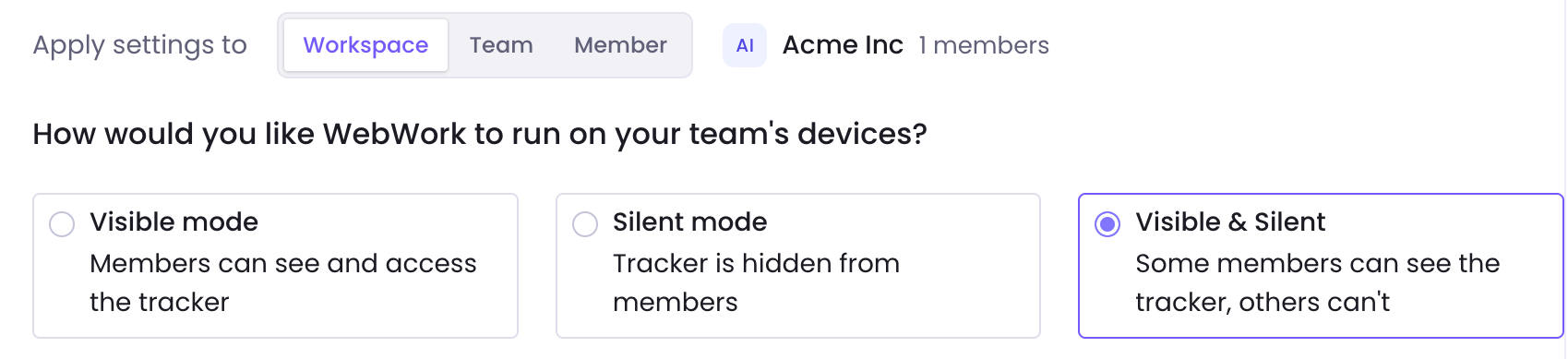
- Your workspace uses Silent mode or Visible & Silent, set in Settings > Tracking > General. Which tracker mode should you use? compares the modes.
- Your Macs are enrolled in Intune.
- A Microsoft Entra device group holds the Macs you want to track.
- You can add configuration profiles and scripts in the Intune admin center, for example with the Intune Administrator role.
Copy your Direct Link
- In WebWork, click the Downloads icon at the top right and open the Mac tab.
- Click Silent Tracker and copy the Direct Link. It always downloads the latest version.
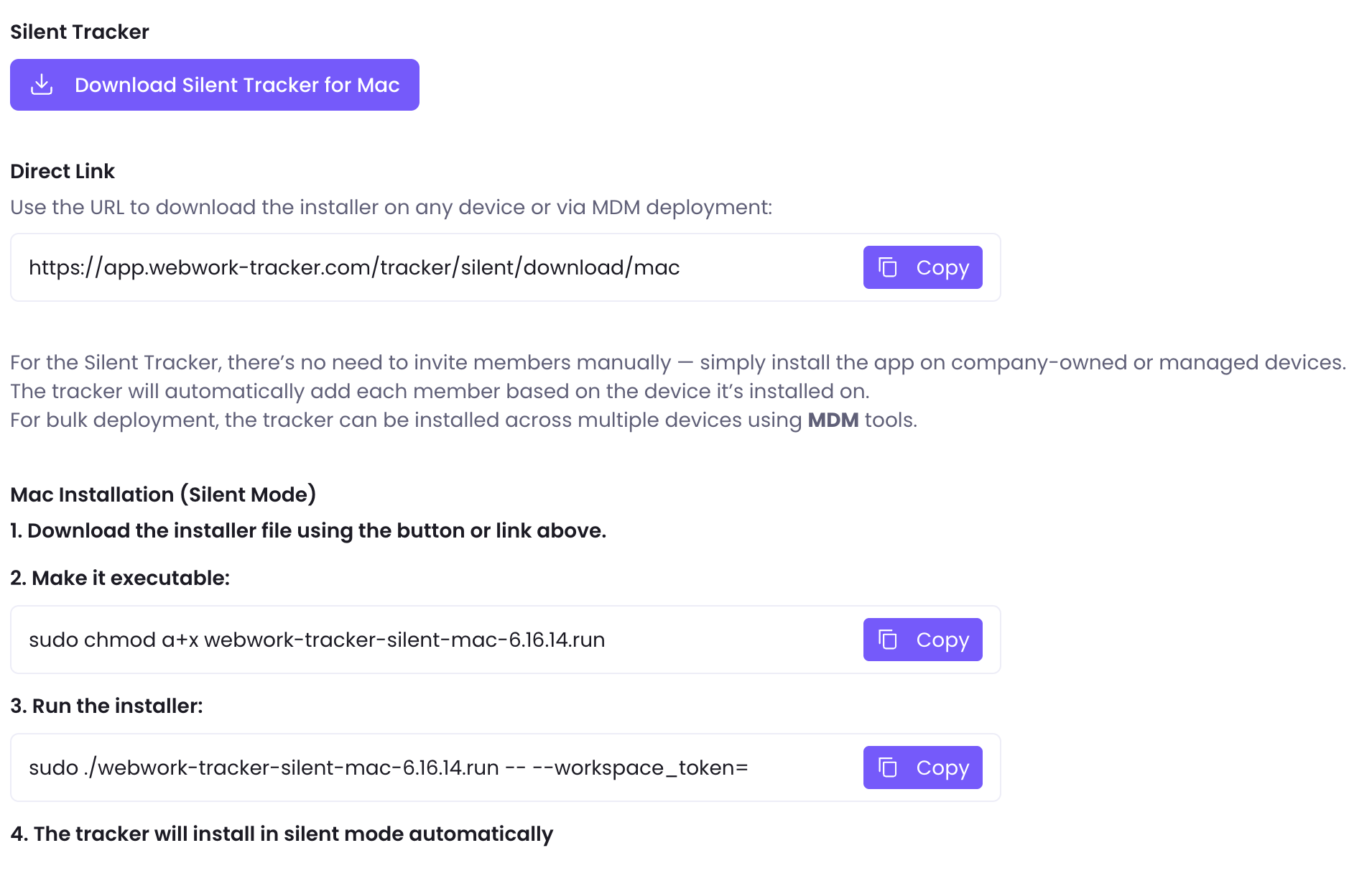
The code at the end of the Direct Link connects each Mac to your workspace. Anyone with the link can add Macs to your workspace, so share it only with your IT team.
Let the tracker get its permissions
A settings catalog profile turns on Accessibility for the tracker. It also lets each person turn on Screen Recording and Input Monitoring without an admin password.
- In the Intune admin center, go to Devices > macOS > Configuration, click Create > New Policy, select Settings catalog and click Create. Enter a name, such as WebWork Silent Tracker permissions, and click Next.
- Click Add settings and search for Screen Capture. Select Privacy > Privacy Preferences Policy Control, then select Screen Capture. Add Listen Event and Accessibility (deprecated) the same way, then close the settings picker.
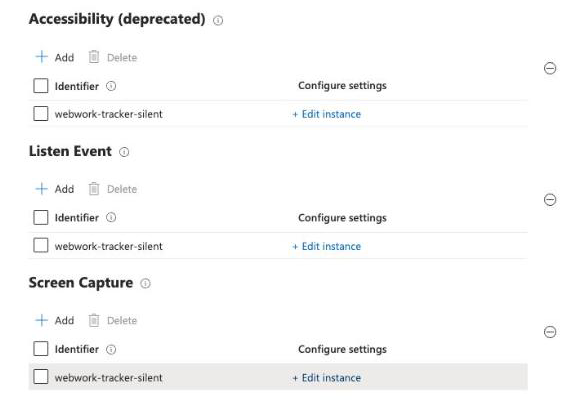
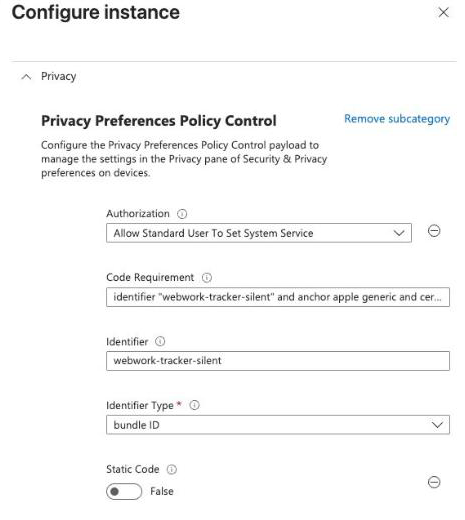
- For each of the three, click Edit instance, remove the Allowed setting with the minus sign next to it, enter the values below and click Save.
- Click Next twice. On Assignments, add your device group, click Next, then Create.
| Setting | Value |
|---|---|
| Authorization | Allow for Accessibility. Allow Standard User To Set System Service for Listen Event and Screen Capture. |
| Code Requirement | The text below |
| Identifier | webwork-tracker-silent |
| Identifier Type | bundle ID |
identifier "webwork-tracker-silent" and anchor apple generic and certificate 1[field.1.2.840.113635.100.6.2.6] /* exists */ and certificate leaf[field.1.2.840.113635.100.6.1.13] /* exists */ and (certificate leaf[subject.OU] = "69WS89GHH9" or certificate leaf[subject.OU] = K254P872U2)Add the install script
The script reads the latest version from your Direct Link and installs it when the Mac has an older version or none. Then it starts the tracker for the person signed in.
#!/bin/bash
# Installs or updates the WebWork Silent Tracker on a Mac. Run it as root.
# Paste your Direct Link from WebWork: Downloads > Mac > Silent Tracker > Direct Link.
DIRECT_LINK='PASTE-YOUR-DIRECT-LINK-HERE'

APP='/Applications/WebWork Tracker Silent.app'

case "$DIRECT_LINK" in
  https://*/tracker/silent/token/mac/*) ;;
  *) echo 'Paste your Direct Link into the script first.'; exit 1 ;;
esac
# The last part of the Direct Link is your workspace code.
TOKEN="${DIRECT_LINK##*/}"

# Read the latest version from the installer's file name, without downloading it.
NAME=$(curl -fsSI "$DIRECT_LINK" | tr -d '\r' | sed -nE 's/^content-disposition:.*filename="?(webwork-tracker-silent-mac-[0-9.]+\.run)"?.*/\1/ip' | tail -1)
if [ -z "$NAME" ]; then
  echo 'The Direct Link did not return the Silent Tracker installer. Check the link.'
  exit 1
fi
NEW=$(echo "$NAME" | sed -E 's/^webwork-tracker-silent-mac-([0-9.]+)\.run$/\1/')

# Skip the install when this version or a newer one is installed.
OLD=$(defaults read "$APP/Contents/Info" CFBundleShortVersionString 2>/dev/null)
if [ -n "$OLD" ] && [ "$(printf '%s\n%s\n' "$NEW" "$OLD" | sort -V | tail -1)" = "$OLD" ]; then
  echo "WebWork Silent Tracker $OLD is already installed."
  exit 0
fi

WORK=$(mktemp -d /tmp/webwork.XXXXXX)
trap 'rm -rf "$WORK"' EXIT
cd "$WORK" || exit 1

if ! curl -fsSL -o "$NAME" "$DIRECT_LINK"; then
  echo 'The download from the Direct Link failed.'
  exit 1
fi
chmod +x "$NAME"

"./$NAME" -- --workspace_token="$TOKEN"
code=$?
if [ $code -ne 0 ]; then
  echo "The install failed with exit code $code."
  exit $code
fi
echo "WebWork Silent Tracker $NEW installed."

# Start the tracker for the person signed in to the Mac, when the installer did not.
sleep 10
USER_NAME=$(stat -f '%Su' /dev/console)
if [ "$USER_NAME" != root ] && [ "$USER_NAME" != loginwindow ] && ! pgrep -f "$APP/Contents/MacOS/" >/dev/null; then
  launchctl asuser "$(id -u "$USER_NAME")" sudo -u "$USER_NAME" open -a "$APP"
  echo "Started the tracker for $USER_NAME."
fi- Copy the script into a plain-text editor, replace
PASTE-YOUR-DIRECT-LINK-HEREwith your Direct Link, and save it asinstall-webwork-silent-tracker.sh. - In Intune, go to Devices > macOS > Scripts and click Add. Enter a name, such as WebWork Silent Tracker, and click Next.
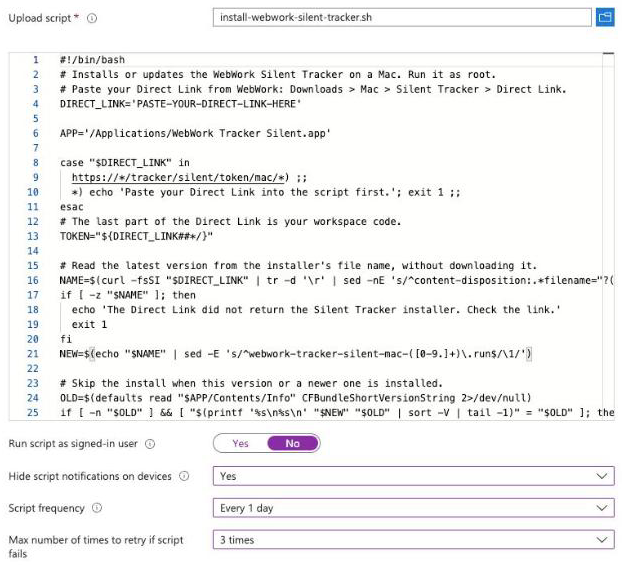
- Upload the script. Set Run script as signed-in user to No, Hide script notifications on devices to Yes, Script frequency to Every 1 day and Max number of times to retry if script fails to 3 times. Click Next.
- On Assignments, add your device group, click Next, then Add. Intune runs the script on each Mac at its next check-in.
Check that the tracker works
- In Intune, open the script and go to Device status. A Mac shows Succeeded once the script has run.

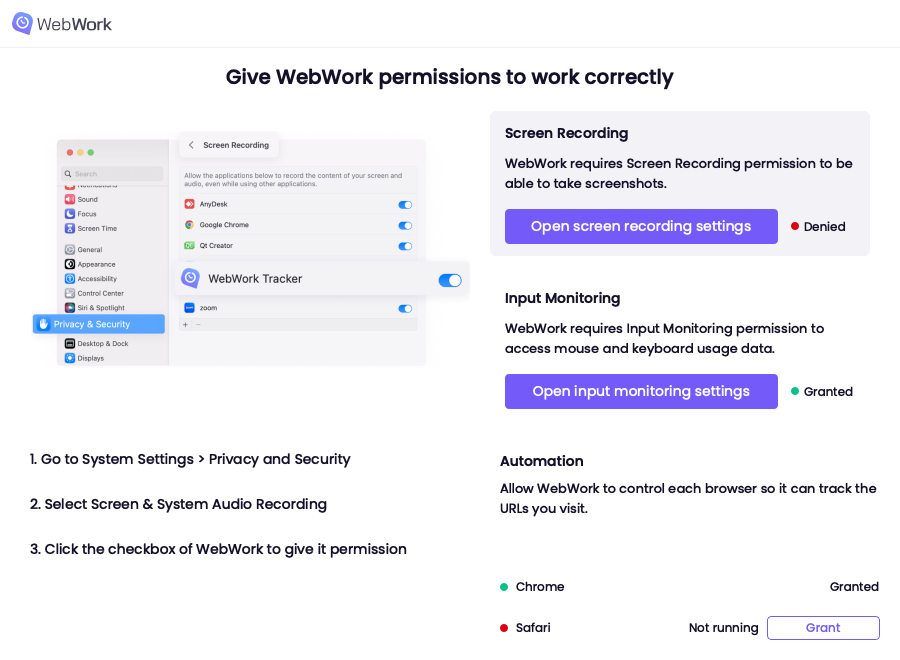
- On the Mac, the tracker opens its permissions window. The person turns on Screen Recording and, on macOS 27, Input Monitoring. Tracking starts once they are on. Allowing each browser under Automation records the websites they visit.
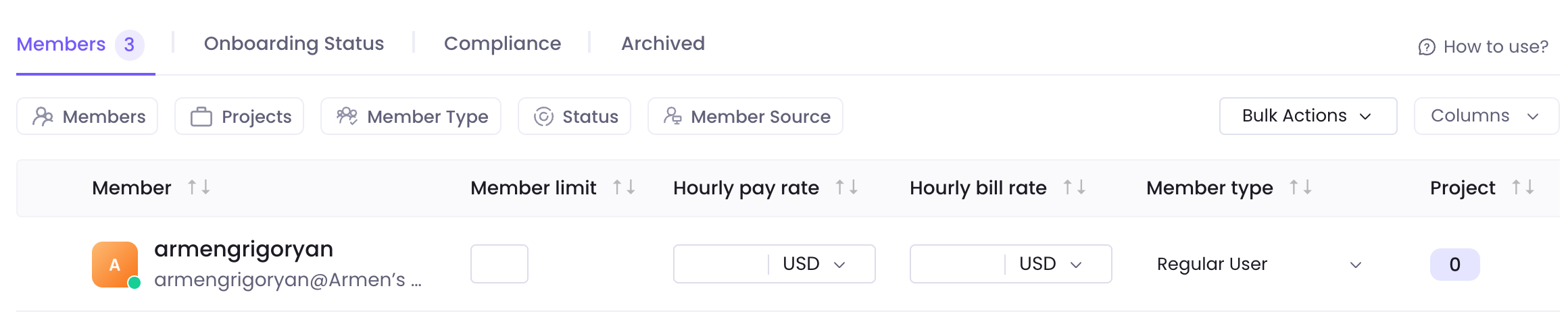
- In WebWork, go to People > Members. The Mac appears as a member named after its macOS user and computer.
Install a new version
The script checks your Direct Link each time it runs. With Script frequency set to Every 1 day, it installs each new version of the Silent Tracker within a day, with nothing to change in Intune.
Remove the tracker
- Open the install script in Intune and go to Properties. Next to Assignments, click Edit, remove your device group and save.
- Add a second script with the code below, with the same settings except Script frequency, which stays Not configured. Assign it to your device group.
#!/bin/bash
# Removes the WebWork Silent Tracker from a Mac. Run it as root.
APP='/Applications/WebWork Tracker Silent.app'
DOMAIN='com.webwork-time-tracker.WebWork Tracker Silent'

# Quit the tracker and wait until it has closed.
pkill -f "$APP/Contents/MacOS/"
for i in 1 2 3 4 5; do
  pgrep -f "$APP/Contents/MacOS/" >/dev/null || break
  sleep 1
done
pkill -9 -f "$APP/Contents/MacOS/"
rm -rf "$APP"
rm -f "/Library/Preferences/$DOMAIN.plist"
pkgutil --forget com.webwork.silent-tracker >/dev/null 2>&1

# Remove the login item of the person signed in to the Mac.
USER_NAME=$(stat -f '%Su' /dev/console)
if [ "$USER_NAME" != root ] && [ "$USER_NAME" != loginwindow ]; then
  launchctl asuser "$(id -u "$USER_NAME")" sudo -u "$USER_NAME" \
    osascript -e 'tell application "System Events" to delete login item "WebWork Tracker Silent"' >/dev/null 2>&1
  sudo -u "$USER_NAME" defaults delete "$DOMAIN" >/dev/null 2>&1
  sudo -u "$USER_NAME" defaults delete "$DOMAIN scr" >/dev/null 2>&1
fi

# Remove each person's settings.
for HOME_DIR in /Users/*; do
  rm -f "$HOME_DIR/Library/Preferences/$DOMAIN.plist" "$HOME_DIR/Library/Preferences/$DOMAIN scr.plist"
  rm -rf "$HOME_DIR/Library/Caches/WebWorkTrackerSilent"
done

echo 'The WebWork Silent Tracker is removed.'
exit 0
Then archive the Macs’ members in People > Members, so they no longer take seats.
Still having issues?
| Message or problem | What to do |
|---|---|
| Paste your Direct Link into the script first. | Replace PASTE-YOUR-DIRECT-LINK-HERE in the script with your Direct Link and upload the script again. |
| The Direct Link did not return the Silent Tracker installer. Check the link. | Copy the Direct Link again from Downloads, and check that the Mac reaches app.webwork-tracker.com. |
| The install failed with exit code … | Send the Mac’s name and the code to support. |
| A Mac shows no status for the script | The Intune agent on the Mac checks for scripts on its own schedule, up to every 8 hours. To check now, open Company Portal on the Mac, select the Mac and click Check status. |
| The tracker runs but doesn’t track | On the Mac, open System Settings > Privacy & Security. Turn on WebWork Tracker Silent under Screen Recording and, on macOS 27, under Input Monitoring. |
Still stuck? Contact support with the Mac’s name and the Result from Device status. Silent Tracker: common questions answers what comes up once the tracker is in use.
Was this article helpful?
Thanks for your feedback.