
You can install the WebWork Silent Tracker on your company’s Windows computers with a PowerShell script. Run it from any tool that runs scripts on your computers, such as a remote management (RMM) tool, or on each computer as an administrator. The script downloads the latest installer, installs it in the background, and skips computers that already have it. The workspace Owner and Executive Managers can copy the download link the script needs. The Silent Tracker is included in the Pro, Plus and Premium plans.
If you manage your computers with Microsoft Intune, How to deploy the Silent Tracker with Microsoft Intune? shows how to add the tracker as an Intune app instead.
Install the Silent Tracker only on company-owned computers, and tell your employees that their computers are tracked.
Before you start
- Your workspace uses Silent mode or Visible & Silent, set in Settings > Tracking > General. Which tracker mode should you use? compares the modes.
- The computers run 64-bit Windows 10 version 1809 or later, or Windows 11, on an Intel or AMD processor.
- The computers can reach
app.webwork-tracker.com, where the script downloads the installer. - Your tool runs PowerShell scripts as the SYSTEM account, or you have an administrator account on each computer.
Copy your Direct Link
- In WebWork, click the Downloads icon at the top right and open the Windows tab.
- If your workspace uses Visible & Silent, click Silent Tracker. Next to Direct Link, click Copy.
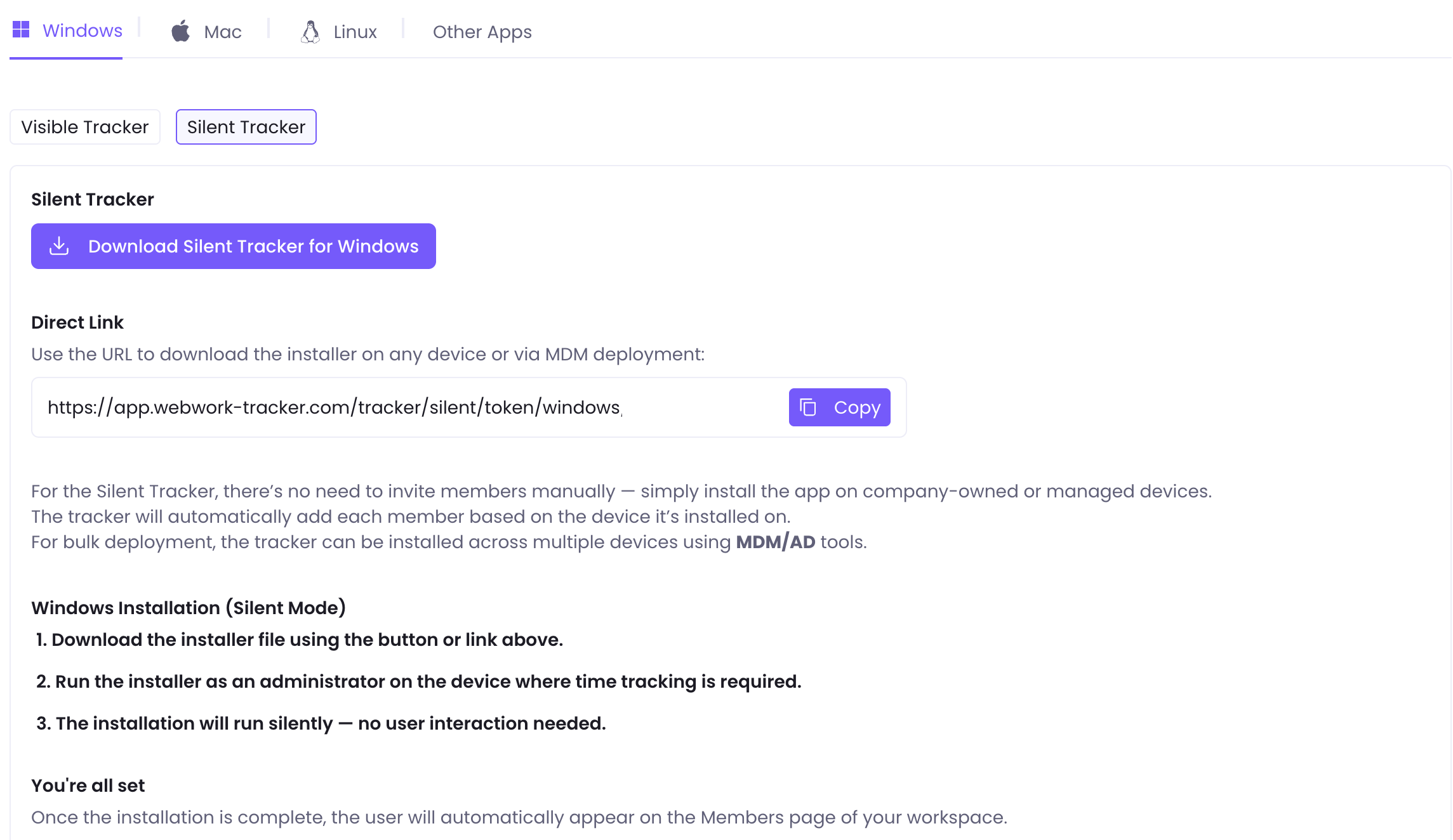
The Direct Link carries your workspace token and works without signing in. Anyone with it can add computers to your workspace, so keep the script within your IT team.
Install the tracker with the script
The script keeps the file name WebWork gives the installer, which carries your workspace token, and skips a computer that already has this version or a newer one.
# Installs or updates the WebWork Silent Tracker. Run it as SYSTEM or as an administrator.
# Paste your Direct Link from WebWork: Downloads > Windows > Silent Tracker > Direct Link.
$DirectLink = 'PASTE-YOUR-DIRECT-LINK-HERE'

$ErrorActionPreference = 'Stop'
$ProgressPreference = 'SilentlyContinue'
[Net.ServicePointManager]::SecurityProtocol = [Net.ServicePointManager]::SecurityProtocol -bor [Net.SecurityProtocolType]::Tls12

function Get-InstalledSilentTracker {
    # Read the 64-bit list of installed apps, also from a 32-bit PowerShell.
    $apps = [Microsoft.Win32.RegistryKey]::OpenBaseKey('LocalMachine', 'Registry64').OpenSubKey('SOFTWARE\Microsoft\Windows\CurrentVersion\Uninstall')
    foreach ($name in $apps.GetSubKeyNames()) {
        if ($name -notlike '{*}') { continue }
        $app = $apps.OpenSubKey($name)
        if ($app.GetValue('DisplayName') -eq 'WebWork Tracker Silent') {
            return [pscustomobject]@{ ProductCode = $name; Version = [version]$app.GetValue('DisplayVersion') }
        }
    }
}

if ($DirectLink -notlike 'https://*') {
    Write-Output 'Paste your Direct Link into the script first.'
    exit 1
}

$work = Join-Path $env:ProgramData 'WebWorkDeploy'
New-Item -ItemType Directory -Force -Path $work | Out-Null

# Download the latest installer. WebWork names the file with your workspace token.
try {
    $response = Invoke-WebRequest -Uri $DirectLink -UseBasicParsing
} catch {
    Write-Output "The download from the Direct Link failed: $($_.Exception.Message)"
    exit 1
}
$disposition = "$($response.Headers['Content-Disposition'])"
if ($disposition -notmatch 'filename="?(webwork-tracker-(\d+\.\d+\.\d+)-silent~[0-9a-f]{32}\.msi)') {
    Write-Output 'The Direct Link did not return the Silent Tracker installer. Check the link.'
    exit 1
}
$fileName = $Matches[1]
$newVersion = [version]$Matches[2]

# Skip the install when this version or a newer one is installed.
$installed = Get-InstalledSilentTracker
if ($installed -and $installed.Version -ge $newVersion) {
    Write-Output "WebWork Silent Tracker $($installed.Version) is already installed."
    exit 0
}

# Keep the file name as WebWork sent it: the token after the ~ connects the computer to your workspace.
$msi = Join-Path $work $fileName
[IO.File]::WriteAllBytes($msi, $response.Content)

$log = Join-Path $work 'webwork-silent-install.log'
# Exit code 1618 means another install is running on the computer, so wait and try again.
for ($try = 1; $try -le 5; $try++) {
    $process = Start-Process -FilePath 'msiexec.exe' -ArgumentList "/i `"$msi`" /qn /norestart /l*v `"$log`"" -Wait -PassThru
    if ($process.ExitCode -ne 1618 -or $try -eq 5) { break }
    Start-Sleep -Seconds 60
}
Remove-Item $msi -Force

if ($process.ExitCode -in 0, 3010, 1641) {
    Write-Output "WebWork Silent Tracker $newVersion installed. Exit code $($process.ExitCode)."
} elseif ($process.ExitCode -eq 1618) {
    Write-Output 'Another install kept running on the computer. Run the script again later.'
} else {
    Write-Output "The install failed with exit code $($process.ExitCode). See $log."
}
exit $process.ExitCode- Copy the script and replace
PASTE-YOUR-DIRECT-LINK-HEREwith your Direct Link. - Save it as
Install-WebWorkSilentTracker.ps1. - In your tool, add it as a PowerShell script that runs as the SYSTEM account, and run it on your computers.
- On a single computer, open PowerShell as an administrator and run
powershell.exe -ExecutionPolicy Bypass -File Install-WebWorkSilentTracker.ps1.
The script ends with one of these results:
| Exit code | Message | Meaning |
|---|---|---|
| 0 | WebWork Silent Tracker <version> installed. Exit code 0. | The tracker is installed. |
| 0 | WebWork Silent Tracker <version> is already installed. | The computer already has this version or a newer one, so nothing changed. |
| 3010 | WebWork Silent Tracker <version> installed. Exit code 3010. | The tracker is installed, and Windows asks for a restart. |
| 1 | Paste your Direct Link into the script first. | The script still holds PASTE-YOUR-DIRECT-LINK-HERE. |
| 1 | The download from the Direct Link failed: … | The script could not download the installer. See Still having issues? below. |
| 1 | The Direct Link did not return the Silent Tracker installer. Check the link. | The link did not lead to the installer. Copy the Direct Link again. |
| 1618 | Another install kept running on the computer. Run the script again later. | Windows was busy with another install for five minutes. |
| Any other | The install failed with exit code … | Windows could not install the tracker. Its log is C:\ProgramData\WebWorkDeploy\webwork-silent-install.log. |
Each person’s tracker starts when they sign in to Windows, so a person signed in during the install is tracked from their next sign-in or restart. Until then, a copy runs under the account that ran the script, the SYSTEM account or the administrator, and that account can appear as a member, such as SYSTEM.
Check that the tracker works
- In WebWork, go to People > Members. Each Windows user who signs in appears as a member, such as
alex.morgan@COMPUTER-NAME. A member named SYSTEM is renamed to the first Windows user who signs in.
- To see the computers that use the Silent Tracker and their tracker version, open the Onboarding Status tab.
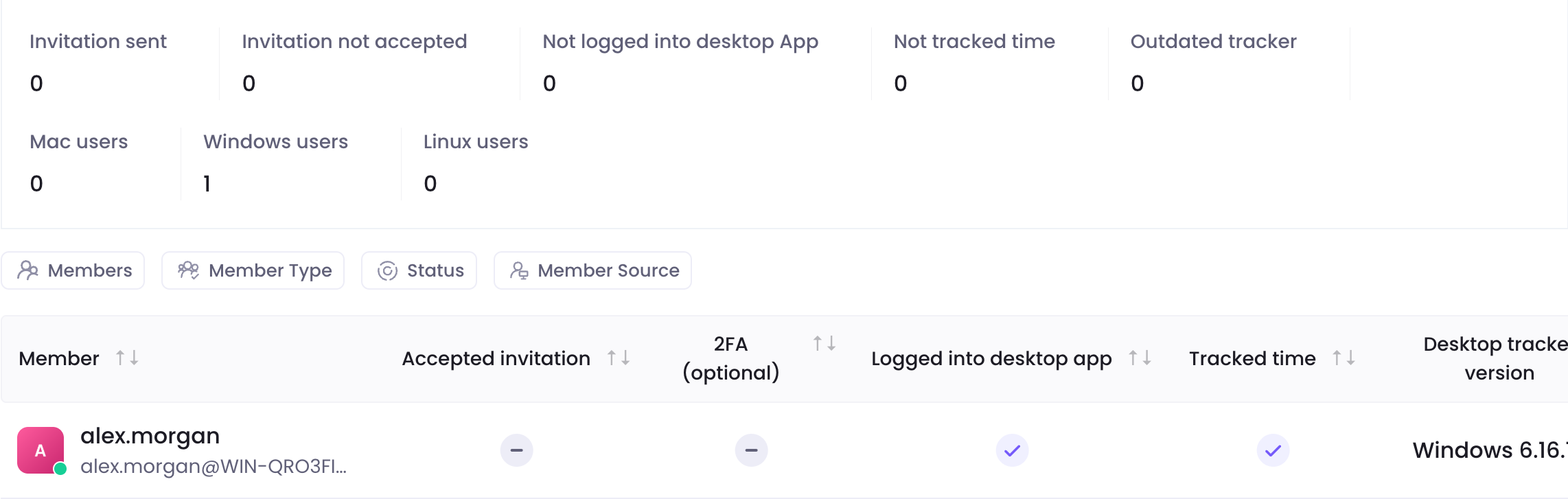
Each Windows account that signs in to a computer becomes its own member and takes a seat. The same person on two computers is two members, and an IT admin who signs in to a computer becomes a member too.
Install a new version
The Silent Tracker does not update itself. To update your computers, run the same script again. The Direct Link always downloads the latest version, and the script installs it only where an older version is installed. Each computer keeps its member and its workspace token.
Run the installer only on computers without this version. Running the same version again, or repairing it, removes the workspace token: people already tracked on the computer keep tracking, but a Windows user who signs in for the first time is not added to your workspace. The script skips those computers. To fix a computer, remove the tracker with the script below and install it again.
Remove the tracker
This script uninstalls the tracker and deletes the startup shortcut the uninstall leaves behind. Run it as the SYSTEM account or as an administrator.
# Removes the WebWork Silent Tracker. Run it as SYSTEM or as an administrator.
$apps = [Microsoft.Win32.RegistryKey]::OpenBaseKey('LocalMachine', 'Registry64').OpenSubKey('SOFTWARE\Microsoft\Windows\CurrentVersion\Uninstall')
$productCode = $apps.GetSubKeyNames() | Where-Object {
    $_ -like '{*}' -and $apps.OpenSubKey($_).GetValue('DisplayName') -eq 'WebWork Tracker Silent'
} | Select-Object -First 1
if (-not $productCode) {
    Write-Output 'The WebWork Silent Tracker is not installed.'
    exit 0
}

# Exit code 1618 means another install is running on the computer, so wait and try again.
for ($try = 1; $try -le 5; $try++) {
    $process = Start-Process -FilePath 'msiexec.exe' -ArgumentList "/x $productCode /qn /norestart" -Wait -PassThru
    if ($process.ExitCode -ne 1618 -or $try -eq 5) { break }
    Start-Sleep -Seconds 60
}

if ($process.ExitCode -in 0, 3010, 1641) {
    # The uninstall leaves the startup shortcut behind.
    $shortcut = Join-Path $env:ProgramData 'Microsoft\Windows\Start Menu\Programs\StartUp\WebWorkTrackerSilent.lnk'
    Remove-Item $shortcut -Force -ErrorAction SilentlyContinue
    Write-Output "The WebWork Silent Tracker is removed. Exit code $($process.ExitCode)."
} else {
    Write-Output "The uninstall failed with exit code $($process.ExitCode)."
}
exit $process.ExitCode
Then archive the computers’ members in People > Members, so they no longer take seats.
Still having issues?
| Message or problem | What to do |
|---|---|
| The download from the Direct Link failed: The remote server returned an error: (403) Forbidden. | The link is wrong or belongs to another workspace. Copy the Direct Link again from Downloads. |
| The download from the Direct Link failed: The remote name could not be resolved | The computer cannot reach app.webwork-tracker.com. Check its network connection. |
| The download fails on computers behind a proxy | The SYSTEM account often has no proxy settings. Add -Proxy 'http://<proxy>:<port>' -ProxyUseDefaultCredentials to the Invoke-WebRequest line. |
| Running scripts is disabled on this system | Run the script with -ExecutionPolicy Bypass, as shown above. |
| The install failed with exit code … | Open C:\ProgramData\WebWorkDeploy\webwork-silent-install.log on the computer and send it to support. |
| No member appears for a computer | Check that C:\ProgramData\WebWork Silent Tracker\AUTH_DATA_wt.ini exists on the computer and that Task Manager lists WebWorkTrackerSilent.exe on its Details tab. If the file is missing, remove the tracker with the script and install it again. |
| The member stays SYSTEM | Restart the computer and sign in to Windows. |
Still stuck? Contact support with the computer’s name, the script’s message, the install log and the tracker’s log. Silent Tracker: common questions shows how to get the tracker’s log.
Was this article helpful?
Thanks for your feedback.