
You can install the WebWork Silent Tracker on your company’s Windows computers with a JumpCloud command. The command runs a PowerShell script that downloads the latest installer and installs it. Each person who signs in to a computer then appears in your workspace as a member, with no invitation. The Silent Tracker is included in the Pro, Plus and Premium plans.
Install the Silent Tracker only on company-owned computers, and tell your employees that their computers are tracked.
Before you start
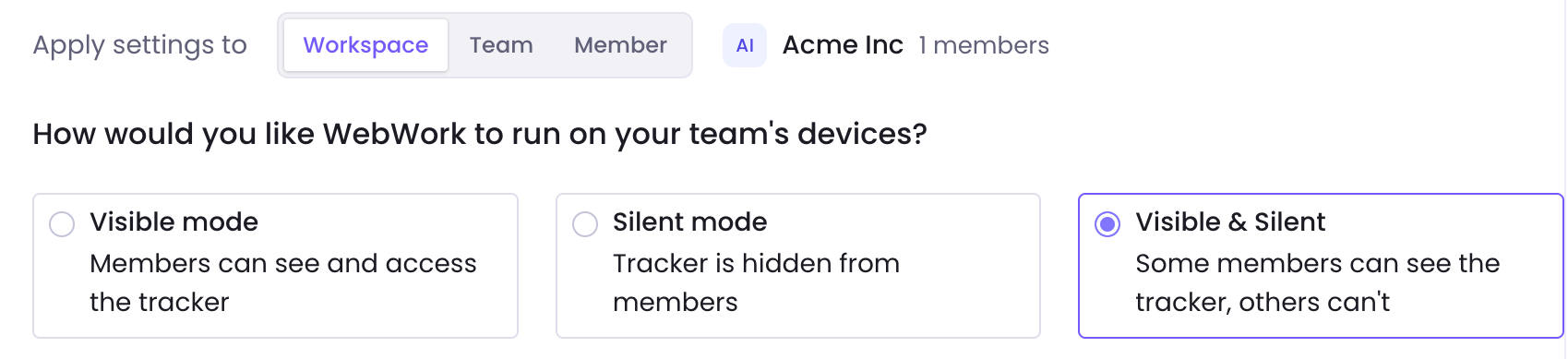
- Your workspace uses Silent mode or Visible & Silent, set in Settings > Tracking > General. Which tracker mode should you use? compares the modes.
- The computers run 64-bit Windows 10 or Windows 11 and have the JumpCloud agent installed.
- You can create commands in JumpCloud.
Copy your Direct Link
The workspace Owner and Executive Managers can copy the Direct Link.
- In WebWork, click the Downloads icon at the top right and open the Windows tab.
- Click Silent Tracker and copy the Direct Link. It always downloads the latest version.
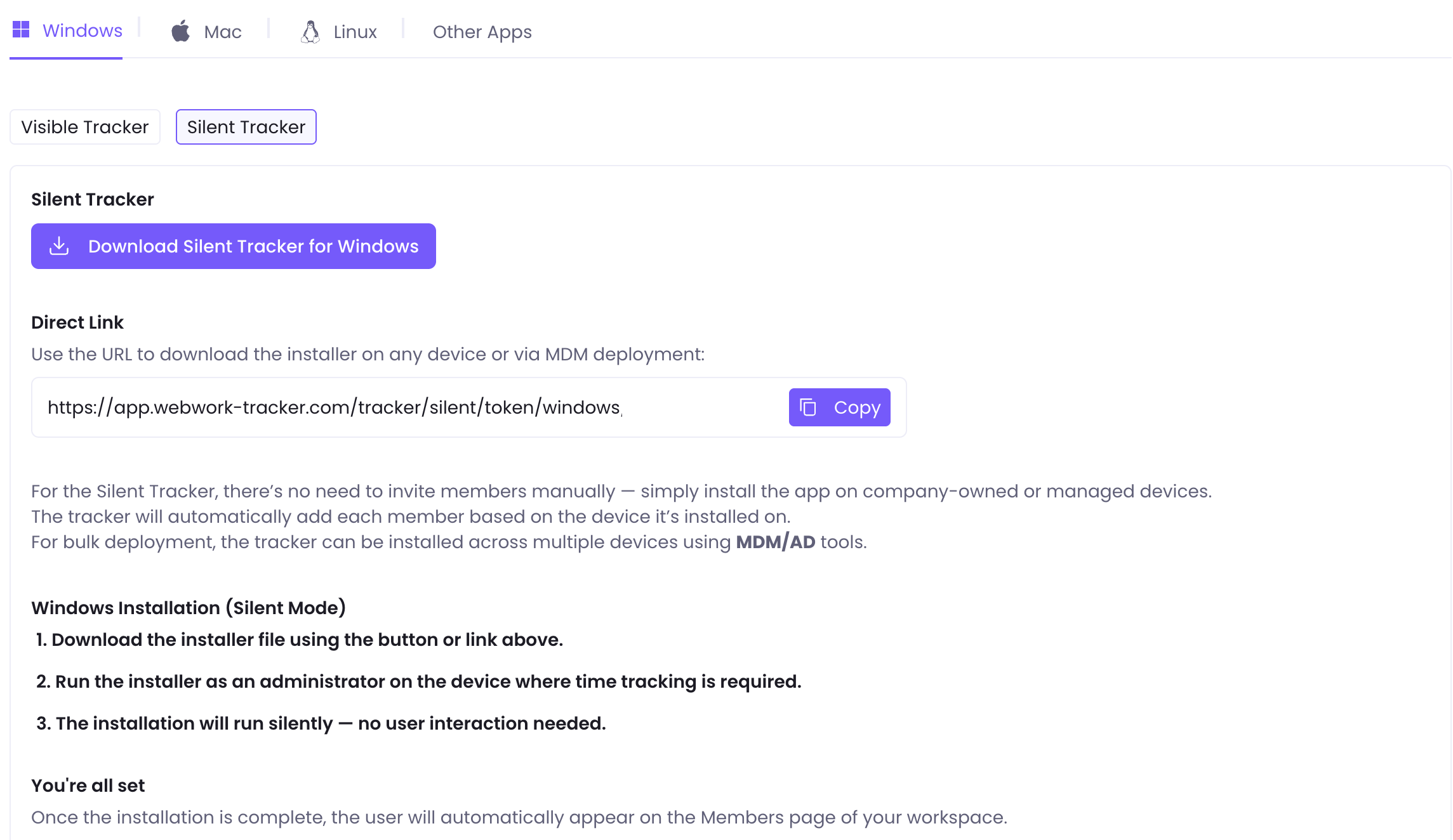
The Direct Link holds your workspace token, so anyone who can see the command can add computers to your workspace. Let only your IT team edit commands in JumpCloud.
Create the install command
- In JumpCloud, go to Device Management > Commands, click + Command and select Command. Select Windows as the Type and turn on Windows PowerShell.
- Copy the install script from How to deploy the Silent Tracker with a PowerShell script? into Command. Replace
PASTE-YOUR-DIRECT-LINK-HEREwith your Direct Link.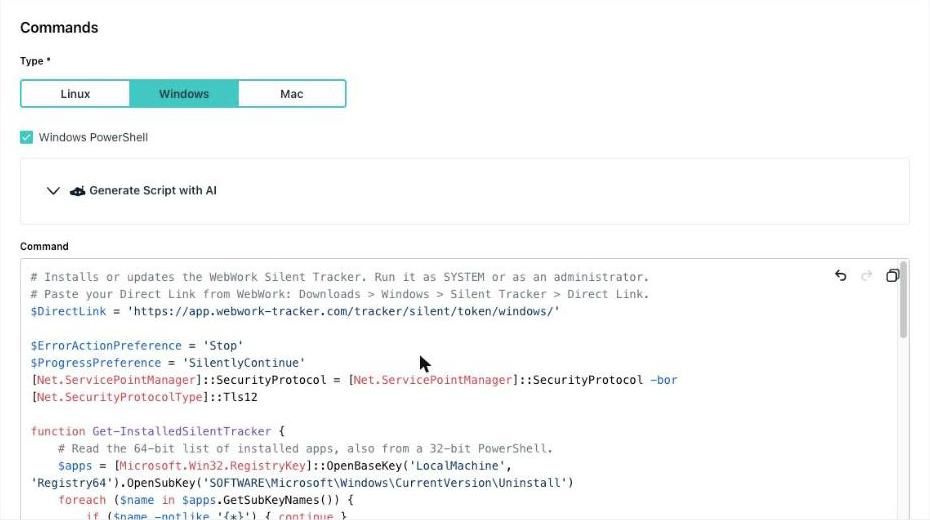
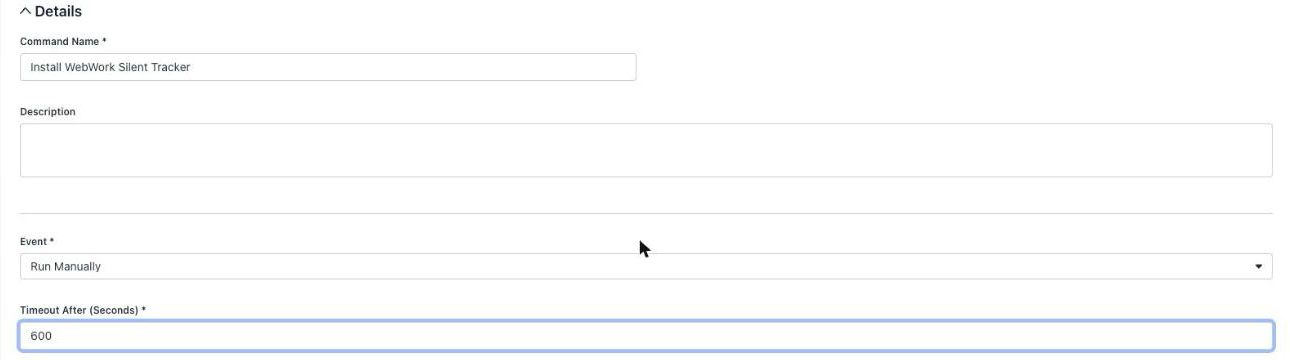
- Enter a Command Name, such as Install WebWork Silent Tracker, and keep Run Manually as the Event. Set Timeout After (Seconds) to 600, so the download has time to finish.
- Open the Devices tab, or Device Groups, select your computers and click Save.

Run the command
- On Commands, click Run Now next to the command. A computer that is off runs it when its agent next connects.

- Open the Results tab and click View Details. The Log shows
WebWork Silent Tracker 6.16.14 installed. Exit code 0.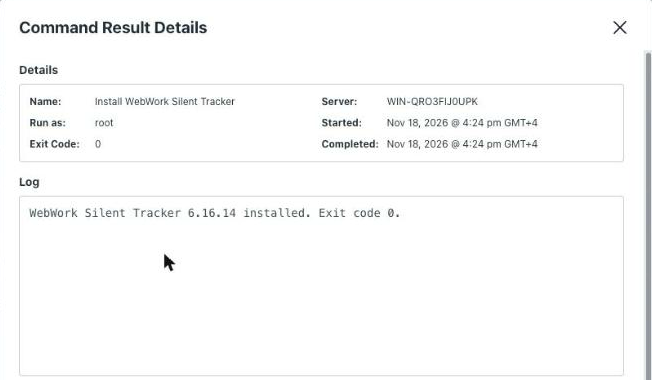
JumpCloud runs Windows commands as the Windows system account and shows it as root. On a computer that already has the latest version, the log says it is already installed, and nothing changes.
Restart the computers
A restart starts the tracker for the person who signs in. Until then, the tracker runs under the Windows system account, so your workspace can show a member named SYSTEM for the computer.
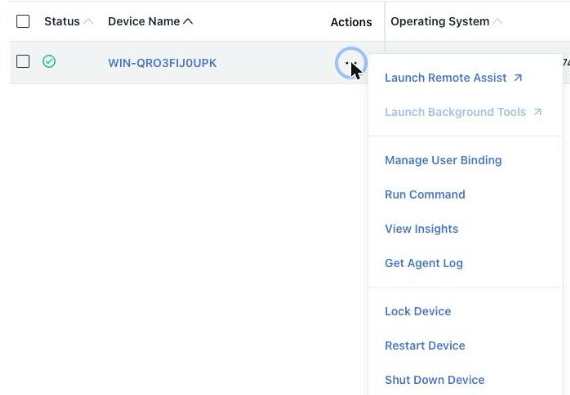
- In JumpCloud, go to Device Management > Devices.
- Click … in a computer’s row, select Restart Device, confirm and click Restart.
Check that the tracker works
In WebWork, go to People > Members. Right after the install, a computer can appear as SYSTEM@COMPUTER-NAME. After the restart, WebWork renames it to the Windows user who signs in, such as alex.morgan@COMPUTER-NAME.


Each Windows account that signs in to a computer becomes its own member and takes a seat. Archive the members you don’t need, such as an IT admin’s account.
Install a new version
The Silent Tracker does not update itself. To install a new version, run the install command again. The Direct Link downloads the latest version, and the script updates only the computers with an older one. The update keeps each computer’s member and workspace token.
Remove the tracker
- Create a second command the same way, with the uninstall script from How to deploy the Silent Tracker with a PowerShell script?, such as Uninstall WebWork Silent Tracker.
- Click Run Now next to it. The log shows
The WebWork Silent Tracker is removed.
Then archive the computers’ members in People > Members, so they no longer take seats.
Still having issues?
| What the log says | What to do |
|---|---|
Paste your Direct Link into the script first. | Replace PASTE-YOUR-DIRECT-LINK-HERE in the command with your Direct Link. |
The download from the Direct Link failed | Check that the computer can reach app.webwork-tracker.com. How to deploy the Silent Tracker to many Windows computers? lists the addresses to allow. |
The Direct Link did not return the Silent Tracker installer | Copy the Direct Link from WebWork again and paste it into the command. |
Another install kept running on the computer | Run the command again later. |
| The command stays in the Queue tab | The computer is off or its agent is not connected. The command runs when it connects, until it expires after 3 days by default. |
Still stuck? Contact support with the computer’s name and the log from View Details. How to deploy the Silent Tracker to many Windows computers? compares the other ways to deploy the tracker, and Silent Tracker: common questions answers what comes up once the tracker is in use.
Was this article helpful?
Thanks for your feedback.