
You can give members a yearly balance of remote work days, such as days they work from home. Members request these days the way they request leave, and you approve them the same way. The Workspace Owner and Executive Managers set it up in Settings > Leave. Remote work policies are on every plan.
WebWork doesn’t count remote work days as leave: members don’t show as on leave on those days, and no leave hours are added.
Create a remote work policy
- In Settings > Leave, click Create new policy.
- Name the policy, and next to Type, select Remote work.
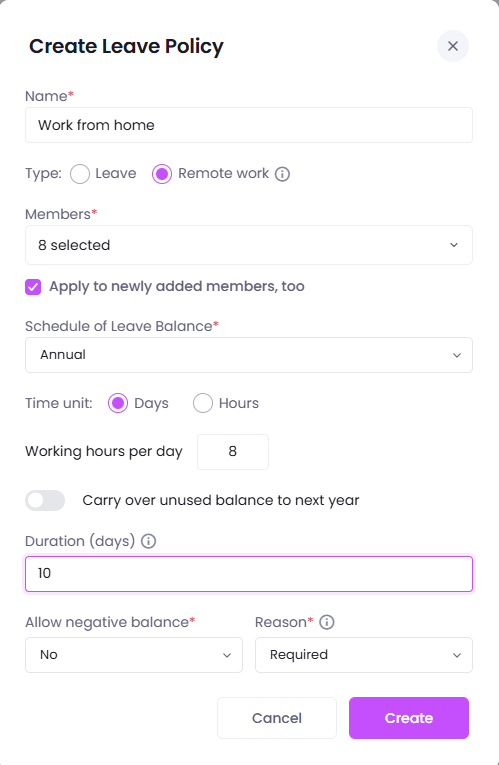
- Select the members, and in Duration (days), set the remote work days each member gets per year.
- Click Create.
Request remote work days
- In Time Off > Requests, click Add leave.
- Under Leave Policy, select the remote work policy, and set the dates.
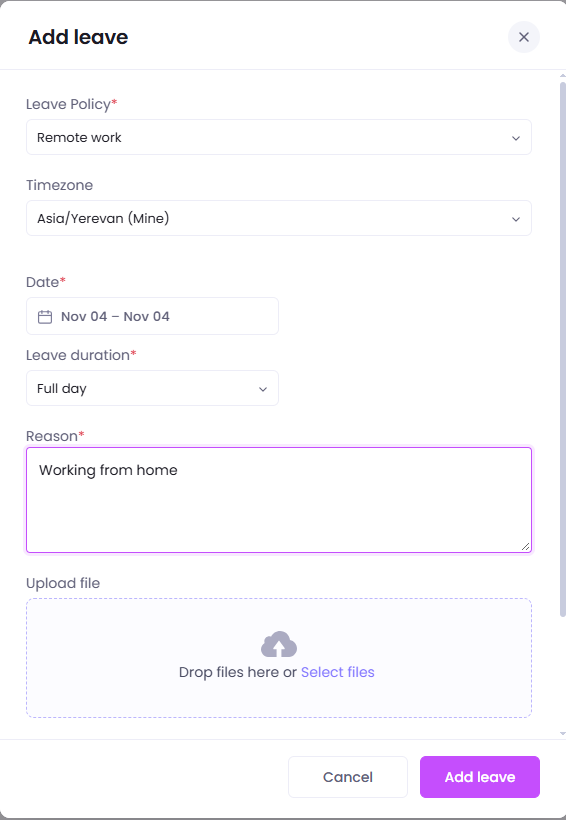
- Click Add leave.
Requests that need approval wait in the Pending tab, and managers approve them as they approve leave.
See remote work balances
In Time Off > Balance, each member’s remote work policy shows the days used and the days left.
Was this article helpful?
Thanks for your feedback.