
In order to see all the reports for a specific member, title, team or project in one place, you should:
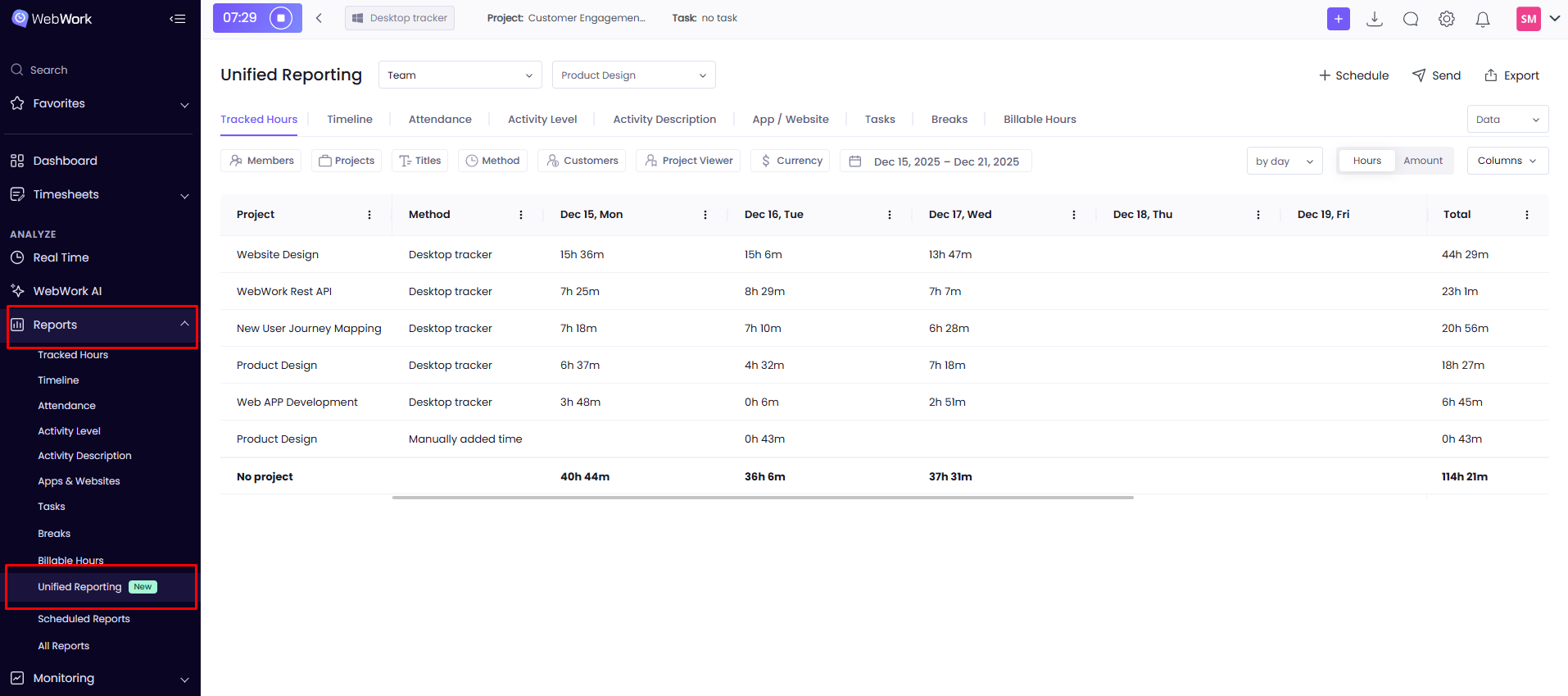
- Go to Reports section
- Click on the Unified Reporting subsection
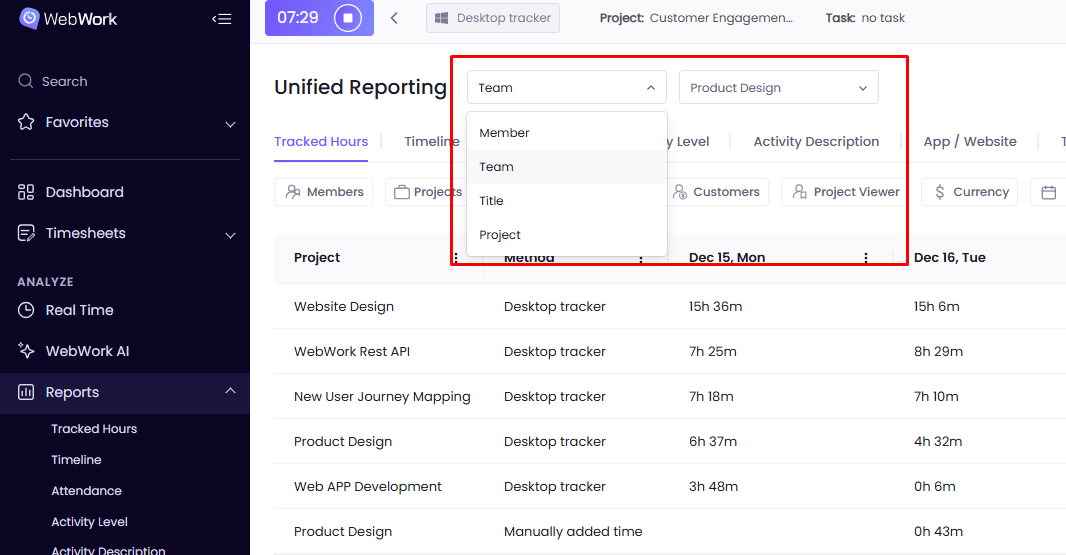
Depending on which team’s, project’s, member’s or title’s reports you want to view, you can filter by Member/Team/Title/Project. This filter is situated next to Unified Reporting. This way you will have access to all the reports about finance, time-tracking, attendance, activity level and more in one centralized location for that specific category. You should click on the relevant section under Unified Reporting to be able to see the particular reports.
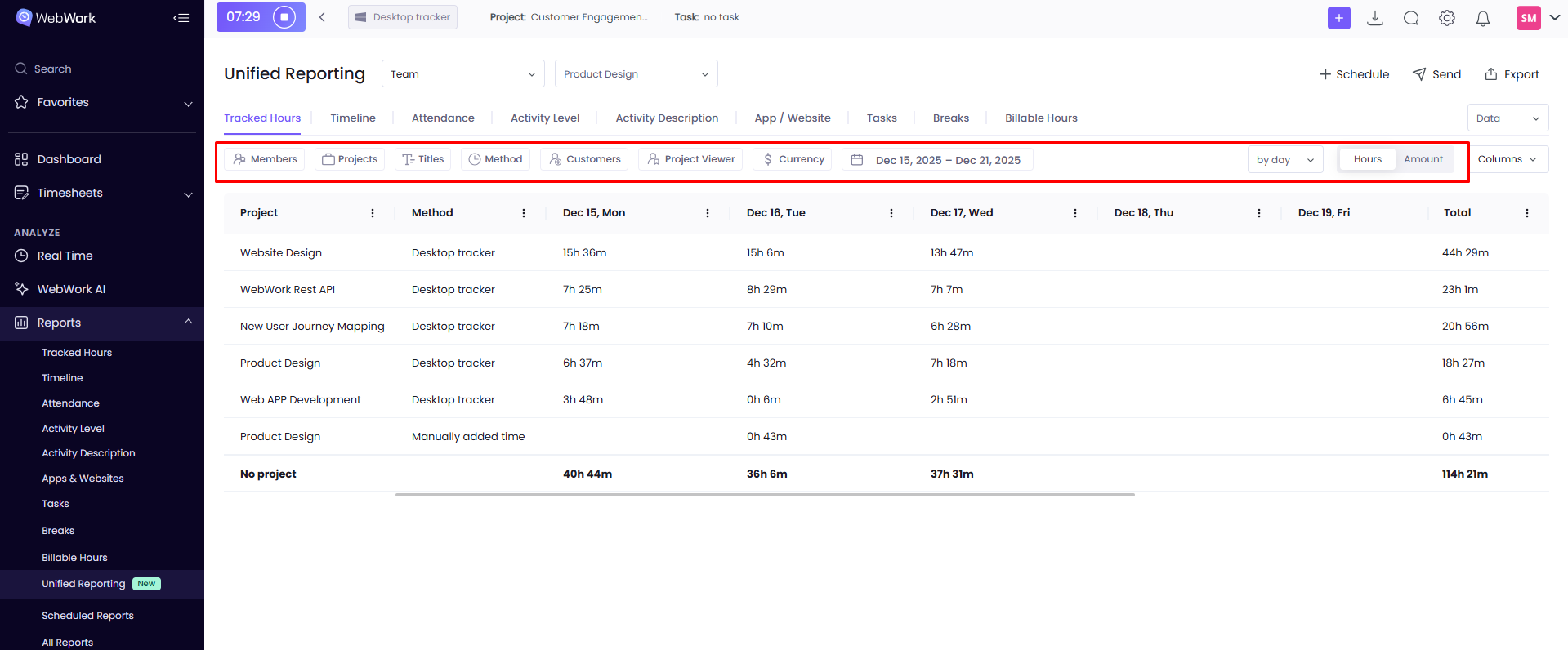
You have also section specific filter options which can help you to access the necessary information in an easier and time-efficient way. Based on the section you are studying (e.g., Tracked Hours, Timeline, Attendance…) these filters may be different. For instance, for the Billable Hours report, you can have a Payment Method filter, which, however, is absent when viewing the Tracked Hours report.
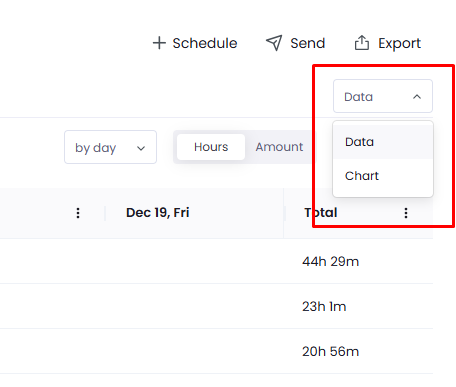
For each section under Unified Reporting, you can view the information in either table or chart format. To customize it, click the button under Export and choose the way you want the information to be displayed.
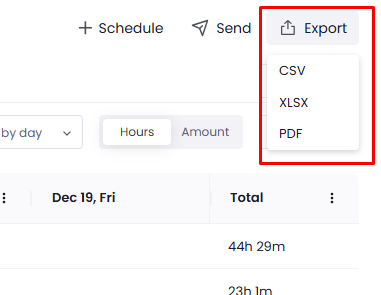
You can download these reports by clicking Export and then select the desired file format.
If you are a Plus or a Premium user, you can also:
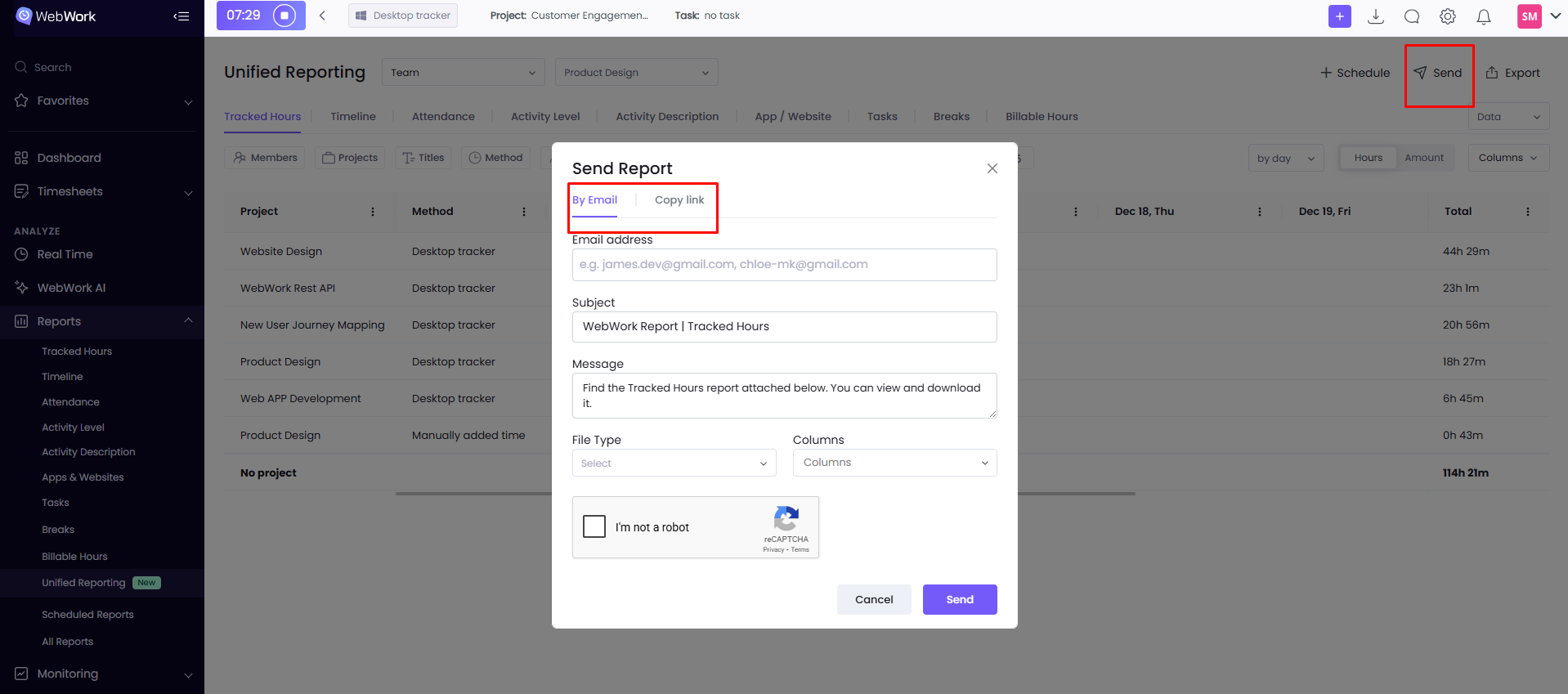
1. Share these reports with the WebWork link, even for people who do not have a WebWork account, by clicking Send and copying the given link or by entering the recipient’s email address and selecting the preferred file format.
2. Create scheduled reports and receive the reports to your email (or send them to others) based on your selected schedule.
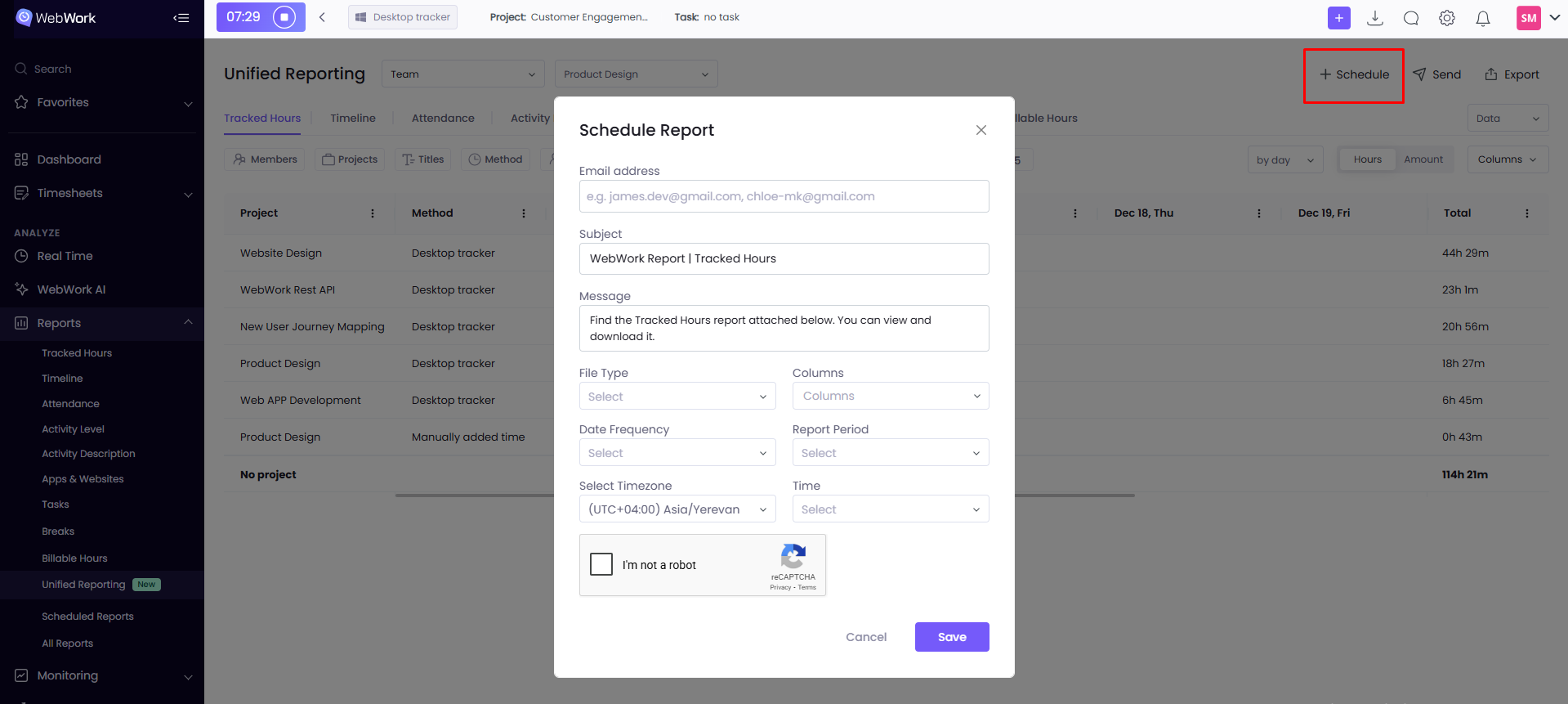
Note: By sharing, scheduling or exporting any report from Unified Reporting, the action will be processed for only that specific report (e.g. Attendance; Billable Hours), not to all reports in this section.
Was this article helpful?
Thanks for your feedback.