
Settings > Timesheets has two tabs. Added Time sets who adds or requests time, and Timesheet Approval sets how timesheets are submitted and approved. Click Save changes after a change.
Added Time
| Setting | What it does |
|---|---|
| Who can edit time | The selected member types add, edit and delete time on their timesheet with no approval. |
| Who can request time | The selected member types send time requests for approval. A member type that edits time cannot be selected here. |
| Who can approve other’s time requests? | The selected member types approve and reject other members’ time requests. |
| Require description when adding or editing time | When on, time cannot be added or edited without a description. |
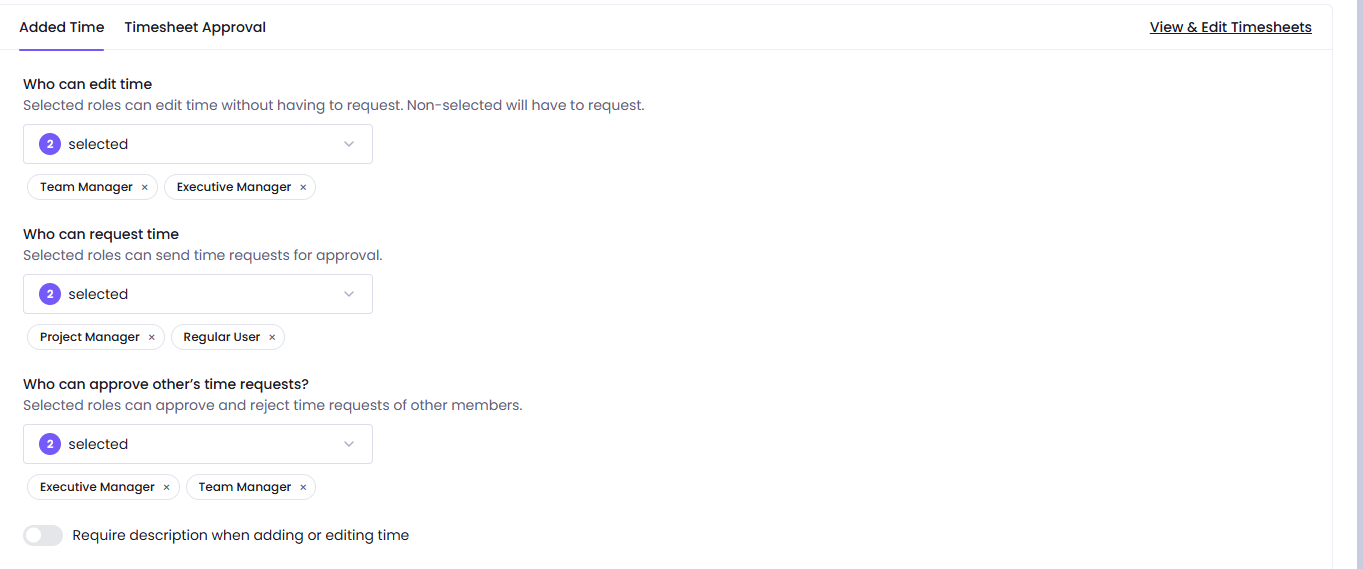
A member type in neither of the first two lists cannot add time at all. The Workspace Owner always edits time directly.
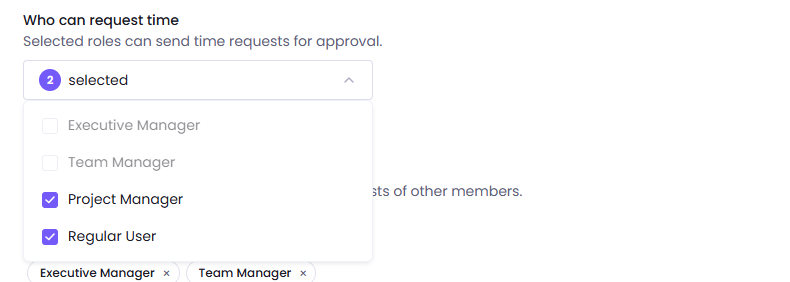
A workspace that has never saved Who can request time keeps the earlier rule: every member type not selected under Who can edit time can request time.
How a request is sent and approved: Time Requests.
Timesheet Approval
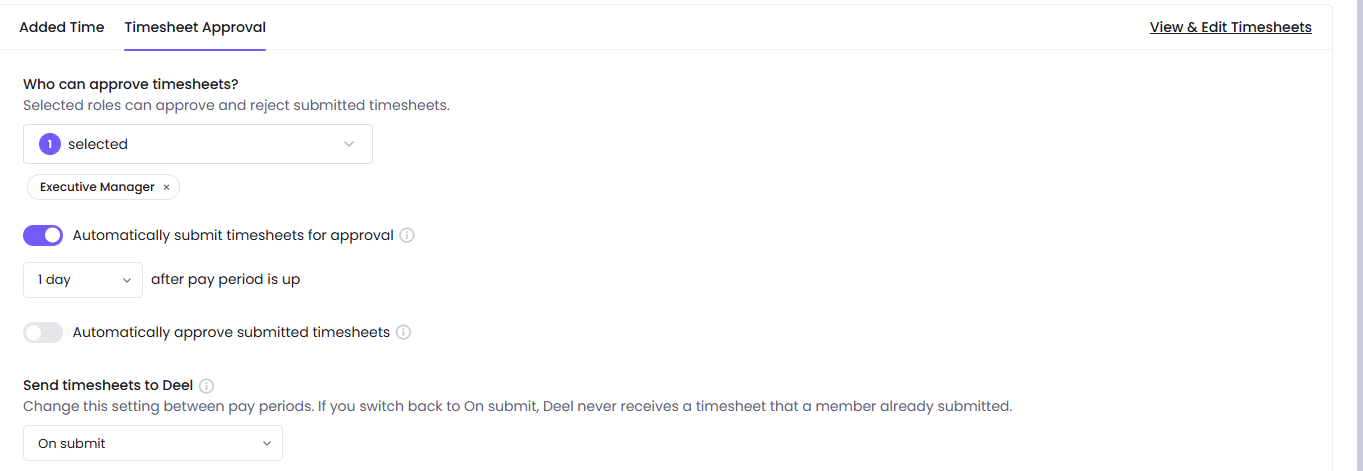
| Setting | What it does |
|---|---|
| Who can approve timesheets? | The selected member types approve and reject submitted timesheets. |
| Automatically submit timesheets for approval | Submits timesheets for approval by itself, 1 day after the pay period ends. Choose another number of days next to it. |
| Automatically approve submitted timesheets | Approves every submitted timesheet without a review. |
| Send timesheets to Deel | Shown only with the Deel integration connected. Sends each timesheet to Deel On submit or On approval. Change it between pay periods: after a switch back to On submit, Deel never receives a timesheet that a member already submitted. |
Was this article helpful?
Thanks for your feedback.