![WebWork logo gradient white primary.png]](https://support.webwork-tracker.com/hs-fs/hubfs/WebWork%20logo%20gradient%20white%20primary.png?height=43&name=WebWork%20logo%20gradient%20white%20primary.png)
WebWork’s time tracker includes automatic screenshots of your desktop during tracked time, helping monitor work efficiently and securely.
How Screenshots Are Captured
For members to capture screenshots, they need to track time using the Desktop Application. If they use any other method of tracking time (such as the Web Tracker or Extension), screenshots will not be captured.
Screenshot Modes
There are several settings available to customize screenshots. You can adjust the frequency, choose the screenshot mode, and set other preferences depending on your workspace’s needs by going to Settings, then Screenshots.
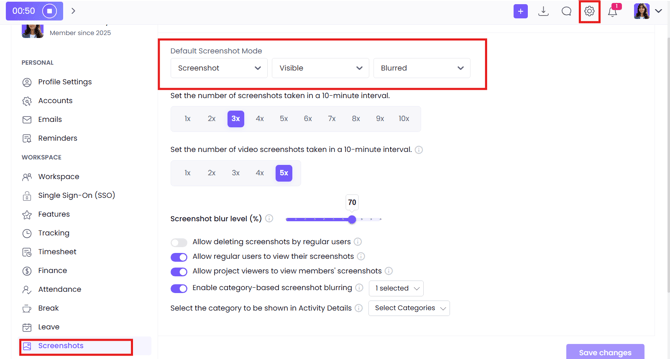
There are three criteria for screenshot adjustments available for the workspace.
The default mode is set at the workspace level, which applies when you create projects and assign users. However, you can override this default for individual projects or users if needed.
-
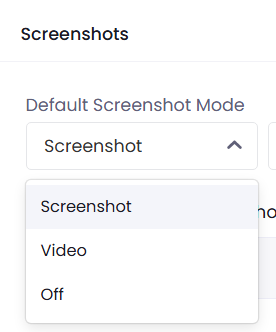
Screenshot/Video/Off
-
Screenshot - A normal screenshot is taken. You can have up to 10 screenshots per 10 minutes (up to 3 under Pro plan, and up to 10 under Plus or Premium plan).

- Video - The videos are like a GIF composed of screenshots. You can have up to 5 video screenshots per 10 minutes. Videos are available only under Plus or Premium plans.
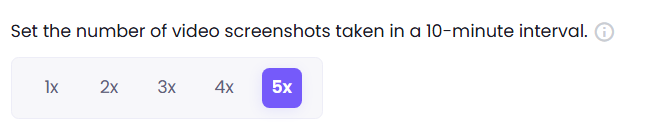
- Off - No screenshot or video will be taken
-
-
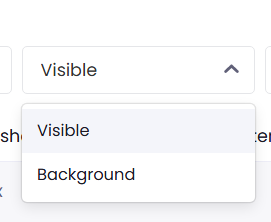
Visible/ Background
-
Visible - Whenever a screenshot/ video is taken, a notification appears in the bottom-right corner, allowing members to preview it.
- Background - The screenshot/video is taken, however no notification appears warning the user about it. The action is processed in the background. This ensures less distraction but still provides monitoring
-
-
Blurred/Non blurred
-
Blurred - The captured image/video is blurred for added privacy. You can also choose the blur level in the same section.
-
Non-blurred - The captured image/video is fully readable.
-
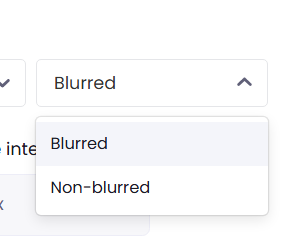

If you do not want video screenshots to apply to the entire workspace, but only to a specific member, project, or contract, you can leave this setting unchanged and adjust it from the relevant section (Projects, Members, or Contracts).
Projects & Contracts
Whenever a project is created and a member is assigned, they will use the default screenshot mode. To set a specific screenshot mode for a project, go to Projects > Projects.
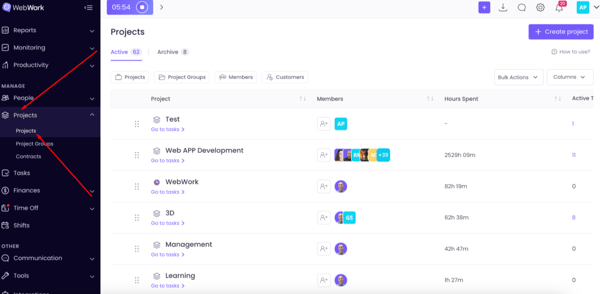
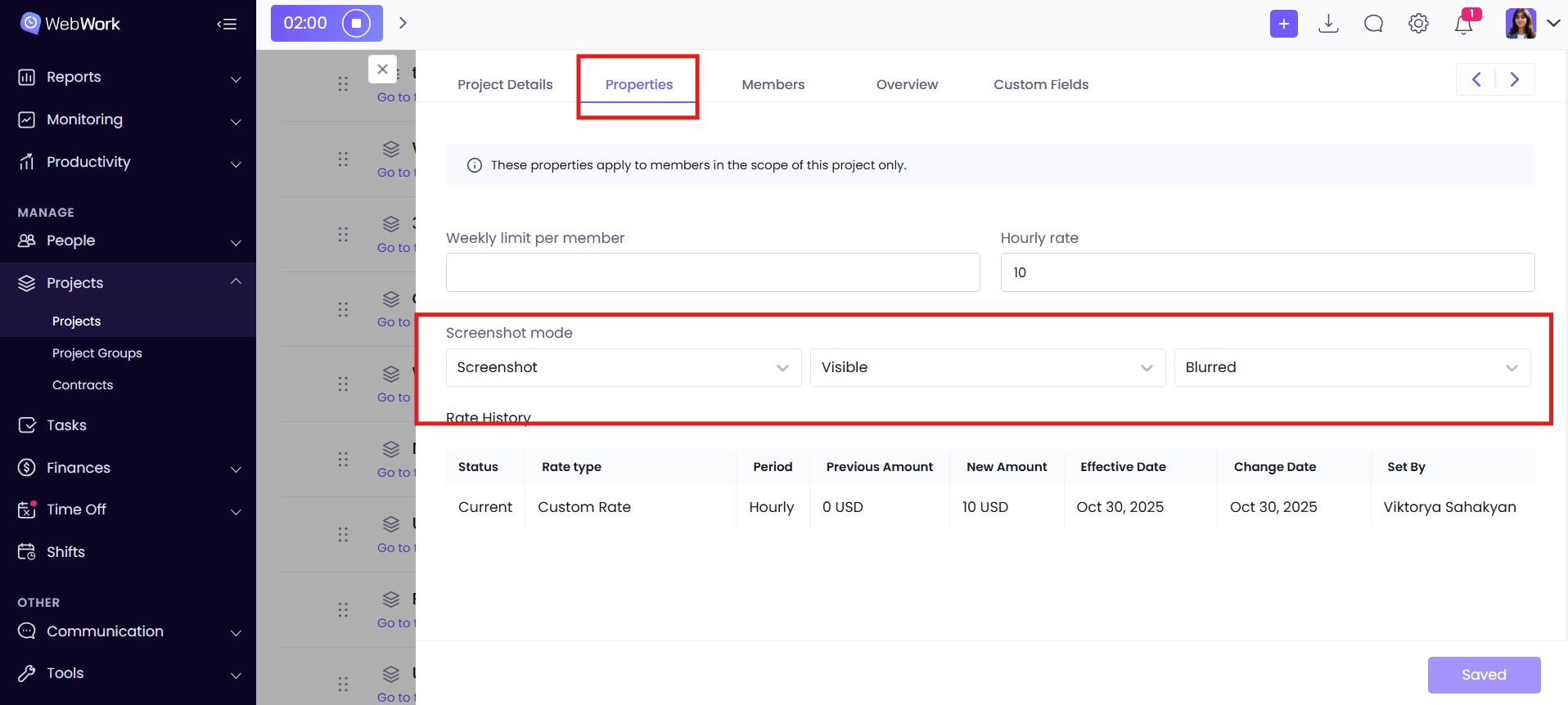
Then select the project you want to modify. Open Properties, and from there you can either choose a specific screenshot mode or continue using the default mode. From that point on, whenever members track time on this project, it will follow the selected screenshot mode.
You can also assign a specific screenshot mode to individual members. To do this, go to Projects > Contracts, select the member assigned to the project, and set their preferred screenshot mode. Now, whenever this member tracks time on that project, it will use the mode you specified. 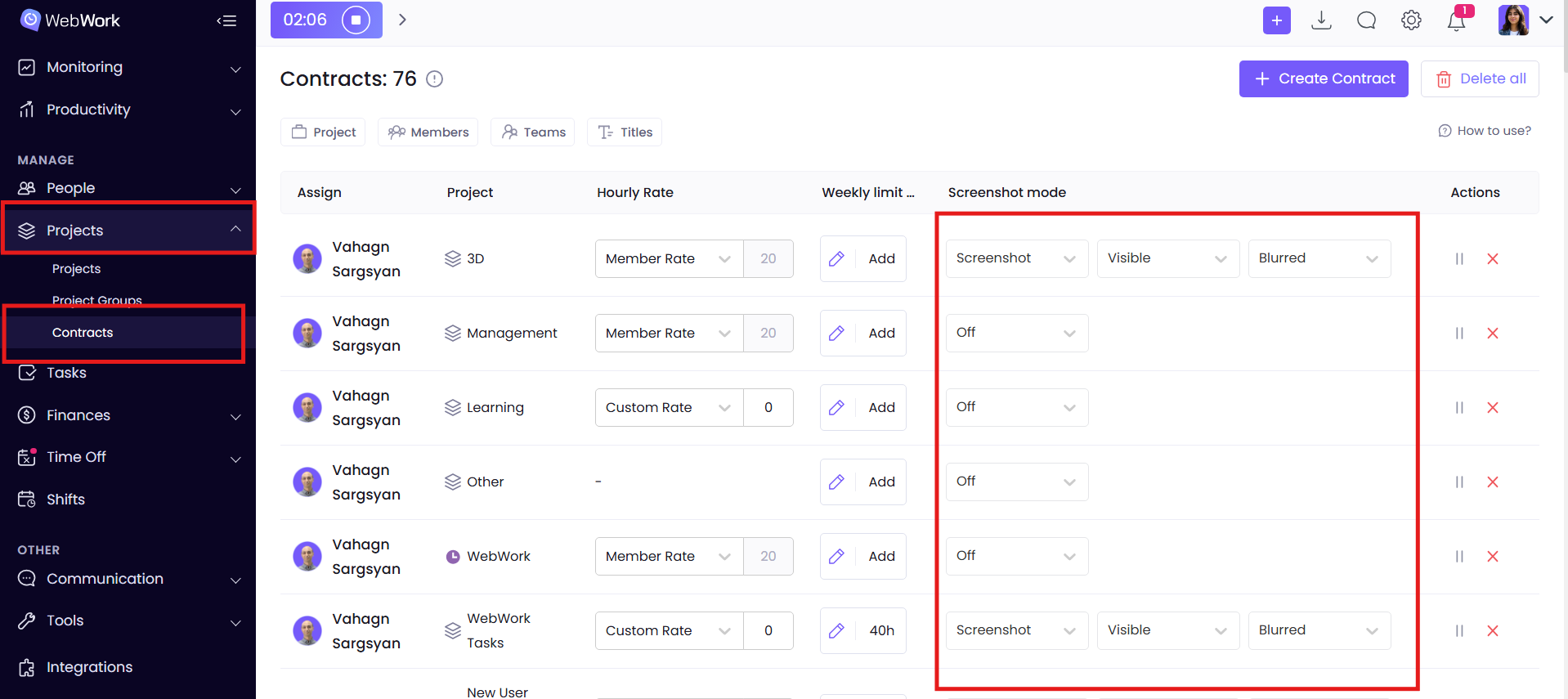
Where to View Screenshots
There are two ways to view screenshots.
The first is directly through the Desktop Application. From the Screenshots section, members can view only their own screenshots.
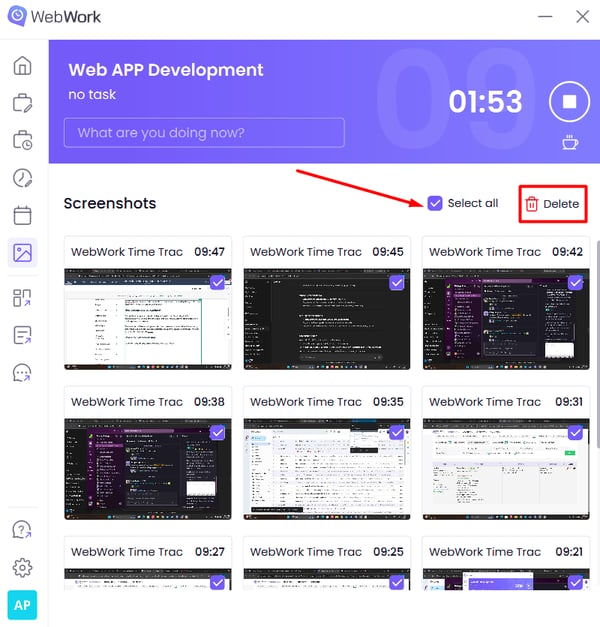
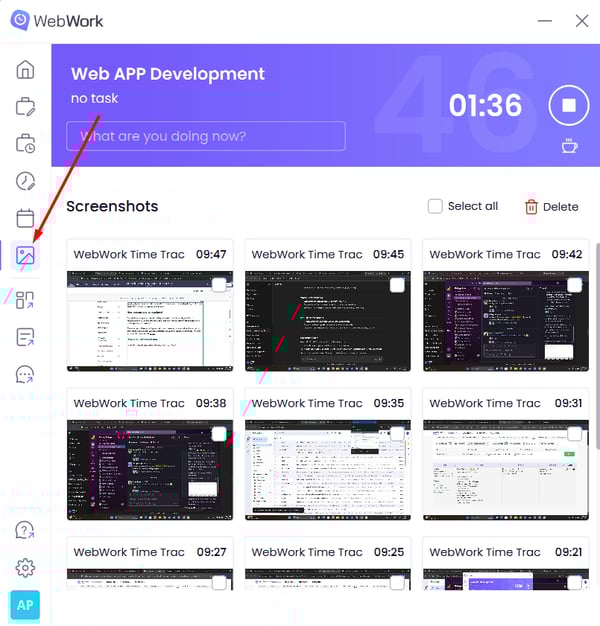 By clicking on a specific image, they can open it in detail. It’s also possible to select and delete individual screenshots, or even remove them all at once. Keep in mind that deleting a screenshot will also delete the related time entry.
The second way is through the Web Platform by going to Monitoring > Screenshots. Here, managers can view screenshots of all members.
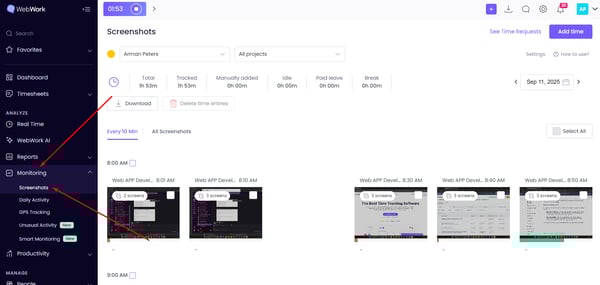
At the top of this section, you’ll find a clear breakdown of time, including:
-
Total time
-
Tracked time
-
Manually added time
-
Idle time
-
Paid leave
-
Break time
This gives a complete overview of how tracked time is distributed.
Below the breakdown, screenshots are displayed either in 10-minute intervals or as a full sequence.
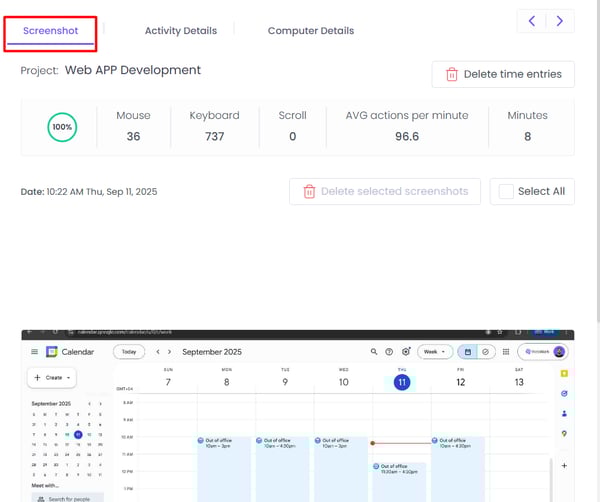
By clicking on a screenshot, you can open additional details. These are organized into three tabs:
-
Screenshot Details – shows the actual screenshot itself with the option to delete it (note: deleting also removes the corresponding time entry).
-
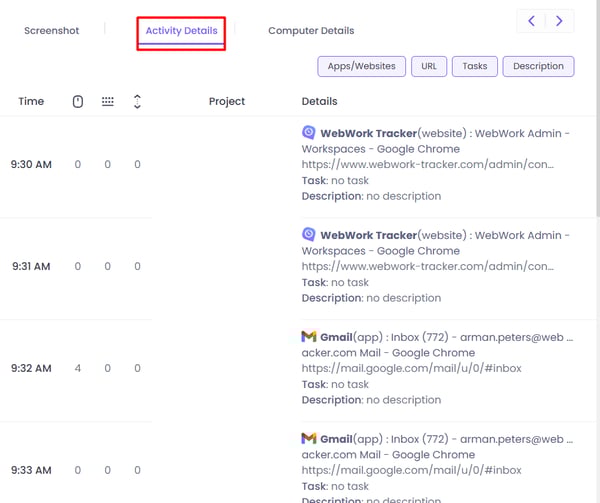
Activity Description – provides a minute-by-minute breakdown of activity, including apps, websites, and task descriptions.
-
Computer & Tracking Info – displays:
-
The project being tracked
-
Activity level (mouse movements, keystrokes, and scrolls)
-
The capture interval
-
Technical details of the member’s device, such as operating system type and version, computer name, local and public IP addresses, and tracker version
-
From this section, members can also select specific screenshots (or all of them) to delete or download.
Security of Screenshots
To ensure the highest level of protection, WebWork uses a multi-step encryption system for all screenshots:
-
Unique token assignment – Every screenshot file receives a unique token, acting as its own security guard and ensuring individual protection.
-
Advanced encryption – After tokenization, each screenshot is encrypted using industry-standard methods. This guarantees data security both during storage and while in transit.
With these safeguards in place, your screenshots are kept private and secure at all times.