
The Rate History feature is available only in Plus or Premium subscription plans.
If you want to view when, how and who made changes to members’ or projects’ rates, WebWork has a feature called Rate History which is available in the side panel for a separate Member, Contract or Project. Depending on which rate changes you want to view, you can navigate to the Member, Project, or Contracts page.
Firstly, you can go to People, then Members.
Here you will be able to see all the members added, synced or imported to your workspace. When you click on the specific member, you will have the opportunity to view their detailed information. Under the Finance section, in the bottom, the Rate History feature is available.
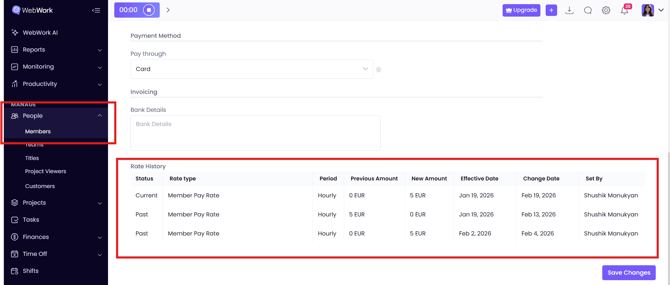
As you can see from the table at the bottom, it gives you data about:
- Status – Whether the change made is active (Current), or is no longer active (Past),
- Rate Type – In WebWork, there are three types of rate by scope: Member Rate, regarding the specific member only; Project Rate, regarding a specific project and all members engaged in that project; Custom Rate, which is useful if the member does not have a concrete rate, so it should be customized according to the project or workload. Based on purpose, the rates can be Pay and Bill. Under this column you will see which of these rates was changed.
- Period – What pay period was affected. In this case the changes were made on the member’s Hourly Rate.
- Previous and New Amount – These are the columns that show how much the difference was before and after the change.
- Effective Date – This column gives information about the date from which the calculations should be adjusted based on the new rate.
- Change Date – This indicates the date when the change was made. Note that the Effective Date and Change Date may be different: you can change the rate with the intention of recalculating from an earlier date.
- Set by – This column shows who implemented the rate change for the member.
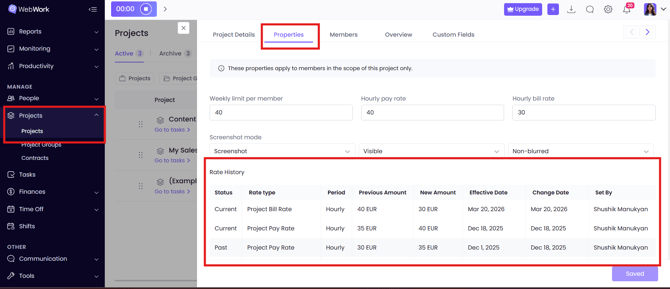
You can view the Project rate history by going to Projects, then clicking on Projects. By selecting the project you want to review the rate for and going to Properties, you will see the same table here as well. The columns you see refer to the same ones explained above. The only difference is that here the rate refers only to projects, not to members; this is why under the Rate Type column you will see Project Bill/Pay Rate.
If you want to view the Contracts rate history you can go to Projects and this time click on Contracts. Remember, Contracts equal assigning projects to members, setting their hourly rate, weekly hour limit, and screenshot mode.
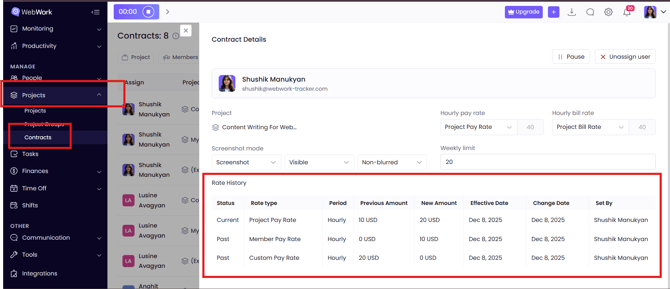
You might want to choose the specific project you want more information about. Here, the Rate Type includes all the options: Custom, Member, Project, or Bill, pay, since this view contains information about both the specific project and the member, allowing any rate changes related to either to be visible.
Was this article helpful?
Thanks for your feedback.