![WebWork logo gradient white primary.png]](https://support.webwork-tracker.com/hs-fs/hubfs/WebWork%20logo%20gradient%20white%20primary.png?height=43&name=WebWork%20logo%20gradient%20white%20primary.png)
Enabling Outlook Calendar Integration
If you want to import and sync your Outlook calendar with the one in WebWork, you can now enable Outlook Calendar integration in WebWork, if you are a Plus or a Premium user. To know more about WebWork’s Calendar feature, follow this link: Calendar
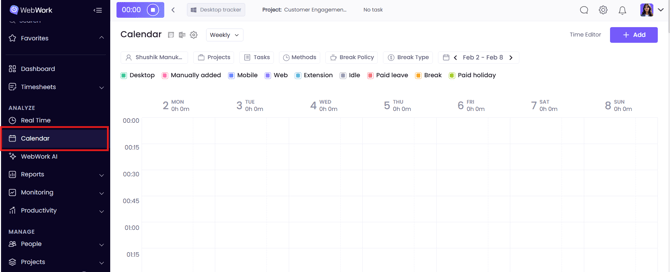
In order to enable it, the first thing you should do is go to the Calendar in WebWork:
Or go to Integrations and under the category Calendar choose Outlook:
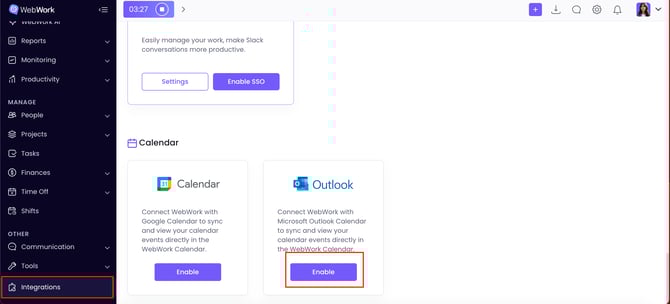
If you enabled the integration from this section, you still will be able to see the imported events in Calendar.
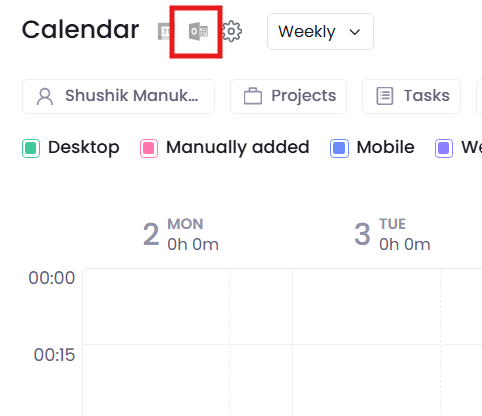
If you want to enable the integration in Calendar, from the available calendar options above, select Outlook:
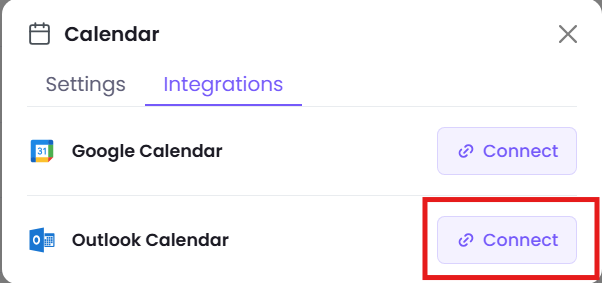
In the appearing pop-up select Connect next to Outlook Calendar:
Then, you will be redirected to a page where you should permit WebWork to access information in your Outlook Calendar, click Accept:
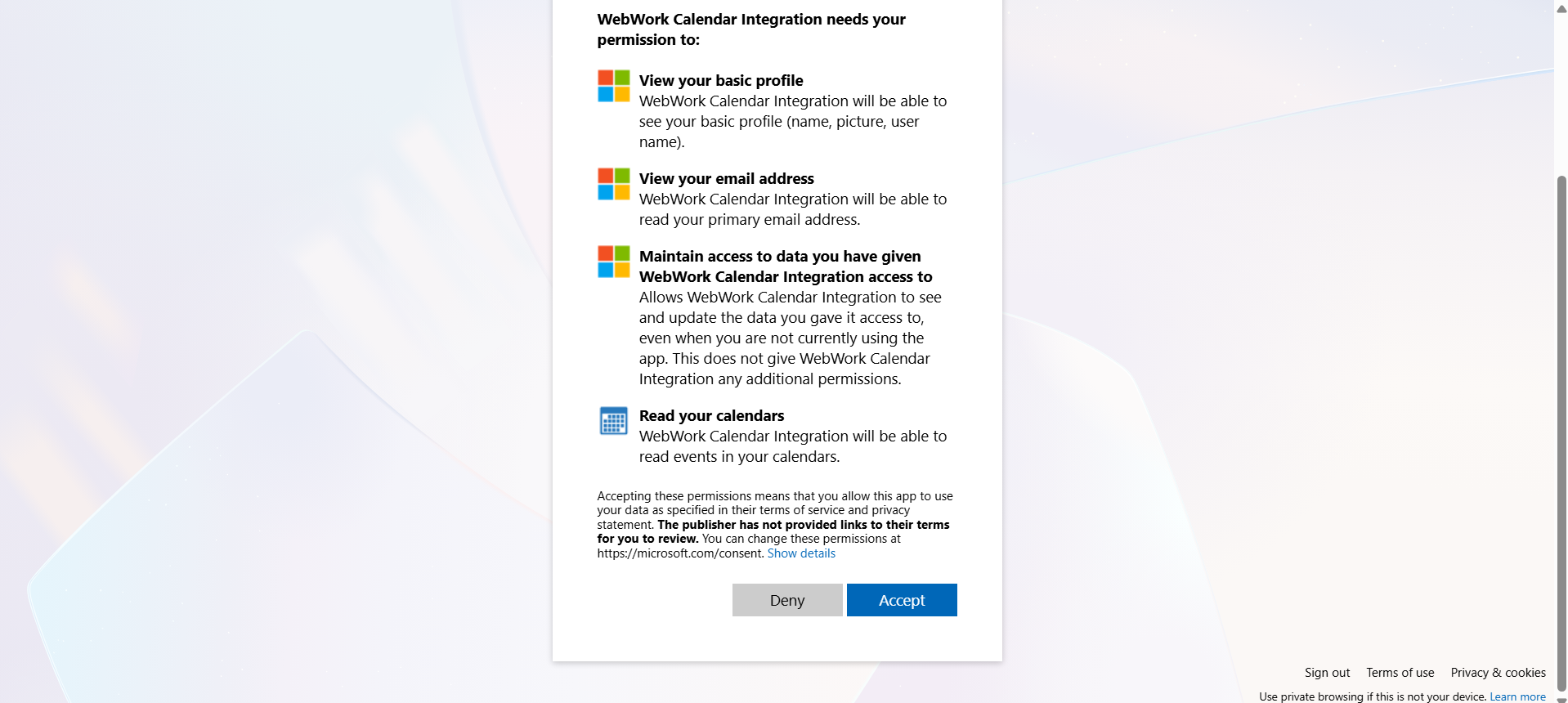
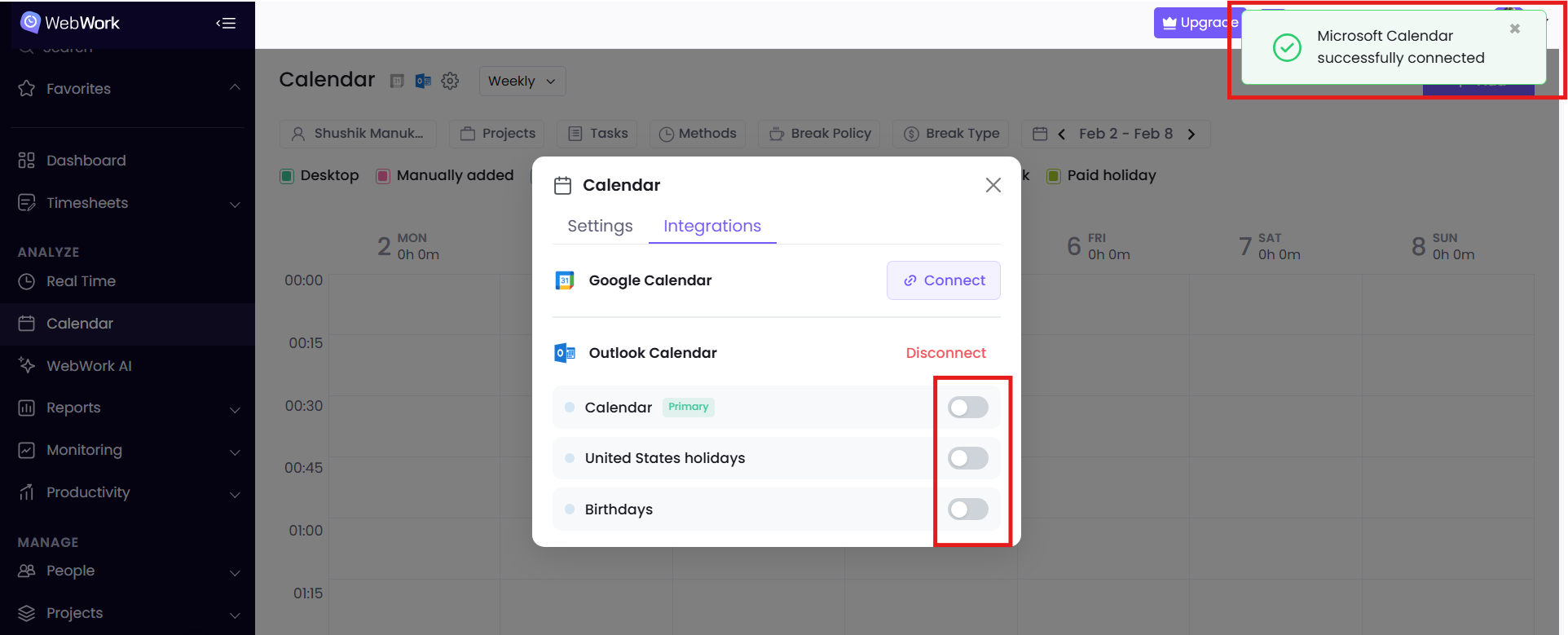
After giving the permission, you will get the successful integration notification. Then, select and enable the toggle for the events and calendars you want to display in your WebWork Calendar.
That is it, you have enabled the integration! You can now see your calendar events next to your tracked hours.
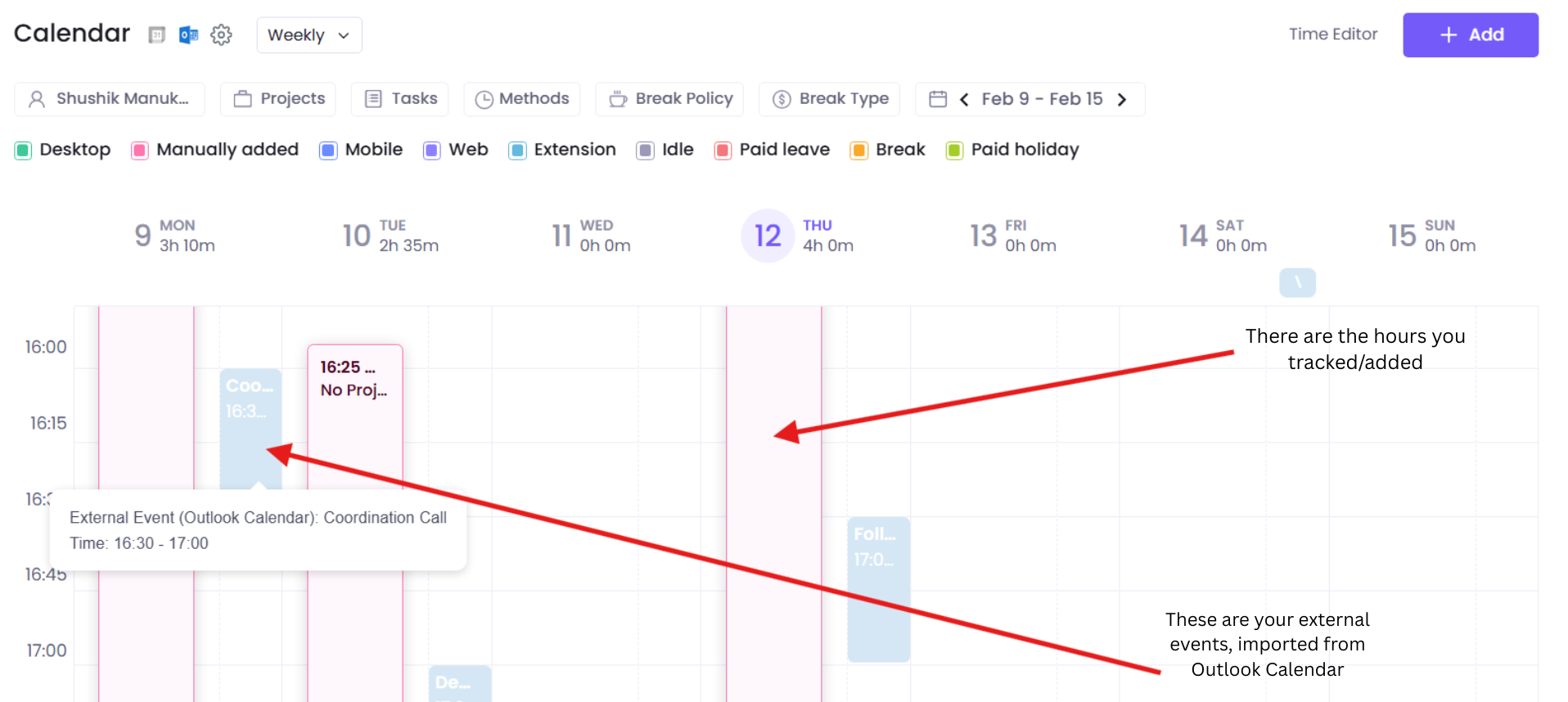
Note that enabling this option allows you to view only your personal events on the WebWork calendar, regardless of your role as an executive manager or workspace owner.