![WebWork logo gradient white primary.png]](https://support.webwork-tracker.com/hs-fs/hubfs/WebWork%20logo%20gradient%20white%20primary.png?height=43&name=WebWork%20logo%20gradient%20white%20primary.png)
Kiosk Mode is a shared time-tracking interface designed for workplaces where multiple employees record their attendance and work activity from a single device. Instead of each employee logging into their personal account on separate devices, a central device (such as a computer, tablet, or terminal) is set up as a kiosk station where employees can quickly identify themselves and track their working time.
Kiosk in WebWork allows multiple employees to clock in/out, start or stop breaks and track on specific projects and tasks. It works from any internet connected device and mostly is used in such cases when multiple employees are working from the same device.
Creating a Kiosk
Kiosks can be created only by executive managers or the owner of the workspace. In order to create a kiosk you should go to:
- Go to Tools, then Kiosks
- Click on Create Kiosk
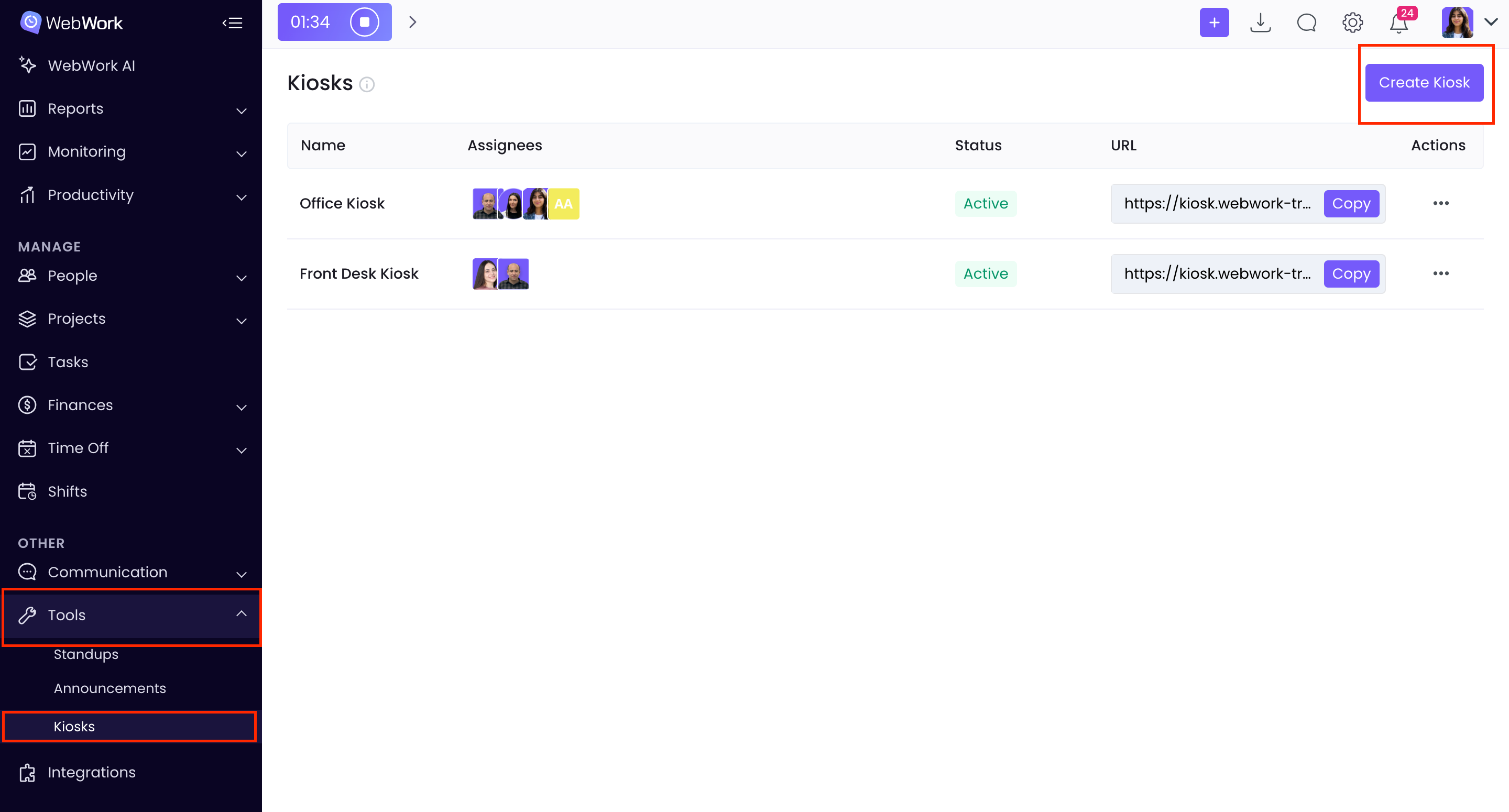
When you click on Create Kiosk, you will see a pop-up window appears where you should fill the necessary information regarding your kiosk:
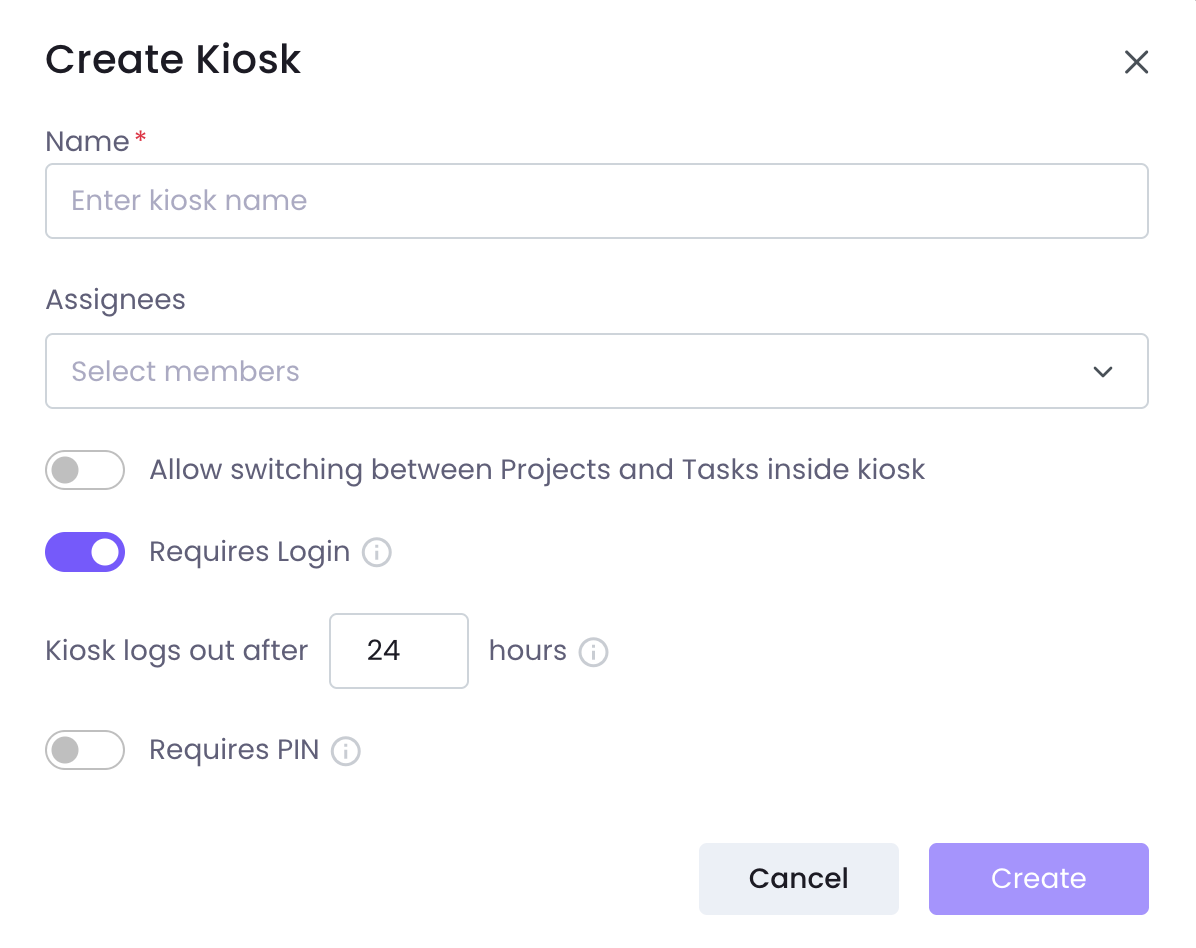
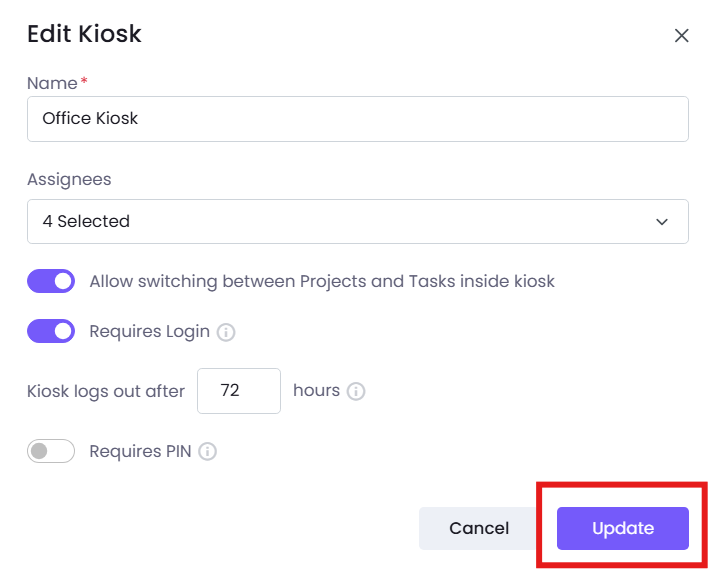
- You should give a name to your kiosk
- Then, by clicking on assignees you should invite all the members that will use the device and will track their time. Select all, if you want to assign the kiosk to all the members.
- By enabling the toggle Switch between Projects and Tasks inside kiosk you will give the employees the opportunity to track on specific projects and tasks.
- You can also require login, which means that the workspace owner and executive managers need to log in to activate the kiosk.
- By default the log out time of the kiosk is set as 24 hours, however this can be changed. When the set number of hours is reached, the kiosk will log out and require admin login again.
- You can also require pin for each of the user tracking on the kiosk. Hence, assigned users can access the kiosk with their member PIN or universal kiosk PIN.
How to access PINs of the assignees?
If you have enabled PINs for each user, then you should Export Assignees in order to have the pins as shown in the screenshot:
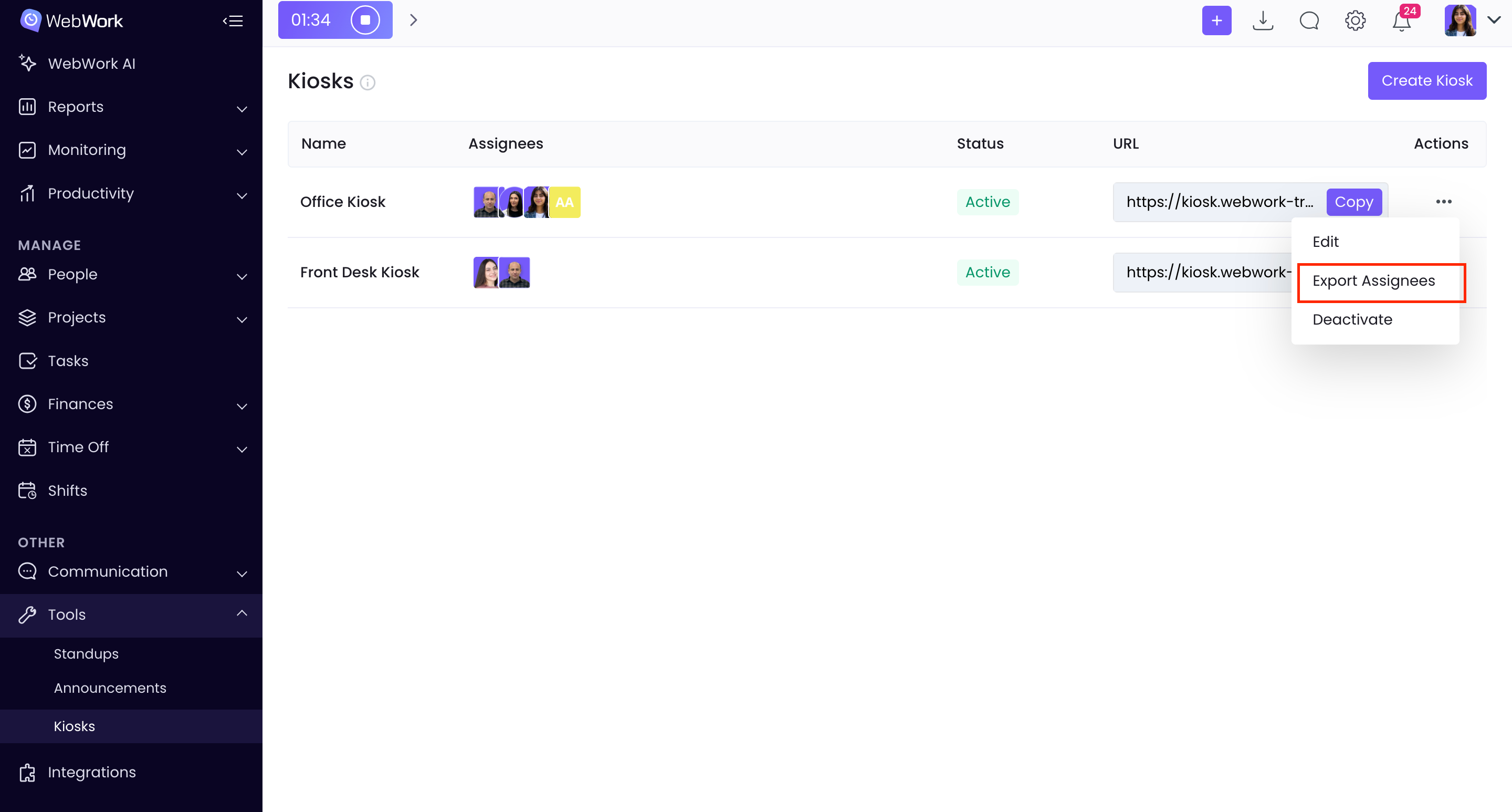
When you click Export Assignees, a XLSX file will be downloaded to your device. In the file, you will see the PINs for each user. Note that these PINs may be confidential, so share them only with the user whose name appears next to the PIN.
How to track on kiosks?
When you have successfully created the kiosk, you can access it by copying the relevant link and pasting it to the browser:

And here is how it appears:
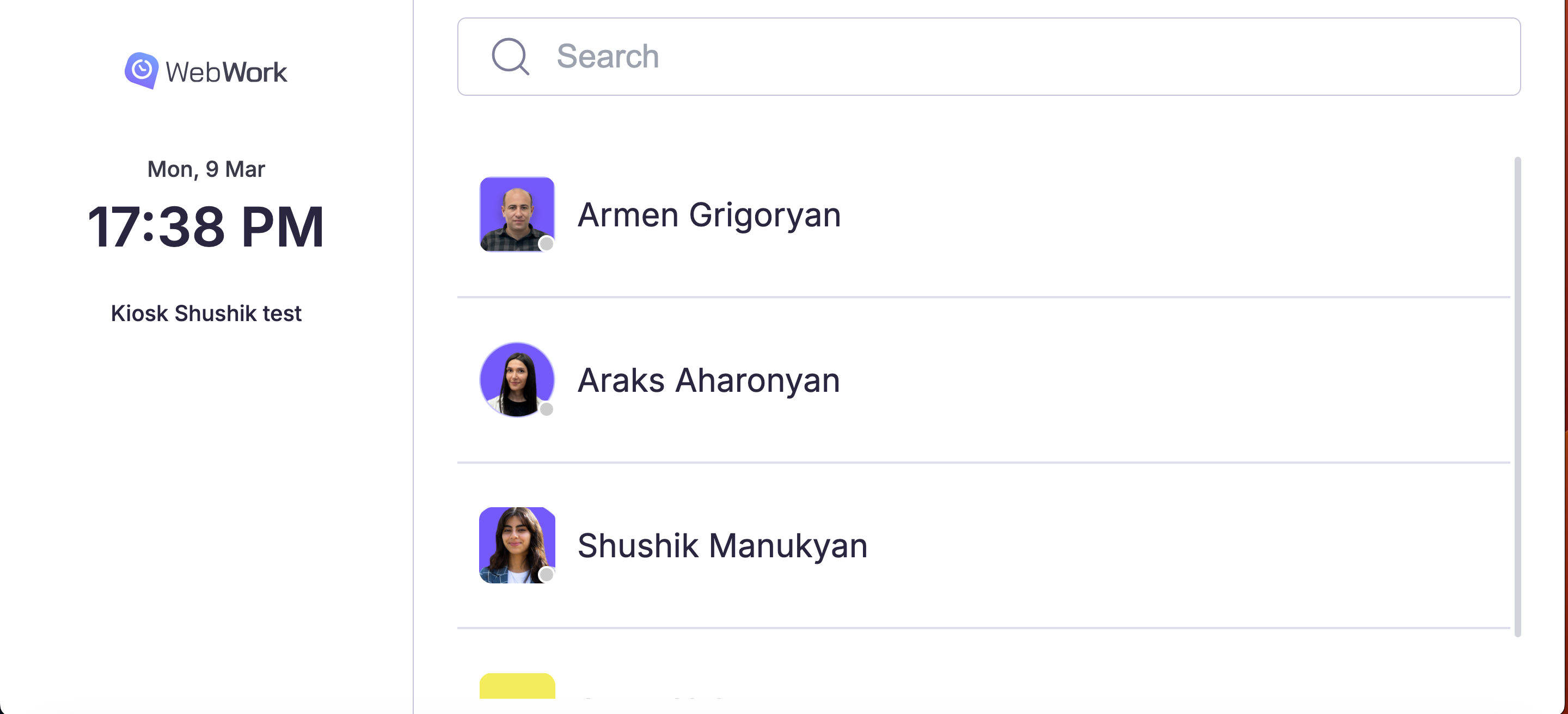
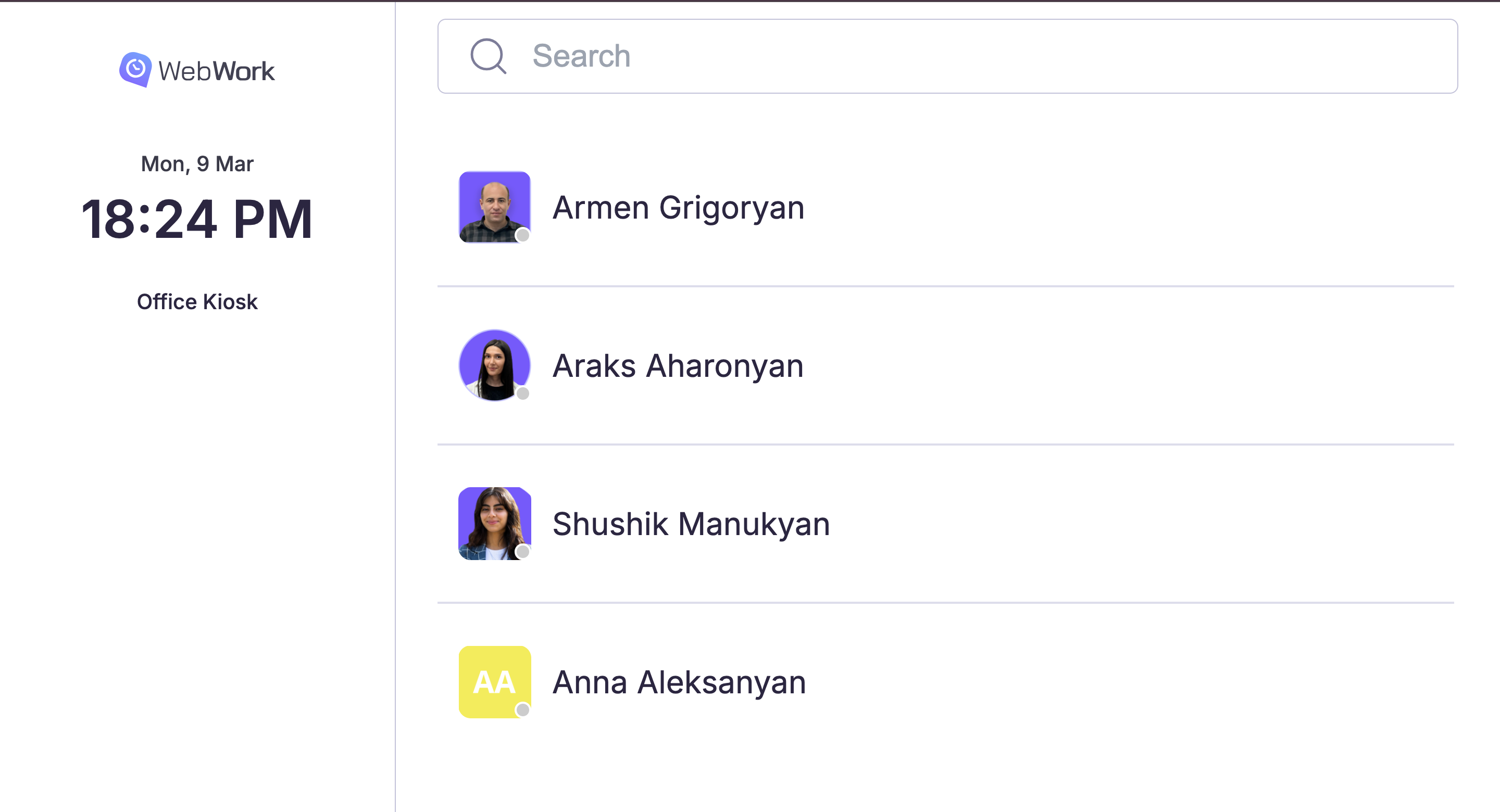
You can see the assignees in the right part of the screen. The member who is tracking should click on their name, write their PIN after which will see the options to start the tracker, take a break or, if the permission is enabled, also track on specific projects and tasks:
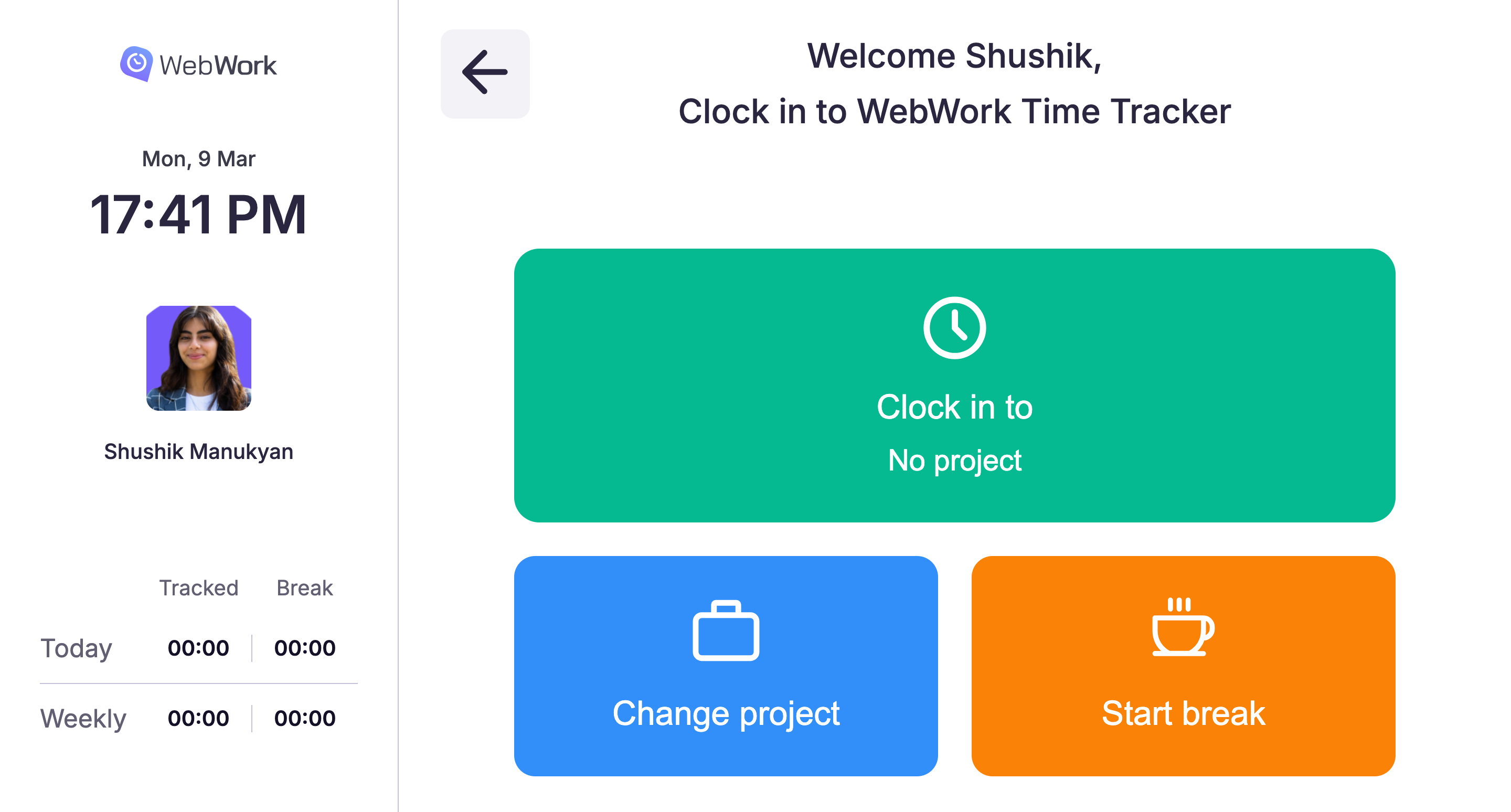
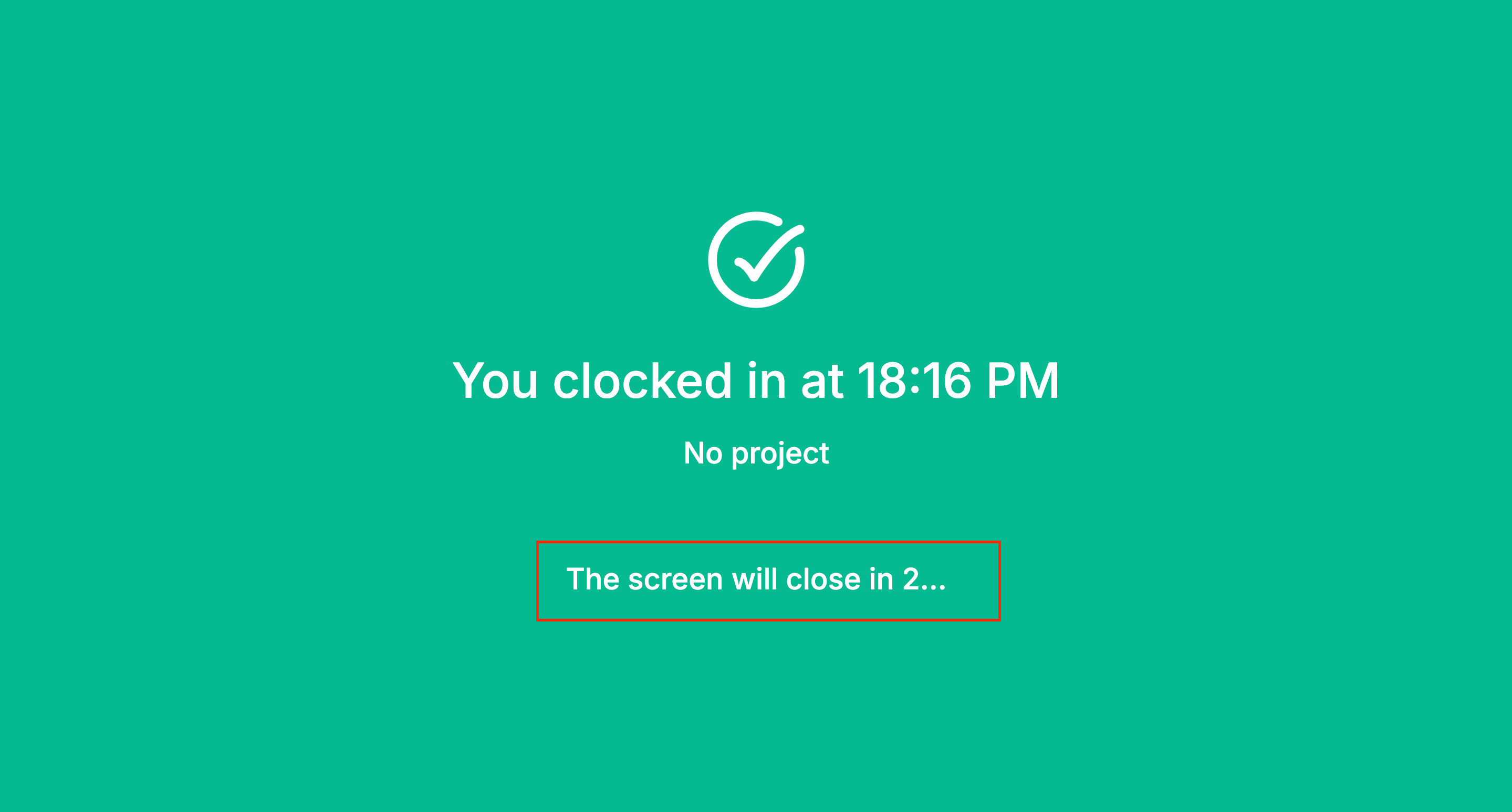
- Clock in to - by clicking on this button you will be able to clock in and start tracking. As soon as you pushed the button, a full green screen appears warning you the tracker starts. In the bottom part a three-seconds countdown runs and when it expires the screen again returns to its state where you can use the device for your purposes. Refer to the screenshots to better understand:
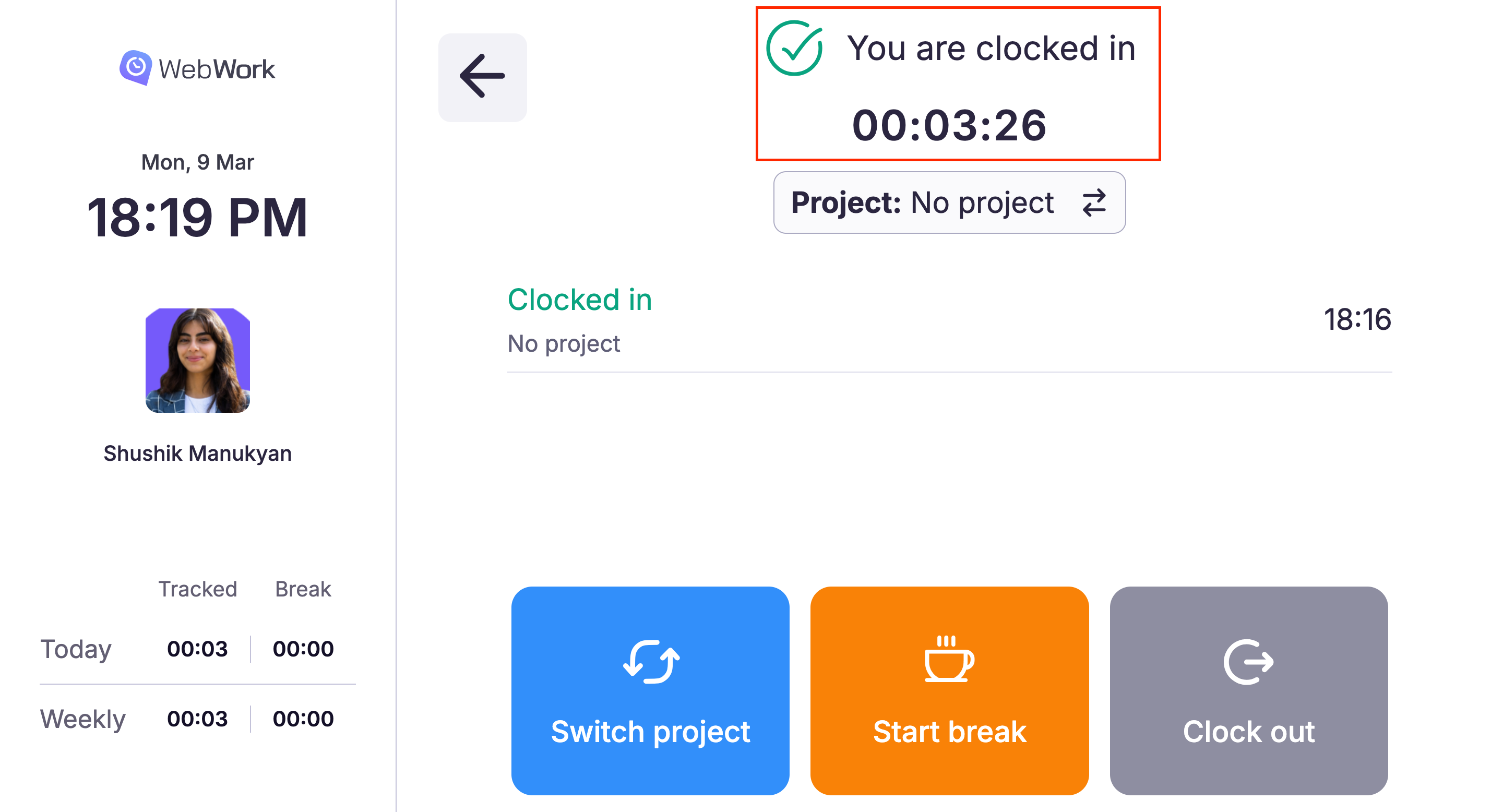
Hence, if you are clocked in, you will see the status on your screen, under which you can also see the time you have tracked so far.
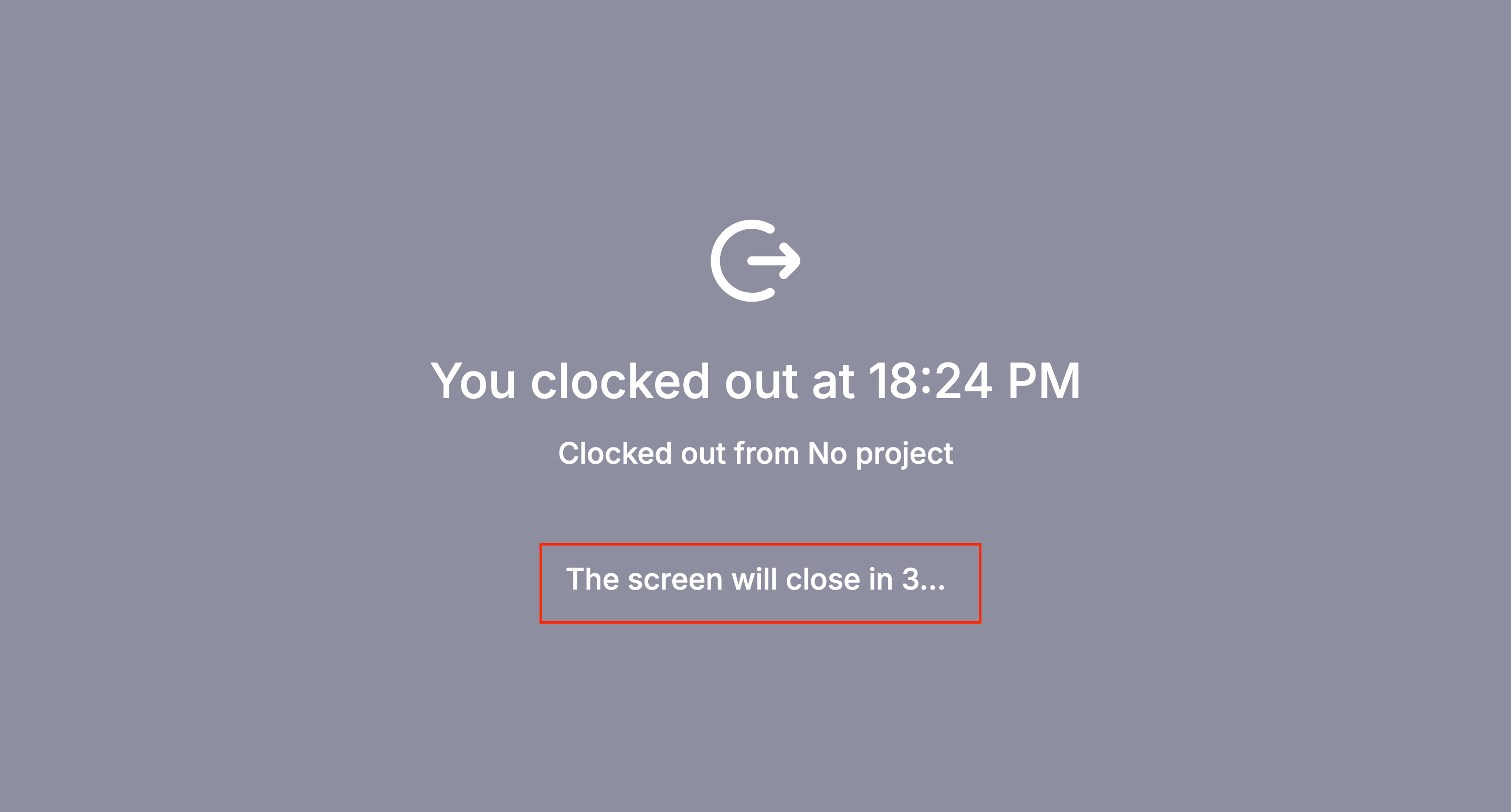
- Clock out - this button will be available only if you are clocked in. A very similar process occurs to clocking in, when you want to clock out. As soon as you click on the Clock out button, a grey screen appears with the countdown again, warning you that in three seconds you will be clocked out. After the three seconds, you can see yourself clocked out. The screen with the assigned users appears on your device and in order to clock in again, you should select your name, write the PIN (if it is required) and clock in once again.
-
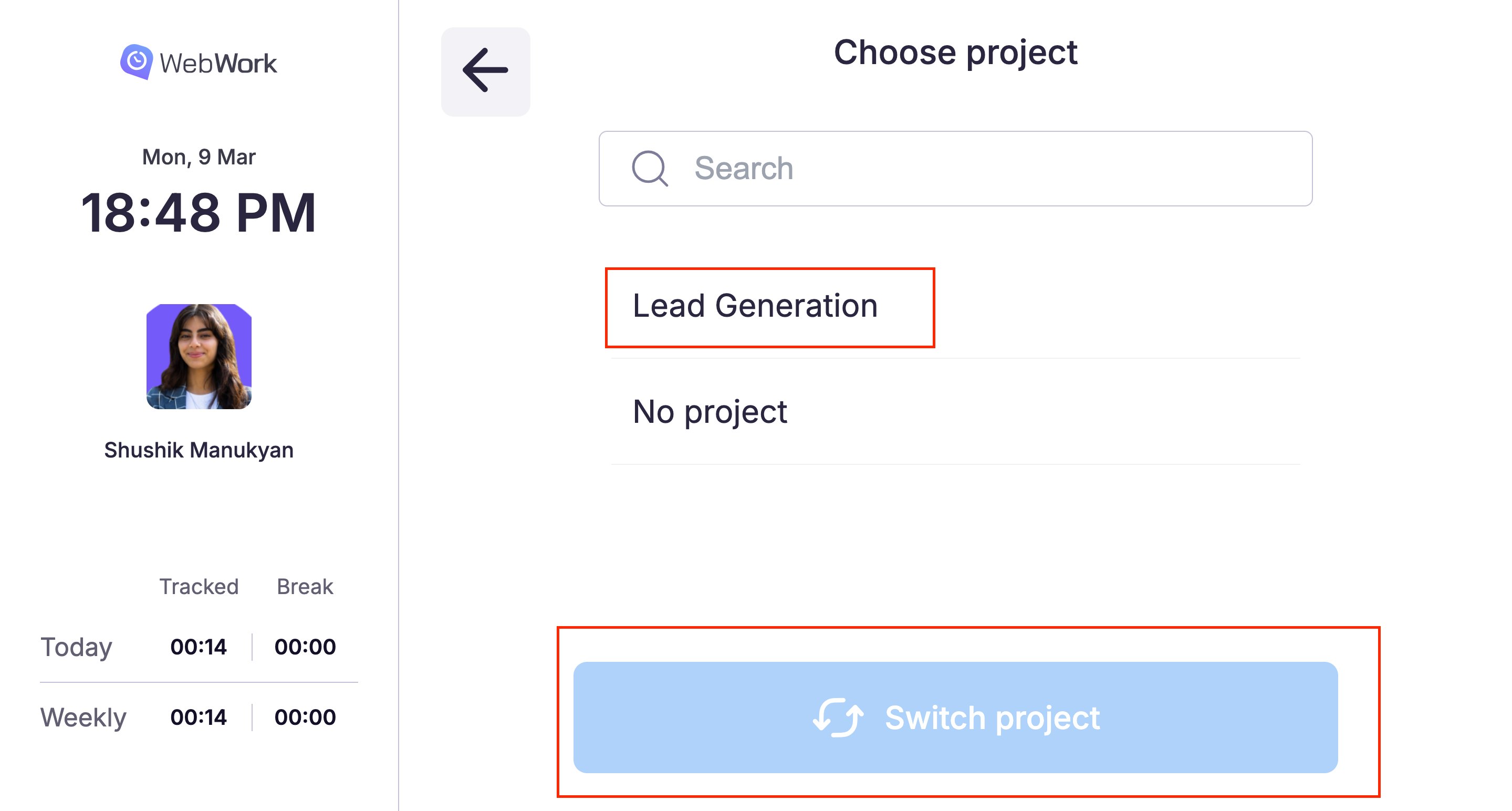
Change/Switch Project - This option is available only if the kiosk creator has enabled permission for you to track time on different projects or tasks and has assigned you at least one project or task.
You can also start tracking time directly on a project without clocking in first. Simply select the project and clock in from there.
If you are currently tracking time on a project, the project name will appear at the top of the screen.
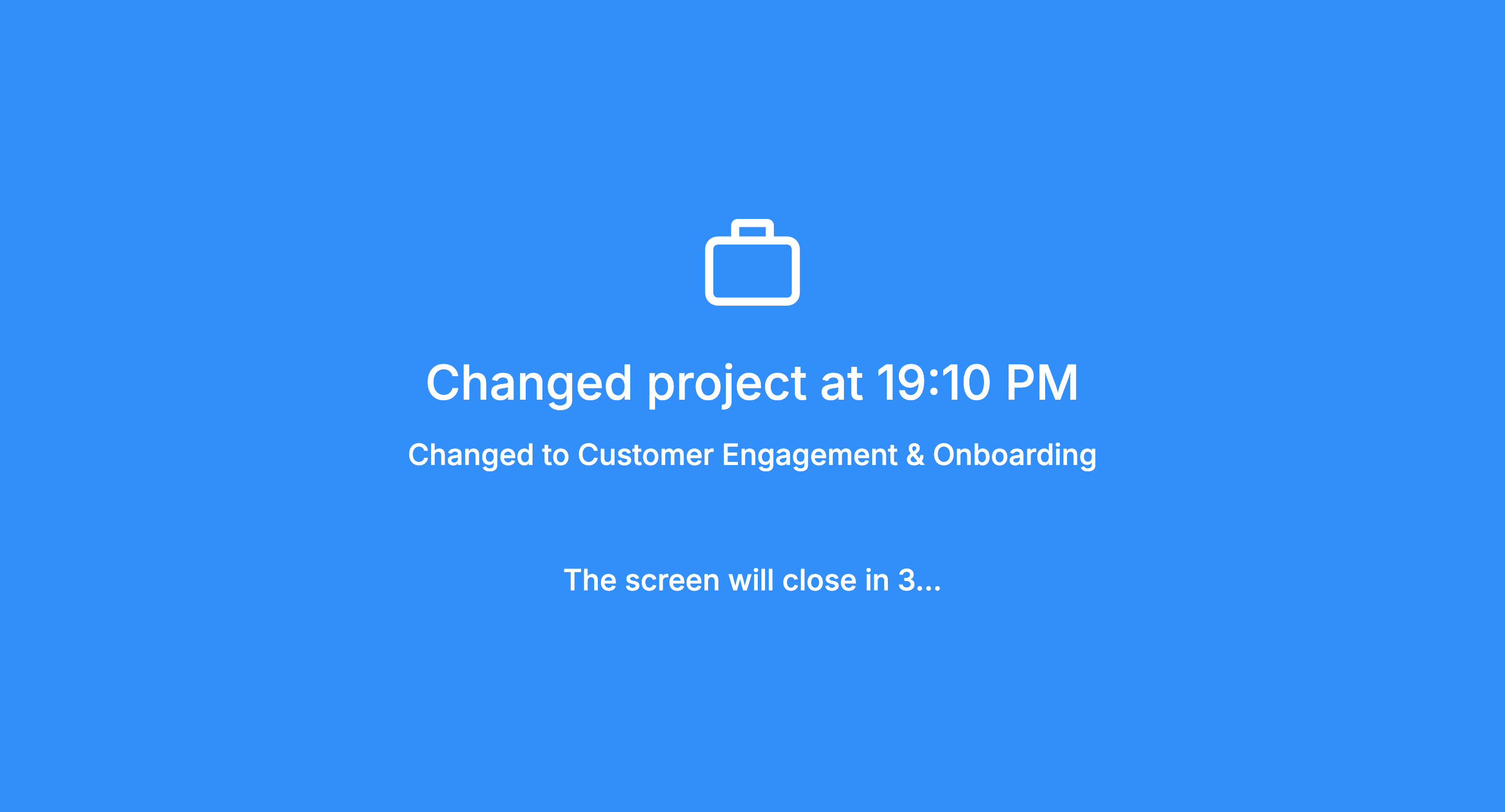
- If you click the double arrow icon next to the project name and select another project, the already tracked time will be transferred to the new project, and tracking will continue under that project.
- If you want to keep the tracked time on the current project but start tracking on another one, click the Switch Project button. Your previous tracked time will remain on the original project, and tracking will continue on the newly selected project.
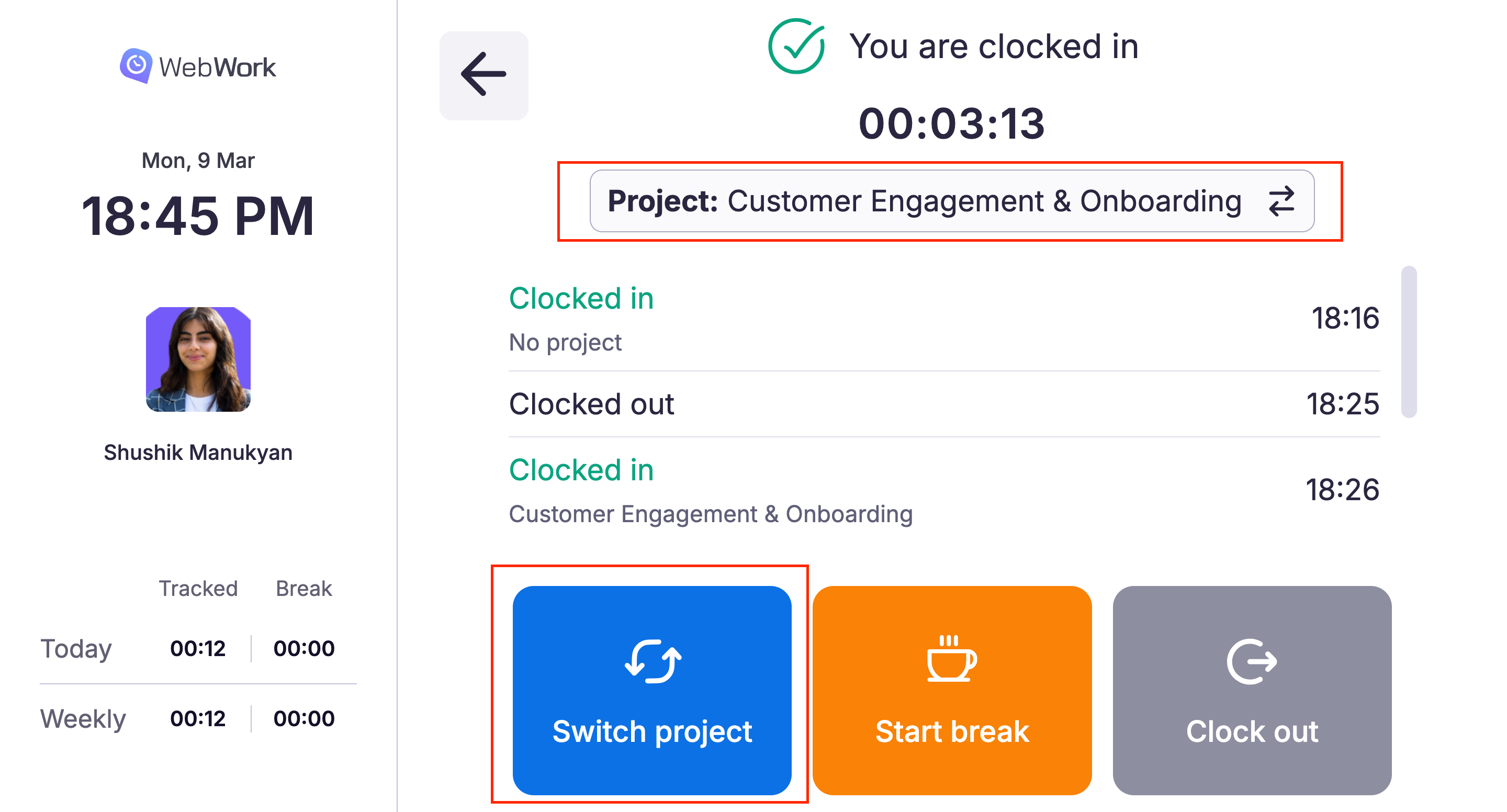
Here is what happens when you click on the double arrow:
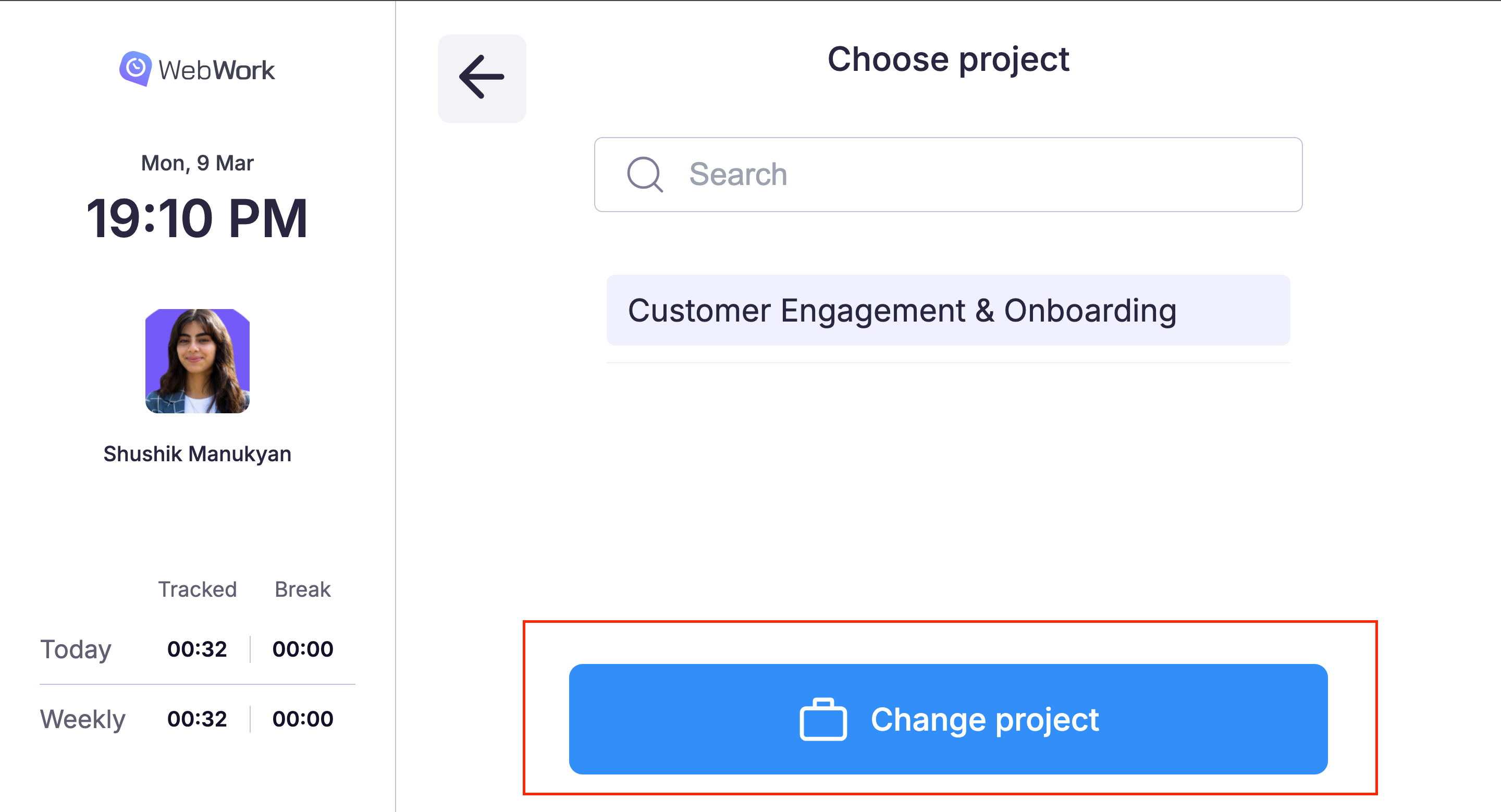
Or, you can just Switch the project. You can either track on another project, or just record your working time, without a specific project (No Project):
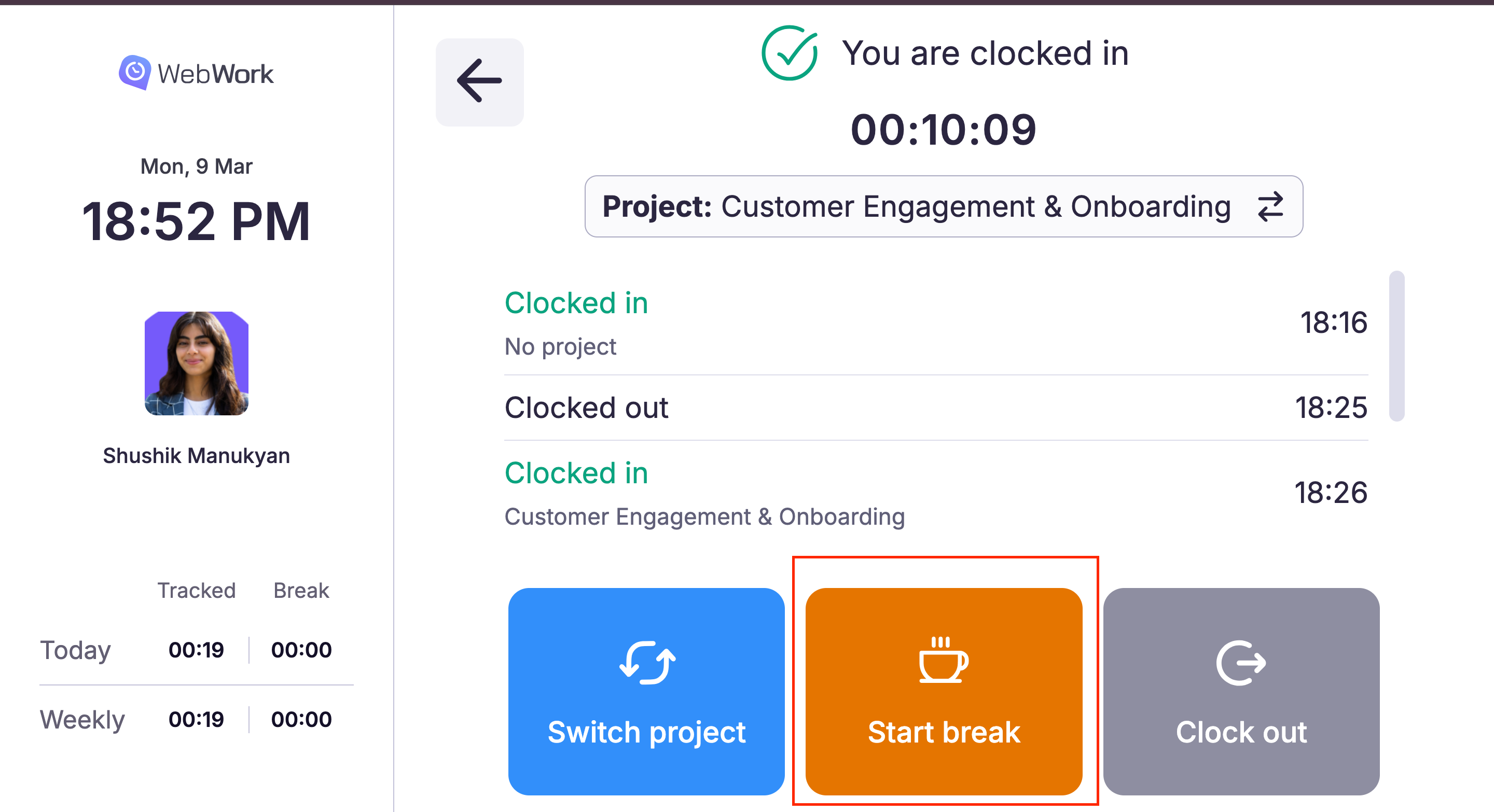
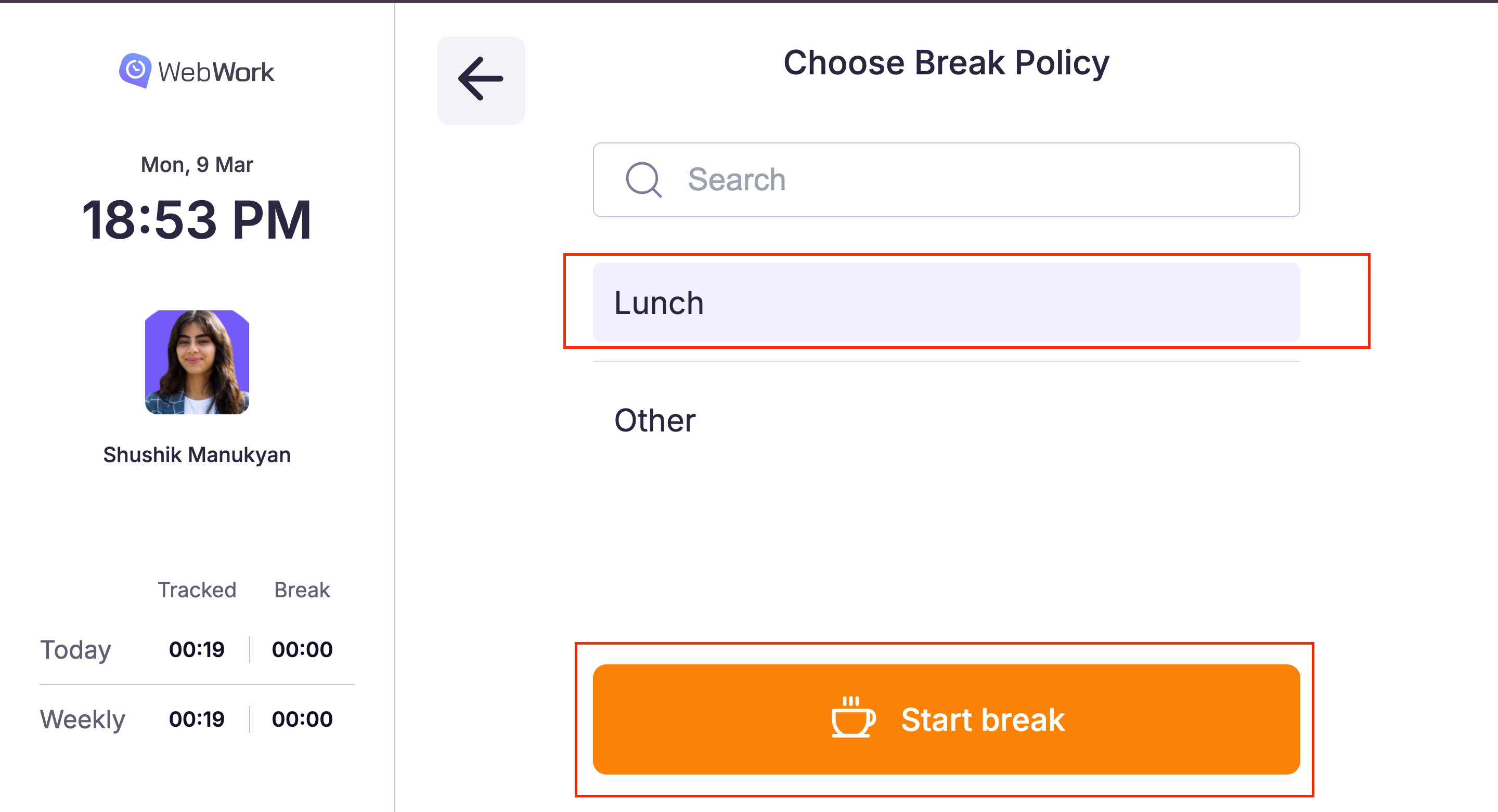
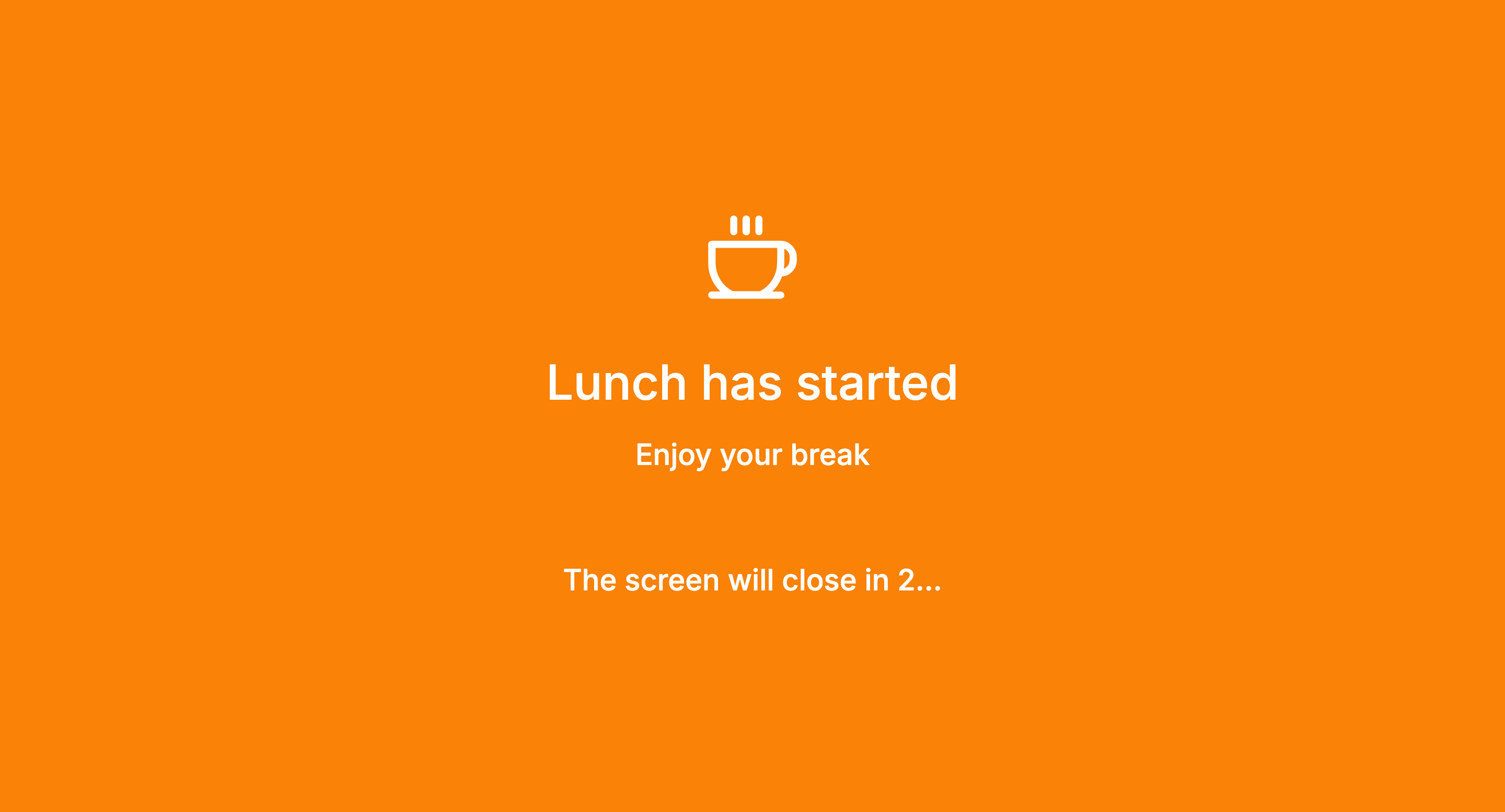
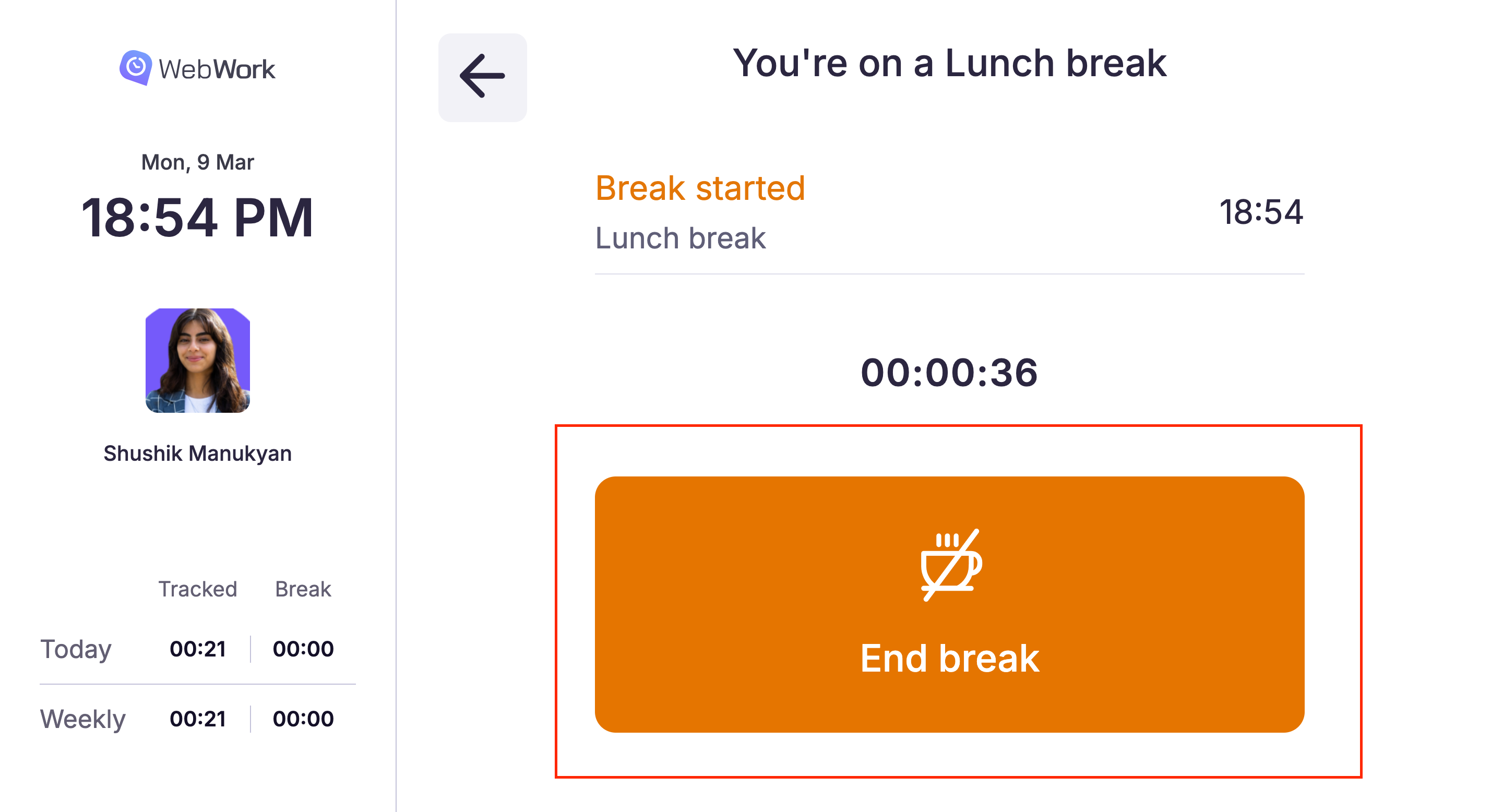
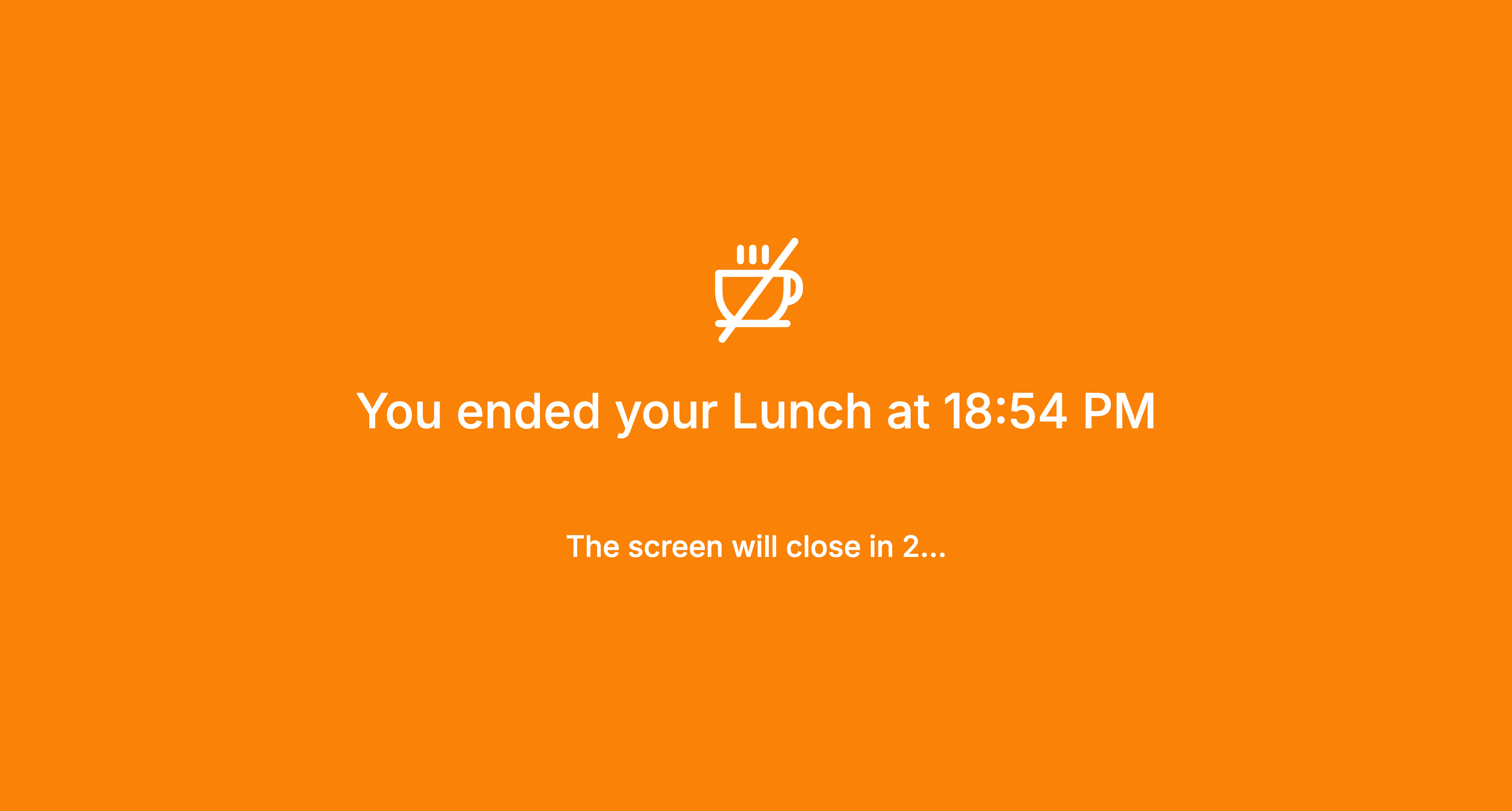
- Start break - This button will be available only if a break is assigned to you. If you want to take a break, you can click on the Start break button, after which you should choose the break policy and start the break. An orange full screen appears with a three-seconds countdown in the bottom of the screen. After the three seconds your break starts. If you are done with the break, click End break, and you will see the regular kiosk screen again. You should manually clock in again in order to start tracking.
Step 1
Step 2
Step 3
Step 4
Step 5
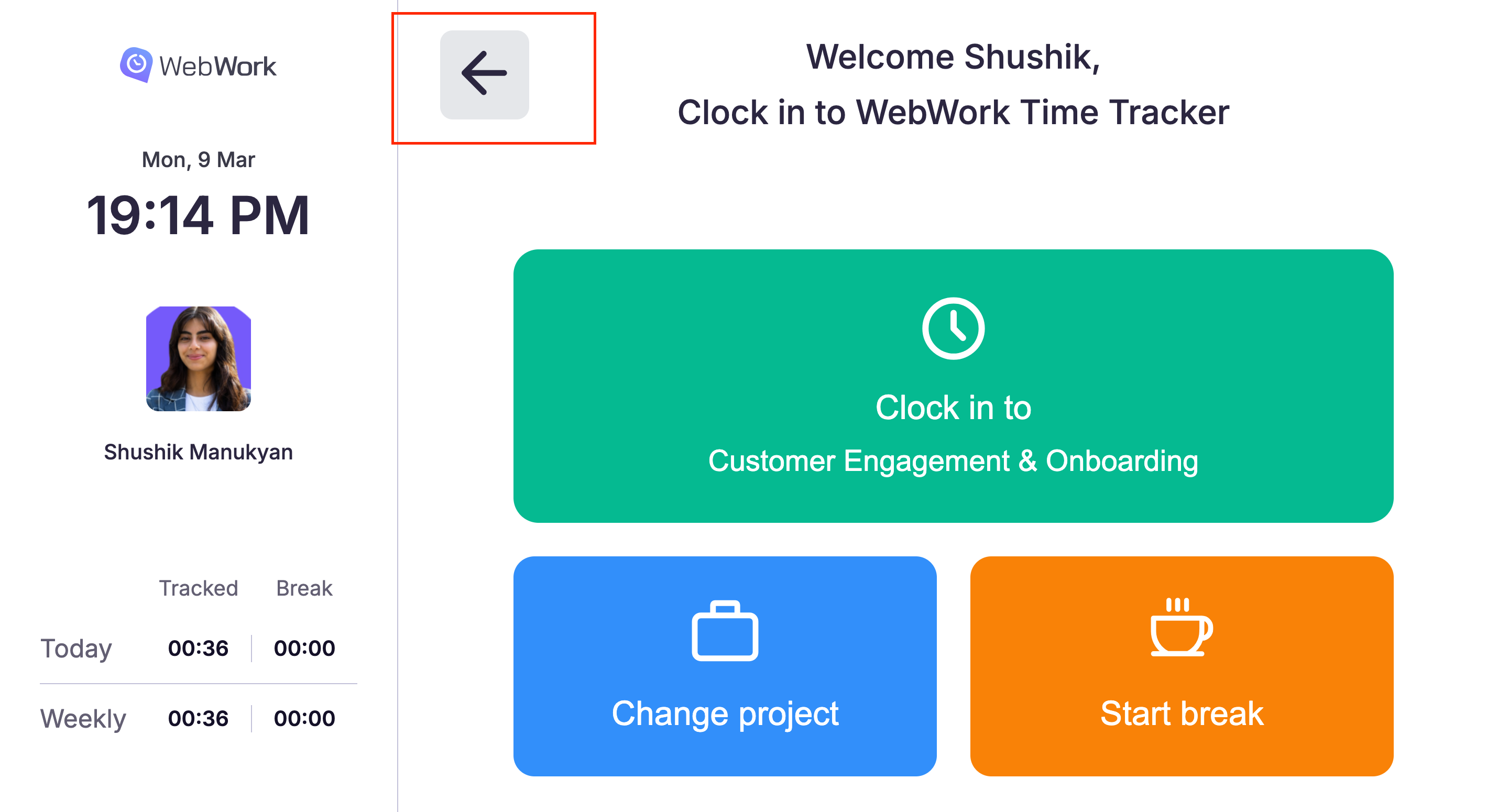
- Back button - You can click on the Back icon at the top of the screen and see the names of the assignees. Thus other people can clock in as well:
Editing a Kiosk
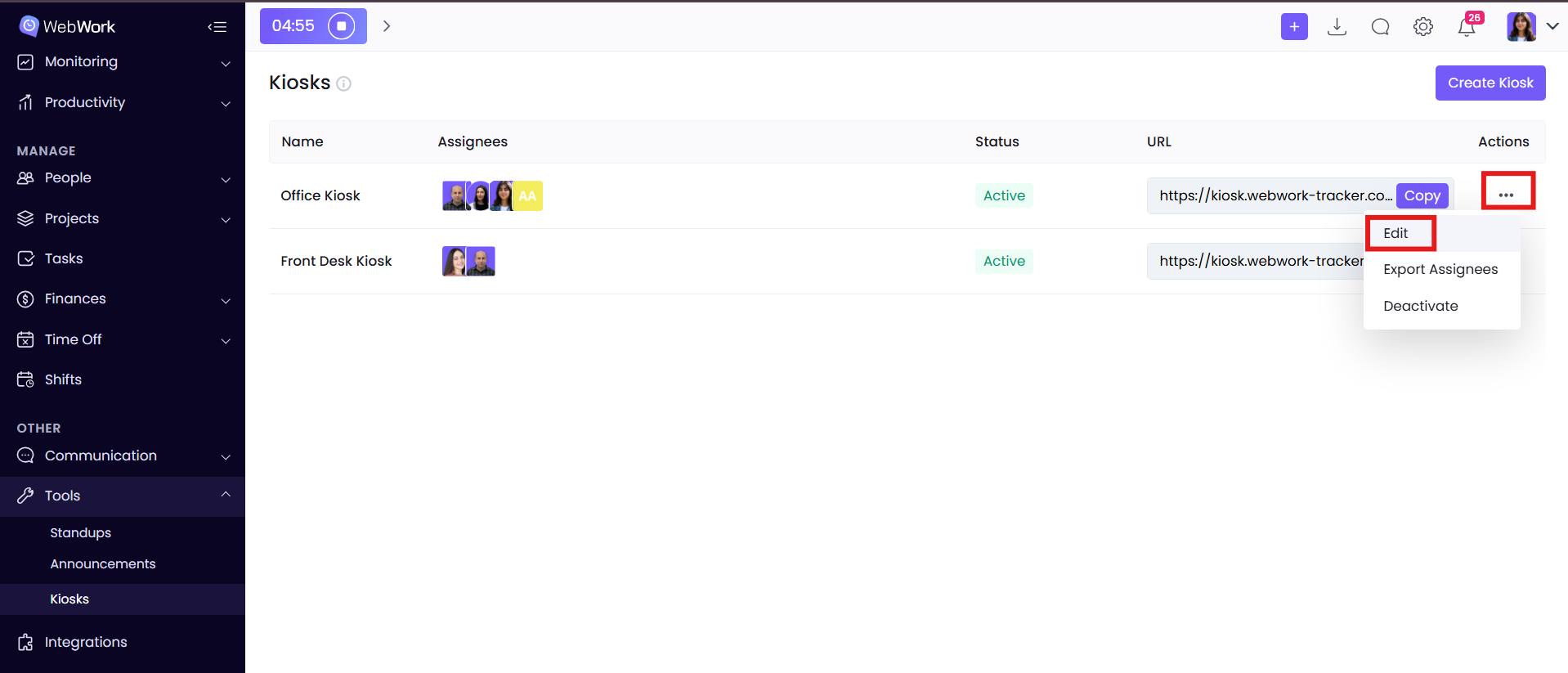
After creating the kiosk you can also edit it, if additional information is necessary to add or already added information should be changed. You should do that by clicking on the three dots next to the created kiosk. After clicking on it, a little pop-up window appears where you can edit the necessary fields:
Deactivating and Deleting a Kiosk
You can also deactivate a kiosk temporarily, if you think it will not be needed for some time. To deactivate the kiosk, click on the three dots next to it:
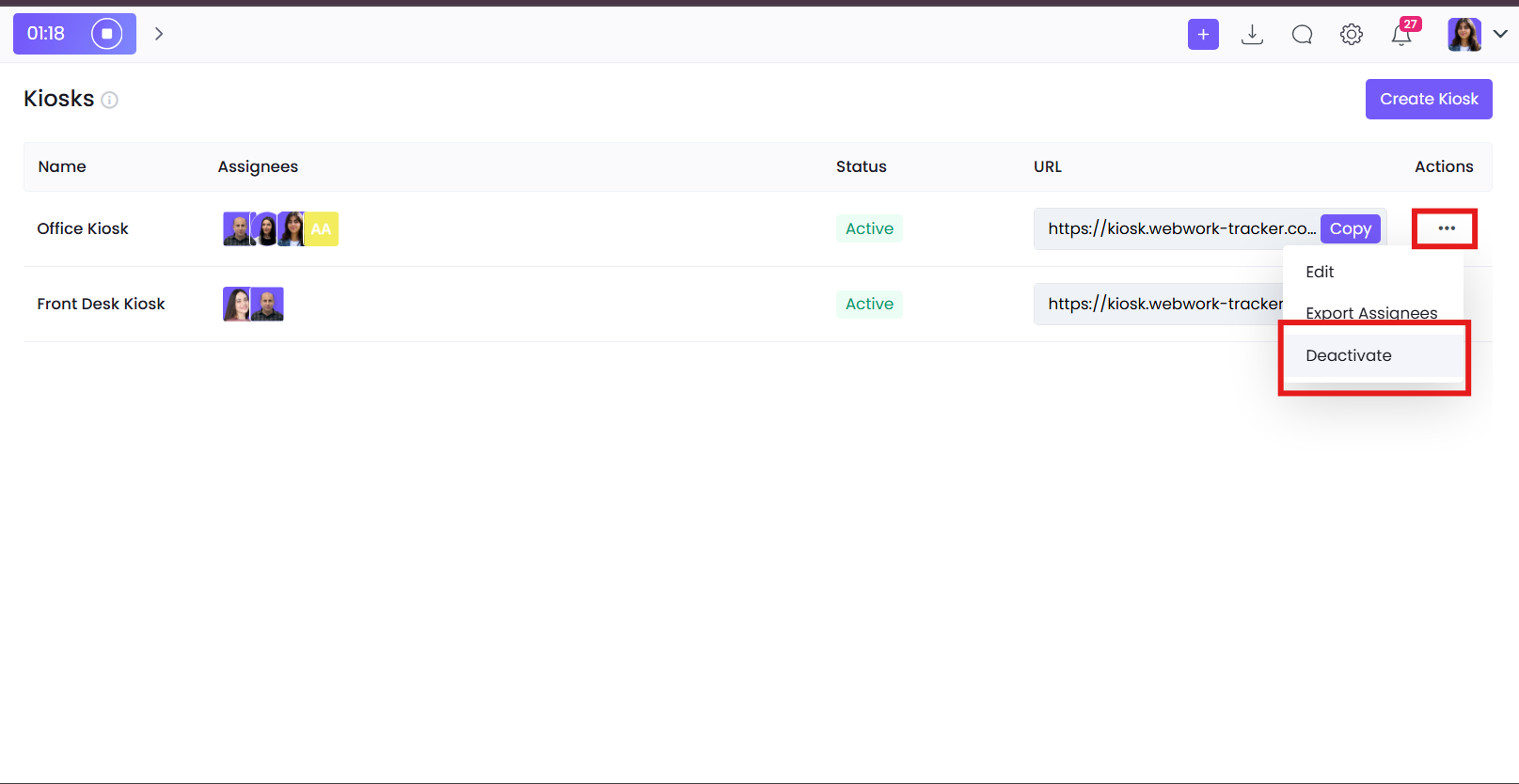
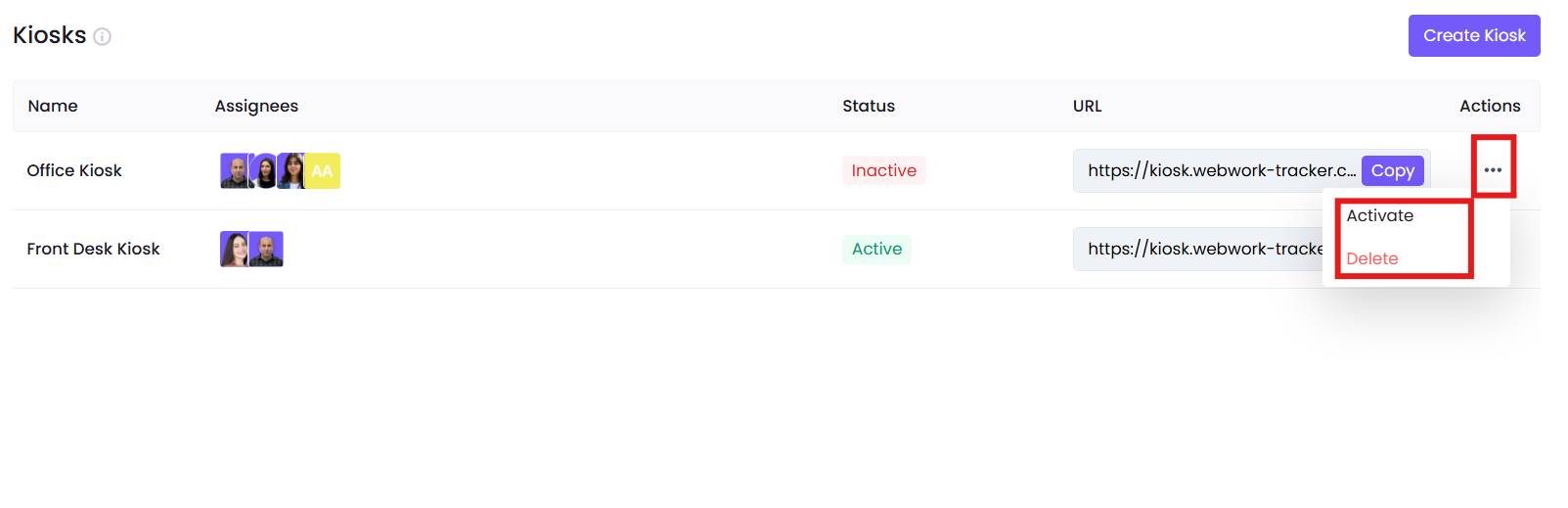
If you have successfully deactivated it, you can see its status as “Inactive”.

If you want to delete a kiosk permanently firstly you should deactivate it as shown above. Then the inactive kiosk only will be possible to delete. Click on the three dots of the inactive kiosk and delete it. From the same place you can also resume it: