
To track the productivity levels of your workspace members, you need to label apps and websites as productive, non-productive, and neutral. WebWork offers an initial list with the most popular platforms, but as your workspace members start visiting other platforms, these will be added to the list as well.
Note that app and website tracking is available only when members track time on the Desktop App.
To label apps and websites, follow these steps:
- Go to Productivity > Apps & Websites in the sidebar
- Select the label for each platform (initially they are all set to Unset)
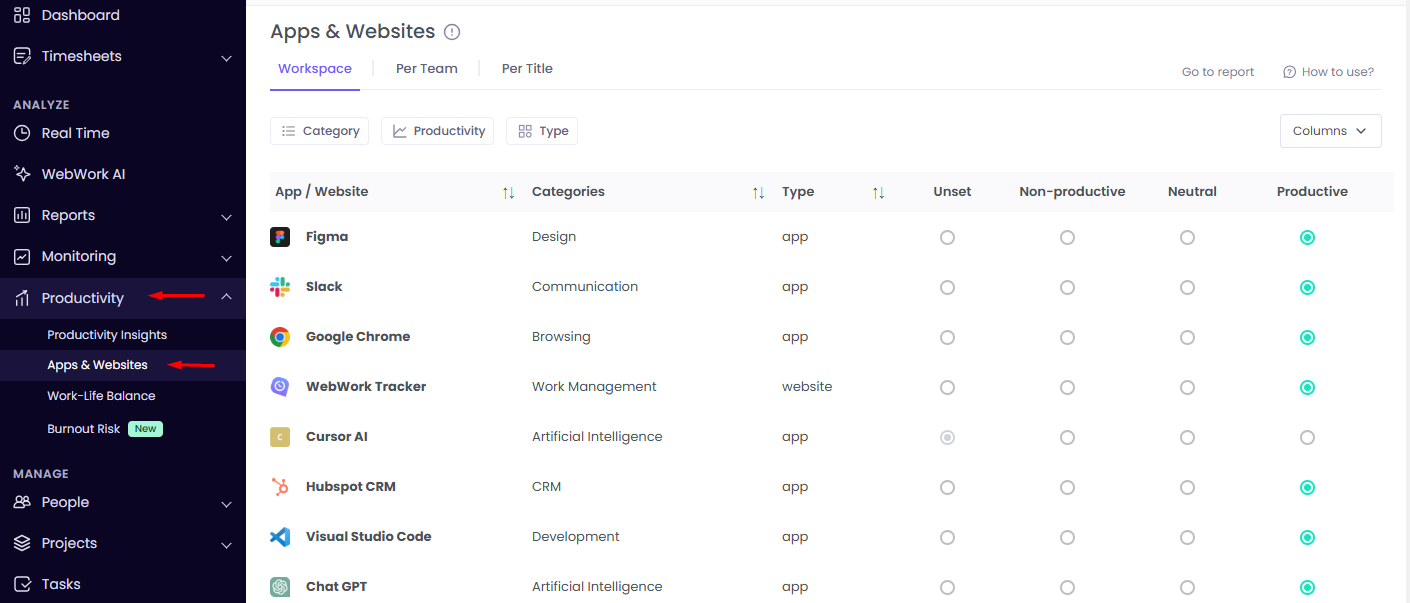
That’s it. Now when members track time on the Desktop App while visiting and opening apps and websites, WebWork will record their productivity levels based on the labels.
You can view the report in Reports > Apps & Websites.
Which apps and websites appear in the list?
An app or website appears in Productivity > Apps & Websites after your workspace has tracked more than 15 minutes on it in total, all members together, in the last 15 days. The default list of popular apps and websites and anything already labeled are always listed. Search works from 2 characters and looks back 3 months. You cannot add an app or website manually.
How do Unset and Neutral count in the productivity percentage?
The productivity percentage is productive minutes divided by all minutes tracked on apps and websites. Unset and Neutral count the same: both stay in the total. Unset is only shown as its own grey segment.
Can I change a category?
Categories are fixed by WebWork. You cannot change a category or fill in one shown as “Unknown”.
Was this article helpful?
Thanks for your feedback.