
GPS tracking works only when your team members are tracking time through the WebWork mobile applications (iOS — iPhone, iPad — or Android).
WebWork offers GPS tracking as part of its time tracking solution, giving you an accurate way to monitor your team’s work locations. This feature is especially valuable for field teams, remote workers, delivery staff, and anyone working outside the office.
With GPS Tracking enabled, WebWork records the exact location of your team members during tracked working hours and displays it on an interactive map inside your dashboard.
This allows you to always know:
-
Where your employees are while on the clock
-
The routes they take during work hours
-
Whether they are at the correct job site or location
To access GPS tracking data:
-
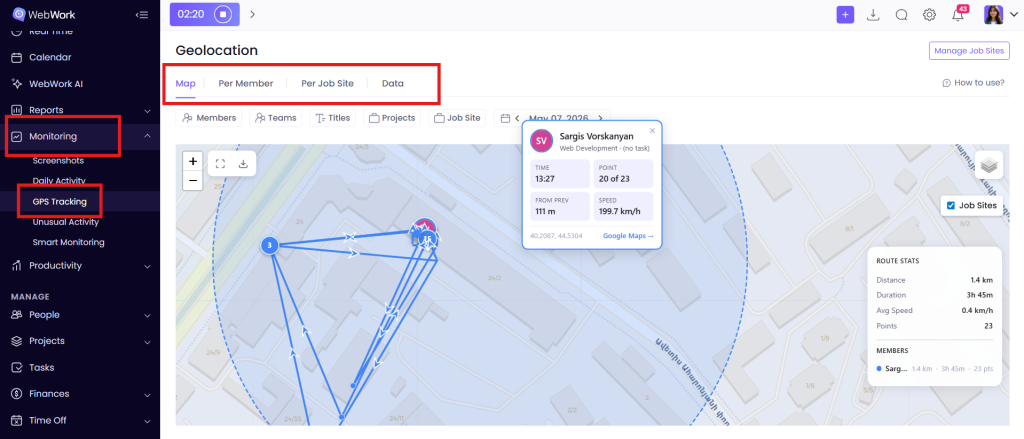
Go to Monitoring > GPS Tracking
Choose one of the three available viewing options:
Per Member – Select a specific member and view detailed data on their location.
Data – See the recorded locations of all your members for a chosen time period.
Map – View your member’s locations on an interactive map
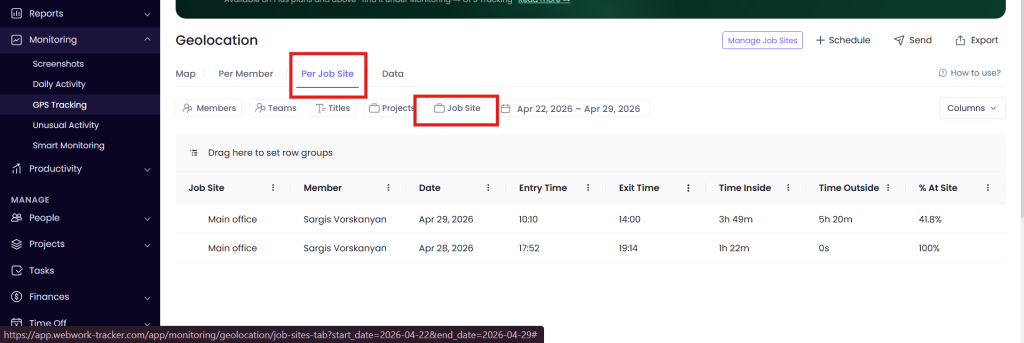
- Job Site – Select a job site and view your member’s data based on it.
For step-by-step instructions on enabling GPS Tracking and setting it up for your team, check out this article.
Geofencing and Job Site Management
Note: To be able to use this feature you should enable Mobile Tracking from the settings, and GPS Tracking on the mobile. Geofencing is available starting from the Plus plan.
A job site is any physical location where your employees work: a construction site, client office, warehouse, or store branch. You give it a name, set its address, and assign the team members who work there. A geofence is an invisible circle drawn around a job site on a map. When an employee’s phone crosses that boundary, WebWork automatically detects it and records the entry or exit.
Geofencing works through the WebWork mobile app on iOS and Android. When employees have the app running with location tracking enabled, WebWork monitors their position in real time, automatically logging when they enter or exit a geofenced job site, along with exact timestamps and time spent on location.
Executive managers or the owner of the workspace can set up a new job site in a few steps. Each site stores its assigned members, location boundaries, and full visit history in one place.
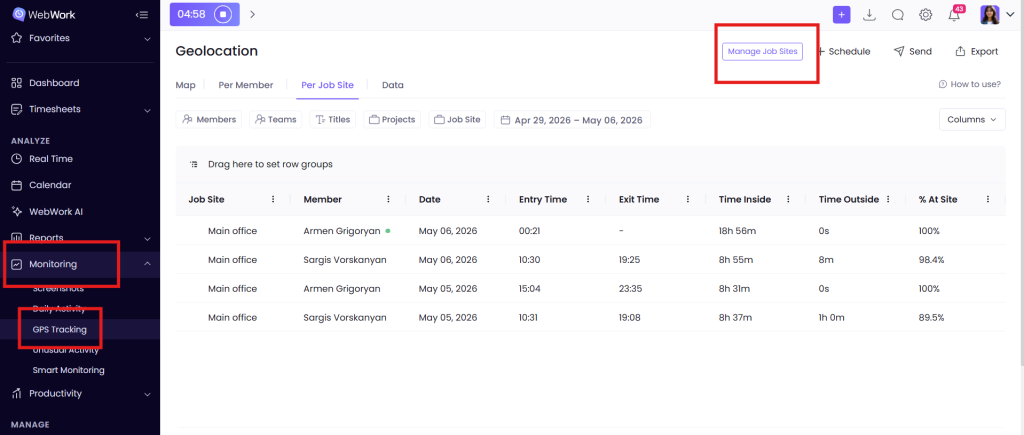
- Go to Monitoring —> GPS Tracking.
- Click on Manage Job Sites
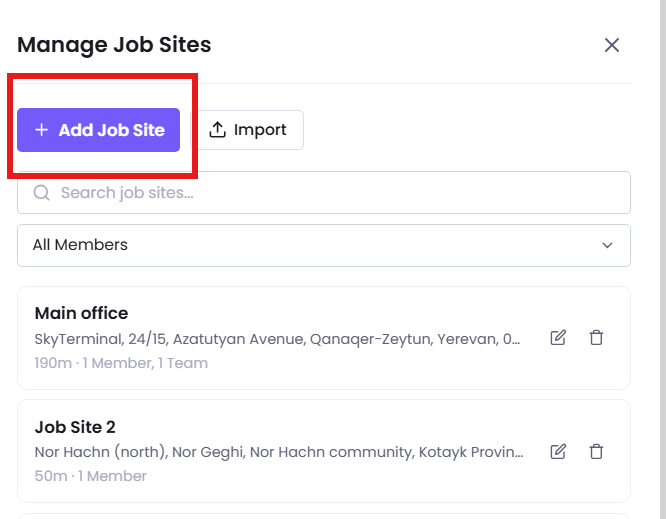
- You can Add job site or Import if you have a CSV or Excel file with your job sites corresponding to our template.
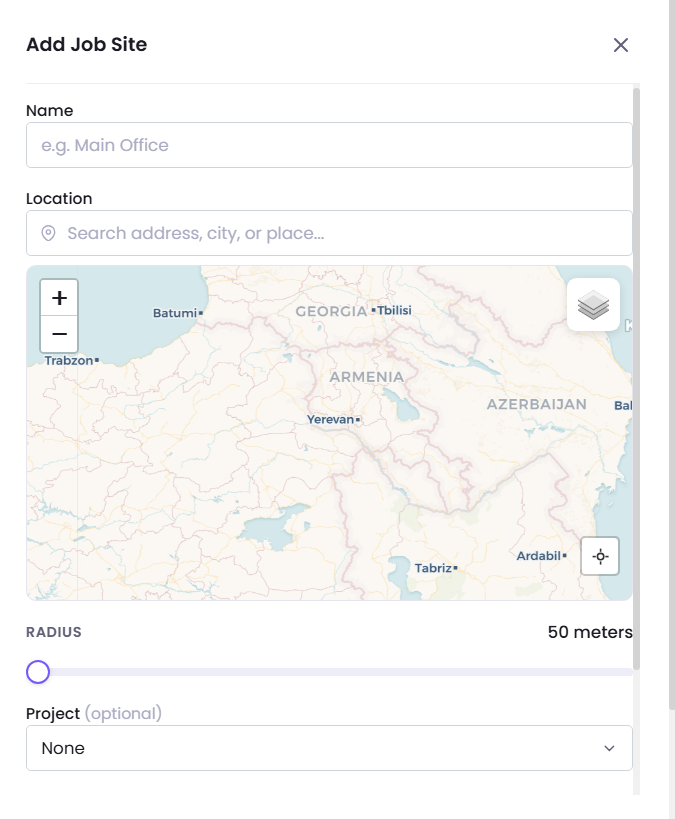
- Enter the address — Type the job site address into the location field. The map updates automatically.
- Adjust the geofence radius — Drag the radius on the interactive map to define how large the boundary should be around the site.
- Assign team members — Select the employees who work at this location. Only assigned members are tracked for this site.
- Save the site — The job site is now active and will begin logging visits immediately.
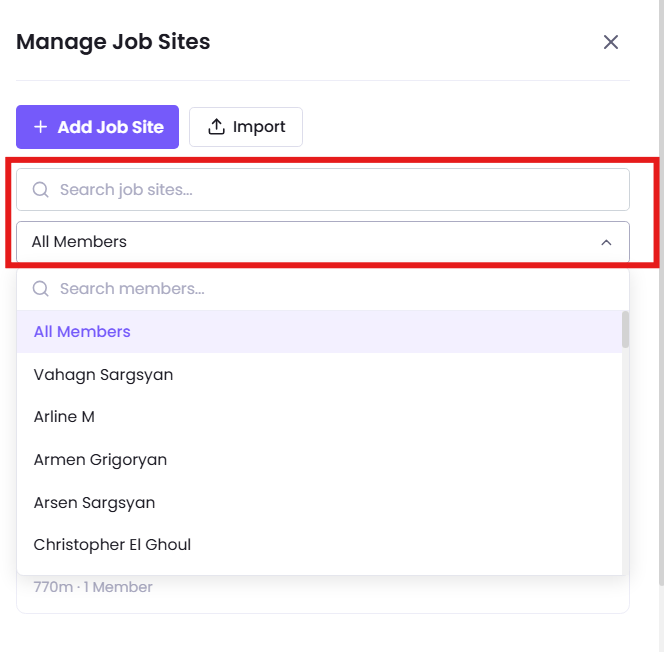
Note, that you can also filter by member or search job sites, if you have already created some:
Every visit is captured in a structured report. Managers can filter by date range, employee, or job site to quickly spot attendance patterns or missed visits. All activity is also displayed on an interactive map for a geographic overview across all sites.
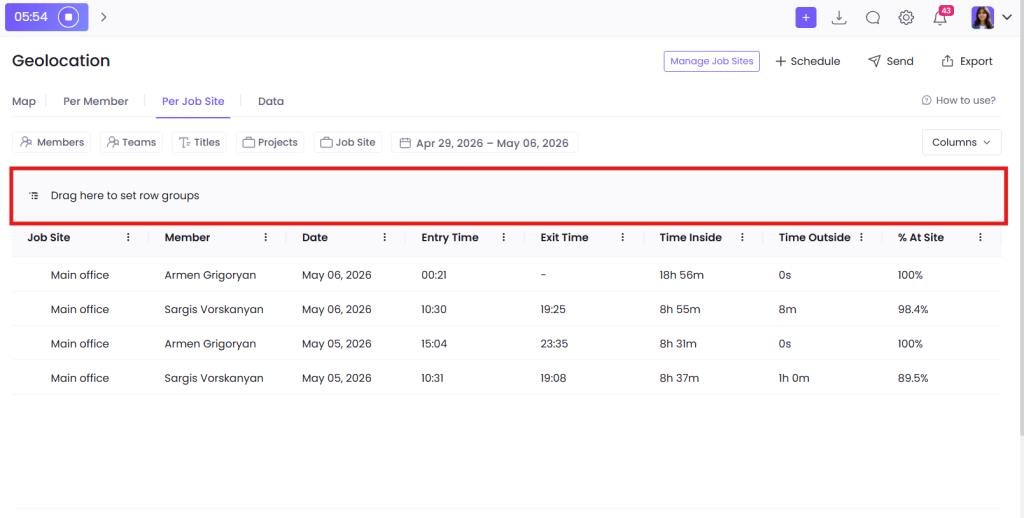
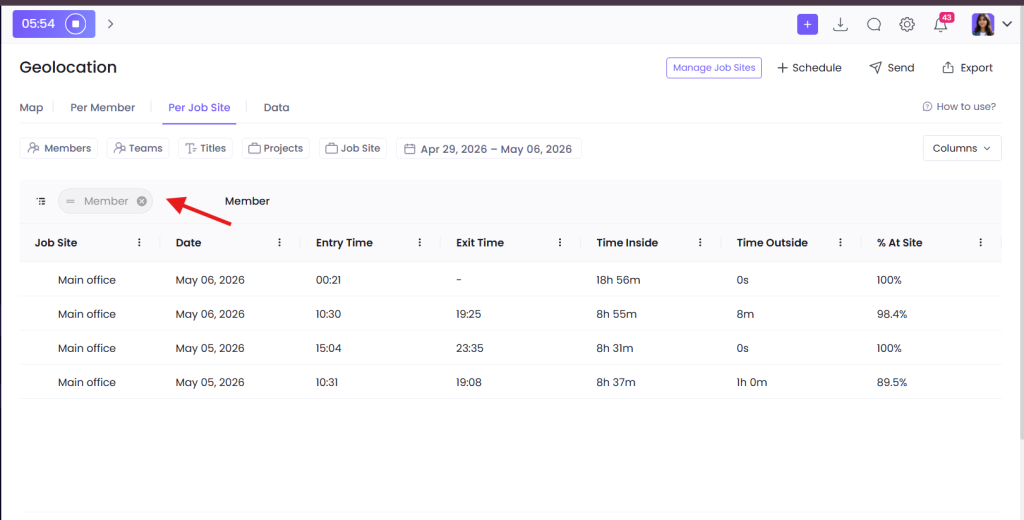
You can also group based on the criteria that you want by dragging and dropping it to the space above:
Was this article helpful?
Thanks for your feedback.