
With the Chrome Extension time tracker, you can track time on projects and tasks on the web.
The Chrome Extension Time Tracker allows you to do the following:
- Select task and project
- Create tasks
- Add time manually
- Start and end break
- View tracked hours
Get WebWork Chrome Extension Time Tracker on the Chrome Store.
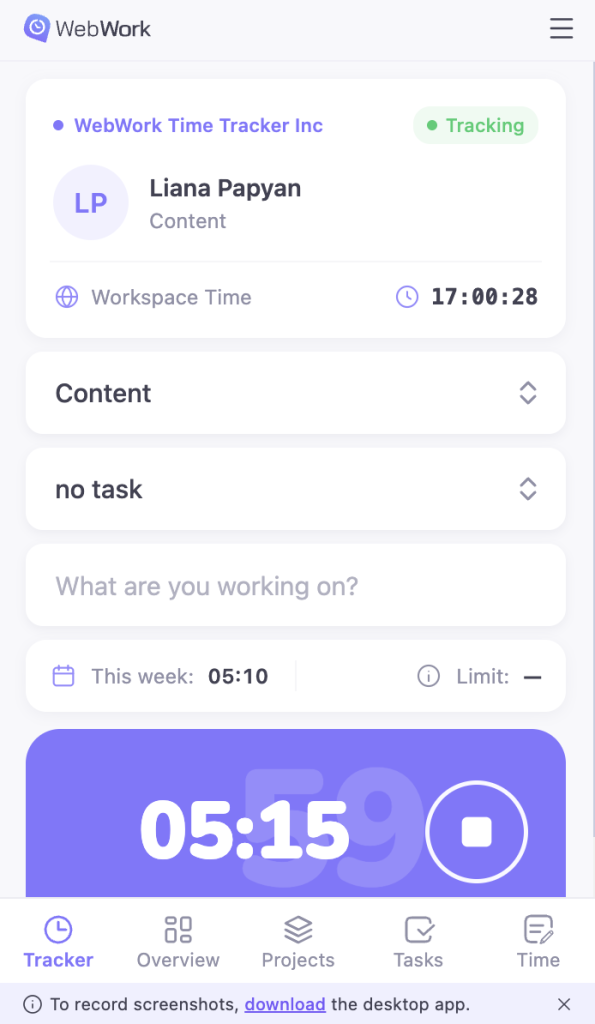
Tracking – In the first section you can enable or disable the tracker, track on different projects or tasks, write activity description as well as see other information such as your tracking location (office or remote), workspace time and how many hours you have tracked on the current week.
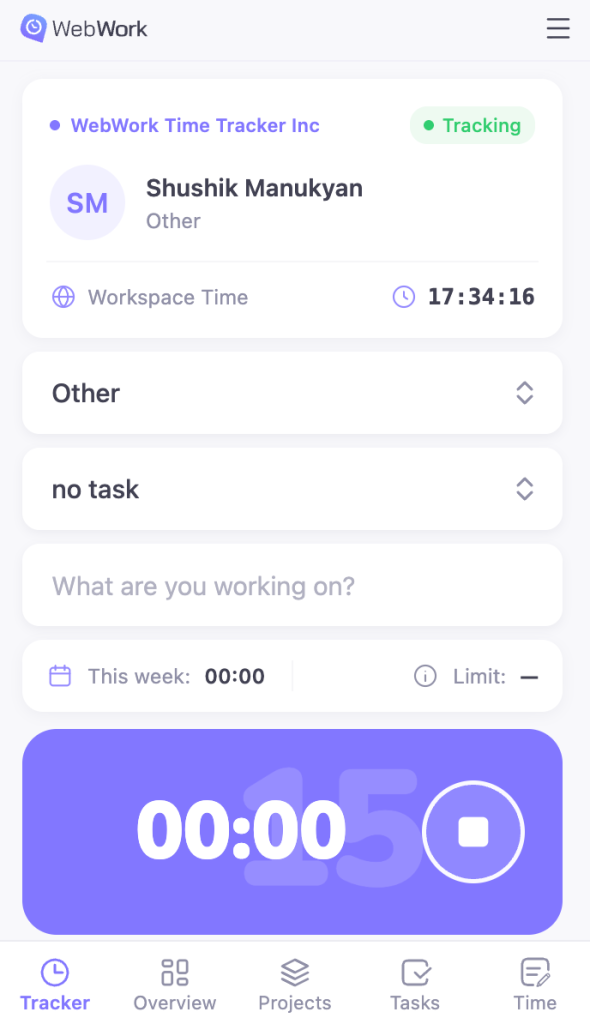
Overview – This section gives you a more detailed breakdown of your time, such as how much time you have spent on breaks and work or your status of lateness. In the bottom part of the extension you see the tracked hours for each day of the week in a graph.
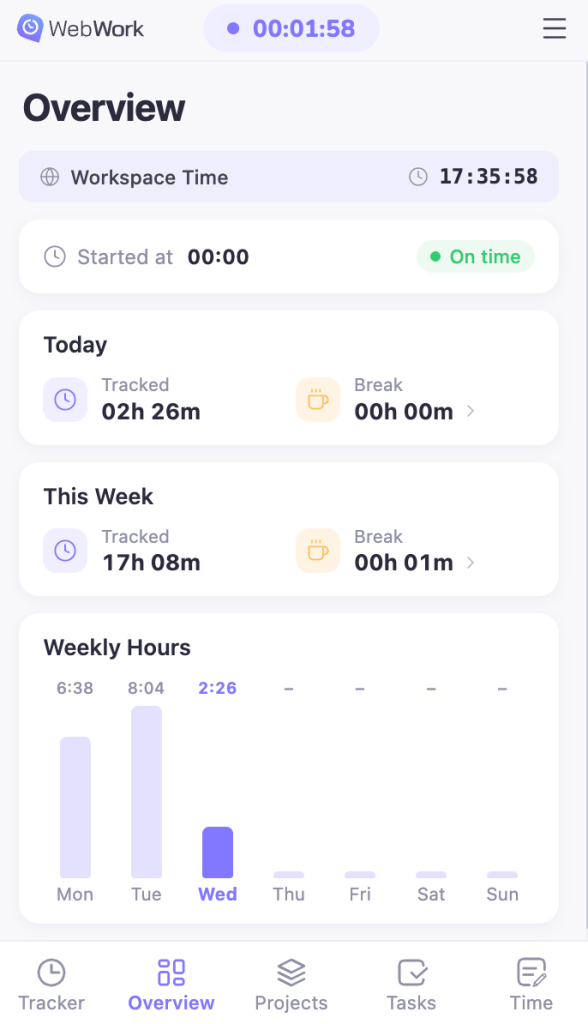
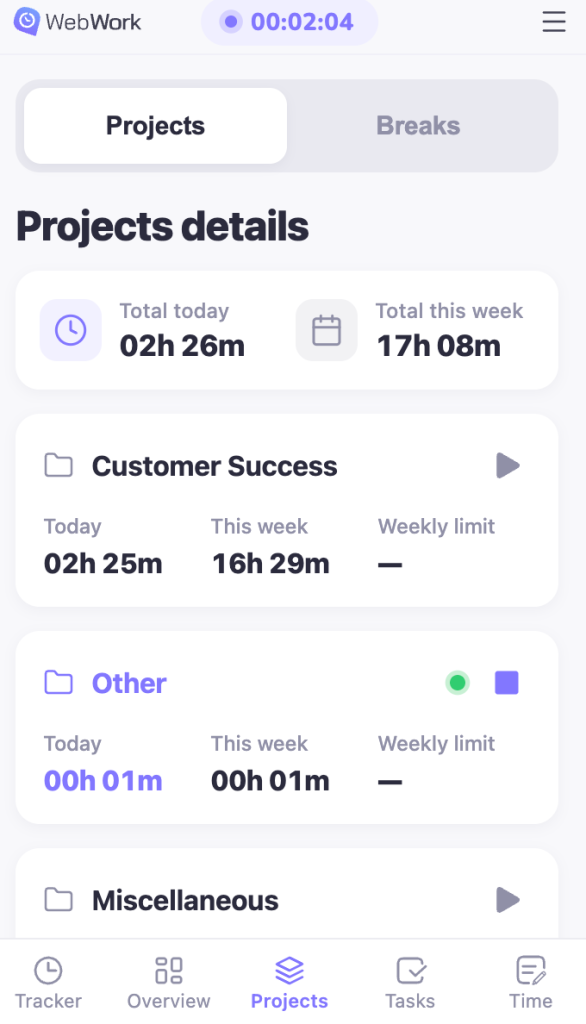
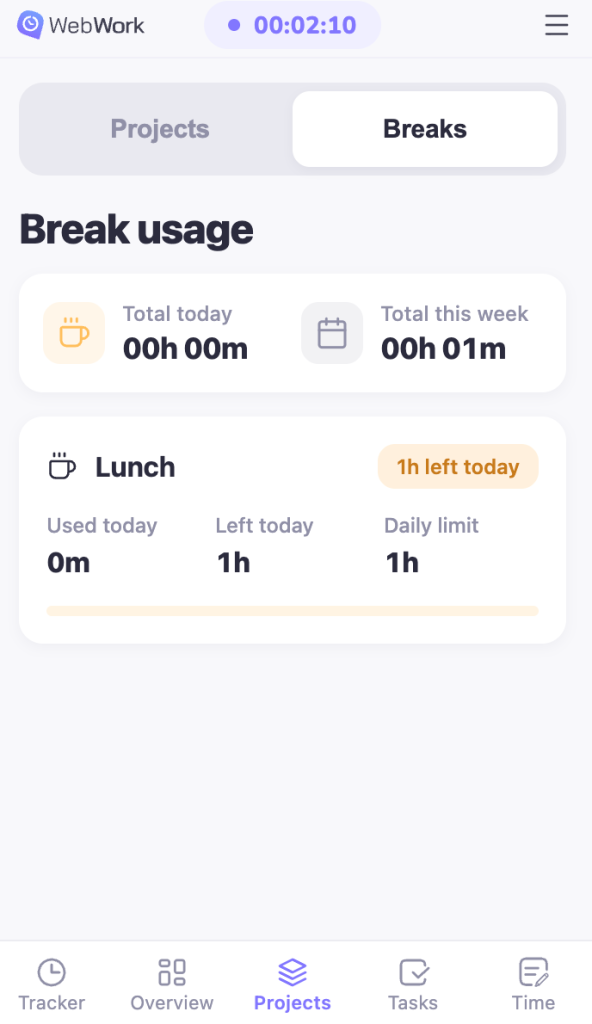
Project – Project and task management is available in the Chrome extension too. All you have to do is go to the third section of the extension and select the specific project that you want to track on. Additionally if you have selected any project, in the top part you will also see the total hours for the current day and current week you have tacked on the selected project. You can also track your break usage in this section.
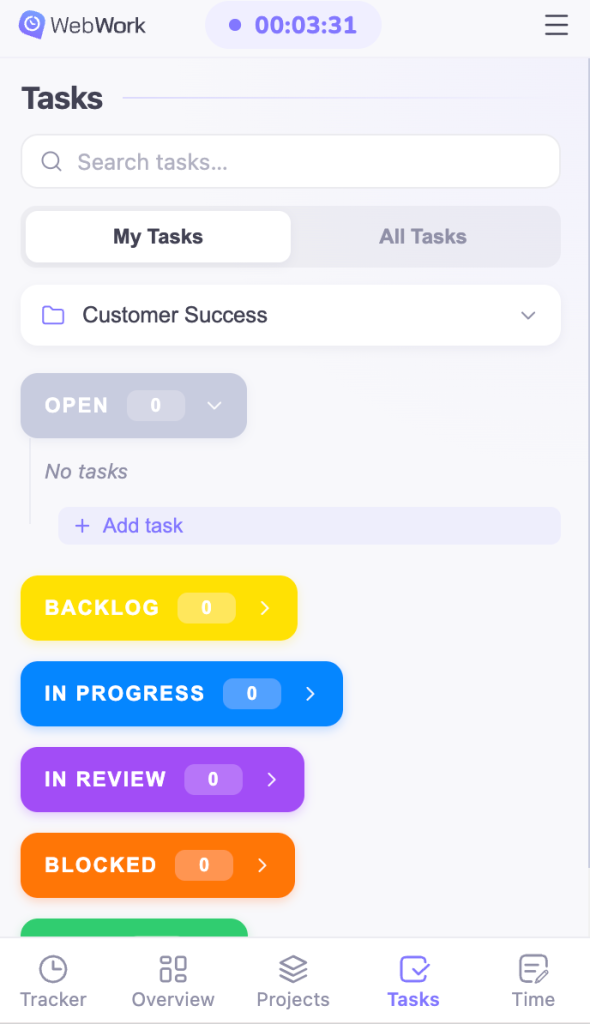
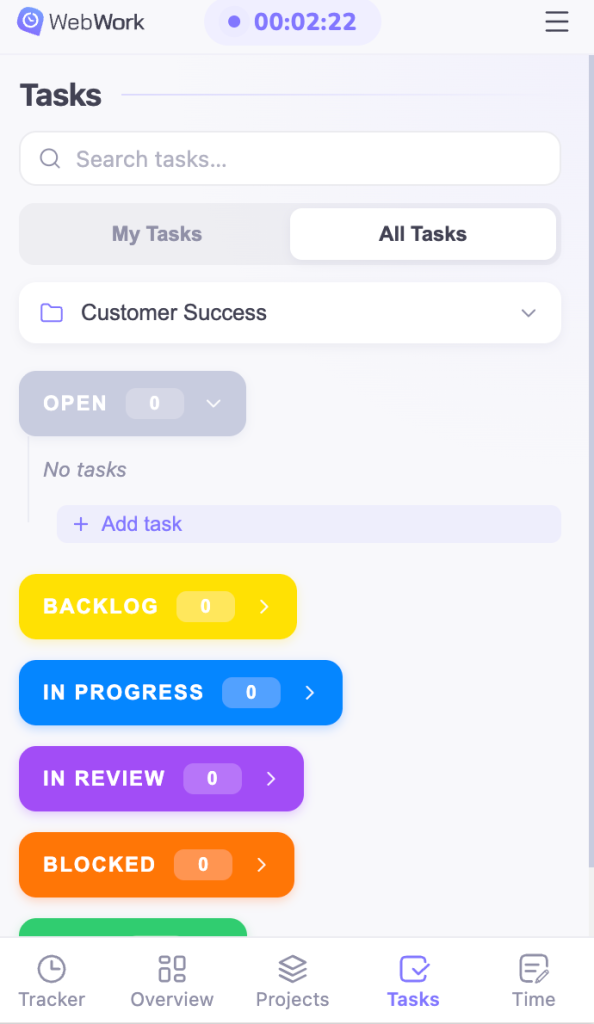
Tasks – Based on the project that you have selected in the project’s section you can also see the tasks created under that projects in the “Tasks” section. You will have two views: “My Tasks” where the tasks created by you or assigned to you are available, and “All Tasks” where all the tasks are visible under the selected project regardless of whether those are assigned to you or no.
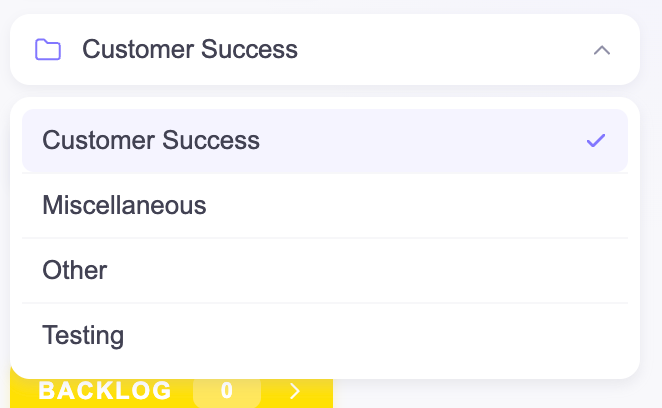
You can also select another project from the relevant bar.
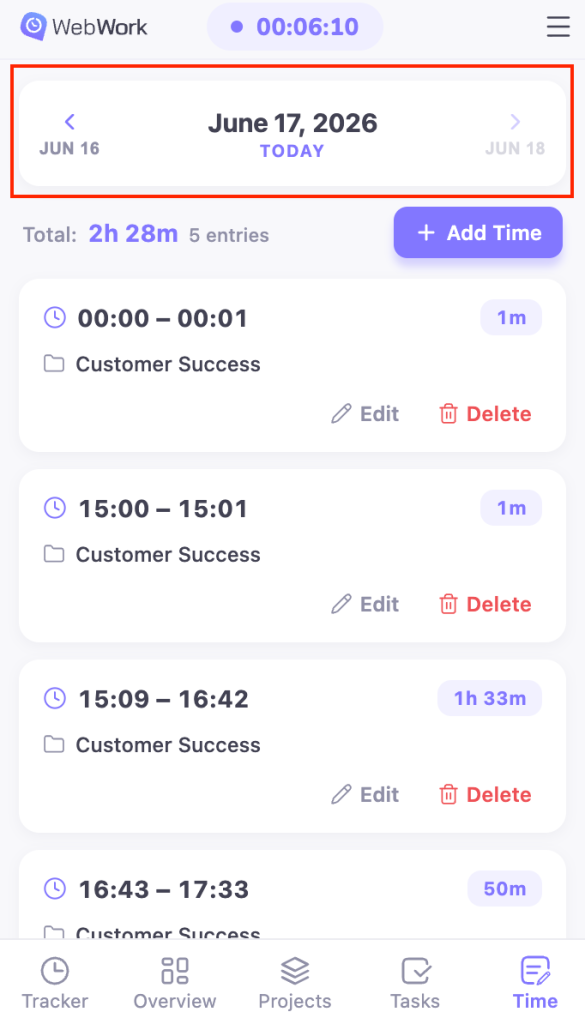
Time – You can see your timecard with all the information regarding the time you have tracked, with all the entries and gaps, which you can edit or delete, as well as you can add manual time. In order to see the information for other dates you should change the date from the top part of the extension.
Floating timer
The Chrome Extension also includes a floating widget that displays your current tracked time directly on the page without opening the extension popup. To access it click on the extension and then go to the three lines in the upper part of the tracker:
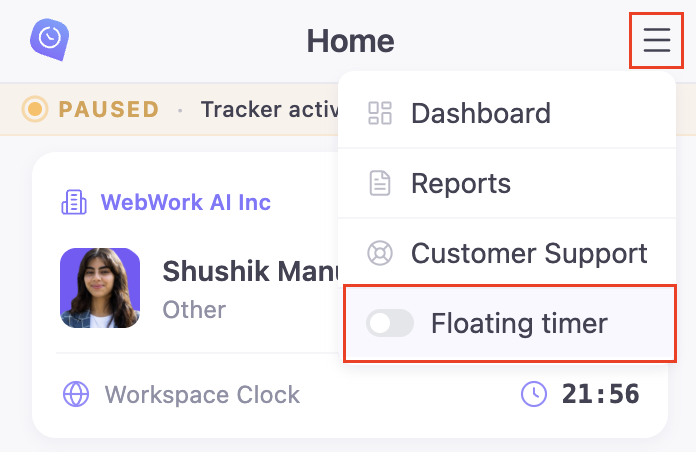
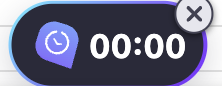
Once enabled, a tracked-time indicator will appear at the bottom of your screen. You can drag and move it to any position that is convenient for you.
You can also close it by hovering the floating widget and clicking on the X button:
Was this article helpful?
Thanks for your feedback.